
Knowing how to extend Bluetooth headphone range at home saves a lot of frustration when music starts cutting out the moment a wall sits between a phone and a pair of headphones. The good news is that most range problems come from placement and interference, not from broken gear. A few small changes are usually enough to cover the whole house.
Here is a quick look at what makes the biggest difference.
- Most Bluetooth headphones are rated for about 10 meters (33 feet) in open space, and walls shorten that distance quickly.
- Keeping the phone or computer in a central, raised spot gives the signal a shorter and clearer path.
- Wi-Fi routers, microwaves, and USB 3.0 devices can crowd the same 2.4 GHz band that Bluetooth uses.
- Updating headphone firmware and choosing a connection-priority mode, when available, improves stability.
- A better Bluetooth adapter on a USB extension cable can help a desktop PC reach more rooms.
Method 1: Place the Source Device in a Central, Open Spot
Think of Bluetooth like a lamp in a house. A lamp in the middle of the living room lights up more rooms than the same lamp pushed into a far corner. The phone, tablet, or computer works the same way.
- Step 1: Walk around with the headphones on and note the spot where the audio first starts to stutter.
- Step 2: Place the source device in the middle of the area where most listening happens, not at the far end of the house.
- Step 3: Raise the device onto a shelf or table instead of leaving it on the floor or inside a drawer.
- Step 4: Walk the same route again and check whether the dropout spot has moved farther away.
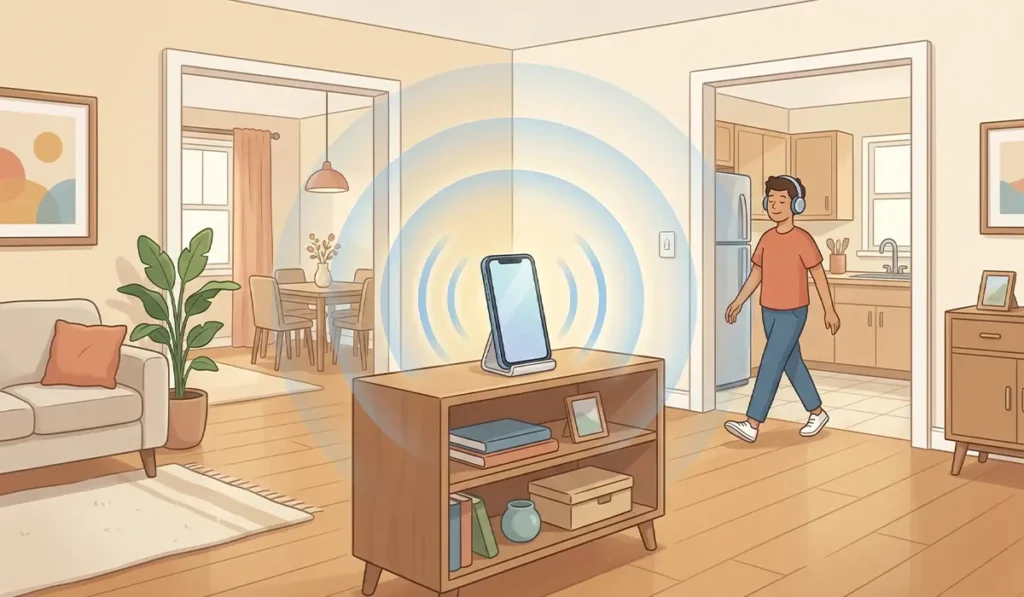
Pro-Tip: A phone in a pocket or bag weakens the signal because the human body absorbs 2.4 GHz radio waves. Holding the phone in hand or setting it on a shelf at chest height often adds noticeable distance.
Method 2: Clear Walls and Obstacles From the Signal Path
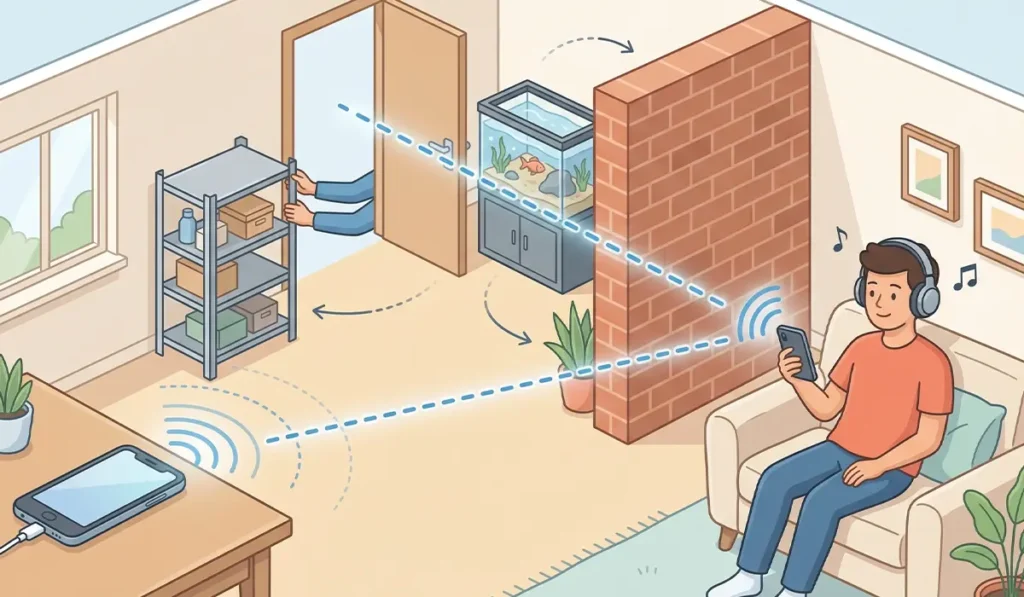
Bluetooth works best with a clear line of sight. Drywall barely slows it down, but concrete, brick, and metal block much more of the signal. Large mirrors and fish tanks can also get in the way.
- Step 1: Picture a straight line between the source device and the headphones and note what sits along it.
- Step 2: Move metal shelves, filing cabinets, and other large metal items away from that line when possible.
- Step 3: Open doors between rooms that normally stay closed.
- Step 4: Position the device so the signal crosses as few walls as possible. One thin wall is far better than two thick ones.
Method 3: Reduce Wireless Interference
Bluetooth shares the 2.4 GHz band with many other household devices. Bluetooth is designed to hop between frequencies to avoid trouble, but a crowded band can still cause choppy sound.
- Step 1: Keep the source device a few feet away from the Wi-Fi router.
- Step 2: Connect the phone and laptop to the 5 GHz Wi-Fi network if the router offers one. This frees up space in the 2.4 GHz band.
- Step 3: Avoid listening near a microwave oven while it is running, since microwaves operate in the same band.
- Step 4: Keep USB 3.0 drives and hubs away from any USB Bluetooth adapter, because they can add radio noise nearby.
- Step 5: Switch off Bluetooth devices that are not in use, such as an extra speaker or an old pair of earbuds.
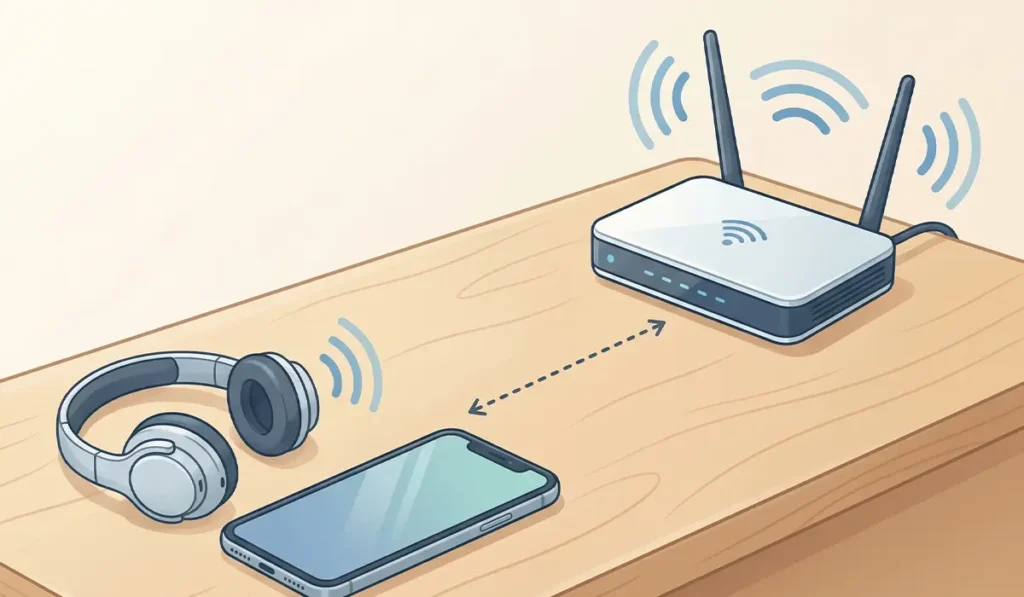
Pro-Tip: Moving Wi-Fi devices to the 5 GHz network is often the quickest interference fix, and it takes less than a minute on most phones and laptops.
Method 4: Update Headphone Firmware and Device Software
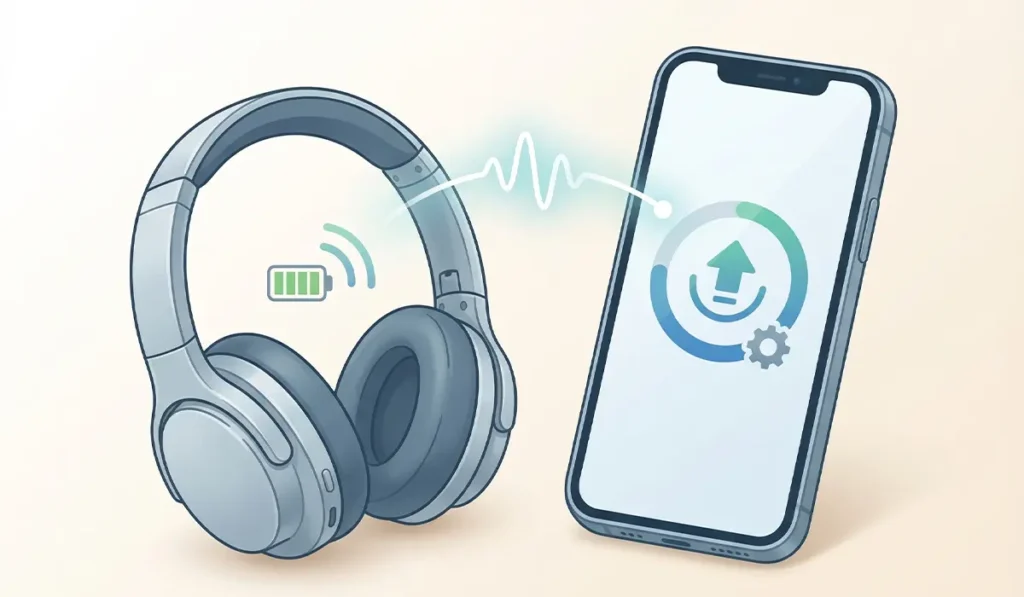
Manufacturers regularly release updates that improve connection stability. Outdated software on either side of the connection can make dropouts more likely.
- Step 1: Open the headphone maker’s companion app on the phone.
- Step 2: Check for a firmware update and install it while the headphones are charged and close to the phone.
- Step 3: Update the operating system on the phone, tablet, or computer. On a Windows PC, also install any available Bluetooth driver update.
- Step 4: Restart both the headphones and the source device after the updates finish.
Method 5: Choose Connection Stability Over Sound Quality
Some headphones let the companion app favor a steadier link over the highest audio quality. Sony’s Headphones Connect app, for example, offers a connection-priority option for headphones that support LDAC. The name and location of this setting vary by brand, and not every model has it.
- Step 1: Open the companion app for the headphones.
- Step 2: Look in the sound or connection settings for an option about connection quality, stable connection, or audio priority.
- Step 3: Select the option that favors connection stability.
- Step 4: Walk to the room where the audio used to drop and test again.
Method 6: Add a Better Bluetooth Adapter on a Desktop PC
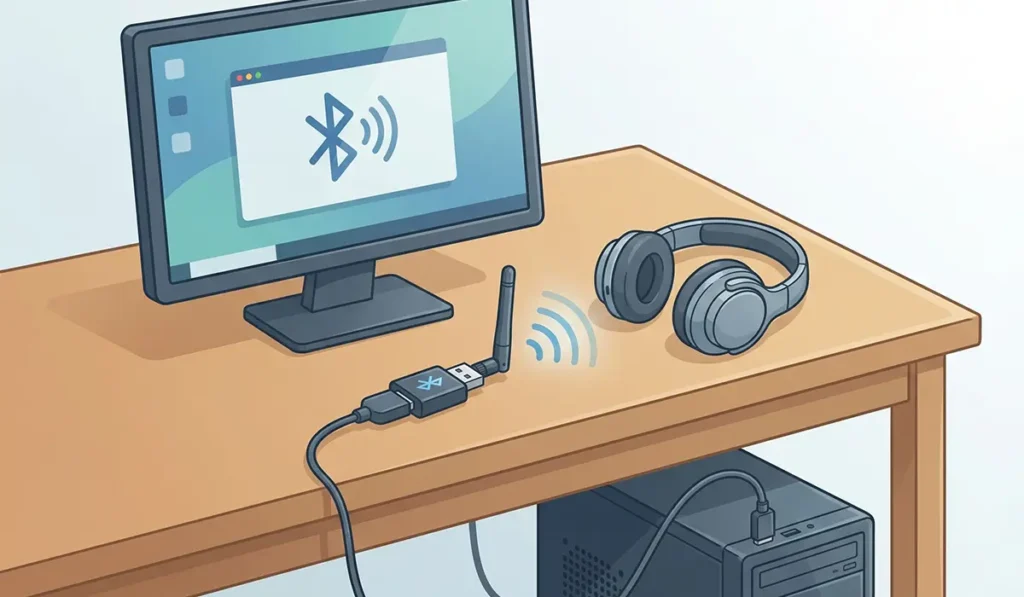
Desktop PCs often have a Bluetooth radio tucked behind the case, which is a poor spot for range. A USB Bluetooth adapter placed in the open can make a real difference, though the headphones’ own transmitter still sets the upper limit, so results vary.
- Step 1: Choose a USB Bluetooth 5.0 or newer adapter, ideally one with an external antenna, and confirm it supports Windows 11 or the Windows version in use.
- Step 2: Plug it into a USB extension cable and place the adapter on top of the desk, away from the PC case and any USB 3.0 drives.
- Step 3: If the built-in Bluetooth radio also shows up in Device Manager, disable it so Windows uses only the new adapter.
- Step 4: Pairing is tied to the adapter, so re-pair the headphones with the new adapter.
- Step 5: On Windows 11, open the audio output settings and confirm the headphones are selected as the output device.
Extra Tips for a Stronger Bluetooth Signal
- Keep the source device and the headphones on the same floor whenever possible, since floors and ceilings block signal too.
- Carry the phone along when moving between rooms instead of leaving it behind in another part of the house.
- Remove thick cases or metal mounts that sit directly over the phone’s antenna area.
- Restart Bluetooth on the source device if the signal feels weaker than usual.
- Repeat the walk test after each change so it is clear which adjustment actually helped.
Common Problems When Extending Bluetooth Range
Fix 1: Audio Still Drops in the Same Corner of a Room
This usually means a wall or large metal object sits in the path. Move the source device higher or closer to the center of the home, then test again.
Fix 2: Headphones Are Not Found After Adding an Adapter
Old pairing records belong to the previous Bluetooth radio. Remove the headphones from the Bluetooth list and pair them again. The guide on headphone detection in Windows covers the steps in detail.
Fix 3: Sound Is Choppy Only When Carrying the Phone in a Pocket
The body can weaken the signal. Hold the phone in hand or place it on a nearby surface instead of keeping it in a pocket or bag.
Frequently Asked Questions
How far can Bluetooth headphones work at home?
Most Bluetooth headphones are rated for about 10 meters (33 feet) in open space. Walls, floors, and furniture reduce that distance, so real-world range indoors is usually shorter.
Does Bluetooth 5 give longer range?
Newer Bluetooth versions can improve range and stability, but the headphones and the source device both need to support them. Walls and interference still affect the final result.
Can walls block Bluetooth headphones?
Yes. Concrete, brick, and metal weaken the signal much more than drywall or wood. Fewer walls between the device and the headphones means a steadier connection.
Does Wi-Fi interfere with Bluetooth headphones?
It can. Bluetooth and 2.4 GHz Wi-Fi share the same band, which may cause choppy audio. Moving Wi-Fi devices to the 5 GHz network often helps.
Can a microwave oven cut off Bluetooth headphones?
It can. Microwave ovens operate in the same 2.4 GHz band, so audio may stutter while one is running nearby.
Does keeping the phone in a pocket reduce range?
It can. The human body absorbs 2.4 GHz signals, so holding the phone in hand or placing it on a shelf usually gives a better connection.
Will a USB Bluetooth adapter improve range on a PC?
A good adapter with an external antenna, placed on the desk with a USB extension cable, often helps desktop PCs with a weak built-in radio. Results vary because the headphones also limit the connection.
Will updating headphone firmware extend range?
Updates can improve connection stability, but they do not guarantee a longer range. Installing the latest firmware is still a sensible step.
Can Bluetooth headphones work in every room of a house?
It depends on the layout and building materials. In many homes, carrying the phone along or placing it centrally is needed to cover every room.