
Learning how to give one device priority when using multipoint headphones takes the guesswork out of switching between a phone and a laptop. Multipoint works a bit like a receptionist with two phone lines. Both lines stay open, but only one caller gets through at a time, and a few simple steps decide who that is.
Key Takeaways
- Multipoint headphones keep two devices connected, but audio plays from one device at a time.
- Most headphones have no universal ‘priority’ switch, so priority is set by controlling which device is playing.
- Pausing the secondary device, switching in the headphone app, or disconnecting the secondary device are the three reliable ways to do it.
- Phone calls normally override music and video on the other device.
Step-by-Step Guide to Give One Device Priority on Multipoint Headphones
Multipoint is a feature added by headphone makers rather than a fixed Bluetooth rule, so the exact behavior depends on the model. In general, the headphones decide which stream to send to the ears, calls come first, and the rest depends on what is playing. The methods below work with most multipoint headphones and earbuds.
Method 1: Pause the Other Device and Play on the Priority One
This is the quickest way to hand control to one device, and it works on nearly every multipoint model. Most people find that it solves the problem in under ten seconds.
- Step 1: Make sure the headphones are connected to both devices. Both should show the headphones as connected in their Bluetooth settings.
- Step 2: Pause or stop any music or video on the secondary device.
- Step 3: Press play on the device that should have priority.
- Step 4: Leave the secondary device paused until the priority device is finished.
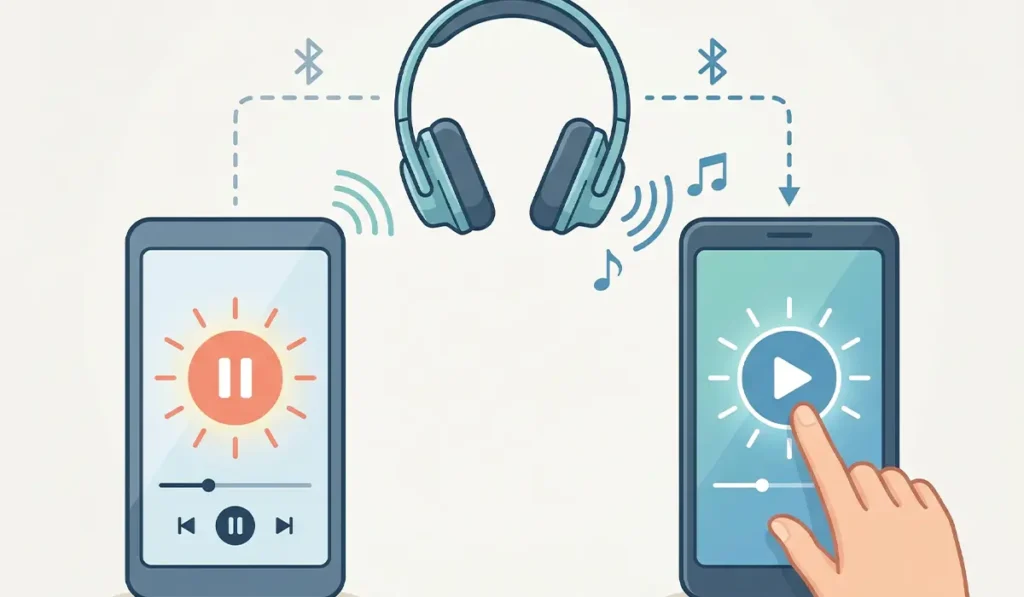
Pro-Tip: Playback on the secondary device has to be paused first on many models. If a video or podcast is quietly running in a browser tab, the headphones may keep treating that device as the active one.
Method 2: Switch the Active Device in the Headphone App
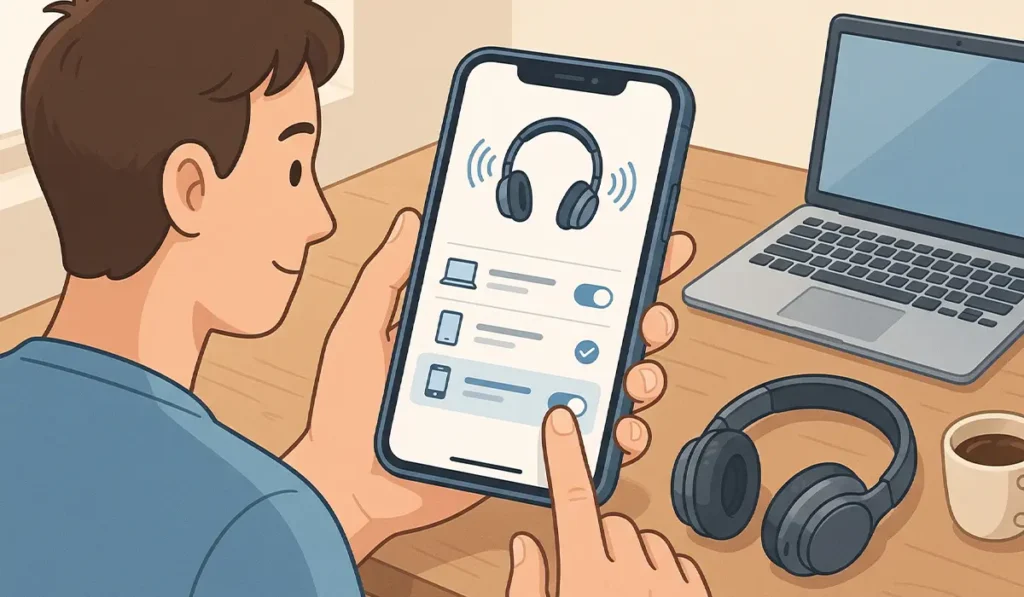
Many brands offer a companion app that lists the connected devices. This is the closest thing to a real priority setting, and it saves reaching for either device.
- Step 1: Install the headphone maker’s app on the priority device, such as the Sony | Headphones Connect app or the Bose Music app.
- Step 2: Open the app and go to the connected devices list.
- Step 3: Select the device that should be active.
- Step 4: Check that the Multipoint or two-device connection option is turned on if the app offers one.
- Step 5: Start playback on the selected device.
Method 3: Disconnect the Secondary Device Without Unpairing
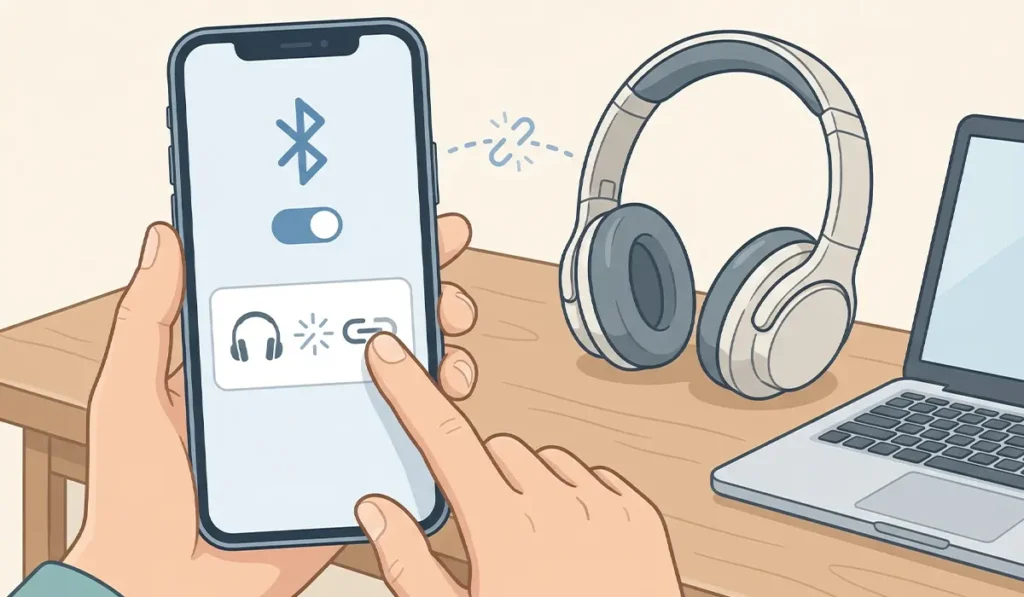
When one device must have the headphones to itself, such as during an important video meeting, disconnecting the other one is the most dependable option. The pairing stays saved, so reconnecting later takes one tap.
- Step 1: Open the Bluetooth settings on the secondary device.
- Step 2: Tap or click the name of the headphones.
- Step 3: Choose Disconnect. Avoid Forget or Remove Device, since that deletes the pairing.
- Step 4: On a Windows 11 laptop that is the priority device, confirm the headphones are still the chosen speaker by following the steps in this guide to adjusting audio output settings.
Method 4: Let Calls Take Priority Automatically
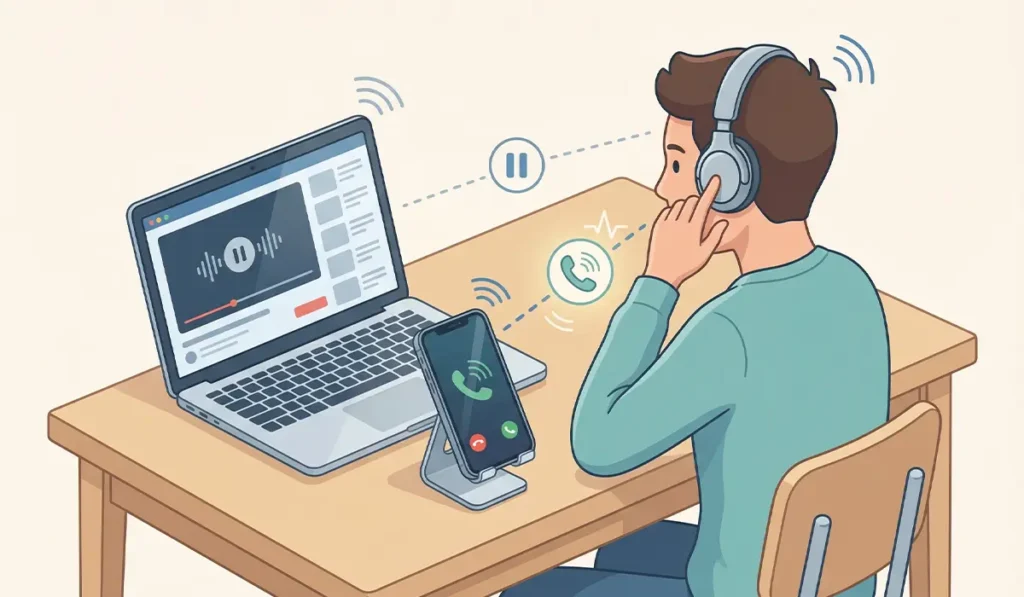
Some priorities are built in. Headphones generally rank phone calls above notifications, and notifications above music or video. Setting up the phone as the call device means calls cut in, while the laptop handles everything else.
- Step 1: Keep the phone connected to the headphones along with the laptop.
- Step 2: Start music or video on the laptop as usual.
- Step 3: When a call arrives on the phone, answer it. The call audio takes over from the laptop audio.
- Step 4: After the call ends, press play on the laptop again if the audio does not return on its own.
- Step 5: For calls and meetings on a Windows 11 laptop, make sure the headphone microphone is selected using this guide on managing audio input devices.
Tips for Smoother Multipoint Priority
- Stick to two devices. On most headphones, adding a third device makes the least recently used one drop off.
- Decide which device is the main one for the day, usually the phone for calls or the laptop for work, and pause the other before starting.
- Close idle videos, music apps, and browser tabs on the secondary device so they do not grab the headphones.
- Turn off auto-play in video and music apps on the secondary device.
- Keep the headphone firmware updated through the maker’s app, since multipoint behavior can change between versions.
- Some models turn multipoint off when a special audio mode is active. On Pixel Buds, for example, turning on Premium Audio disables Multipoint.
Common Problems and Fixes
Fix 1: Audio Does Not Return After a Call
After a call ends, the other device may stay silent for a while. Pause the media on that device and press play again to bring the sound back.
Fix 2: Headphones Keep Switching to the Wrong Device
This usually means the secondary device is still playing something in the background. Pause it, or use Method 3 to disconnect it for the session.
Fix 3: One Device Keeps Dropping
Headphones normally hold two active connections at a time. If a third device is nearby and was used recently, turn off its Bluetooth or disconnect it from the headphones.
Fix 4: A Device Will Not Reconnect
If a device was forgotten by mistake, the pairing needs to be created again. The steps in this guide to re-pairing Bluetooth earbuds on Windows cover it.
Frequently Asked Questions
Is there a setting that permanently makes one device the priority?
Not on most headphones. Multipoint is built by each manufacturer, so priority is mostly controlled by what is playing and by the headphone app if one is available.
Do phone calls override music on the other device?
Yes, on most multipoint headphones. Calls are ranked above notifications, and notifications are ranked above music and video.
Can multipoint headphones play audio from two devices at once?
Generally no. Both devices stay connected, but audio streams from only one of them at a time.
How many devices can multipoint headphones connect to?
Mostly two at a time. If a third device connects, the headphones usually keep the one that played audio most recently and drop the other.
What is the difference between paired and connected?
Paired means the headphones remember a device. Connected means the link is active right now. Many headphones can be paired with several devices but are connected to only one unless multipoint is on.
Will pausing music on one device disconnect the headphones?
No. Pausing only stops the audio stream. The Bluetooth connection stays active, which is what makes quick switching possible.
Should Disconnect or Forget be used to free up the headphones?
Disconnect is the better choice. It releases the headphones but keeps the pairing, while Forget removes the pairing and requires pairing again.
Why does audio on a laptop stop when a phone notification arrives?
Notifications and alarms are ranked above music and video, so the headphones briefly switch to the device sending the alert.
Do all wireless headphones support multipoint?
No. Multipoint depends on the model, so the product page or manual should be checked for support before relying on it.