
Knowing how to connect Bluetooth headphones to a Hisense Smart TV makes late-night movies, gaming sessions, and shared living rooms a lot more peaceful. The process only takes a few minutes, but the exact menu path depends on the operating system the TV runs. A quick way to tell: if the TV has the Google Play Store, it runs Google TV or Android TV. If it has the VIDAA App Store, it runs VIDAA.
Key Takeaways:
- Hisense TVs run different systems, including Google TV, VIDAA, Android TV, Fire TV, and Roku TV, so the menu names vary slightly.
- Put the headphones in pairing mode first, then open the Bluetooth or accessory menu on the TV.
- Google TV path: Settings > Remotes & Accessories > Pair remote or accessory.
- VIDAA path: Settings > Network or Remotes & Accessories > Bluetooth.
- Roku TV owners can use private listening in the Roku mobile app instead.
Method 1: Connect Bluetooth Headphones to a Hisense Google TV
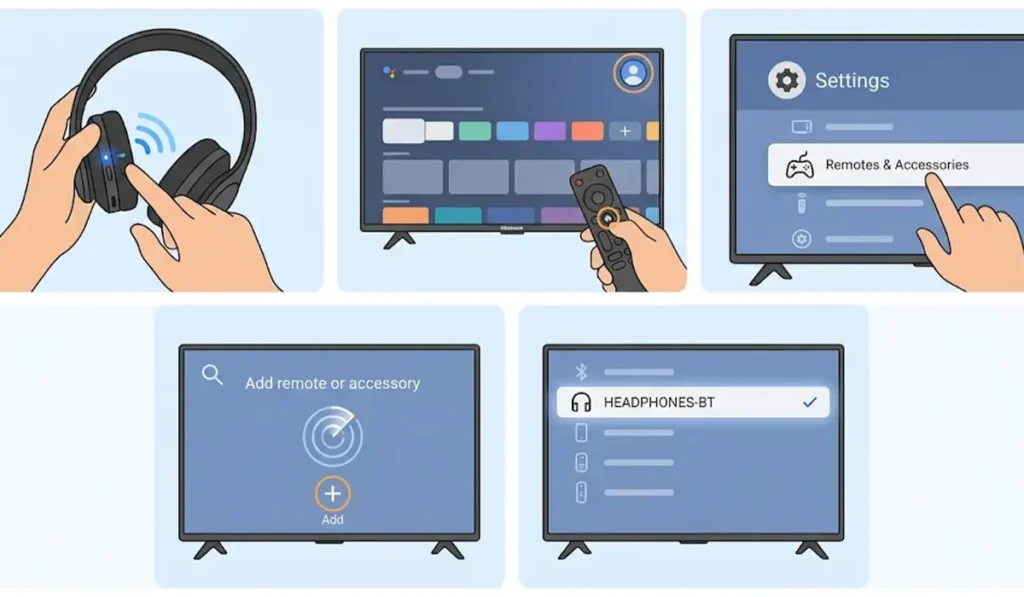
Google TV is found on many newer Hisense models. The TV scans for nearby devices automatically once the pairing screen opens.
- Step 1: Turn on the headphones and hold the pairing button until the light starts flashing.
- Step 2: Press Home on the Hisense remote and select the profile icon in the top-right corner.
- Step 3: Open Settings, then choose Remotes & Accessories.
- Step 4: Select Pair remote or accessory. The TV starts scanning right away.
- Step 5: Pick the headphones from the list and confirm the pairing prompt.
Pro-Tip: Most headphones leave pairing mode after a minute or two. Start the scan on the TV right after switching pairing mode on, because a timed-out pairing mode is the most common reason a pair of headphones never shows up in the list.
Method 2: Connect Bluetooth Headphones to a Hisense VIDAA TV
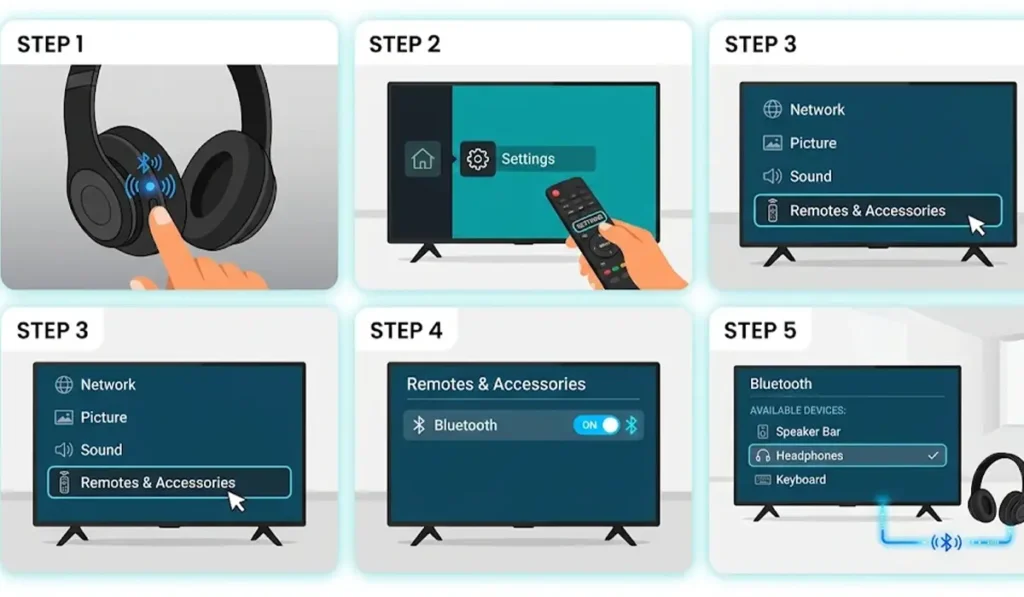
VIDAA is Hisense’s own operating system and appears on many mid-range and budget models. The Bluetooth option sits in slightly different places depending on the model.
- Step 1: Switch on the headphones and activate pairing mode.
- Step 2: Press the Menu or Settings button on the remote.
- Step 3: Open Network or Remotes & Accessories, depending on the model.
- Step 4: Select Bluetooth and turn it on.
- Step 5: Choose the headphones from the list of available devices and confirm.
Method 3: Connect Bluetooth Headphones to a Hisense Android TV
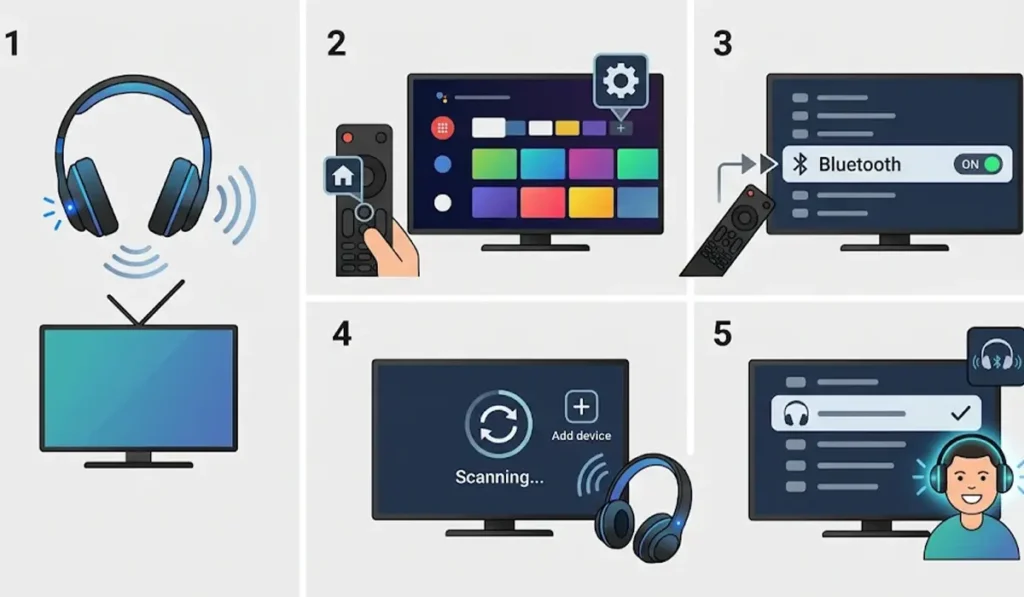
Hisense Android TV models keep Bluetooth under the accessories section of the settings menu.
- Step 1: Put the headphones into pairing mode.
- Step 2: Press Home on the remote and open Settings using the cog icon.
- Step 3: Scroll to Network & Accessories and select Bluetooth, then turn it on.
- Step 4: Select Add device or Add accessory so the TV starts scanning.
- Step 5: Select the headphones when they appear in the list.
Method 4: Connect Bluetooth Headphones to a Hisense Fire TV
On a Hisense Fire TV, headphones are added through the Bluetooth devices menu.
- Step 1: Turn on the headphones and enable pairing mode.
- Step 2: Open Settings from the Fire TV home screen.
- Step 3: Select Controllers & Bluetooth Devices, then Other Bluetooth Devices.
- Step 4: Choose Add Bluetooth Devices and wait for the headphones to appear.
- Step 5: Select the headphones to finish pairing.
Method 5: Listen on a Hisense Roku TV Using the Roku App
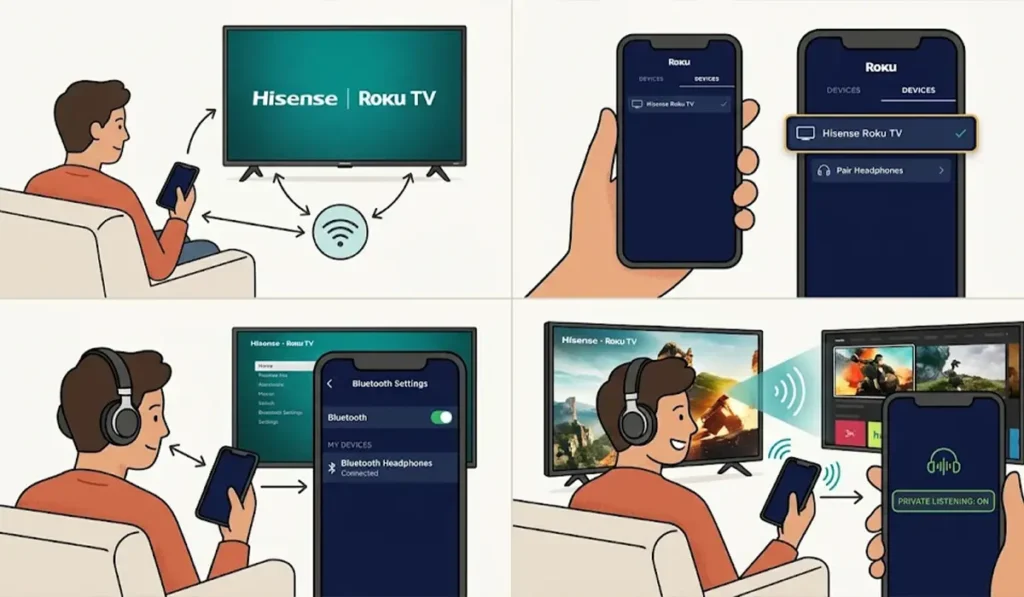
Roku TVs handle headphones differently. Instead of pairing straight to the TV, sound can be sent to a phone through private listening, and the headphones connect to the phone.
- Step 1: Download the Roku mobile app and make sure the phone and the TV are on the same Wi-Fi network.
- Step 2: Open the app, go to the Devices tab, and select the Hisense Roku TV.
- Step 3: Pair the Bluetooth headphones to the phone through the phone’s Bluetooth settings.
- Step 4: Start private listening in the Roku app so the TV audio plays through the headphones.
Tips for a Better Wireless Listening Experience
- Sit within a few meters of the TV with a clear line of sight. Walls and furniture can weaken the Bluetooth signal.
- Charge the headphones fully before a long movie night, since streaming video audio keeps the connection active the whole time.
- Turn off Bluetooth on a phone or tablet that the headphones were recently paired with. Otherwise the headphones may reconnect to that device before the TV.
- If the same headphones are also used with a computer, the audio output settings on Windows 11 make switching sound between devices easier.
- For a set of earbuds that sounds uneven after switching devices, re-pairing Bluetooth earbuds for stereo sound can bring both sides back in sync.
- Wireless audio can arrive a fraction of a second after the picture on some setups. Lowering the TV volume and using the headphone volume instead keeps things comfortable.
Pro-Tip: Pairing a second device is much easier when the headphones have forgotten old connections. Most headphones remember only a limited number of paired devices, so removing one that is no longer used frees up space.
Common Problems and Quick Fixes
Fix 1: Headphones Do Not Appear in the List
Turn the headphones off, switch them back on, and hold the pairing button until the light flashes. Then restart the scan on the TV. Moving the headphones closer to the TV also helps.
Fix 2: Sound Still Plays Through the TV Speakers
Open the sound settings on the TV and check that the audio output is set to the paired Bluetooth device instead of the built-in speakers.
Fix 3: Pairing Fails or the Connection Drops
Remove the headphones from the TV’s Bluetooth device list, turn the headphones off and on, and pair them again from the start. A fresh pairing usually clears a stuck connection. For Windows users with the same trouble on a PC, this guide on troubleshooting headphone detection covers the computer side.
Fix 4: No Bluetooth Option in the Settings Menu
Some Hisense models do not have built-in Bluetooth for headphones. In that case, a Bluetooth transmitter plugged into the TV’s audio output can send sound to the headphones.
Frequently Asked Questions
Do all Hisense Smart TVs support Bluetooth headphones?
Most current Hisense Smart TVs include Bluetooth, but support depends on the model and operating system. A quick look in the settings menu for a Bluetooth or accessories option shows whether the TV supports it.
Where is the Bluetooth setting on a Hisense TV?
On Google TV it is under Settings > Remotes & Accessories. On VIDAA it is under Network or Remotes & Accessories. On Android TV it is under Network & Accessories.
How do I put my headphones in pairing mode?
Most headphones enter pairing mode when the power or Bluetooth button is held for a few seconds until the indicator light flashes. The exact button varies, so the headphone manual is the best reference.
Can I connect AirPods to a Hisense Smart TV?
AirPods use standard Bluetooth, so they can be paired from the TV’s Bluetooth menu while in pairing mode. Open the charging case, then hold the button on the back until the light flashes white.
Can I connect two pairs of headphones at once?
Many TVs connect to one Bluetooth audio device at a time. Dual headphone support varies by model, so the TV manual should be checked for this feature.
Why is the sound slightly delayed on my headphones?
Bluetooth audio can introduce a small delay because the signal is encoded and transmitted wirelessly. The delay varies between headphone models and is usually more noticeable on lower-cost pairs.
Do I need to pair the headphones every time?
No. After the first pairing, the TV usually remembers the headphones and reconnects automatically when they are switched on and in range.
Can I use Bluetooth headphones with a Hisense Roku TV?
Private listening through the Roku mobile app is the simplest option. The headphones connect to the phone, and the TV audio plays through the app.
How can I tell which operating system my Hisense TV uses?
The Google Play Store points to Google TV or Android TV, while the VIDAA App Store points to VIDAA. The About section in the settings menu also shows the system details.