
Want to leave the phone at home and still have music on a run? This guide shows how to connect Bluetooth headphones to a Garmin watch in just a few taps. The process is quick, and it only needs to be done once per pair of headphones.
Key Takeaways:
- The watch needs built-in music support to pair with headphones.
- Pairing happens from the watch itself, not from the phone’s Bluetooth settings.
- Headphones should be within 2 meters (about 6.6 feet) of the watch during pairing.
- The path is Music, then Headphones, then Add New.
Method 1: Pair Bluetooth Headphones With a Garmin Watch (Step-by-Step)
Before starting, charge the headphones and make sure the watch has music features. Many Garmin models, such as the Forerunner Music series, Venu, vivoactive, and fenix lines, include music support. The exact menu labels can vary slightly by model, but the flow is nearly identical.
- Step 1: Place the headphones within 2 meters (about 6.6 feet) of the watch.
- Step 2: Put the headphones into pairing mode. This usually means holding the power button until a light flashes or a voice prompt says pairing.
- Step 3: On the watch, press and hold the menu button (on many models, this is the Up button) to open the controls or settings menu.
- Step 4: Select Settings, then choose Music.
- Step 5: Tap Headphones, then select Add New.
- Step 6: Wait while the watch searches, then select the name of the headphones from the list.
- Step 7: Confirm any prompt on the watch. A message or sound in the headphones shows the connection is complete.
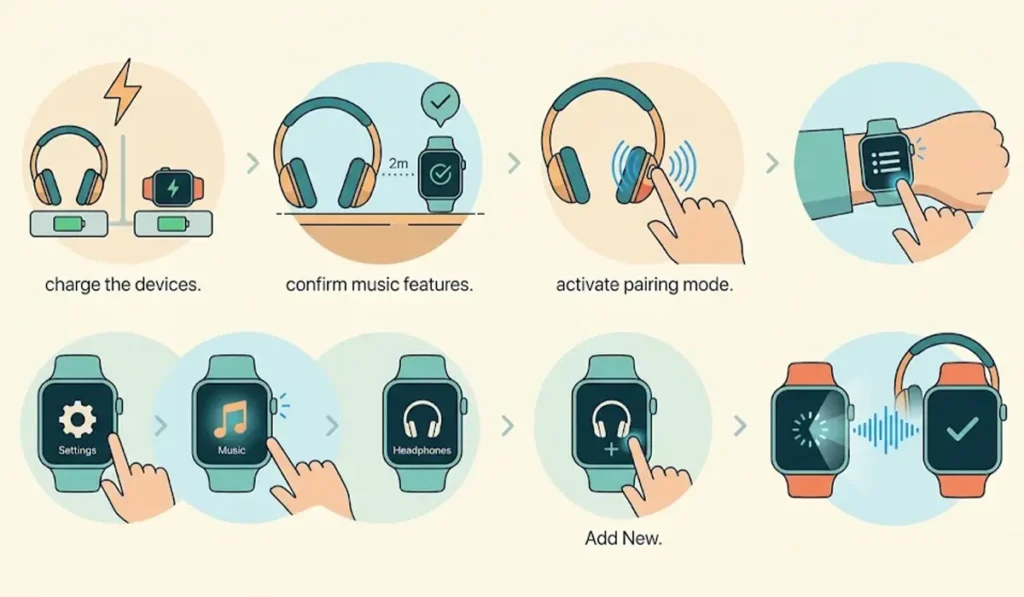
Pro-Tip: Turn off Bluetooth on the phone, or disconnect the headphones from it, before pairing. Headphones that are already connected to a phone often skip the watch and never appear in the search list.
Method 2: Reconnect Headphones Already Paired to the Watch
Once headphones have been paired, there is no need to repeat the full setup. This works best when the headphones are charged and sitting close to the watch.
- Step 1: Turn on the headphones and keep them near the watch.
- Step 2: Open the watch menu and go to Settings, then Music, then Headphones.
- Step 3: Select the saved headphones from the list.
- Step 4: Start a song from the music controls to confirm the sound is playing.
Helpful Tips for a Smoother Connection
- Start pairing with the headphones fully charged. A low battery is one of the most common reasons pairing stalls.
- Keep the headphones and watch close together during setup. Pairing across a room often fails.
- Pair the headphones to the watch before heading out. Doing it mid-run is no fun.
- Headphones that are also used with a Windows PC may need a fresh start there. This guide to re-pairing Bluetooth earbuds on Windows covers the process.
- Most standard Bluetooth earbuds and over-ear headphones follow the same watch steps, so the type of headphones rarely matters.
Pro-Tip: Think of the watch as a separate device, just like a second phone. Headphones treat it as its own connection, which is why pairing through the phone alone never works.
Common Problems and Quick Fixes
Fix 1: Headphones Do Not Appear in the List
Confirm the headphones are in pairing mode and not just powered on. A flashing light is usually the sign. Then disconnect them from any phone or computer nearby and search again.
Fix 2: Pairing Starts but Does Not Finish
Restart both devices, then repeat the steps from the beginning. Keep the headphones close to the watch the whole time.
Fix 3: Connected but No Sound
Check that the watch music controls are playing a track and that the headphone volume is turned up. Music must be stored on the watch or available through a supported music service on the watch.
Fix 4: Headphones Are Not Detected on a Computer
If the same headphones act up on a Windows PC after being used with the watch, this walkthrough on troubleshooting headphone detection can help.
Frequently Asked Questions
Which Garmin watches can connect to Bluetooth headphones?
Garmin watches with music support can pair with Bluetooth headphones. The product manual for the specific model lists whether music and headphone pairing are available.
Can any Bluetooth headphones work with a Garmin watch?
Most standard Bluetooth headphones and earbuds work. The pairing steps are the same whether the headphones are over-ear or in-ear.
Do headphones have to be paired through the phone first?
No. Headphones are paired directly on the watch through the Music settings. Pairing with the phone is a separate step.
How close should the headphones be during pairing?
Keep them within 2 meters (about 6.6 feet) of the watch. Closer is better.
Where is the Headphones option on a Garmin watch?
Press and hold the menu button, open Settings, then select Music and Headphones. From there, Add New starts the search.
Do headphones need to be paired every time?
No. Once paired, the headphones are saved on the watch. Turning them on near the watch is usually enough to reconnect, or they can be selected from the Headphones list.
Can wireless earbuds be used instead of headphones?
Yes. Wireless earbuds use the same steps as headphones, including pairing mode and the Add New option.
Is a phone needed to play music once headphones are connected?
Not for music stored on the watch. After songs are loaded to the watch, they can play through the paired headphones without a phone nearby.