
Wear detection is the feature that automatically pauses audio when earbuds come out of the ears and resumes playback when they go back in. When this stops working, music keeps playing in a pocket or a call stays connected after the earbuds are removed, which is more than a small annoyance. This guide walks through the exact fixes that resolve the issue, in the order that solves it fastest for most people.
Key Takeaways
- Wear detection relies on small optical or capacitive sensors that can get blocked by dirt, wax, or moisture.
- Most cases are fixed by cleaning the sensors, updating firmware, or re-pairing the earbuds.
- A setting toggle inside the companion app is often switched off by accident during updates.
- Persistent issues after software fixes usually point to a hardware sensor problem.
- Re-pairing and resetting audio settings on the connected device solve detection glitches caused by a broken Bluetooth profile.
Fix 1: Clean the Wear Detection Sensors
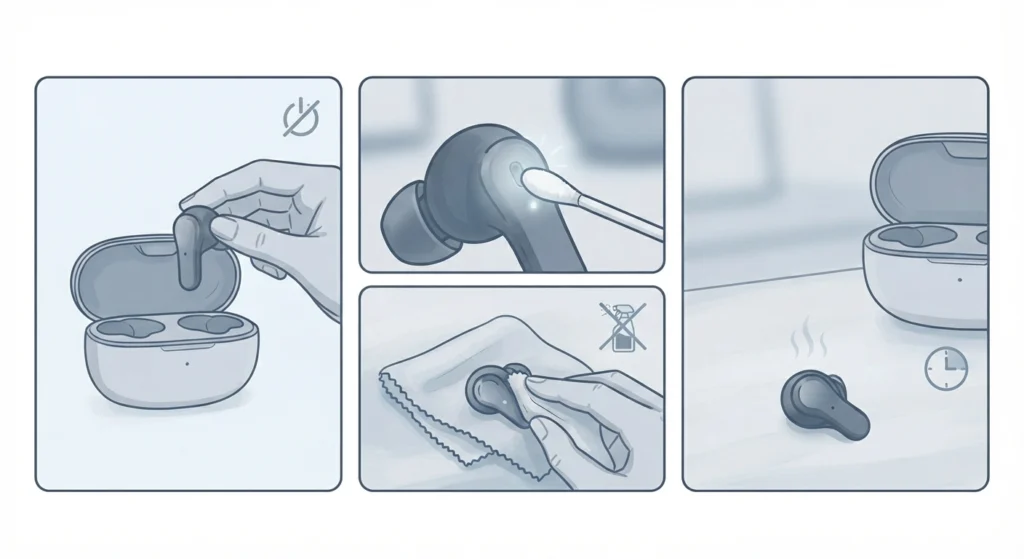
The sensor sits inside the part of the earbud that touches the ear, and it is usually the first thing affected by everyday use. Earwax, sweat, and skin oil build up faster than most people expect, and a thin film is enough to block the sensor from reading correctly.
- Step 1: Power off the earbuds and remove them from the case.
- Step 2: Use a dry, soft-bristled brush or a clean, dry cotton swab to gently clear any visible debris around the sensor opening.
- Step 3: Wipe the surface with a dry microfiber cloth, avoiding liquids or alcohol unless the manufacturer specifically approves it.
- Step 4: Let the earbuds air dry fully before placing them back in the case, since trapped moisture is a common cause of a stuck sensor.
Pro-Tip: A build-up of earwax is the single most common reason wear detection becomes unreliable over time. Cleaning the sensors once a week, even when nothing seems wrong, prevents most detection issues before they start.
Fix 2: Update the Earbuds Firmware
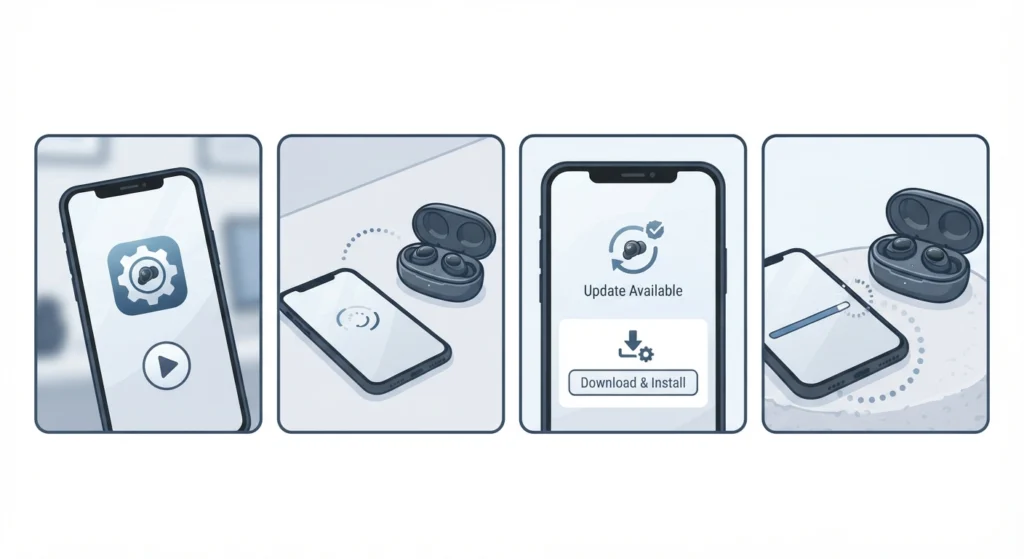
Firmware controls how the sensor data gets interpreted, and outdated firmware is a frequent cause of detection that used to work fine and suddenly stopped. Manufacturers push updates specifically to fix sensor calibration bugs.
- Step 1: Open the companion app for the earbuds on a phone or computer.
- Step 2: Place the earbuds in the case near the connected device and keep the lid open.
- Step 3: Check the device or firmware section of the app for an available update.
- Step 4: Install the update and keep the earbuds close to the source device until the process finishes completely.
Fix 3: Toggle the Wear Detection Setting
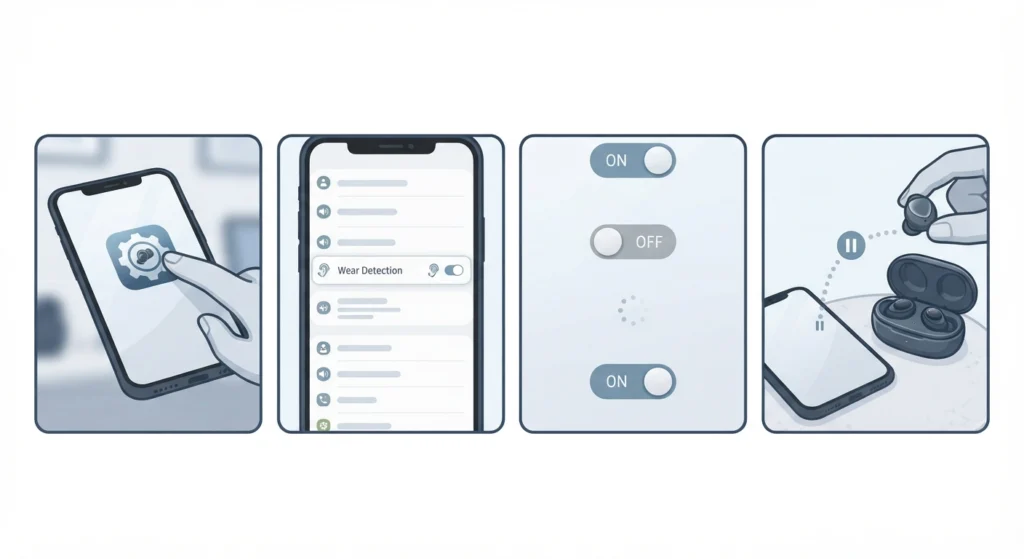
This setting sometimes gets switched off automatically after a software update or an app reinstall. It sounds simple, but this single toggle solves the problem more often than people expect.
- Step 1: Open the companion app and locate the settings or device options menu.
- Step 2: Find the option labeled wear detection, ear detection, or in-ear detection.
- Step 3: Turn the toggle off, wait a few seconds, then turn it back on.
- Step 4: Test by removing one earbud to confirm playback pauses as expected.
Fix 4: Re-pair the Earbuds With the Device
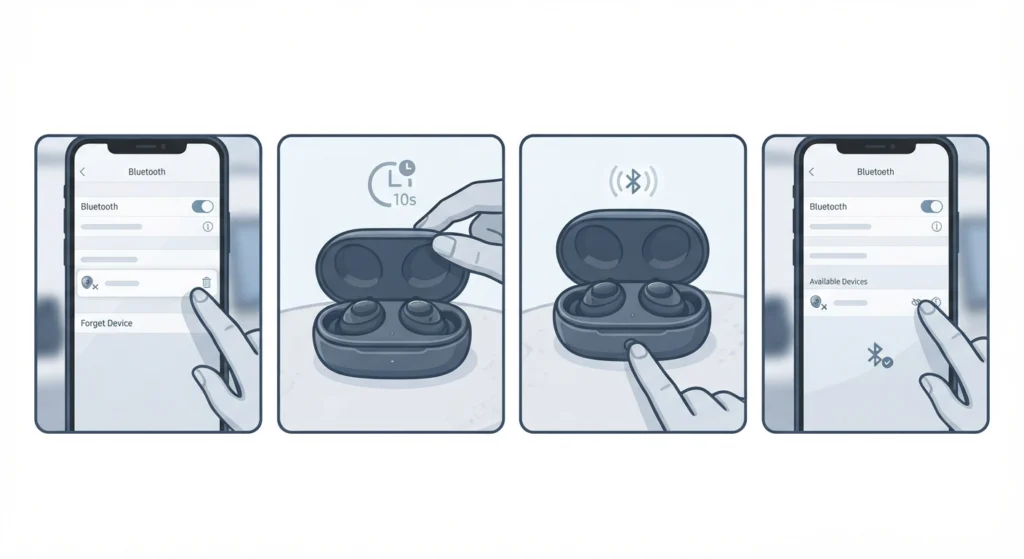
A corrupted Bluetooth profile can affect more than just audio playback; it can also interrupt the connection that wear detection depends on to send signals to the device. This is especially common after a Windows update. Anyone dealing with this on a PC can follow the steps for re-pairing Bluetooth earbuds for stereo sound on Windows before moving to the next step.
- Step 1: Remove the earbuds from the Bluetooth device list on the phone or computer.
- Step 2: Place the earbuds back in the case, close the lid for ten seconds, then reopen it.
- Step 3: Put the earbuds into pairing mode using the button or gesture specific to the model.
- Step 4: Reconnect through the Bluetooth settings and confirm the connection is stable before testing wear detection again.
Pro-Tip: Re-pairing clears out old connection data that can silently interfere with sensor signals, even when the earbuds appear to be connected normally.
Fix 5: Reset Audio Settings on the Connected Device
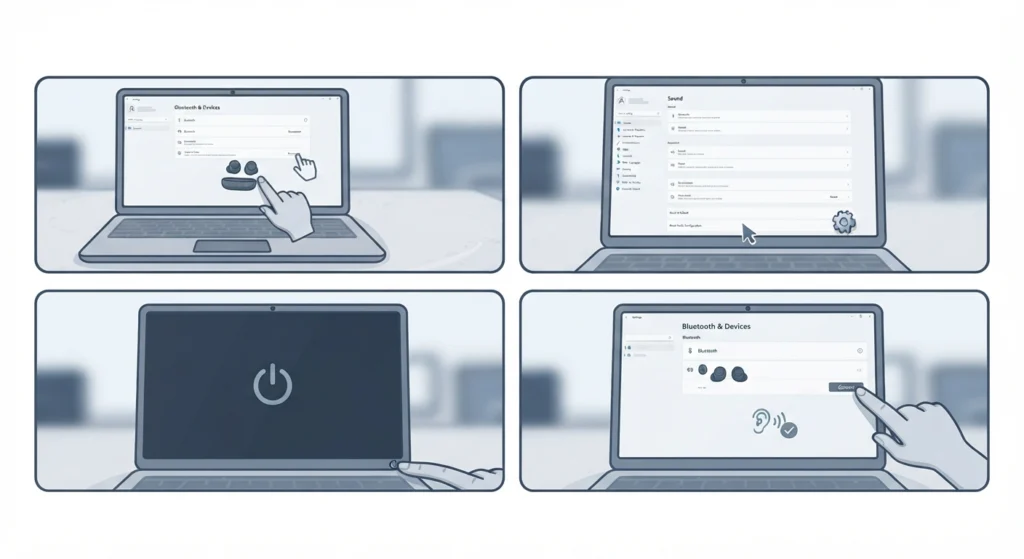
When the fixes above do not help, the problem sometimes sits with the audio settings on the device rather than the earbuds themselves. On Windows 11, resetting the audio settings clears out conflicting configurations that can block sensor-based commands from reaching the system.
- Step 1: Disconnect the earbuds from the device completely.
- Step 2: Reset the audio settings following the device-specific process.
- Step 3: Restart the device once the reset finishes.
- Step 4: Reconnect the earbuds and check whether wear detection responds correctly.
Fix 6: Check Ear Tip Fit and Placement
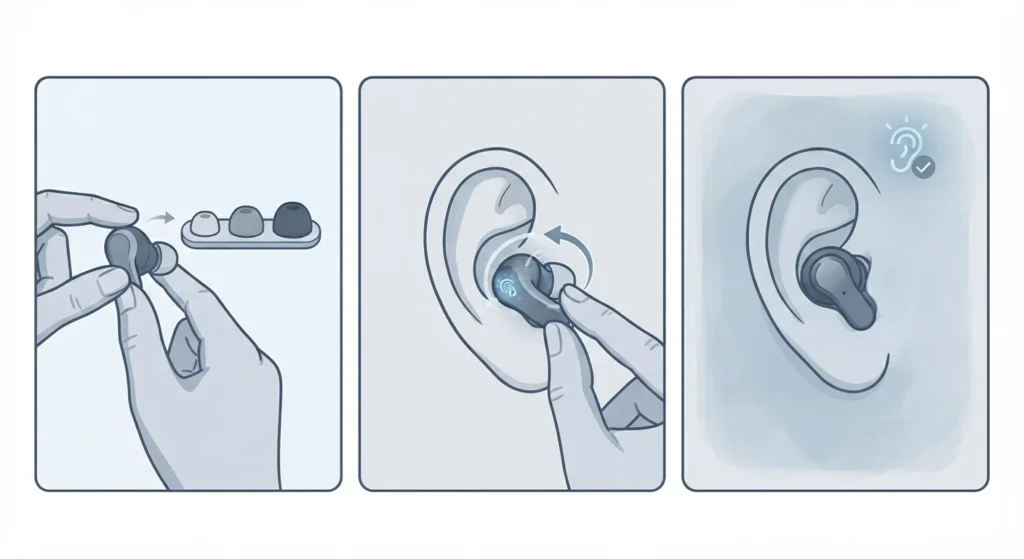
Wear detection sensors are calibrated for a specific fit, so an ear tip that sits too loosely or at the wrong angle can confuse the sensor into thinking the earbud is out even when it is in.
- Step 1: Try a different ear tip size if the current one feels loose or shifts during movement.
- Step 2: Insert the earbud with a slight twist to seat it fully in the ear canal.
- Step 3: Test wear detection with the new fit before assuming a hardware fault.
Tips to Keep Wear Detection Working Properly
- Store earbuds in a dry case, since humidity is one of the fastest ways sensors start misreading.
- Avoid applying lotion or sunscreen right before inserting earbuds, as residue transfers directly onto the sensor.
- Keep firmware updated on a regular basis rather than waiting for a problem to appear.
- For persistent playback issues unrelated to wear detection itself, adjusting the audio output settings on Windows 11 is worth checking as well.
Common Problems With Wear Detection
Only One Earbud Detects Wear Correctly
This usually points to a sensor issue isolated to a single earbud, most often caused by debris or moisture on that side. Cleaning that earbud specifically, as described in Fix 1, resolves this in most cases.
Detection Works but With a Noticeable Delay
A short delay between removing the earbud and playback pausing is normal for many models. A delay longer than two to three seconds usually means the firmware needs updating, as described in Fix 2.
Wear Detection Stopped Working After a Software Update
Updates occasionally reset settings back to default, including the wear detection toggle. Checking the setting directly in the companion app, as covered in Fix 3, is the fastest way to confirm this.
Playback Pauses Even While Earbuds Are Worn
This is typically a false trigger caused by a loose fit rather than a software fault. Adjusting the ear tip size, as outlined in Fix 6, usually corrects it.
Frequently Asked Questions
Why did wear detection suddenly stop working?
The most common causes are a blocked sensor from dirt or moisture, outdated firmware, or a setting that was switched off during a recent update.
Can dirty earbuds affect wear detection?
Yes. Earwax and skin oil are the leading causes of unreliable sensor readings, and regular cleaning prevents most issues from developing.
Does wear detection drain the battery faster?
Wear detection uses minimal power compared to the audio driver itself, so it has little effect on overall battery life.
Is wear detection the same as in-ear detection?
Yes, these terms refer to the same feature. Different brands simply use different names for it in their apps and marketing materials.
Why does only one earbud lose wear detection?
This is almost always tied to that specific earbud’s sensor being blocked or slightly misaligned rather than a connection issue affecting both.
Will a factory reset fix wear detection problems?
A factory reset can help when settings have become corrupted, but it should be treated as a later step after cleaning, updating firmware, and re-pairing have already been tried.
Can a case with low battery affect wear detection?
The case itself does not control wear detection, but if the earbuds are not charging fully, inconsistent power levels can sometimes cause sensors to behave unpredictably.
Does the ear tip size actually matter for wear detection?
Yes. A poor seal changes how the sensor reads contact with the skin, so testing a different ear tip size is a practical step when detection feels inconsistent.
Should wear detection be turned off permanently if it keeps failing?
Turning it off is a temporary workaround, not a fix. Working through the cleaning, firmware, and pairing steps above resolves the underlying cause in most situations.
How often should the sensors be cleaned to avoid this issue?
A weekly cleaning routine is enough for most users, though anyone who exercises frequently with earbuds may benefit from cleaning every few days.