
Static or crackling sound in headphones is one of the most frustrating audio issues out there. One moment everything sounds fine, and the next there’s an annoying hiss, pop, or crackle ruining the listening experience. The good news is that most of these issues are fixable without replacing the headphones entirely. This guide covers the exact steps to diagnose and fix the problem quickly.
Key Takeaways
- Loose or damaged cables are the most common cause of crackling in wired headphones
- Audio driver issues and software settings are the top culprits for wireless and USB headphones
- Dirt or debris in the audio jack can easily cause static that mimics hardware failure
- Simple fixes like adjusting sample rate or re-pairing Bluetooth often resolve the issue instantly
- Most crackling problems can be fixed in under 10 minutes with the right approach
How to Fix Static or Crackling Sound in Headphones
Fix 1: Check and Reseat the Audio Cable or Jack
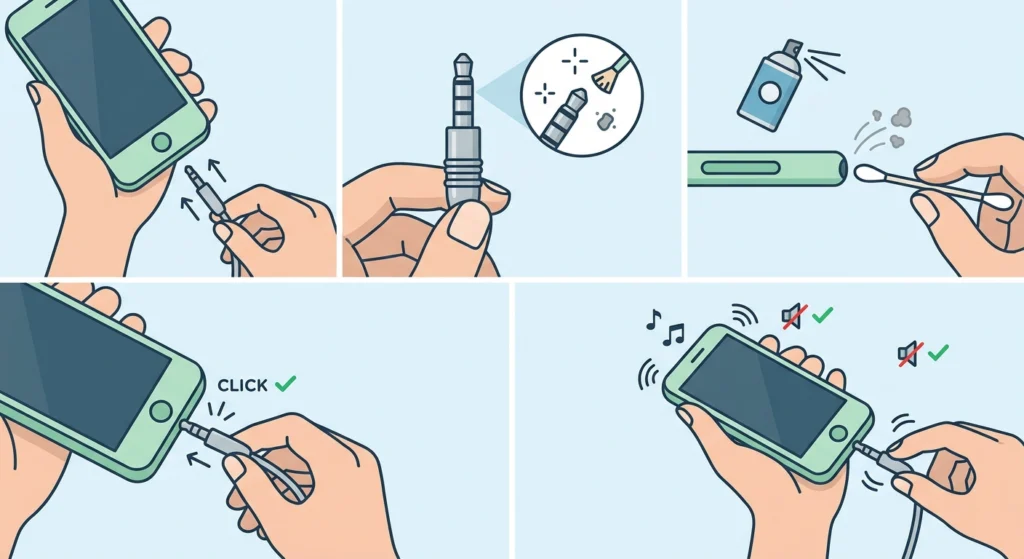
This is the first place to start for wired headphones. A loose or partially inserted cable is responsible for a surprising number of crackling complaints.
- Step 1: Unplug the headphone jack completely from the device.
- Step 2: Inspect the jack and plug for visible damage, bent pins, or debris.
- Step 3: Clean the headphone jack port using a dry cotton swab or a can of compressed air to remove any lint or dust buildup.
- Step 4: Firmly reinsert the plug into the port, ensuring it clicks or seats fully.
- Step 5: Play audio and gently wiggle the cable near the plug – if crackling changes or stops, the cable connection is the issue.
If wiggling the cable causes the static to come and go, the cable is likely damaged internally near the plug. A replacement cable (if detachable) or a new pair may be needed in that case.
Fix 2: Update or Reinstall Audio Drivers
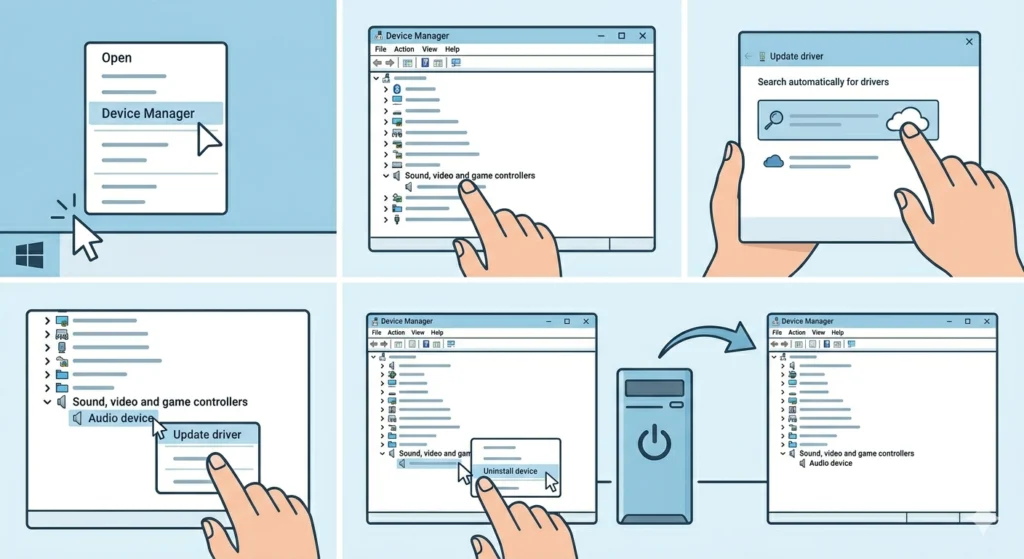
Outdated or corrupted audio drivers are a very common cause of crackling sounds, especially after a Windows update. This applies to both wired and USB headphones.
- Step 1: Right-click the Start button and select ‘Device Manager’.
- Step 2: Expand the ‘Sound, video and game controllers’ section.
- Step 3: Right-click the audio device and select ‘Update driver’.
- Step 4: Choose ‘Search automatically for drivers’ and let Windows install any available updates.
- Step 5: If the issue persists, right-click the device again and select ‘Uninstall device’, then restart the computer. Windows will automatically reinstall a fresh driver on reboot.
For headphones with dedicated software (like those from Logitech, SteelSeries, or Sony), check the manufacturer’s website for the latest driver version and install it manually.
Fix 3: Adjust the Audio Sample Rate and Bit Depth
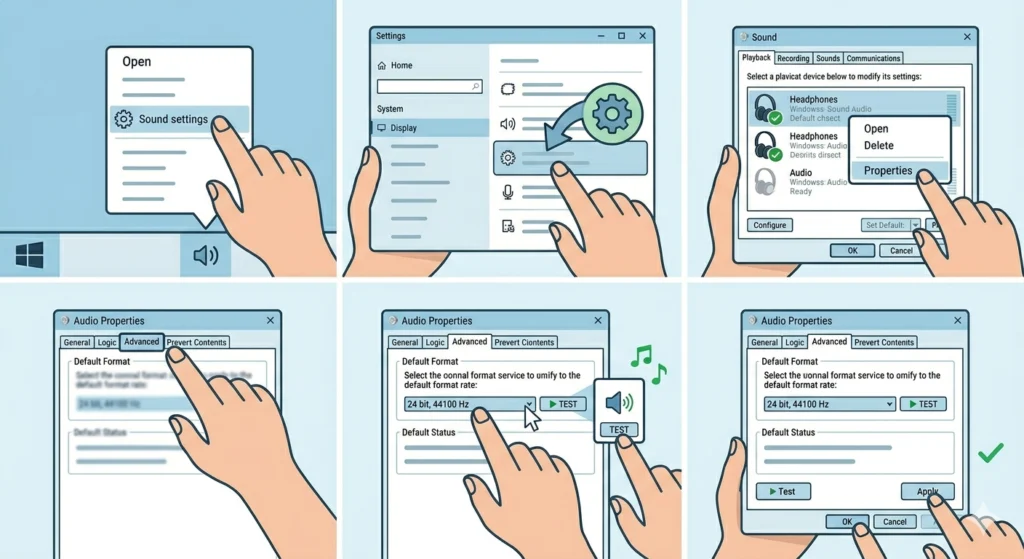
A mismatch between the audio format the device expects and what the system is sending can cause static or crackling – especially in USB and high-end wired headphones. This fix works well on Windows 11 and is one of the most overlooked solutions.
- Step 1: Right-click the speaker icon in the system tray and select ‘Sound settings’.
- Step 2: Scroll down and click ‘More sound settings’ to open the classic Sound panel.
- Step 3: Under the ‘Playback’ tab, right-click the headphones and select ‘Properties’.
- Step 4: Click the ‘Advanced’ tab.
- Step 5: Under ‘Default Format’, change the sample rate to ’24 bit, 44100 Hz (Studio Quality)’ and click ‘Test’.
- Step 6: If the crackling stops, click ‘Apply’ and ‘OK’ to save the setting.
Trying different combinations like 16 bit at 48000 Hz can also help. The key is to test each option until the audio becomes clean. For more control over these settings on Windows 11, this guide on adjusting audio output settings covers the full process in detail.
Pro-Tip: Disable the ‘Exclusive Mode’ checkboxes on the same Advanced tab. Allowing applications to take exclusive control of the audio device can cause crackling when multiple apps try to access audio simultaneously.
Fix 4: Disable Audio Enhancements
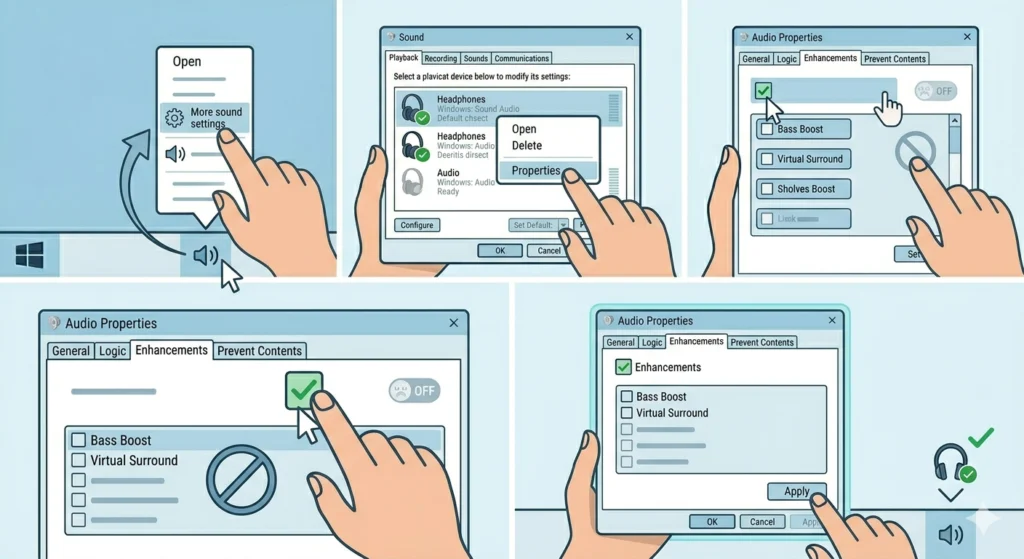
Windows applies various audio enhancements by default – things like bass boost, virtual surround, and loudness equalization. These enhancements are meant to improve sound quality, but on many headphones they actually introduce distortion or static.
- Step 1: Open the Sound panel by right-clicking the speaker icon and selecting ‘More sound settings’.
- Step 2: Right-click the headphones under the Playback tab and open ‘Properties’.
- Step 3: Click the ‘Enhancements’ tab (o some systems this is labeled ‘Advanced’ or ‘Spatial sound’).
- Step 4: Check the box labeled ‘Disable all enhancements’ or toggle off each enhancement individually.
- Step 5: Click ‘Apply’, then test audio playback.
Fix 5: Fix Bluetooth Interference or Re-Pair the Headphones
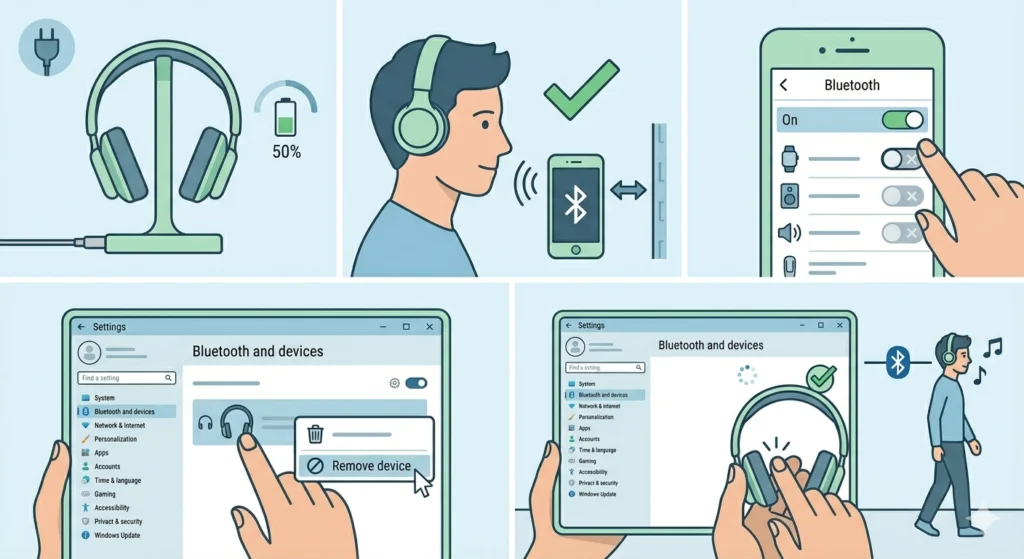
Wireless headphones crackle for different reasons than wired ones. Bluetooth signal interference, low battery, or a corrupted pairing profile are the main causes.
- Step 1: Make sure the headphones are charged to at least 50%. Low battery causes Bluetooth signal degradation that shows up as crackling.
- Step 2: Move closer to the device – Bluetooth range weakens through walls and interference from other wireless devices like routers or microwaves.
- Step 3: Turn off other nearby Bluetooth devices that are not in use.
- Step 4: Remove the headphones from the device’s Bluetooth list. On Windows, go to Settings – Bluetooth and devices, click the headphones, and select ‘Remove device’.
- Step 5: Put the headphones in pairing mode and reconnect fresh.
For a more detailed walkthrough on fixing Bluetooth pairing issues specifically on Windows, the guide on how to re-pair Bluetooth earbuds for stereo sound on Windows is very helpful.
Pro-Tip: If the headphones connect but still crackle over Bluetooth, try switching the audio codec. In Windows Bluetooth settings, some adapters allow changing the codec from SBC to aptX or AAC, which can significantly reduce audio artifacts.
Fix 6: Reset Audio Settings to Default
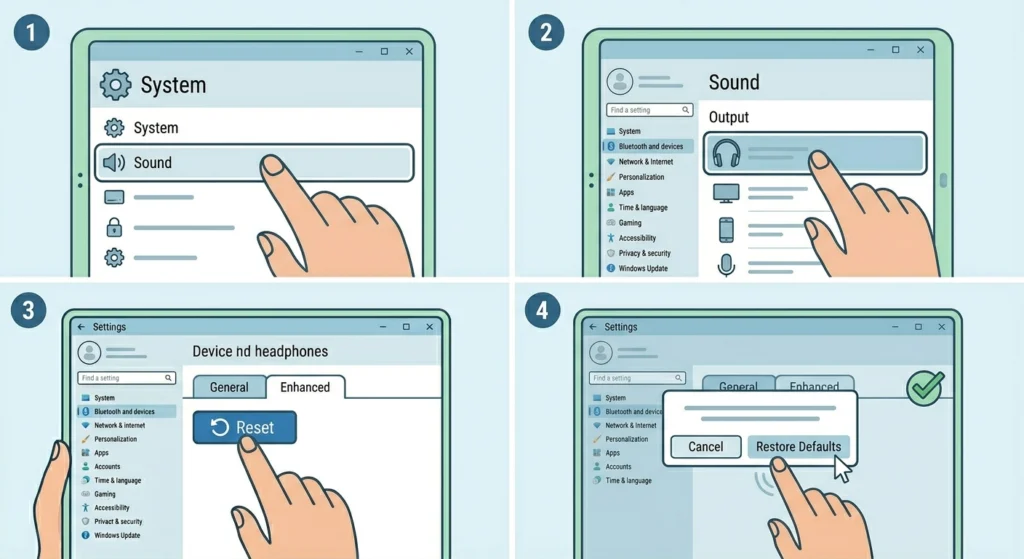
Sometimes a previous configuration change – even an accidental one – is causing the static. Resetting everything to default is a clean-slate fix that works more often than expected.
- Step 1: Open Settings and navigate to System – Sound.
- Step 2: Scroll down and select the headphones under the output device list.
- Step 3: Click on the device to open its properties.
- Step 4: Look for a ‘Reset’ option to restore default audio settings for that device.
For a full walkthrough on resetting audio configurations in Windows 11, this resource on resetting audio settings covers every option available.
Fix 7: Test with a Different Device or Port
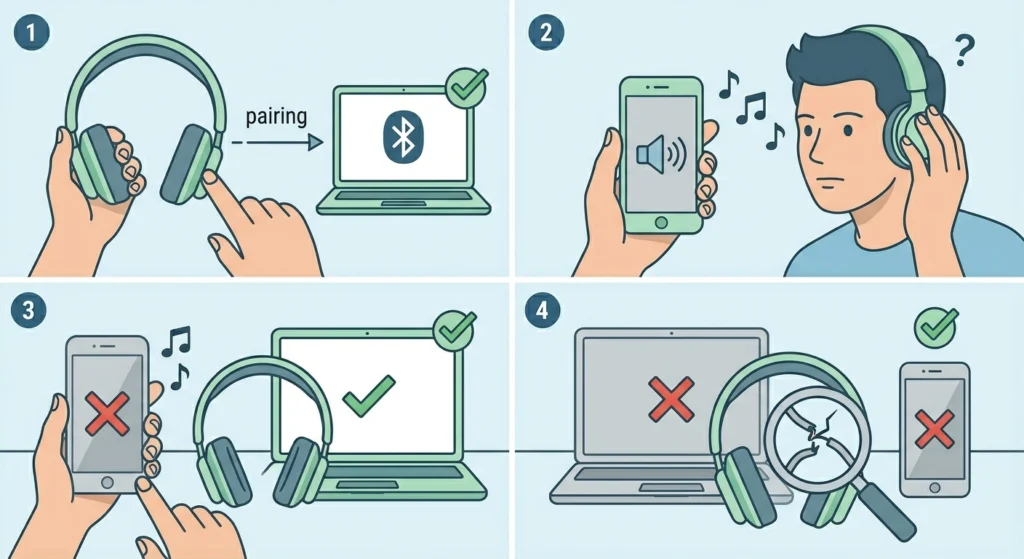
This is a quick diagnostic step that saves a lot of time. Plug the headphones into a different device (another phone, laptop, or audio source) or try a different audio port on the same device.
- Step 1: Plug the headphones into a completely different device.
- Step 2: Play audio and listen for crackling.
- Step 3: If the crackling is gone, the original device’s audio hardware, port, or software is the issue – not the headphones themselves.
- Step 4: If the crackling remains on the second device, the headphones have a physical defect – the cable, driver, or internal connection is damaged.
Tips for Preventing Crackling Sound in the Future
- Store headphones properly by winding cables loosely – tight coiling strains the internal wires near the connectors
- Clean audio jacks every few months using compressed air to prevent debris buildup
- Keep Bluetooth headphone firmware updated through the manufacturer’s companion app
- Avoid placing wireless headphones near routers, microwaves, or other 2.4GHz devices
- Use a headphone stand instead of leaving them on desks to prevent cable stress
- Check that volume levels are not pushed beyond 85-90% as extreme output can cause distortion in lower-quality drivers
Common Problems and What They Usually Mean
- Crackling only when moving the cable: Internal wire break near the plug or ear cup – cable damage is confirmed
- Static only at high volume: Driver distortion or impedance mismatch – lower volume or use an external DAC
- Crackling after Windows update: Audio driver conflict – reinstall or roll back the driver
- Bluetooth crackling in a specific room: Wireless interference – relocate or reduce competing wireless devices
- Crackling only on one side: Damaged cable, loose internal connection, or a faulty driver in that ear cup
- Static during calls but not music: Microphone feedback loop or incorrect input settings – check audio input device settings in the Sound panel
- Crackling starts after a few minutes: Overheating of the amplifier chip or Bluetooth module – give the headphones a break and ensure ventilation
Frequently Asked Questions
Why do headphones make a crackling or static sound?
Crackling usually happens because of a loose or damaged cable, a dirty audio jack, outdated audio drivers, incorrect sample rate settings, Bluetooth interference, or a faulty driver (the speaker element inside the ear cup). Identifying whether the headphones are wired or wireless helps narrow down the cause quickly.
Can a software update cause crackling in headphones?
Yes, it is very common. A Windows or macOS update can overwrite or conflict with existing audio drivers, causing crackling, popping, or complete audio drops. Reinstalling or updating the audio driver after a system update almost always resolves this.
How do you fix crackling in one ear only?
Single-ear crackling usually points to a physical issue – a damaged cable on that side, a loose internal solder joint, or a worn speaker driver in that ear cup. Testing with another device confirms whether it is a headphone issue. If the problem only appears with one specific source, it could be a software routing or channel balance issue instead.
Does low battery cause Bluetooth headphones to crackle?
Yes. When battery levels drop below about 20-30%, Bluetooth transmission power decreases. This causes the signal to drop packets more frequently, which the audio system tries to compensate for – resulting in static, stuttering, or crackling. Charging the headphones typically resolves this immediately.
Can a dirty headphone jack cause static?
Absolutely. Lint, dust, and skin oils accumulate inside headphone jacks over time, preventing full metal-to-metal contact. This causes signal loss and static. Cleaning the jack with compressed air or a dry cotton swab is one of the simplest and most effective fixes available.
What sample rate should headphones be set to in Windows?
For most headphones, 24-bit at 44100 Hz or 48000 Hz works best. Higher sample rates like 192000 Hz are not necessary for standard use and can actually cause compatibility issues or increased CPU load that leads to audio artifacts. Start at 44100 Hz and adjust from there if needed.
How do you stop Bluetooth headphones from crackling in Windows?
Start by removing and re-pairing the headphones, updating the Bluetooth adapter driver, and ensuring the headphones are fully charged. Also check if other Bluetooth or 2.4GHz devices nearby are causing interference. Switching to a USB Bluetooth adapter with aptX support can also dramatically improve wireless audio quality on desktops.
Is crackling always a sign that headphones are broken?
Not at all. The majority of crackling issues are software or connection-related and can be fixed without any hardware repair. Only when crackling persists across multiple devices with different cables or after all software fixes have been tried does it indicate actual hardware damage.
Can audio enhancements in Windows cause crackling?
Yes. Features like bass boost, virtual surround sound, and loudness equalization apply real-time digital signal processing. On headphones that are not designed to handle these effects – especially lower-impedance consumer headphones – these enhancements can distort the signal and introduce static or crackling. Disabling all enhancements from the sound properties panel is a reliable fix.
Should the headphone volume be lowered to fix crackling?
If crackling only happens at high volumes, lowering the output level by 10-15% can help. Pushing speakers beyond their design limits causes mechanical distortion in the drivers. This is especially true for bass-heavy audio through small drivers. Most people find that keeping volume below 85% eliminates distortion-related crackling entirely.