
Key Takeaways
- Audio cutting out on the Philips Fidelio L4 usually comes from Bluetooth interference, codec mismatches, low battery, or outdated firmware.
- Updating firmware through the Philips Headphones app clears up most stability problems reported after the first pairing.
- Switching from LDAC to AAC or SBC often stops dropouts on Windows and Android devices with weaker Bluetooth chipsets.
- Forgetting and re-pairing the headphones removes corrupted connection profiles that commonly trigger stutter.
- A full factory reset works best as a last resort, only after the fixes below have been tried.
Philips Fidelio L4 audio cutting out mid-song is one of the most common complaints among owners of these otherwise excellent noise-cancelling headphones. The good news is that this issue almost always traces back to a handful of fixable causes, including Bluetooth interference, codec conflicts, or firmware that has fallen behind. This guide walks through every proven fix in the order worth trying, starting with the quickest wins first.
Step-by-Step Guide to Fix Philips Fidelio L4 Audio Cutting Out
Fix 1: Restart the Headphones and Refresh the Bluetooth Connection
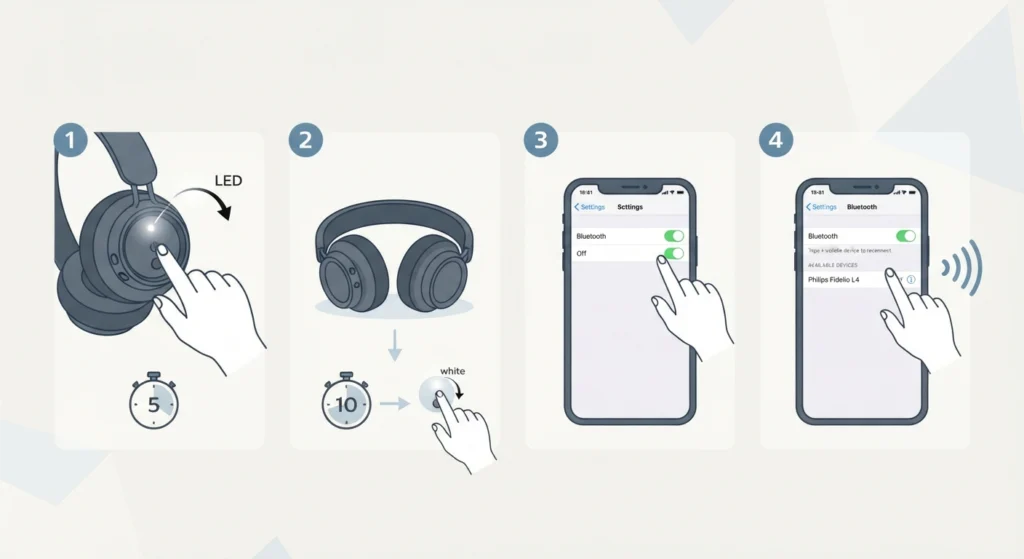
A simple restart clears temporary memory glitches that build up after hours of continuous playback. This works best when the headphones have been connected for a long stretch without ever being powered off.
- Step 1: Hold the power button on the Philips Fidelio L4 for about five seconds until the LED turns off completely.
- Step 2: Wait ten seconds, then power the headphones back on.
- Step 3: On the connected phone, laptop, or tablet, turn Bluetooth off and back on.
- Step 4: Reconnect to the Philips Fidelio L4 from the device’s Bluetooth list and play audio to check for stability.
Fix 2: Switch the Bluetooth Codec to AAC or SBC
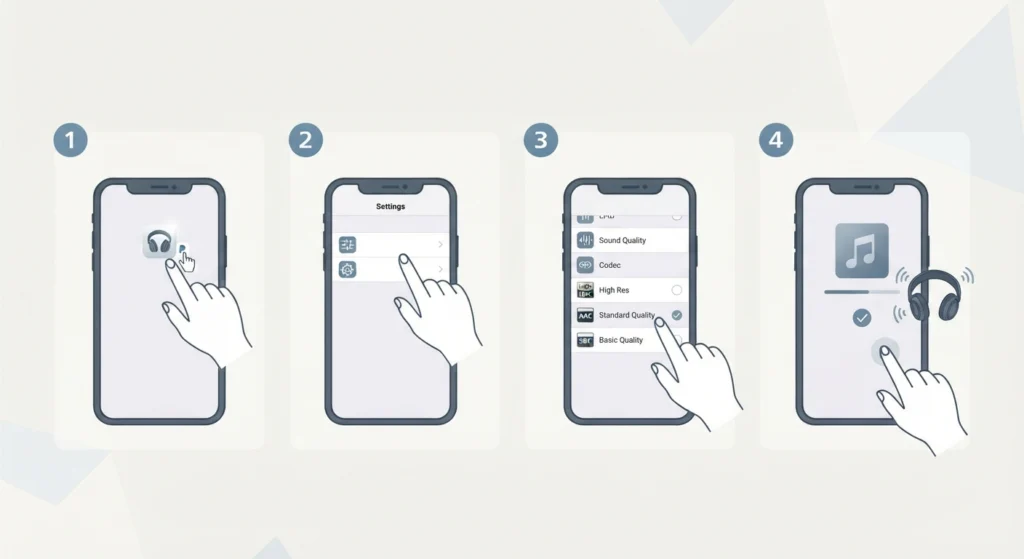
The Fidelio L4 supports SBC, AAC, LDAC, and LC3, and LDAC in particular demands a wider, steadier Bluetooth bandwidth to sound its best. Most people find that older laptops, budget Android phones, or crowded Bluetooth environments cannot keep that bandwidth stable, which shows up as stuttering or brief silences. Dropping down to AAC or SBC trades a small amount of audio resolution for a much more reliable connection.
- Step 1: Open the Philips Headphones app on the paired phone.
- Step 2: Go to the sound or codec settings section for the Fidelio L4.
- Step 3: Select AAC (for iPhone) or SBC (for most Android and Windows devices) instead of LDAC.
- Step 4: Reconnect and play music for a few minutes to confirm the dropouts have stopped.
On a Windows 11 laptop, the codec choice sits alongside the system’s own playback settings, so it also helps to check adjusting the audio output settings to make sure the Fidelio L4 is set as the default communication and playback device rather than sharing bandwidth with another output.
Pro Tip: Codec mismatches cause more Fidelio L4 dropouts than any other single factor, so this fix alone resolves the issue for the majority of users before any other step becomes necessary.
Fix 3: Update the Firmware Through the Philips Headphones App
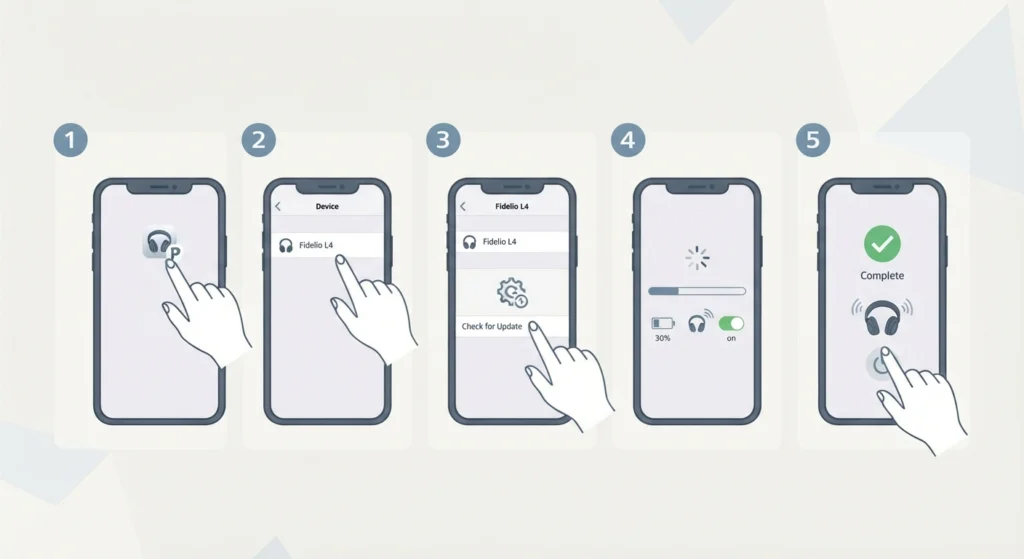
Philips regularly ships firmware updates for the Fidelio L4 that address exactly this kind of connection instability. Skipping these updates is the single biggest reason the same bug keeps resurfacing after a fix seems to have worked.
- Step 1: Install or open the Philips Headphones app and sign in if prompted.
- Step 2: Select the connected Fidelio L4 from the device list.
- Step 3: Navigate to the firmware or software update section and check for an available update.
- Step 4: Keep the headphones powered on, within range, and above 30 percent battery until the update finishes.
- Step 5: Restart the headphones once the update completes and test playback again.
Fix 4: Forget the Device and Re-Pair From Scratch
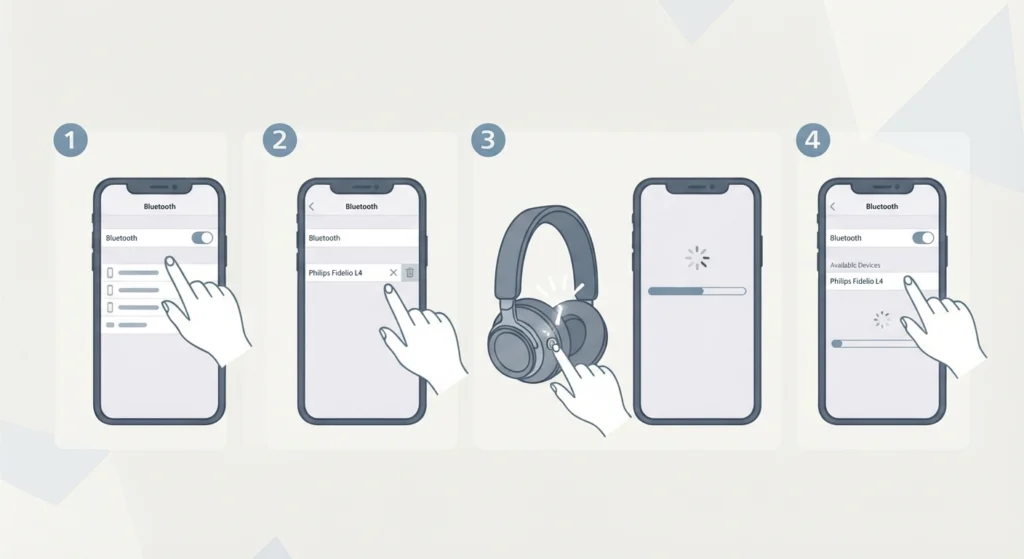
A stored Bluetooth profile can become corrupted over time, especially after switching between several paired devices. Removing that profile and starting fresh often clears up cutting out that survives a simple restart.
- Step 1: Open Bluetooth settings on the connected device.
- Step 2: Find the Philips Fidelio L4 entry and select forget, remove, or unpair.
- Step 3: Turn the headphones off and back on, then hold the power button until the LED flashes to enter pairing mode.
- Step 4: Search for new devices and select the Fidelio L4 to complete a fresh pairing.
Anyone who regularly switches the Fidelio L4 between a laptop and a phone should also learn how to re-pair Bluetooth earbuds for stereo sound, since the same steps apply to over-ear headphones and prevent the mono or one-sided audio glitches that sometimes accompany a bad pairing.
Fix 5: Reduce Bluetooth Interference Around the Listening Area
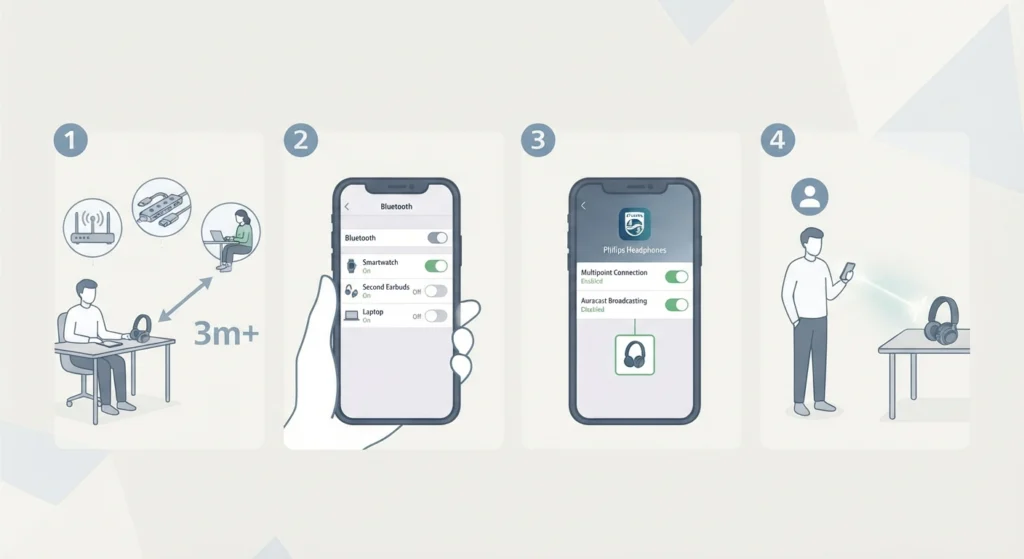
Bluetooth operates on the same 2.4GHz frequency used by Wi-Fi routers, microwaves, and other wireless accessories. A crowded frequency band is a common, and often overlooked, reason audio breaks up in busy homes or offices.
- Step 1: Move at least a few meters away from Wi-Fi routers, USB 3.0 hubs, and other Bluetooth devices during a listening session.
- Step 2: Turn off Bluetooth on any nearby devices that are not currently in use, such as a smartwatch or a second pair of earbuds.
- Step 3: Disable multipoint or Auracast broadcasting in the Philips Headphones app if only one source device is needed at a time.
- Step 4: Keep the connected phone or laptop within a clear line of sight of the headphones rather than in a pocket or bag.
Fix 6: Reset the Philips Fidelio L4 to Factory Settings
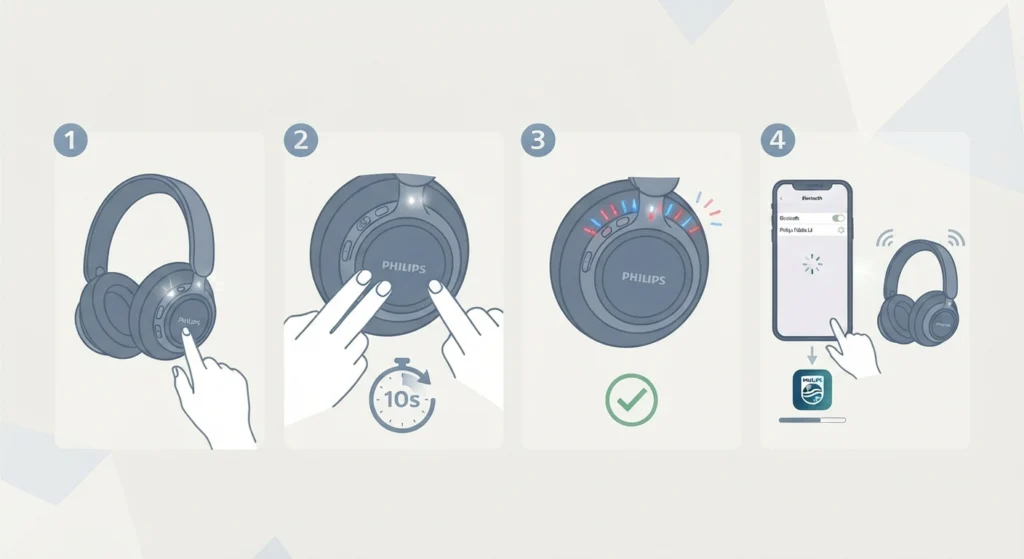
When none of the fixes above resolve the cutting out, a full reset clears every stored setting and connection profile, giving the headphones a genuinely clean slate.
- Step 1: Power on the Philips Fidelio L4.
- Step 2: Press and hold both the power button and the noise-cancellation button together for about ten seconds.
- Step 3: Wait for the LED to flash a distinct pattern confirming the reset has completed.
- Step 4: Re-pair the headphones as a new device and reinstall the latest firmware through the app.
Tips to Prevent Audio Cutting Out on the Philips Fidelio L4
- Keep the Philips Headphones app installed and check for firmware updates roughly once a month.
- Charge the headphones fully before long listening sessions, since a dwindling battery can mimic a connection issue.
- Stick to one active Bluetooth connection when a stable connection matters more than switching convenience.
- Store the headphones away from routers, microwaves, and other 2.4GHz devices when not in use.
- Avoid pairing the Fidelio L4 with more than one or two trusted devices to keep the internal connection list clean.
Common Problems With Philips Fidelio L4 Audio (Troubleshooting)
Cutting Out Happens Only When ANC Is Turned On
Active noise cancellation draws extra processing power, and on rare units a firmware bug can cause that extra load to interrupt the Bluetooth stream. Updating firmware through Fix 3 resolves this in most reported cases; toggling ANC off briefly confirms whether it is the actual trigger.
Audio Cuts Out Only on a Windows Laptop, Not on a Phone
This points toward a driver or system-level conflict rather than a headphone fault. Beyond switching codecs, it helps to try resetting Windows 11 audio settings to clear any corrupted playback configuration left behind by a previous Bluetooth device.
Static or Crackling Instead of Complete Dropouts
Static usually signals interference or a codec struggling to keep up, rather than a full disconnection. Lowering the codec to SBC and moving closer to the source device, as covered in Fix 2 and Fix 5, typically clears this up within a few minutes.
Pro Tip: Any cutting-out pattern that happens at the exact same timestamp in every track, rather than randomly, almost always points to a corrupted audio file or streaming service glitch rather than the headphones themselves.
Frequently Asked Questions
What causes Philips Fidelio L4 audio to cut out during calls?
Calls use a different Bluetooth profile than music playback, so interference, a weak connection, or a background app hogging Bluetooth bandwidth are the most common causes. Restarting the connection and checking for firmware updates resolves most call-related dropouts.
Does using the LDAC codec cause more dropouts than AAC or SBC?
Yes, LDAC requires a wider and steadier Bluetooth bandwidth than AAC or SBC. On devices with weaker Bluetooth chipsets or in crowded wireless environments, LDAC is more likely to stutter, so switching codecs is one of the most effective fixes.
Can a firmware update actually fix the cutting-out issue?
In many documented cases, yes. Philips has released firmware updates specifically addressing Bluetooth stability on the Fidelio L4, and keeping the firmware current prevents previously fixed bugs from reappearing.
Why does audio cut out only when noise cancellation is turned on?
Active noise cancellation adds extra processing load, and on units running outdated firmware this can occasionally interrupt the audio stream. Updating the firmware or briefly disabling ANC helps confirm this as the cause.
Is the audio cutting-out issue covered under Philips warranty?
If the fixes in this guide do not resolve a persistent hardware-level dropout, the issue may fall under Philips’ standard warranty coverage, and contacting Philips support directly is the appropriate next step for a warranty claim.
Does connecting to two devices at once through multipoint cause interruptions?
Multipoint connections split the headphones’ attention between two active sources, which can occasionally cause brief interruptions when both devices attempt to send audio at the same time. Disabling multipoint when only one source is needed often improves stability.
How can dropouts be reduced when using the headphones with a Windows PC?
Switching to the SBC or AAC codec, updating the Bluetooth driver, and confirming the Fidelio L4 is set as the default playback device all help. Resetting Windows 11’s audio settings clears out conflicting configurations left by other Bluetooth devices.
Does a low battery cause the same symptoms as a Bluetooth interference issue?
Yes, a battery running low can cause intermittent dropouts that look identical to an interference problem. Charging the headphones fully before troubleshooting further rules this out quickly.
Should the headphones be reset before contacting Philips support?
Trying a full factory reset first is worthwhile, since it resolves the majority of persistent software-related dropouts and gives support a clearer picture if the problem continues afterward.