
Learning how to fix low headphone volume on Windows 11 does not have to be a headache. Most of the time, the cause is a setting hiding in plain sight rather than a faulty pair of headphones. This guide walks through six direct fixes, starting with the simplest, and they work for wired headphones, USB headsets, and Bluetooth earbuds alike.
Key Takeaways:
- Start with the output slider in Sound settings, since it is often sitting below 100.
- Check the Volume mixer, because a single app can be turned down on its own.
- Turn on Loudness Equalization in the classic Sound window for a noticeable boost.
- Set the Communications tab to ‘Do nothing’ so Windows stops lowering other sounds.
- Update the audio driver if the sound still feels weak.
- Bluetooth headphones have their own volume level, so raise both the device and Windows.
Step-by-Step Guide to Fix Low Headphone Volume on Windows 11
Fix 1: Raise the Output Volume in Sound Settings
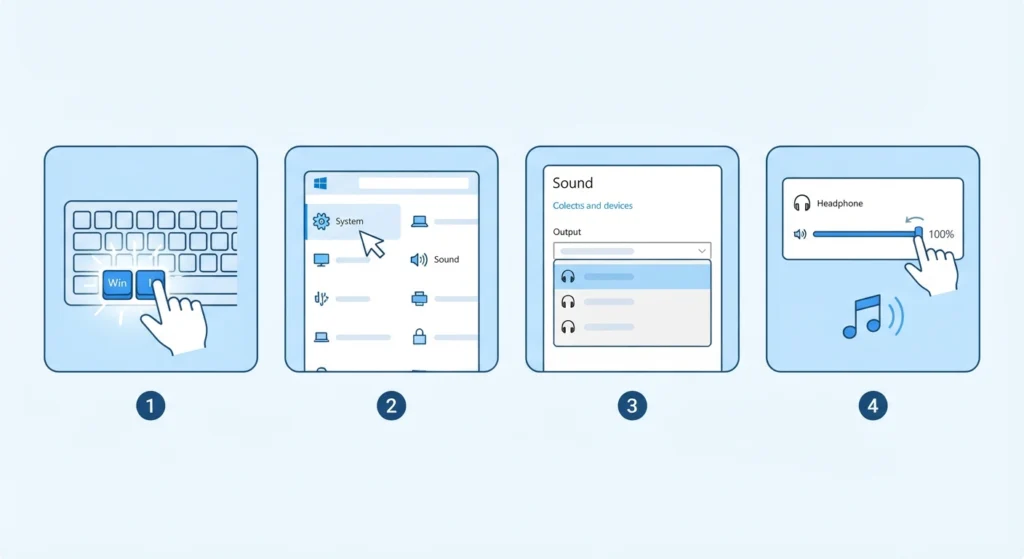
It sounds almost too simple, but this is the culprit more often than people expect. The volume slider for a specific device can sit lower than the master slider on the taskbar.
- Step 1: Press Windows + I to open Settings.
- Step 2: Click System, then click Sound.
- Step 3: Under Output, select the headphones as the device to play sound through.
- Step 4: Drag the volume slider for that device toward 100 and play something to test it.
The quick volume slider in the taskbar (the speaker, network, and battery area on the right) can also be used for a fast adjustment. Anyone who wants to explore more of the audio output settings in Windows 11 can go deeper from the same Sound page.
Fix 2: Check the Volume Mixer for App Levels
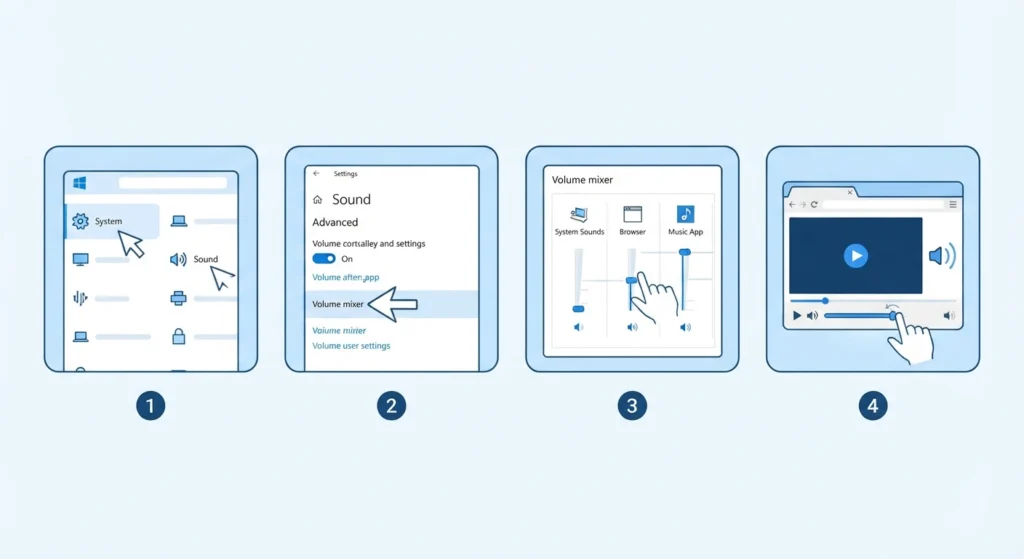
Think of the Volume mixer as a set of small dimmer switches, one for each app. If music sounds quiet in a browser but loud everywhere else, one of those switches is probably turned down.
- Step 1: Open Settings, then go to System and Sound.
- Step 2: Scroll down and click Volume mixer.
- Step 3: Find the quiet app in the list and drag its slider up.
- Step 4: Check the app’s own volume control too, such as the slider in a video player or music app.
Fix 3: Turn On Loudness Equalization
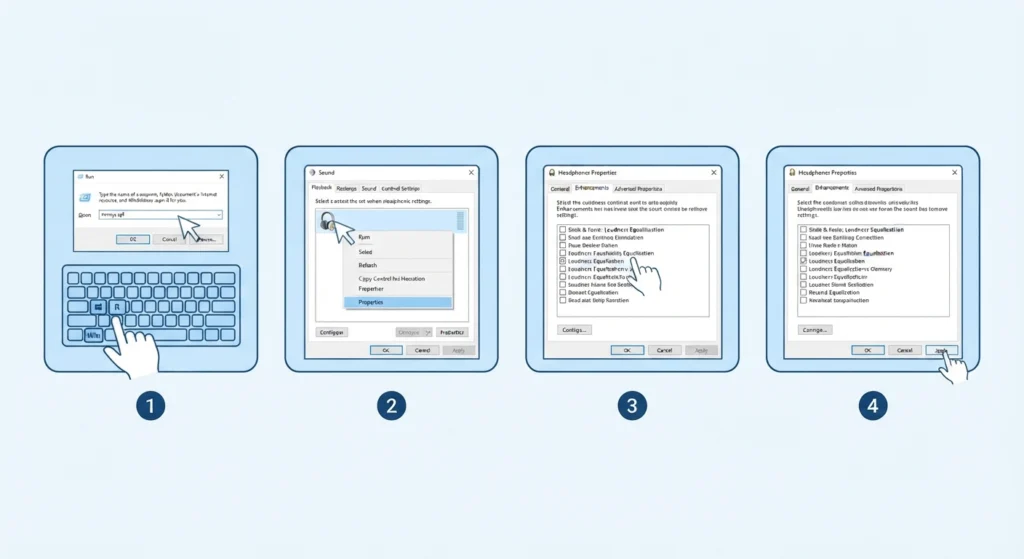
Loudness Equalization narrows the gap between quiet and loud sounds, which makes dialogue and soft passages easier to hear. Most people find that this single option makes the biggest difference.
- Step 1: Press Windows + R, type mmsys.cpl, and press Enter to open the classic Sound window.
- Step 2: On the Playback tab, right-click the headphones and choose Properties.
- Step 3: Open the Enhancements tab and tick Loudness Equalization.
- Step 4: Click Apply, then click OK.
Pro-Tip: Test the change with a quiet movie scene or a soft podcast voice. Loudness Equalization flattens the difference between soft and loud audio, so it helps most with speech but can make dramatic music feel slightly less dynamic. If that trade-off bothers you, simply untick it.
Fix 4: Stop Windows From Lowering Sound During Calls
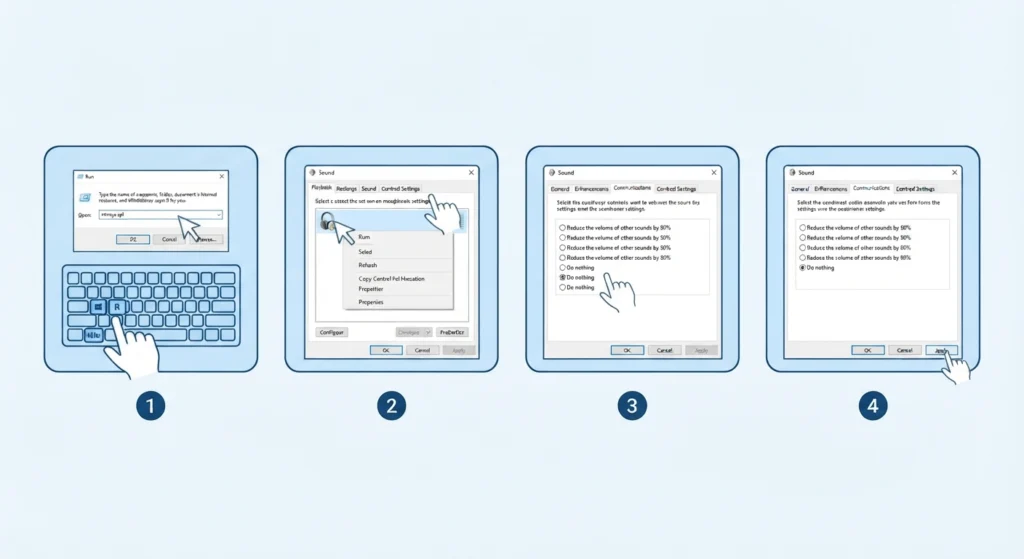
By default, Windows can reduce the volume of other sounds when it detects communication activity. That behavior sometimes lingers, making everything feel muted.
- Step 1: Press Windows + R, type mmsys.cpl, and press Enter.
- Step 2: Click the Communications tab.
- Step 3: Select ‘Do nothing’.
- Step 4: Click Apply, then click OK.
Fix 5: Update the Audio Driver
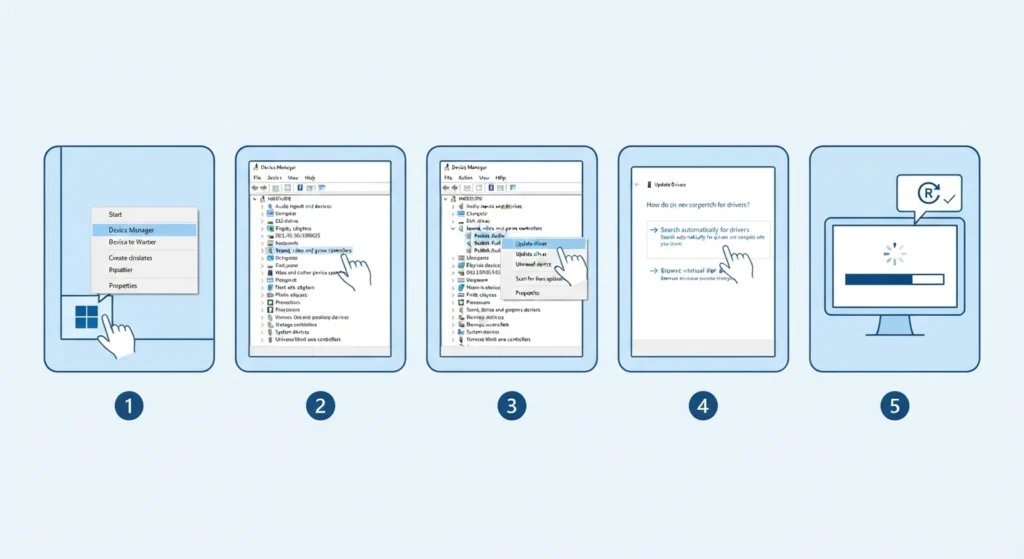
An outdated or generic driver can limit how loud the sound card is able to play. Updating it takes only a couple of minutes.
- Step 1: Right-click the Start button and choose Device Manager.
- Step 2: Expand Sound, video and game controllers.
- Step 3: Right-click the audio device, such as Realtek High Definition Audio, and choose Update driver.
- Step 4: Click ‘Search automatically for drivers’ and follow the prompts.
- Step 5: Restart the computer once the update finishes.
Driver updates can also appear under Settings, Windows Update, Advanced options, Optional updates.
Fix 6: Raise Both Volume Levels on Bluetooth Headphones
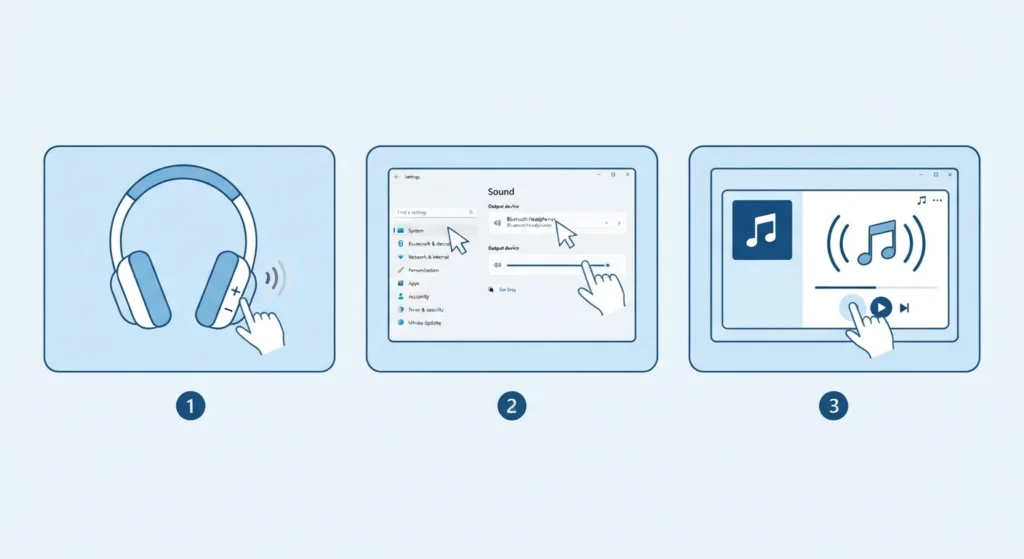
Bluetooth headphones and earbuds keep a volume level of their own, separate from the one in Windows. If either one is low, the final sound stays quiet. The key is to raise both.
- Step 1: Press the volume up button on the headphones or earbuds, or use their companion app if one is available.
- Step 2: Open Settings, then System and Sound, and raise the slider for the Bluetooth device.
- Step 3: Play a track to confirm the volume feels right.
Pro-Tip: Set the headphones to a high level first, then control loudness from Windows. That gives the smoothest range of adjustment. If the earbuds still sound weak, it may help to re-pair the earbuds so Windows sets up the connection fresh.
Tips for Getting the Best Headphone Volume on Windows 11
- Test with the same song or video after each change so the difference is easy to judge.
- Clean the earbud mesh or ear cushions gently, since earwax and dust buildup can muffle the sound.
- Avoid running the volume at maximum for long stretches, because extended loud listening can harm hearing.
- Keep the Windows slider and the headphone controls at balanced levels instead of pushing one to the limit.
- Try a different app or website for comparison, which quickly shows whether the issue is the app or the system.
Common Problems When Fixing Low Headphone Volume
The Enhancements Tab Is Missing
The Enhancements tab only appears when the audio driver supports it. Updating the driver as shown in Fix 5 often brings it back.
Sound Becomes Distorted After Turning Up the Volume
Pushing every slider to the maximum can cause crackling. Lower the Windows slider a little, or untick Loudness Equalization, and the sound usually clears up.
Only One App Sounds Quiet
That points to the app itself. Check the Volume mixer from Fix 2 and the app’s own volume control.
Volume Drops Whenever a Call Starts
The Communications tab is responsible here. Set it to ‘Do nothing’ using Fix 4.
Settings Seem Tangled After Many Changes
If several adjustments have piled up and the sound feels off, resetting the audio settings returns Windows to a clean starting point.
Frequently Asked Questions
Why is headphone volume so low on Windows 11?
Common causes include a low device slider in Sound settings, a turned-down app in the Volume mixer, the Communications setting lowering other sounds, or an outdated audio driver.
Where is Loudness Equalization in Windows 11?
Press Windows + R, type mmsys.cpl, and press Enter. Open the headphones under the Playback tab, then click the Enhancements tab to find Loudness Equalization.
Can headphone volume go beyond the maximum on Windows 11?
The slider stops at 100, and that is the limit of the system volume. Loudness Equalization can make quiet audio seem louder, which is usually the most practical way to get more perceived volume.
Why is volume low only on Bluetooth headphones?
Bluetooth headphones have their own volume level in addition to the one in Windows. Raising both levels usually solves the problem.
Can a driver update fix low volume?
Yes, it can. An outdated or generic audio driver may limit output, so updating it through Device Manager or Windows Update is worth trying.
Why does the volume drop when a call starts?
Windows has a Communications setting that can reduce other sounds during calls. Choosing ‘Do nothing’ on the Communications tab stops this behavior.
Do these fixes work for both wired and wireless headphones?
Yes. The Windows settings in Fix 1 through Fix 5 apply to wired, USB, and Bluetooth headphones. Fix 6 is specific to Bluetooth devices.
Is it safe to listen at maximum volume?
Listening at high volume for long periods can damage hearing. A moderate level with Loudness Equalization is a healthier way to hear quiet audio clearly.
Why is only one app quiet while everything else sounds normal?
Each app has its own level in the Volume mixer, and many apps have a built-in volume control too. Raising both usually fixes it.