
Learning how to fix headphones that pick up radio interference usually comes down to a few simple changes: a ferrite core, a better cable, and some distance from the source. A long, thin headphone cable can act like the rabbit-ear antenna on an old TV. It catches nearby radio signals and leaks them into the audio as faint voices, buzzing, or clicking. The good news is that the fixes are quick and inexpensive.
Key Takeaways
- Wired headphones pick up radio signals because the cable and internal wiring act like an antenna.
- A clip-on ferrite core near the plug is the fastest and cheapest fix.
- A shorter, well-shielded cable or a USB audio adapter often removes the noise completely.
- Phones, chargers, routers, and dimmer switches are common sources, so moving them away helps.
- Bluetooth headphones rarely pick up radio stations. Their problems show up as crackling or dropouts and have different fixes.
Step-by-Step Guide to Stop Radio Interference in Headphones
Work through these methods in order. Most people find that the first two solve the problem, so the later ones are only needed if some noise remains.
Method 1: Clip a Ferrite Core Onto the Headphone Cable
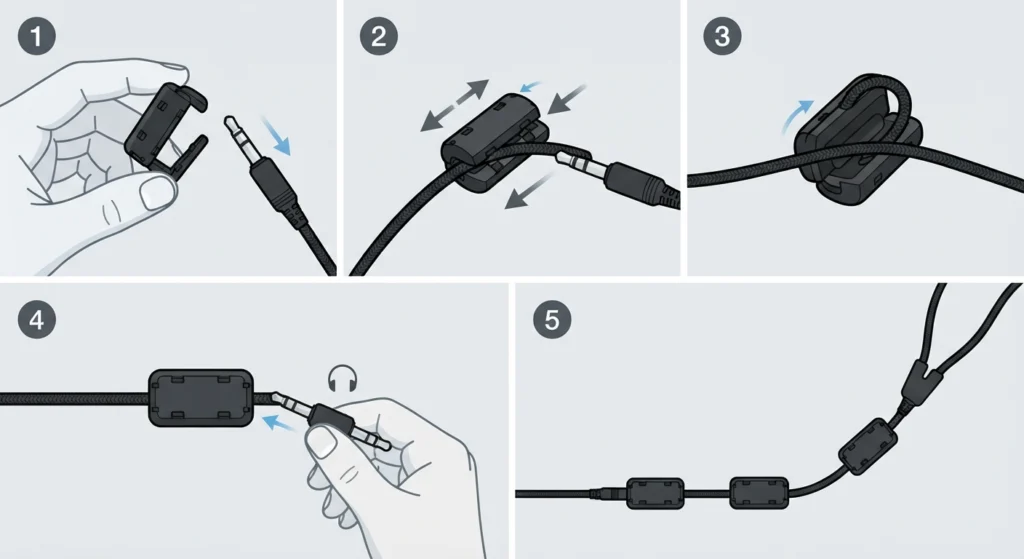
A ferrite core is a small clip-on block that dampens high-frequency signals traveling along a cable. It is a standard way to reduce radio pickup on audio cables.
- Step 1: Buy a clip-on ferrite core that closes snugly around the thickness of the headphone cable.
- Step 2: Open the core and clamp it onto the cable a few centimeters from the plug.
- Step 3: For a stronger effect, loop the cable through the core once or twice before closing it, as long as the core still shuts fully.
- Step 4: Plug in the headphones, keep the volume low, and listen in the spot where the interference was heard.
- Step 5: If some noise is still there, add a second core near the point where the cable splits toward the earcups.
Pro-Tip: Placement matters more than the number of cores. The closest spot to the plug is usually the most effective, because that is where the cable meets the device that is picking up the signal.
Method 2: Switch to a Shorter, Shielded Cable
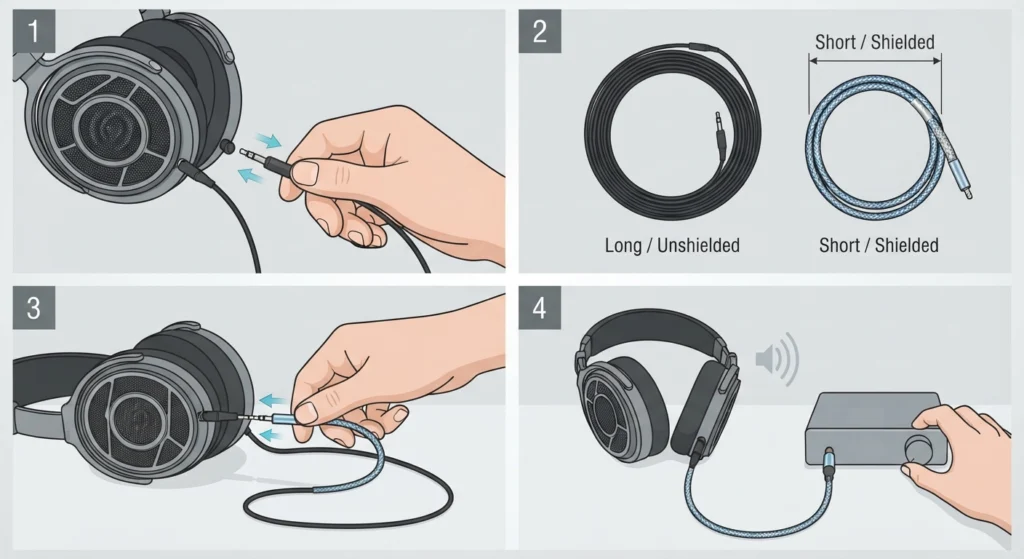
Think of cable length like the height of an antenna. The longer it is, the more signal it collects. Cheap, thin cables with poor shielding make the problem worse.
- Step 1: Check whether the cable is detachable. Many headphones have a removable cable at one or both earcups.
- Step 2: Choose a replacement with braided or shielded construction and a good reputation for low noise.
- Step 3: Pick the shortest length that still works for the setup. A 1.2 meter cable picks up less than a 3 meter one.
- Step 4: Push the plug in fully at both ends, then test again.
Method 3: Move Signal Sources Away From the Headphones
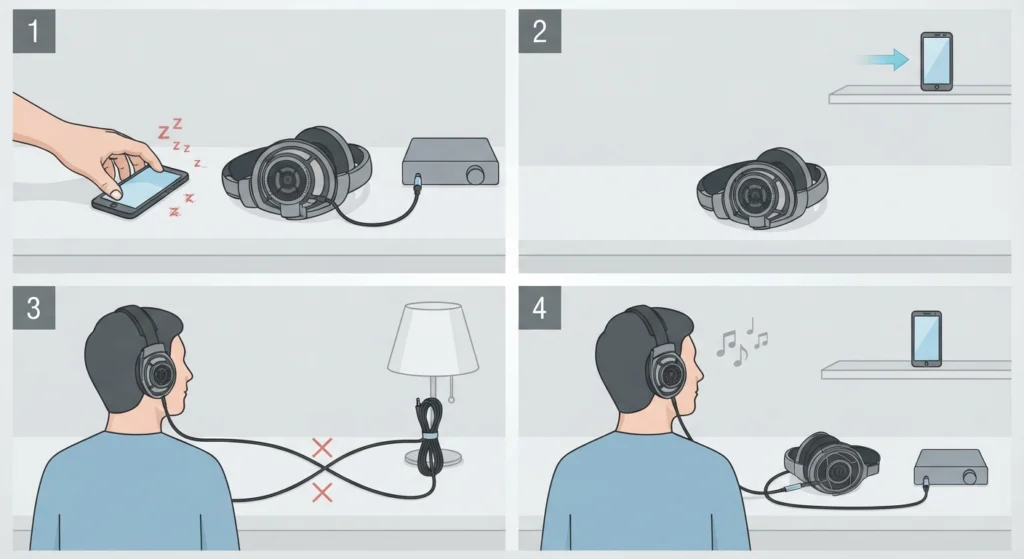
Sometimes the headphones are fine and something nearby is simply too loud in the radio spectrum.
- Step 1: Notice when the noise starts. Common triggers are a phone, wireless router, phone charger, dimmer switch, or radio equipment.
- Step 2: Turn off or move the suspected device a few feet away and listen again.
- Step 3: Route the headphone cable away from power cords, and avoid running it parallel to them.
- Step 4: If the noise disappears, keep that device farther away during listening sessions.
Pro-Tip: The sound itself is a clue. Faint talking or music that was never playing usually points to radio station pickup. A rhythmic buzzing or clicking pattern often points to a nearby phone or other wireless transmitter.
Method 4: Use a USB Audio Adapter or DAC
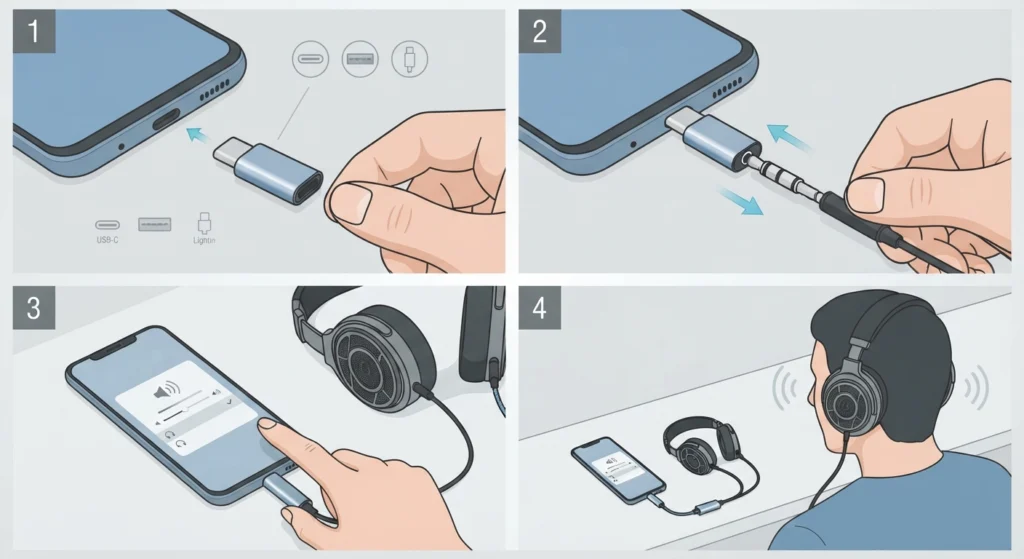
Sometimes the headphone jack inside a computer or phone is the weak link. A small external adapter moves the audio conversion away from that noisy area.
- Step 1: Get a USB audio adapter or DAC that matches the port on the device (USB-C, USB-A, or Lightning).
- Step 2: Plug the adapter into the device, then plug the headphones into the adapter.
- Step 3: On Windows 11, choose the adapter as the sound output using the guide on adjusting audio output settings.
- Step 4: Play audio at a low volume and check whether the interference is gone.
Method 5: Reduce Interference on Bluetooth Headphones
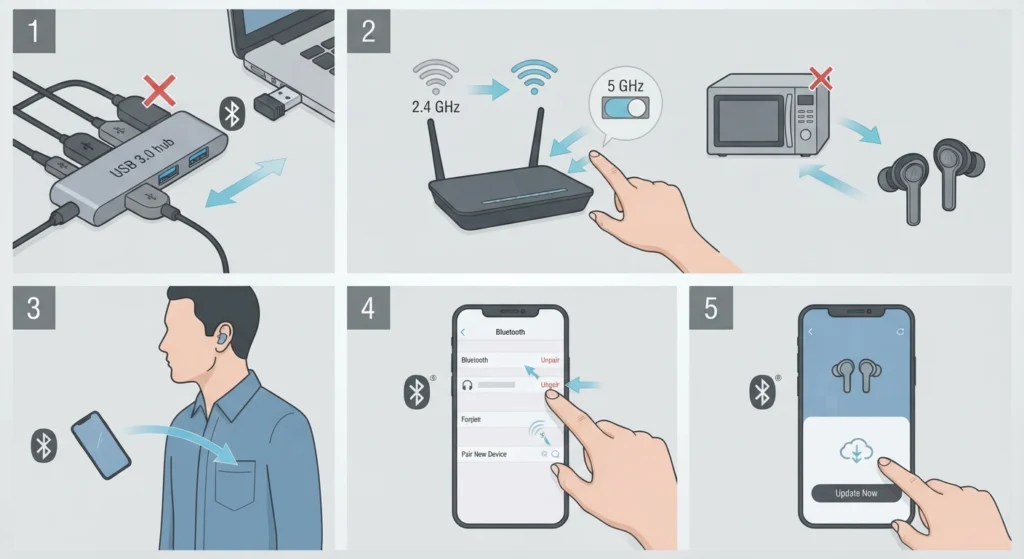
Bluetooth headphones use digital signals that hop between frequencies, so they do not pick up radio stations the way wired headphones do. Interference shows up as crackling, stuttering, or dropouts instead. The goal here is to clear the crowded 2.4 GHz band.
- Step 1: Move USB 3.0 hubs and external drives away from the Bluetooth adapter, or plug the adapter into a short USB extension cable so it sits farther from the ports.
- Step 2: Switch the Wi-Fi router to its 5 GHz band, and keep the headphones away from microwave ovens while they are running.
- Step 3: Keep the phone or computer close to the headphones with a clear line of sight, such as in a pocket on the same side of the body.
- Step 4: Remove and pair the headphones again by following the steps to re-pair Bluetooth earbuds.
- Step 5: Install any firmware update offered in the headphone maker’s app.
Tips to Keep Radio Interference Away
- Choose headphones with a detachable cable so the cable can be replaced if noise appears.
- Keep phones off the desk near the audio equipment, especially when a call or message is coming in.
- Avoid very long headphone extension cables unless they are well shielded.
- Keep the plug clean and seated firmly, since a loose connection can make noise worse.
- Keep a few spare ferrite cores in a drawer. They cost very little and work on other cables too.
Common Problems and Quick Fixes
The Noise Only Appears When a Phone Is Nearby
This is a classic sign of interference from a wireless transmitter. Keep the phone farther from the cable and add a ferrite core near the plug.
The Noise Happens on One Device but Not Another
The problem is inside the first device rather than the headphones. A USB audio adapter usually solves it.
A Steady Low Hum Is Heard Instead of Voices
A constant hum is usually a ground loop rather than radio pickup. A ground loop isolator addresses that, while ferrite cores mainly help with radio noise.
Crackling Continues on a Windows 11 PC
If the cable and ferrite steps did not help, a software setting may be involved. Try the steps for resetting audio settings on Windows 11, then test again.
Frequently Asked Questions
Why do headphones pick up radio stations?
The cable and internal wiring can act like a small antenna. A strong nearby AM or FM signal can get into the audio circuit and become audible, especially with unshielded cables and poorly filtered audio outputs.
Do ferrite cores really work on headphone cables?
Ferrite cores often reduce radio pickup on the cable. Results vary, though. If the noise enters through the device rather than the cable, a USB audio adapter may work better.
Where should a ferrite core be placed on headphones?
Place it on the cable a few centimeters from the plug. A second core near the split toward the earcups can help if noise remains.
Can Bluetooth headphones pick up radio stations?
This is very rare. Bluetooth uses digital signals that hop between frequencies, so interference usually appears as crackling or dropouts instead.
Why is there buzzing before a phone rings or a message arrives?
A phone sends out short bursts of radio energy when it connects to the network. Nearby cables and audio circuits can pick these up as buzzing. Moving the phone away from the headphone cable usually reduces it.
Will a more expensive cable fix the problem?
Price alone does not decide it. Shielding, build quality, and length matter more. A well-built, shorter cable is often better than a costly long one.
Is radio interference the same as a ground loop hum?
No. Radio interference sounds like voices, music, buzzing, or clicking. A ground loop usually causes a steady low hum and needs a different fix, such as a ground loop isolator.
Can a USB DAC stop radio interference?
It often helps, because it moves the audio conversion away from the noisy internals of a phone or computer. Quality differs between models, so results are not guaranteed.
Can Wi-Fi routers cause interference in Bluetooth headphones?
They can. Many routers and Bluetooth devices share the 2.4 GHz band. Switching the router to 5 GHz or moving it away often reduces stuttering.
Can radio interference damage headphones?
It is normally an annoyance rather than a sign of damage. The noise comes from outside signals being picked up, so the headphones themselves are usually fine.