
Learning how to fix headphones not working on YouTube usually takes less than five minutes, because the cause is almost always a muted tab, the wrong output device, or a stuck Bluetooth connection. This step-by-step guide walks through each fix in order, starting with the quickest checks.
Key Takeaways
- Check the YouTube player and the browser tab for mute first, since it is the fastest test.
- Confirm that Windows is sending sound to the headphones and not to the speakers.
- Bluetooth headphones often need to be removed and paired again.
- On a phone, media volume and the audio output selection matter more than ringer volume.
- Browser extensions and a stalled Windows Audio service can silence sound in only one app.
Step-by-Step Guide to Fix Headphones Not Working on YouTube
Work through the fixes below in order. Each one takes a minute or two, and most people find that the problem is solved within the first three.
Fix 1: Check the YouTube Player and Browser Tab for Mute
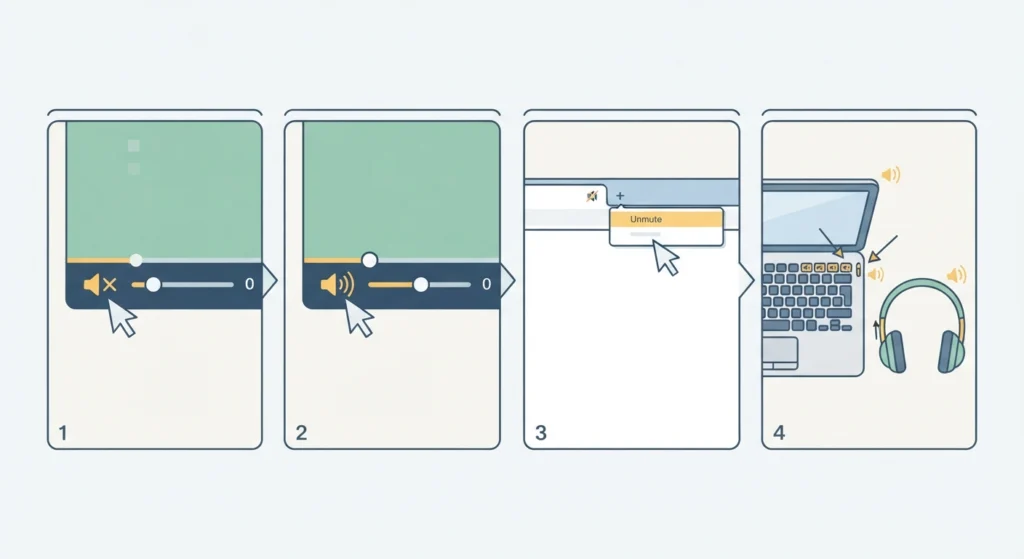
It sounds too simple, but a muted player or tab is behind a surprising number of silent videos. Think of it like a dimmer switch: the headphones may be perfectly fine while the volume sits at zero somewhere along the chain.
- Step 1: Look at the speaker icon at the bottom left of the video player. If a line runs through it, click it to unmute.
- Step 2: Drag the volume slider next to it to about halfway.
- Step 3: Check the browser tab at the top. A crossed-out speaker icon means the tab is muted. Right-click the tab and choose ‘Unmute site’ in Chrome or ‘Unmute tab’ in Edge.
- Step 4: Raise the system volume with the keyboard volume keys or the volume buttons on the headphones.
Fix 2: Select the Correct Output Device in Windows 11
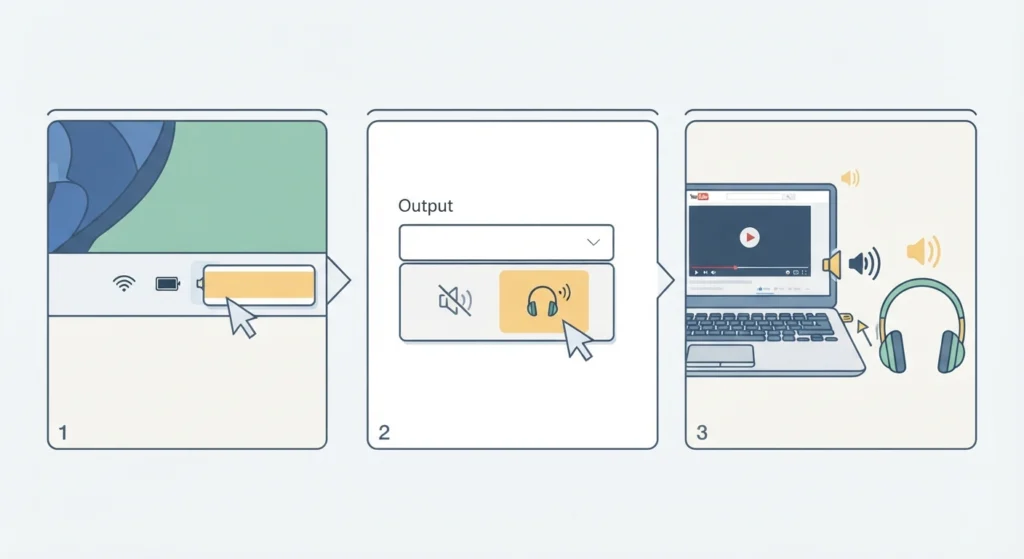
When more than one audio device is available, Windows can send YouTube sound to the laptop speakers or a monitor instead of the headphones. Choosing the right device is quick. The guide on adjusting audio output settings in Windows 11 covers this in more detail.
- Step 1: Right-click the speaker icon in the taskbar and select ‘Sound settings’.
- Step 2: Under Output, click the name of the headphones so the selection is active.
- Step 3: Play a YouTube video and confirm that sound now comes through the headphones.
Fix 3: Check the Volume Mixer for the Browser
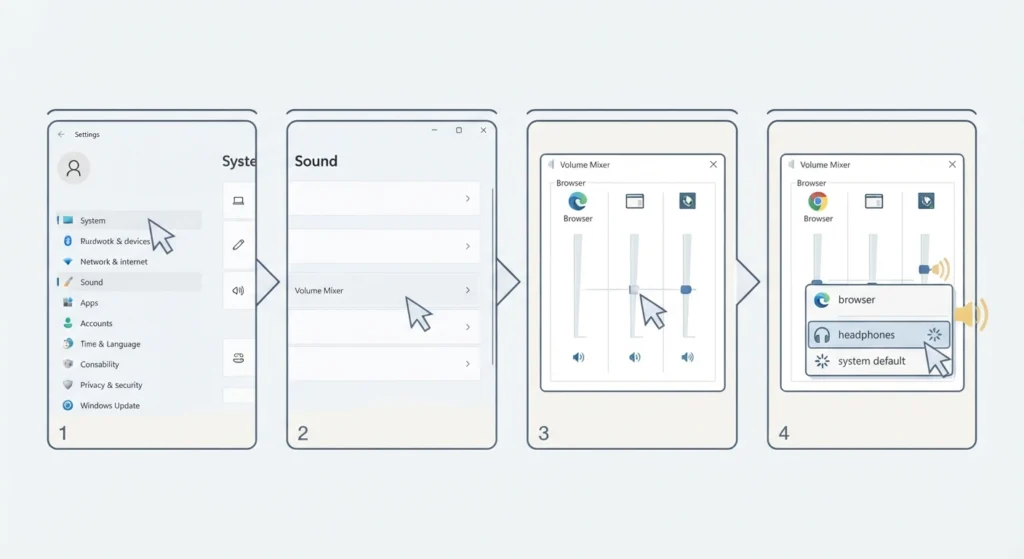
Windows keeps a separate volume level for every app. The browser can be turned down or muted even while the rest of the system sounds normal.
- Step 1: Open Settings, then go to System and select Sound.
- Step 2: Scroll down and open Volume mixer.
- Step 3: Find the browser in the app list and raise its slider if it is low.
- Step 4: Check the output device listed for the browser. If it points to a device other than the headphones, change it to the headphones or to the system default.
Pro-Tip: A per-app output choice in the Volume mixer overrides the main output device. If the headphones are selected in Sound settings but YouTube stays silent, this is the first place to look.
Fix 4: Remove and Re-Pair Bluetooth Headphones
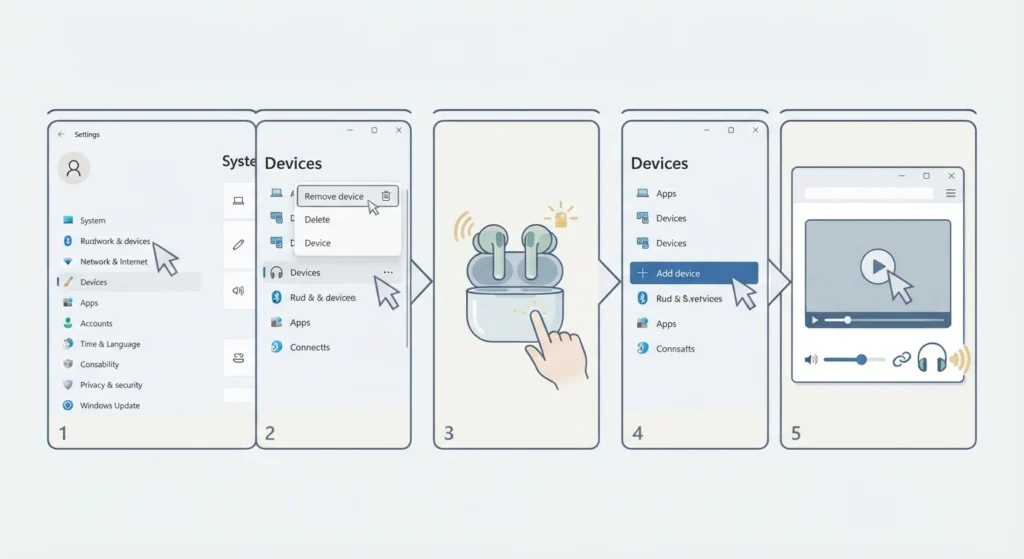
Bluetooth headphones can show as connected while the audio link is stuck. Removing the device and pairing it again clears the old connection data. For a full walkthrough, see this guide to re-pair Bluetooth earbuds for stereo sound on Windows.
- Step 1: Open Settings and go to Bluetooth & devices, then Devices.
- Step 2: Click the three dots next to the headphones and select ‘Remove device’.
- Step 3: Put the headphones or earbuds into pairing mode, usually by holding the power or case button until the light flashes.
- Step 4: Click ‘Add device’, choose Bluetooth, and select the headphones from the list.
- Step 5: Reload the YouTube page and play a video.
Pro-Tip: Some Bluetooth headphones appear twice in the output list, once as Headphones (Stereo) and once as Headset (Hands-Free). Pick the Headphones entry for video, since the Hands-Free option is built for calls and often sounds thin or refuses to play video audio properly.
Fix 5: Check Media Volume and Audio Output on a Phone
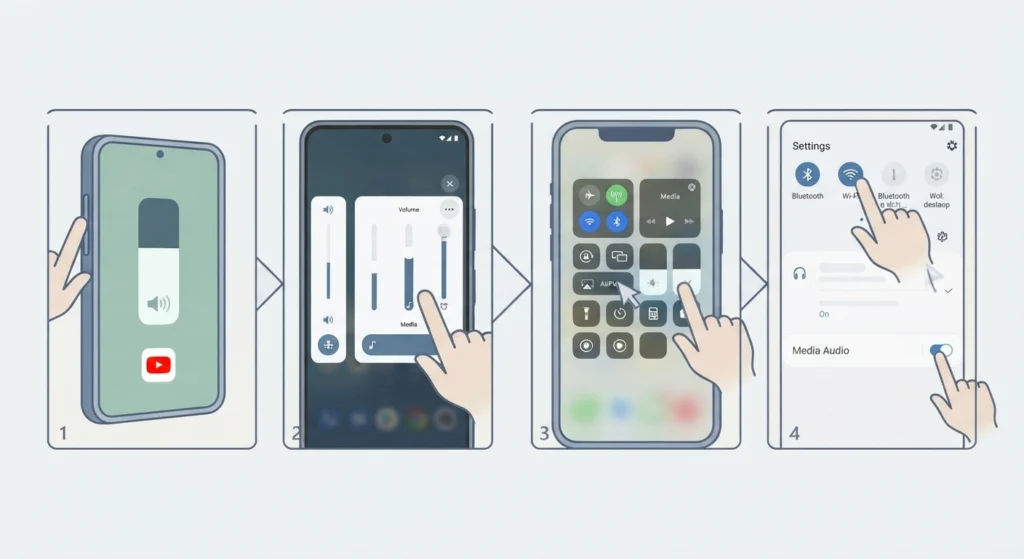
On Android and iPhone, ringer volume and media volume are separate. YouTube follows media volume, so a phone that rings loudly can still play videos silently.
- Step 1: Play a video in the YouTube app and press the volume up button on the side of the phone.
- Step 2: On Android, tap the three dots beside the volume slider that appears, or open the sound panel, and raise the Media volume.
- Step 3: On iPhone, open Control Center, tap the audio output icon in the music card, and select the headphones.
- Step 4: For Bluetooth headphones on Android, open Bluetooth settings, tap the gear icon next to the headphones, and make sure the media audio option is switched on.
Fix 6: Restart the Browser and Test Without Extensions
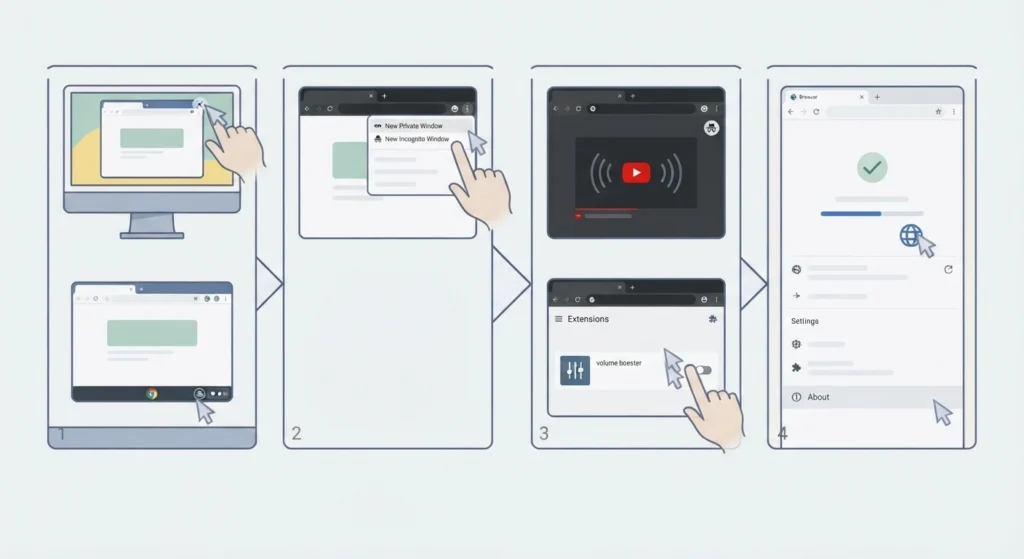
Volume booster and sound equalizer extensions can interfere with how a browser sends audio. A clean test shows quickly whether an extension is the cause.
- Step 1: Close the browser completely and open it again.
- Step 2: Open a private or Incognito window, where most extensions are turned off by default.
- Step 3: Play the same YouTube video. If sound returns, open the extensions page and disable audio-related extensions one at a time until the culprit is found.
- Step 4: Update the browser to the latest version from its About page in the settings menu.
Fix 7: Restart the Windows Audio Service
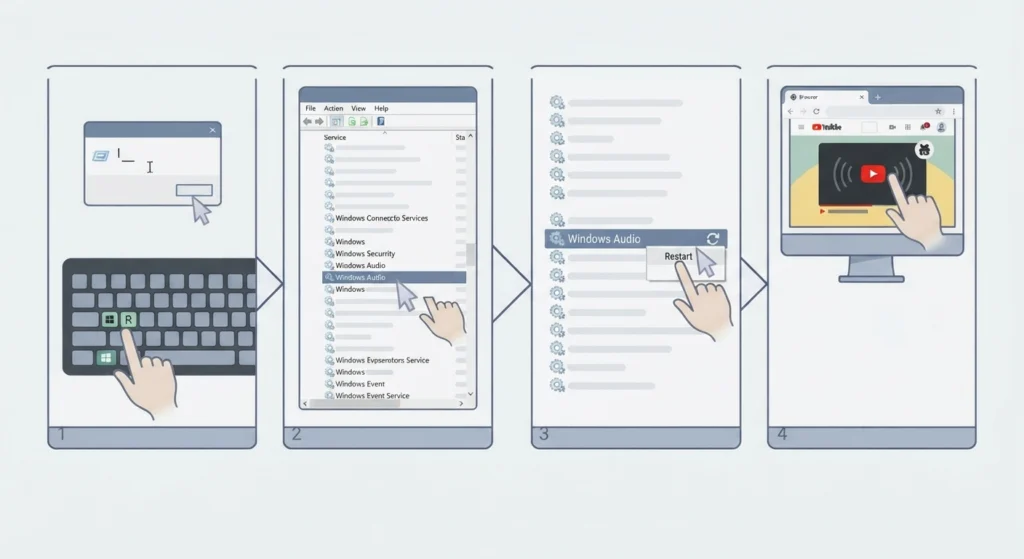
If every other fix has failed, the Windows Audio service may have stalled. Restarting it refreshes how the system handles sound. The guide on resetting audio settings in Windows 11 has more options if a deeper reset is needed.
- Step 1: Press the Windows key and R together, type services.msc, and press Enter.
- Step 2: Scroll down to Windows Audio in the list.
- Step 3: Right-click Windows Audio and select Restart.
- Step 4: Go back to YouTube and play a video.
Tips to Avoid Headphone Problems on YouTube
- Connect the headphones before opening YouTube so the browser picks up the correct output device from the start.
- Keep the browser updated, since audio bugs are regularly fixed in new releases.
- Charge Bluetooth headphones before long viewing sessions, as low battery can cause dropouts and silence.
- For wired headphones, push the plug all the way in and try a different port if the sound is unstable.
- Disconnect unused Bluetooth devices, such as speakers or a car system, that may grab the audio connection.
Common Problems and Quick Solutions
Sound Plays From the Speakers Instead of the Headphones
Windows is using the wrong output device. Open Sound settings, select the headphones under Output, and check the Volume mixer for a per-app override.
Sound Comes Through Only One Ear
Check the balance setting in the audio properties of the headphones and reseat the plug on wired models. For Bluetooth earbuds, put both back in the case for a few seconds and reconnect them.
Headphones Work Everywhere Except YouTube
This points to a tab mute, an extension, or a per-app volume setting. Try Fix 1, Fix 3, and Fix 6 first.
Bluetooth Headphones Connected but No Sound
The connection is showing but the audio link is not active. Remove the device and pair it again, then select the Headphones (Stereo) entry as the output.
Frequently Asked Questions
Why are headphones not working only on YouTube?
The most common reasons are a muted browser tab, a low browser volume in the Volume mixer, or an extension interfering with audio. Since other apps work normally, the headphones themselves are usually fine.
Why is there no sound on YouTube when headphones are plugged in?
Windows may still be using the speakers as the default output. Open Sound settings and select the headphones as the output device, then reload the video.
How do I unmute a YouTube tab in Chrome?
Right-click the tab at the top of the browser and select Unmute site. The crossed-out speaker icon on the tab should disappear right away.
Can a browser extension block YouTube sound in headphones?
Yes. Volume boosters and equalizer extensions can change or block audio in the browser. Testing in a private window shows quickly whether an extension is responsible.
Do Bluetooth headphones need to be re-paired to fix YouTube audio?
Often yes. Removing the headphones from Bluetooth settings and pairing them again clears a stuck connection, which is a common cause of a connected device with no sound.
Why does YouTube audio play from the laptop speakers instead of the headphones?
The browser may have its own output device set in the Volume mixer, or Windows may not have switched to the newly connected headphones. Selecting the headphones in both places solves it.
Why does YouTube play sound in only one earbud?
The cause is usually a connection issue between the two earbuds or a balance setting. Placing both earbuds in the case, closing the lid, and reconnecting typically restores stereo sound.
Is YouTube volume on a phone different from ringer volume?
Yes. YouTube uses media volume, which is controlled separately from the ringer. Raise the media volume while a video is playing to hear sound through the headphones.
Does restarting the Windows Audio service delete any files or settings?
No. Restarting the service only refreshes how Windows handles sound. Personal files and saved audio preferences stay in place.