
Headphone problems on an iPad are more common than most people expect, especially after an iPadOS update or a switch between wired and wireless audio. This guide walks through every practical fix for headphone problems on an iPad, starting with the quickest checks and moving into deeper settings adjustments.
Key Takeaways
- Most iPad headphone issues come from loose connections, dirty ports, or outdated software.
- Bluetooth headphones often need to be forgotten and re-paired to restore sound.
- Control Center audio settings control where sound actually plays, not just the volume.
- A simple restart resolves a surprising number of audio glitches on iPad.
- Resetting all settings should only be used as a last resort fix.
Method 1: Check the Headphone Connection and Adapter
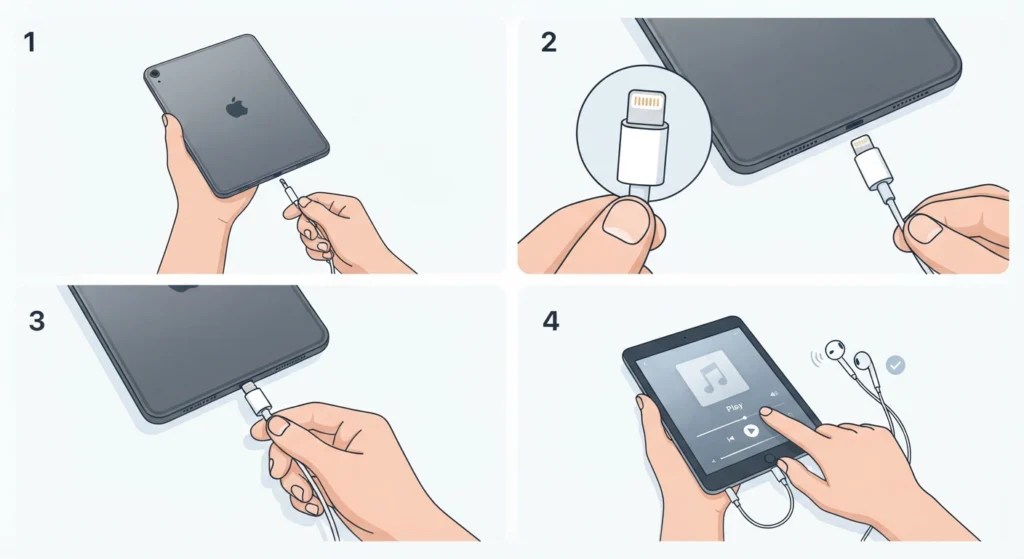
Most modern iPad models dropped the 3.5mm headphone jack, so wired headphones rely on a Lightning-to-headphone adapter or a USB-C adapter, depending on the model. A loose or damaged adapter is one of the most frequent reasons audio fails to come through.
- Step 1: Unplug the headphone adapter completely from the iPad.
- Step 2: Inspect the connector for bent pins, lint, or visible damage.
- Step 3: Reconnect the adapter firmly, then plug the headphones back in.
- Step 4: Play audio and check if sound returns through the headphones.
This works best when the adapter itself is the weak link, which happens more often than people assume since these small connectors take a lot of daily wear.
Method 2: Restart the iPad
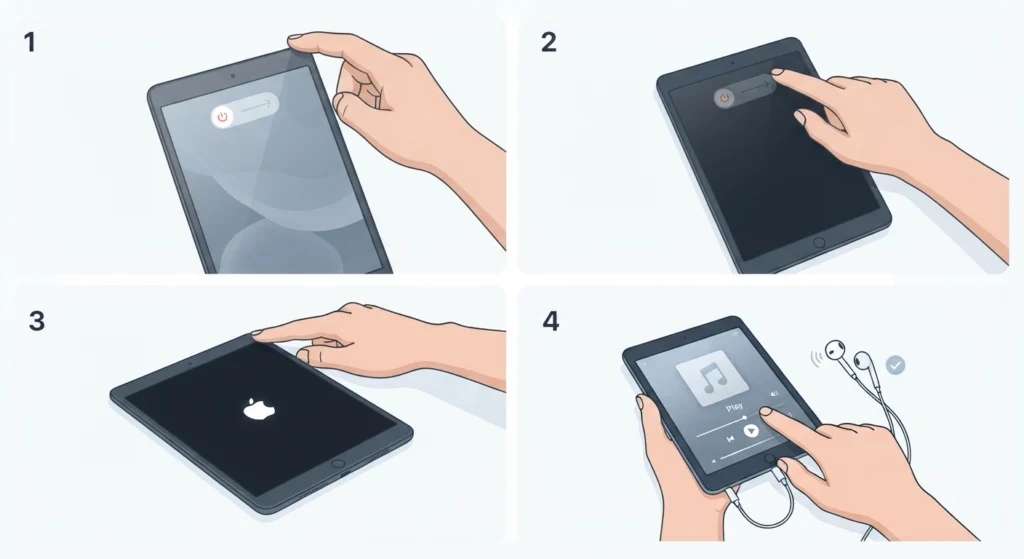
A restart clears temporary audio glitches that build up in the background, particularly after long sessions of video calls, music streaming, or gaming.
- Step 1: Press and hold the top button (or top button plus a volume button on Face ID models) until the power slider appears.
- Step 2: Slide to power off and wait about thirty seconds.
- Step 3: Press and hold the top button again until the Apple logo shows up.
- Step 4: Reconnect the headphones once the iPad fully boots and test the audio.
Method 3: Clean the Headphone or Charging Port
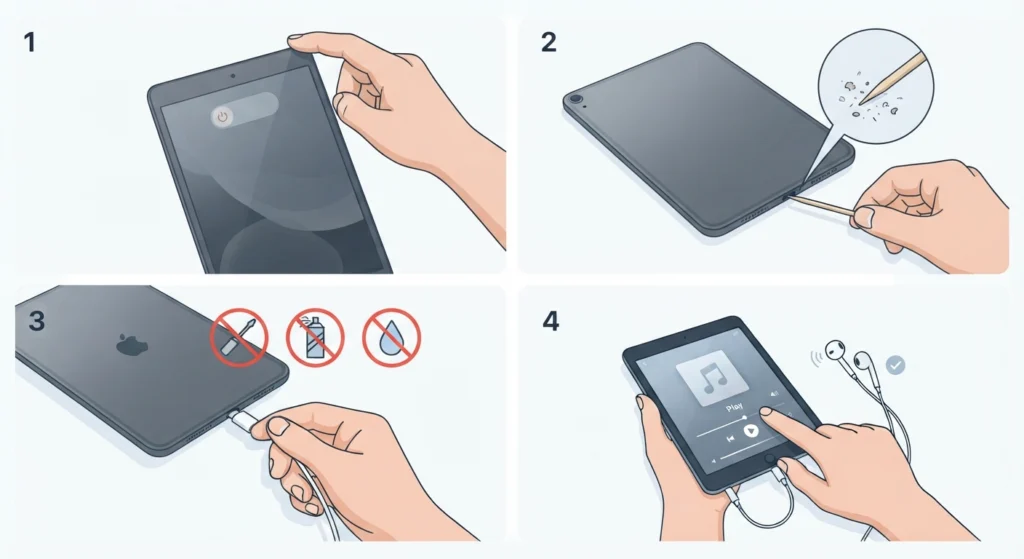
Dust, lint, and pocket debris build up inside the Lightning or USB-C port over time, and this directly interferes with how well the headphone adapter makes contact.
- Step 1: Power off the iPad before cleaning.
- Step 2: Use a soft-bristled, anti-static brush or a wooden toothpick to gently remove debris from the port.
- Step 3: Avoid metal objects, compressed air at close range, or liquids inside the port.
- Step 4: Reconnect the adapter and headphones, then power the iPad back on.
Pro-Tip: A build-up of lint is the single most overlooked cause of intermittent headphone sound on iPad. Checking the port takes less than a minute and solves the issue far more often than people expect.
Method 4: Update iPadOS
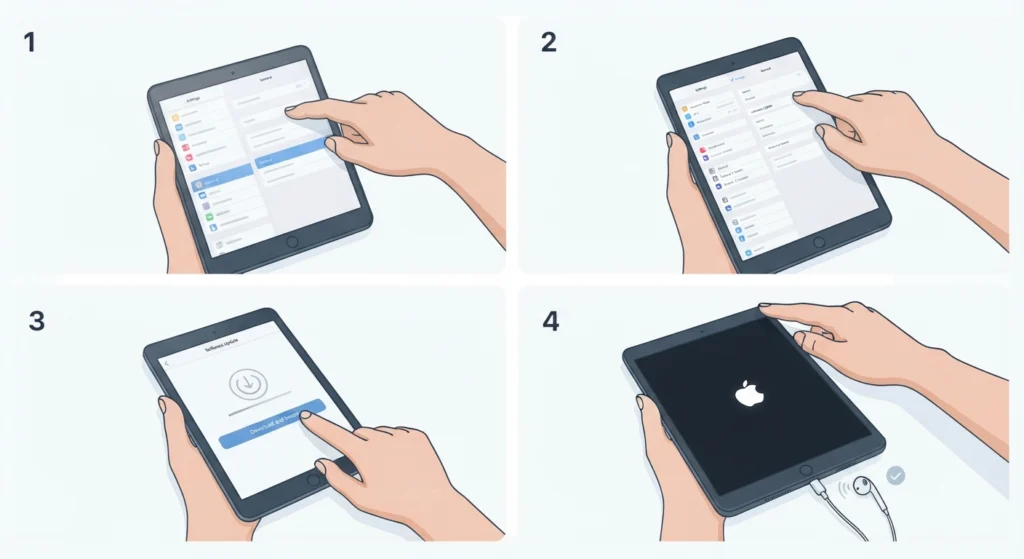
Outdated software occasionally causes audio routing bugs, particularly with Bluetooth headphones that behave fine on other devices but drop out on iPad.
- Step 1: Open Settings, then tap General.
- Step 2: Tap Software Update.
- Step 3: If an update is available, tap Download and Install.
- Step 4: Restart the iPad once the update finishes and reconnect the headphones.
Method 5: Forget and Re-Pair Bluetooth Headphones
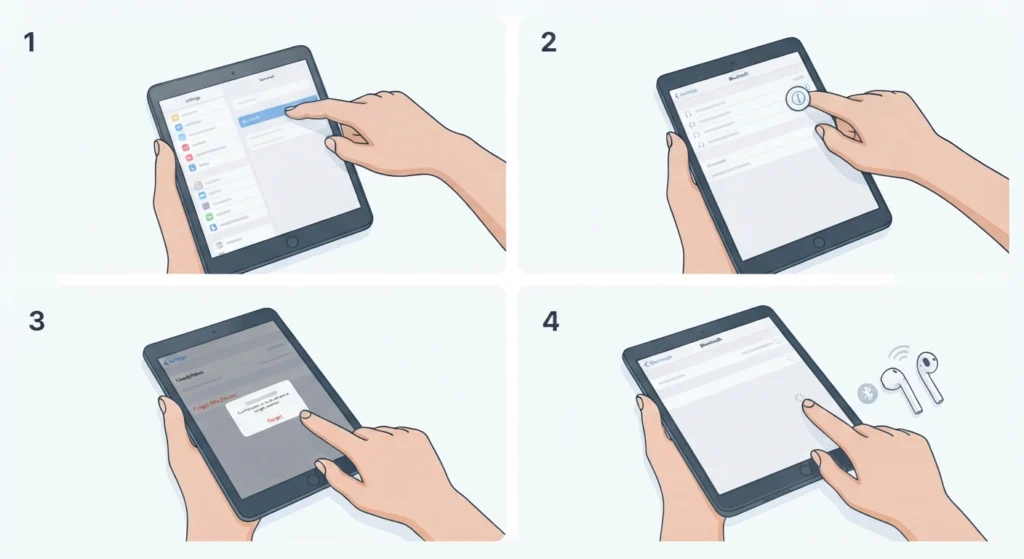
Bluetooth headphones that connect but produce no sound, or that keep disconnecting, usually need a fresh pairing rather than another attempt at reconnecting through the same saved profile. This same principle applies when trying to re-pair Bluetooth earbuds for proper stereo sound, and it holds true on iPad as well.
- Step 1: Open Settings, then tap Bluetooth.
- Step 2: Tap the information icon next to the headphone name.
- Step 3: Tap Forget This Device and confirm.
- Step 4: Put the headphones into pairing mode and select them again from the Bluetooth list.
Method 6: Adjust Audio Output in Control Center
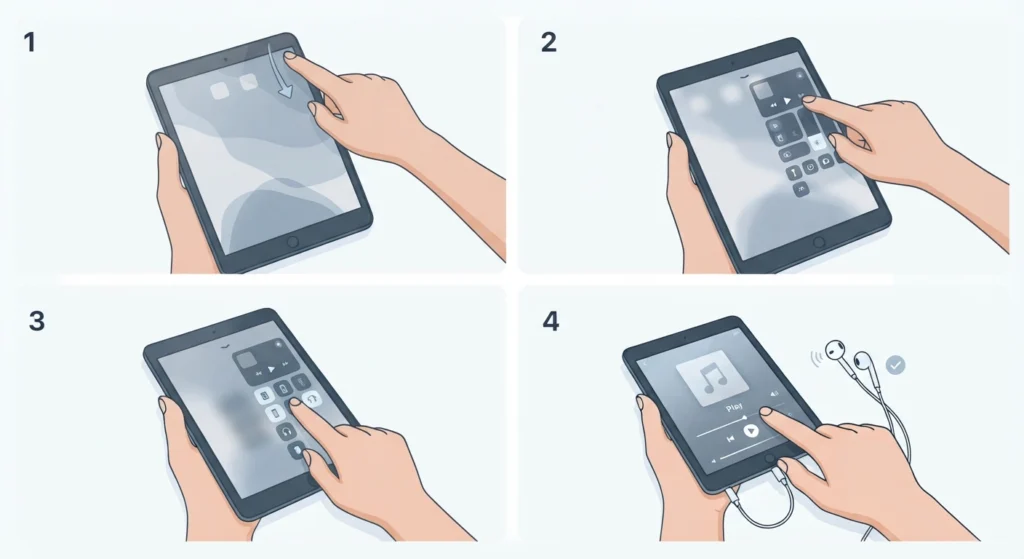
Sound sometimes plays through the iPad speakers instead of the headphones, even when the headphones show as connected. This happens because the audio output destination gets set incorrectly rather than because of an actual hardware fault.
- Step 1: Swipe down from the top-right corner to open Control Center.
- Step 2: Tap the audio card in the top-right corner (or tap and hold the volume slider).
- Step 3: Select the connected headphones from the output list.
- Step 4: Play audio to confirm sound now routes through the headphones.
Learning to properly manage where sound gets sent matters just as much on other devices, and the same logic used when adjusting audio output settings applies directly here.
Method 7: Check Mono Audio and Balance Settings
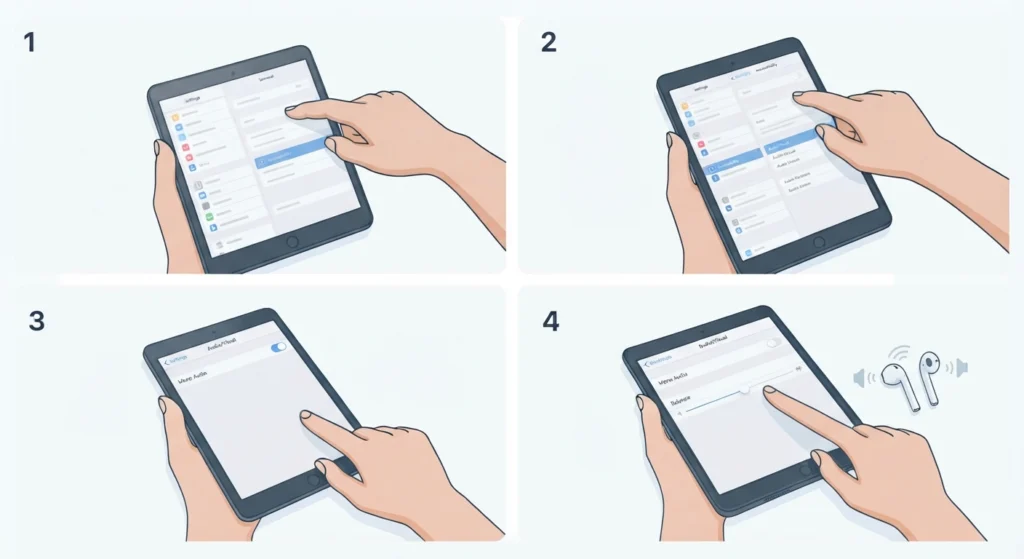
Sound coming through only one earbud or ear cup is rarely a broken headphone. It is usually an accessibility setting that shifted the balance or merged the channels into mono.
- Step 1: Open Settings, then tap Accessibility.
- Step 2: Tap Audio/Visual.
- Step 3: Turn off Mono Audio if it is enabled.
- Step 4: Drag the Left-Right balance slider back to the center.
Method 8: Reset All Settings
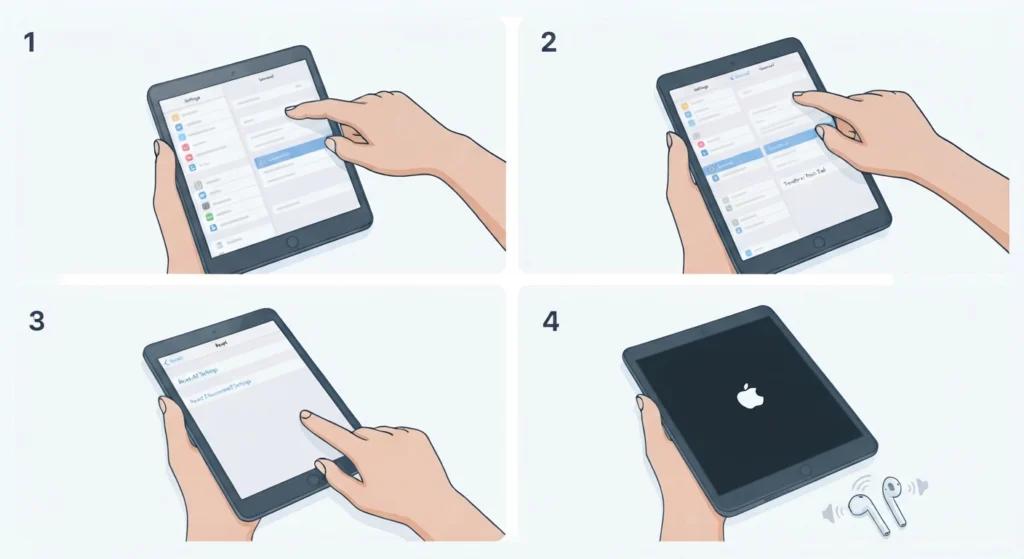
If none of the earlier fixes worked, a full settings reset clears any corrupted audio preferences without touching personal files or apps.
- Step 1: Open Settings, then tap General.
- Step 2: Tap Transfer or Reset iPad.
- Step 3: Tap Reset, then choose Reset All Settings.
- Step 4: Enter the passcode, confirm, and reconnect the headphones once the iPad restarts.
Pro-Tip: Reset All Settings does not delete photos, apps, or data – it only clears system preferences such as Wi-Fi passwords, Bluetooth pairings, and audio configurations, which makes it a safe last step before considering a repair.
Common Headphone Problems on iPad
A few specific issues come up often enough that they deserve a direct answer rather than a full walkthrough.
- Headphones show as connected but no sound plays – recheck the output source in Control Center, since this is almost always a routing issue rather than a hardware fault.
- Crackling or static sound – this usually points to a worn adapter cable or a port that needs cleaning.
- Audio cuts out during calls but works for music – this points to a microphone conflict, which is worth checking against known fixes for microphone detection problems, since the same root cause often applies.
- Bluetooth headphones connect automatically to the wrong device – forget the pairing on the unwanted device first, then reconnect on the iPad.
- Volume stays low even at maximum – check that a volume limit has not been set under Settings, then Music, then Volume Limit.
Tips for Preventing Headphone Problems on iPad
- Keep iPadOS updated, since Apple regularly patches Bluetooth and audio routing bugs.
- Store the headphone adapter separately from keys or coins to avoid connector damage.
- Avoid charging and using headphones through a single-port adapter under heavy load, as this can cause intermittent audio drops.
- Periodically check the port for lint, especially for anyone who carries the iPad in a bag or pocket daily.
- Turn Bluetooth off and back on occasionally to clear minor connection glitches before they build up.
Frequently Asked Questions
Why does the iPad not recognize wired headphones?
This usually happens because of a faulty Lightning or USB-C adapter, a dirty port, or a headphone cable that has worn out. Testing the same headphones on another device helps confirm where the fault actually is.
Why do Bluetooth headphones connect but produce no sound on iPad?
The iPad often keeps the audio output set to its internal speakers even when the headphones show as connected. Manually selecting the headphones in Control Center usually resolves this.
Can a software update fix headphone problems on iPad?
Yes. Apple frequently addresses Bluetooth and audio bugs in iPadOS updates, so checking for a pending update is one of the more reliable fixes for ongoing issues.
Why does sound only come through one side of the headphones?
This is typically caused by a Mono Audio setting or an unbalanced Left-Right slider under Accessibility settings rather than a hardware defect.
Is it safe to clean the iPad headphone port at home?
Yes, as long as a soft brush or a non-metal tool is used gently and the iPad is powered off first. Metal tools and liquids should always be avoided.
Does Reset All Settings delete photos or apps?
No. It only resets system preferences such as network settings, Bluetooth pairings, and audio configurations, leaving personal data untouched.
Why do headphones work on other devices but not on the iPad?
This points toward an iPad-specific issue such as an incorrect audio output selection, an outdated iPadOS version, or a port that needs cleaning, rather than a problem with the headphones themselves.
Why does iPad audio cut out during video calls?
This is often related to a microphone conflict between the app and the connected headphones, which is a similar pattern to general microphone detection issues on other platforms.
How often should Bluetooth headphones be re-paired with an iPad?
There is no fixed schedule, but re-pairing is worth doing whenever sound drops out repeatedly or the headphones fail to reconnect automatically after being out of range.
What should be checked first when headphone volume is too low?
The Volume Limit setting under Music settings should be checked first, followed by the physical volume buttons and the balance slider under Accessibility.