
Learning how to fix earbuds that reconnect every few seconds starts with one idea: the Bluetooth link is breaking and rebuilding itself over and over. That causes the chime, the audio cutting out, and the music restarting. The good news is that most cases come down to a stale pairing, low battery, interference, or an aggressive power-saving setting, and each one has a quick fix.
Key Takeaways
- Forgetting the earbuds and pairing them again clears most reconnect loops.
- A factory reset of the earbuds removes corrupted pairing data stored inside them.
- Low battery in the earbuds or the case can cause constant drops.
- Other nearby devices and power-saving settings often break the connection.
- Updating firmware and resetting network settings are the last steps to try.
Step-by-Step Fixes for Earbuds That Keep Reconnecting
Work through these methods in order. The simplest and most effective ones come first, so there is a good chance the problem is solved within the first two or three.
Method 1: Forget the Earbuds and Pair Them Again
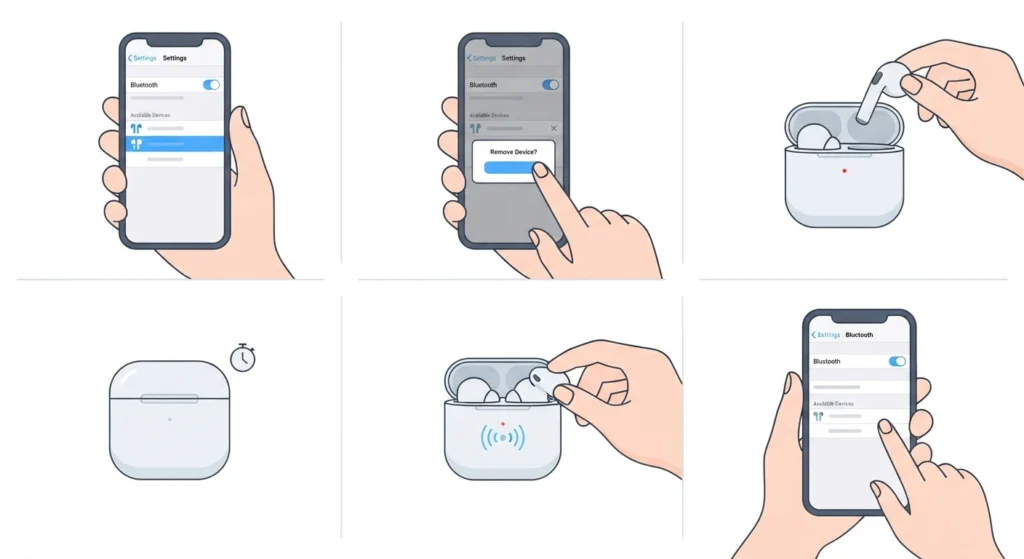
A saved pairing can become corrupted over time, especially after a software update. Removing it and starting fresh is the most common fix.
- Step 1: Open the Bluetooth settings on the phone, tablet, or computer.
- Step 2: Select the earbuds from the list of paired devices.
- Step 3: Choose Forget or Remove Device and confirm.
- Step 4: Place both earbuds in the charging case and close the lid for about 10 seconds.
- Step 5: Open the case to put the earbuds in pairing mode. Many models also need the button on the case held until the light flashes.
- Step 6: Select the earbuds from the available devices list and pair them again.
Windows users can follow this guide to re-pair Bluetooth earbuds on Windows for a clean connection.
Pro-Tip: Always forget the earbuds on every device they were paired with, not just the one causing trouble. A leftover pairing on an old phone or laptop can keep grabbing the connection in the background.
Method 2: Factory Reset the Earbuds
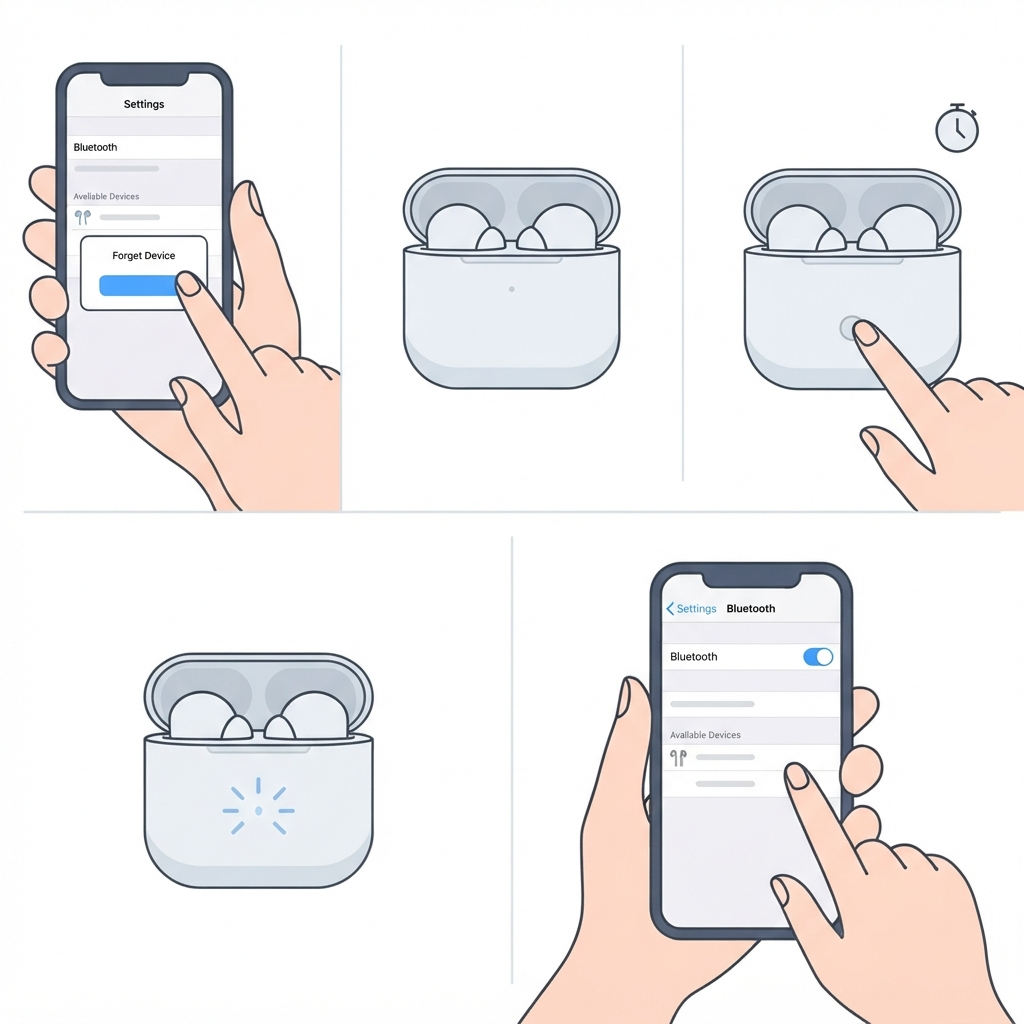
Forgetting the device only clears the phone side. A factory reset clears the pairing data stored inside the earbuds themselves.
- Step 1: Forget the earbuds in the Bluetooth settings of every connected device.
- Step 2: Put both earbuds in the case and leave the lid open.
- Step 3: Press and hold the reset button on the case, or the touch controls on the earbuds, for roughly 10 to 15 seconds. The exact method depends on the brand, so check the manual for the correct button combination.
- Step 4: Release when the indicator light flashes or changes color.
- Step 5: Pair the earbuds again as new devices.
Method 3: Charge the Earbuds and the Case Fully
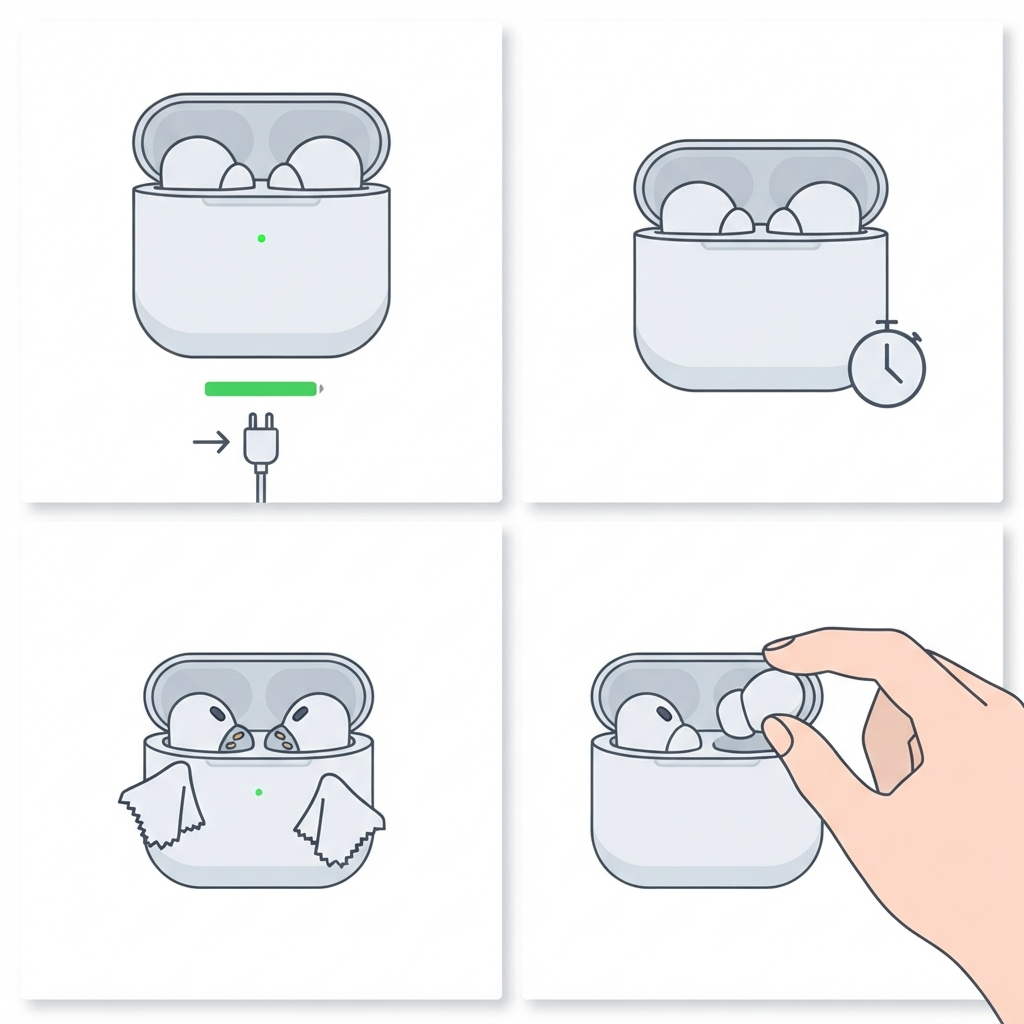
When the battery runs low, the Bluetooth chip can struggle to hold a stable signal. A weak charging case can also drop power to the earbuds and trigger repeated reconnecting.
- Step 1: Place the earbuds in the case and charge the case until it shows a full charge.
- Step 2: Let the earbuds sit in the case for at least 30 minutes.
- Step 3: Wipe the metal charging contacts on the earbuds and inside the case with a dry, soft cloth so they charge properly.
- Step 4: Take the earbuds out and test the connection.
Method 4: Reduce Interference and Keep the Source Close
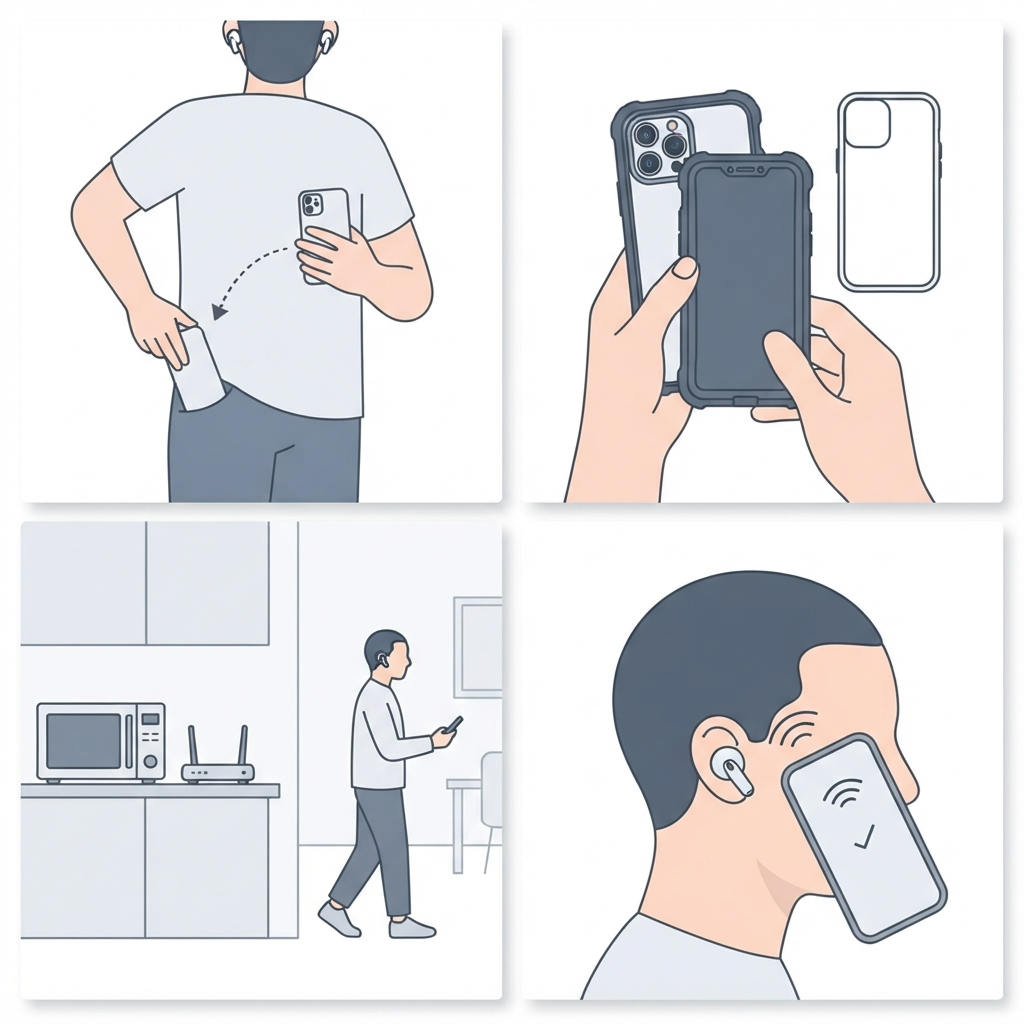
Bluetooth shares the 2.4 GHz band with Wi-Fi routers, microwaves, and other wireless gadgets. The human body also blocks the signal, which is why earbuds often drop when the phone sits in a back pocket on the opposite side.
- Step 1: Move the phone to the same side of the body as the earbuds, or hold it in hand.
- Step 2: Stay away from microwaves, routers, and crowded wireless areas.
- Step 3: Remove thick cases or bags that may block the phone signal.
- Step 4: Test the earbuds again within a few steps of the device.
Pro-Tip: If the drops only happen in one place, such as a gym or a busy train station, the cause is almost certainly interference in that spot and not a fault in the earbuds.
Method 5: Stop Other Devices From Grabbing the Connection

Earbuds that were paired with a tablet, laptop, or second phone may keep trying to connect to those devices. The tug of war between them looks like a constant reconnect loop.
- Step 1: Turn off Bluetooth on every other device the earbuds have been paired with.
- Step 2: Turn off any automatic device switching feature in the earbuds’ companion app or settings, if available.
- Step 3: Use the earbuds with only one device for a day and see if the problem returns.
Method 6: Update the Earbuds Firmware and the Phone Software
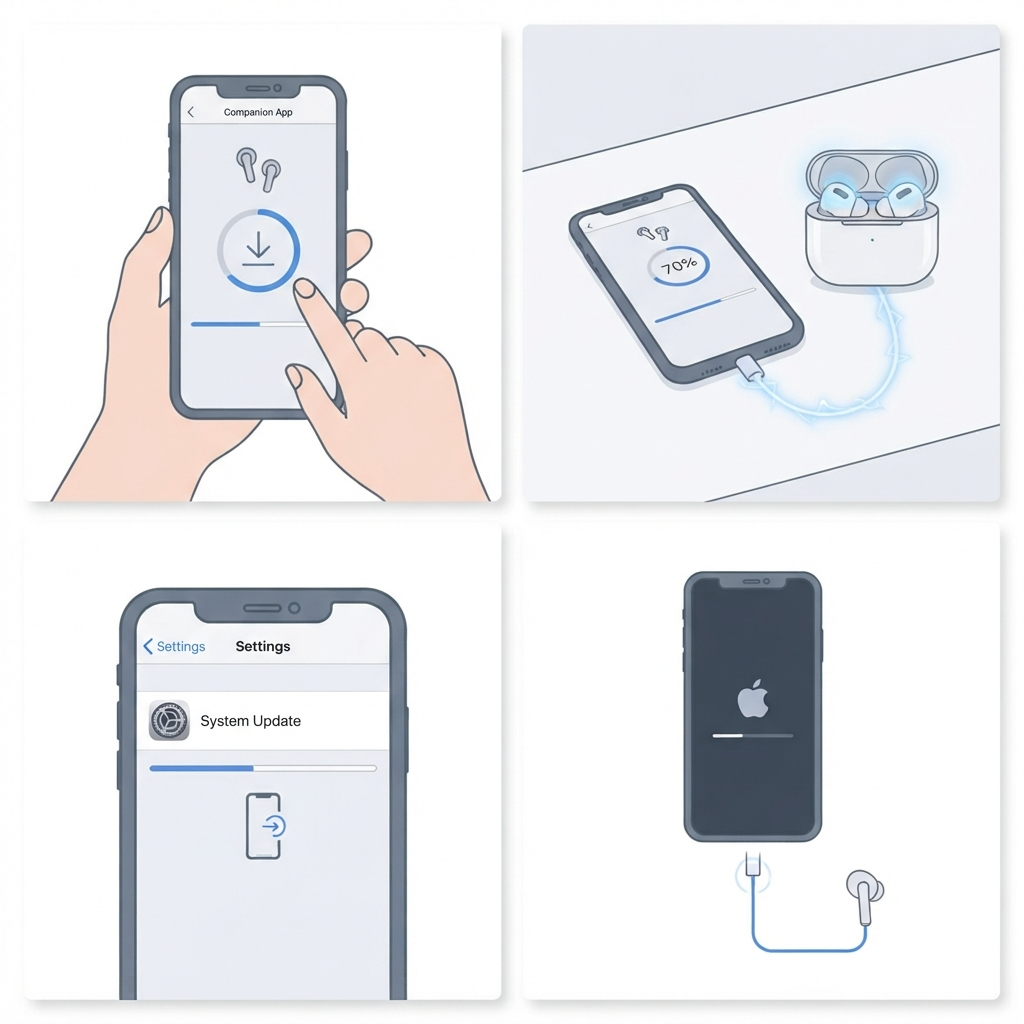
Manufacturers release firmware updates that fix Bluetooth stability bugs. An outdated phone operating system can also cause compatibility problems.
- Step 1: Open the companion app for the earbuds and look for a firmware update option.
- Step 2: Keep the earbuds in the case, connected to the app, and close to the phone while the update installs.
- Step 3: Check the phone settings for any pending system update and install it.
- Step 4: Restart the phone and reconnect the earbuds.
Method 7: Turn Off Battery Optimization on Android
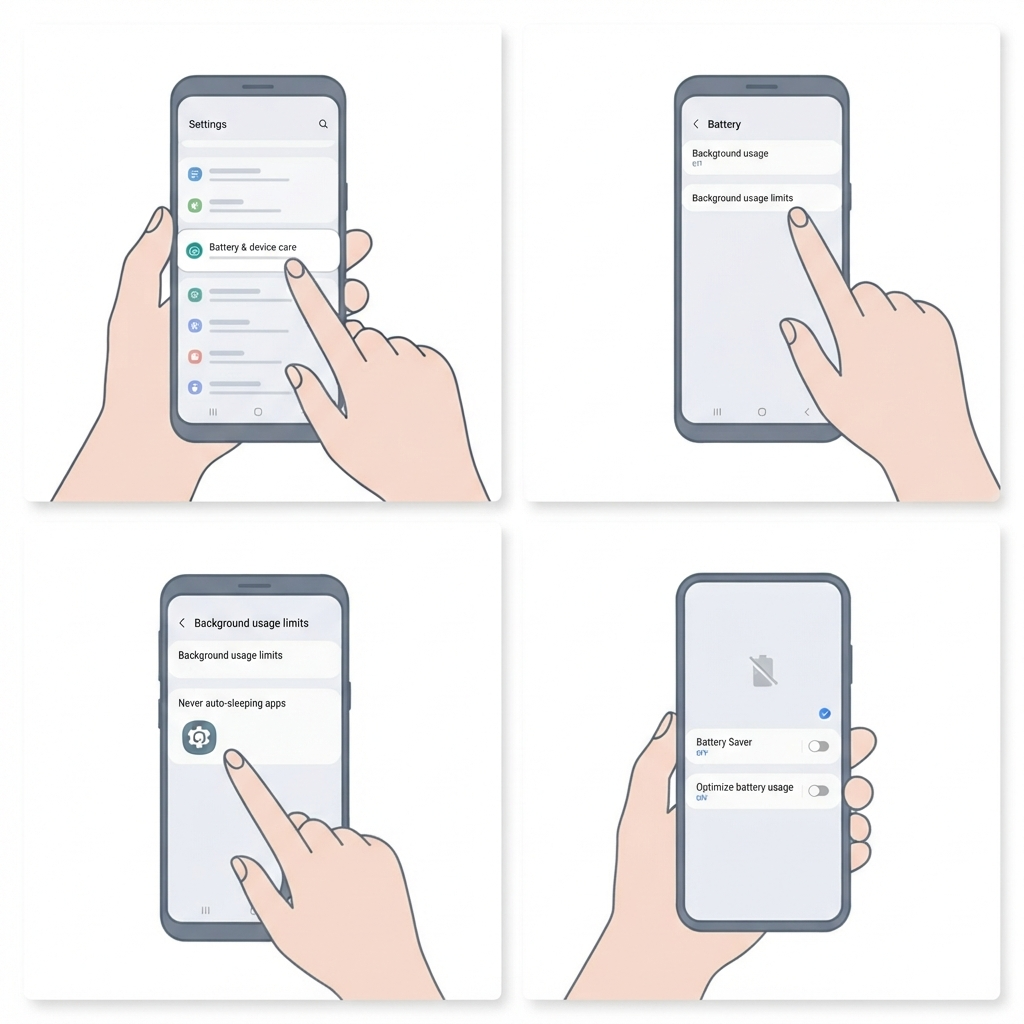
Some Android phones limit background apps to save power, and that can interrupt the Bluetooth connection or the earbuds’ companion app.
- Step 1: Open Settings and go to Apps.
- Step 2: Select the earbuds’ companion app.
- Step 3: Open the Battery option and choose Unrestricted or the equivalent setting on the phone.
- Step 4: Turn off Battery Saver while using the earbuds and test again.
Method 8: Fix Bluetooth Power and Audio Settings on Windows 11
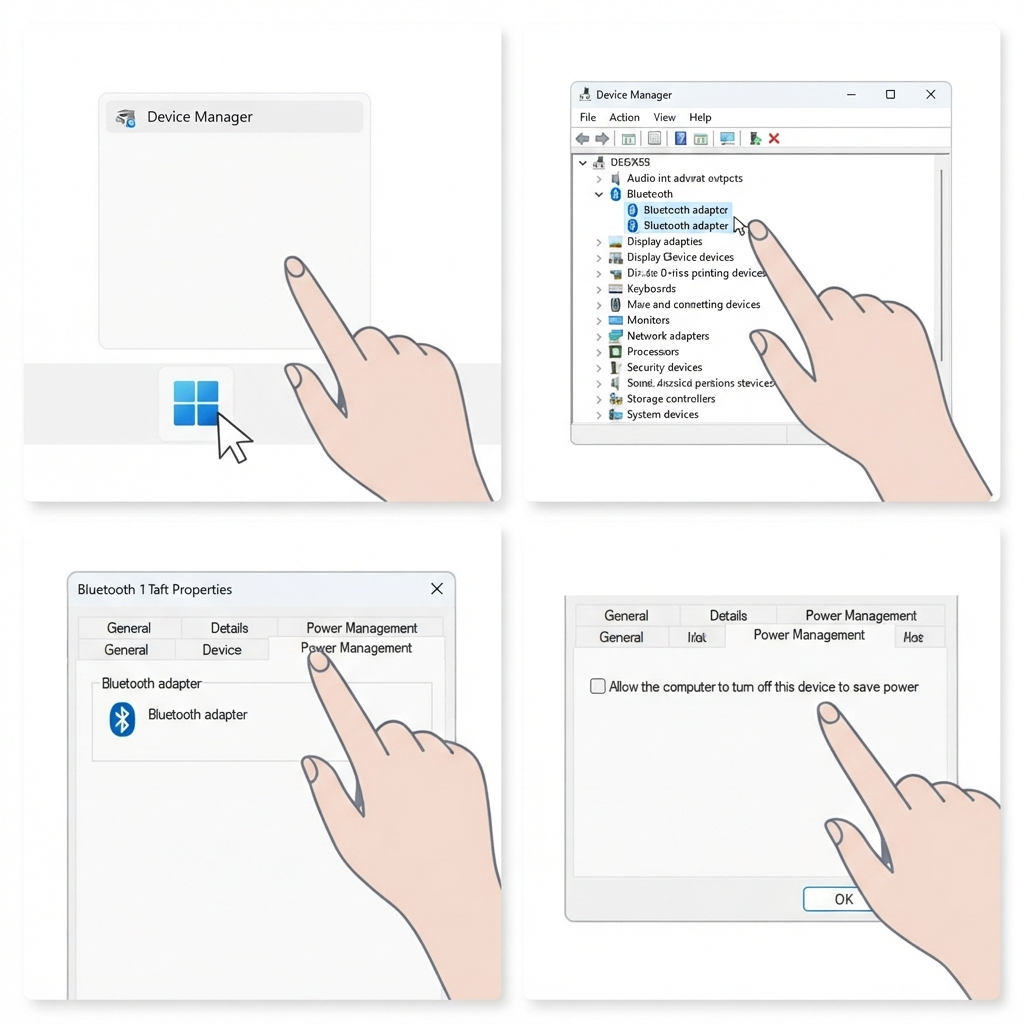
Windows can switch off the Bluetooth adapter to save power, which makes earbuds disconnect and reconnect.
- Step 1: Right-click the Start button and open Device Manager.
- Step 2: Expand the Bluetooth section and double-click the Bluetooth adapter.
- Step 3: Open the Power Management tab.
- Step 4: Uncheck the option that allows the computer to turn off the device to save power, then click OK.
- Step 5: Restart the computer and reconnect the earbuds.
If the earbuds still drop, check the audio output settings to confirm the earbuds are set as the default device. A full audio settings reset can also clear conflicting configurations.
Method 9: Reset Network Settings as a Last Step
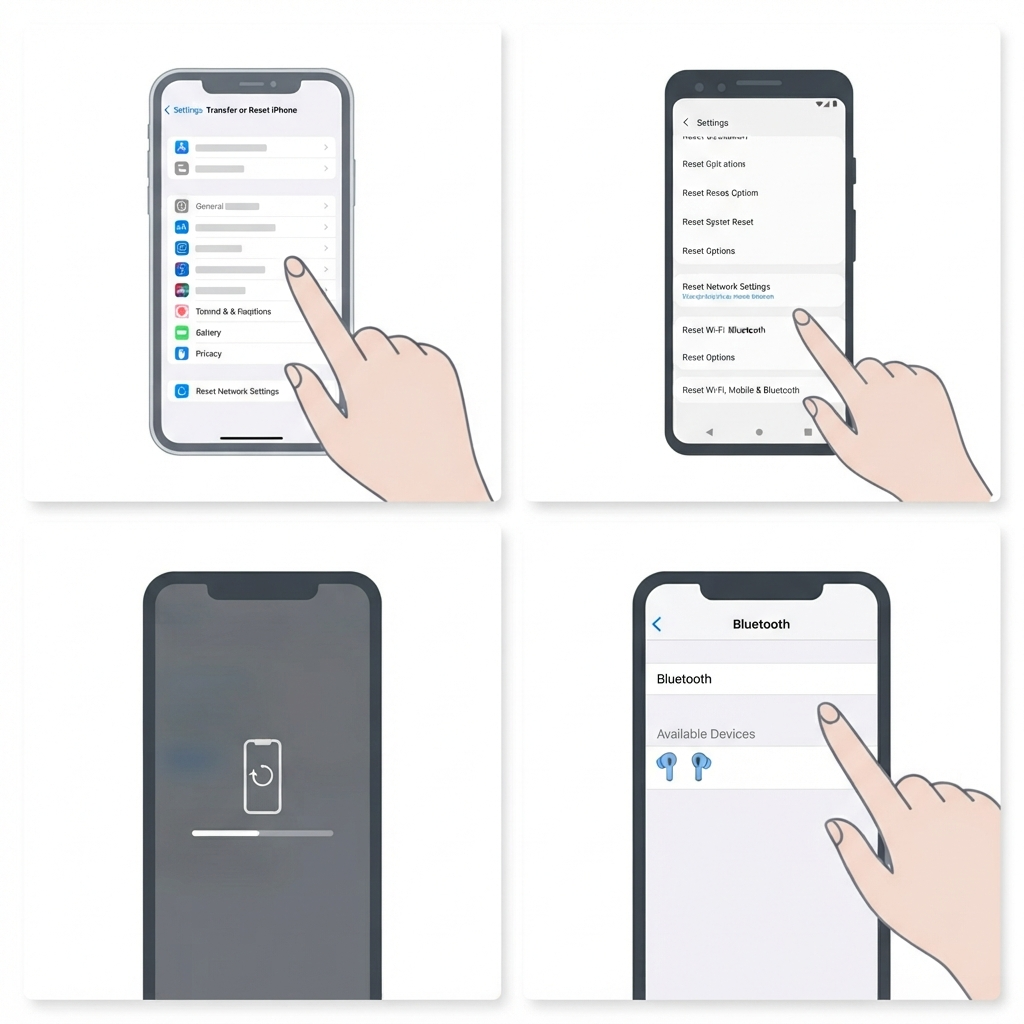
This clears all saved Bluetooth pairings, Wi-Fi networks, and related settings on the phone. It removes deep software conflicts that a normal re-pair cannot fix.
- Step 1: On an iPhone, open Settings, go to General, then Transfer or Reset iPhone, and tap Reset Network Settings.
- Step 2: On Android, open Settings, go to System, then Reset Options, and choose Reset Wi-Fi, Mobile and Bluetooth.
- Step 3: Confirm the reset and wait for the phone to restart.
- Step 4: Pair the earbuds again from scratch.
Quick Tips to Keep the Connection Stable
- Keep the earbuds in the case when not in use so they charge and stay ready.
- Avoid letting the battery drain to zero on a regular basis.
- Clean the earbuds and charging contacts every few weeks.
- Keep the earbuds, phone, and companion app up to date.
- Avoid using many Bluetooth devices at the same time in a small space.
Common Problems After Trying the Fixes
Only One Earbud Keeps Reconnecting
Reset both earbuds together using Method 2. If only one still drops, its battery or charging contacts may be the problem, so clean the contacts and charge it fully.
Drops Happen Only in Certain Places
This points to outside interference. Move the phone closer or to the same side as the earbuds, and avoid crowded wireless areas.
The Problem Returns After a Few Days
Check for firmware updates and turn off power-saving restrictions. If the loop keeps coming back, the battery may be worn out and the manufacturer’s support or warranty is the next step.
Frequently Asked Questions
Why do earbuds keep disconnecting and reconnecting?
The most common causes are a corrupted pairing, low battery, wireless interference, other devices competing for the connection, or power-saving settings that interrupt Bluetooth.
Will resetting earbuds delete anything important?
A factory reset only removes saved pairings and custom settings. Audio quality and hardware stay the same, and the earbuds can be paired again right away.
How long should the button be held to reset earbuds?
Most models need about 10 to 15 seconds, but the exact time and button vary by brand. The manual or the manufacturer’s support page lists the correct steps.
Can a low battery cause earbuds to reconnect repeatedly?
Yes. When the earbuds or the case have very little charge, the Bluetooth connection can become unstable and drop repeatedly.
Does Wi-Fi interfere with Bluetooth earbuds?
It can. Both often use the 2.4 GHz band, so a busy router or crowded wireless area may cause short drops in audio.
Why do earbuds disconnect when the phone is in a pocket?
The body absorbs Bluetooth signals. A phone in a back pocket on the opposite side of the earbuds often has a weaker link, so moving it to the same side helps.
Do earbuds reconnect more often on Windows 11?
It can happen when Windows turns off the Bluetooth adapter to save power. Disabling that option in Device Manager usually stops the problem.
Should earbuds firmware be updated?
Yes. Firmware updates often include Bluetooth stability fixes, and installing the latest version through the companion app is a good habit.
When should the manufacturer be contacted?
If every fix fails and the problem continues on multiple devices, the earbuds may have a hardware fault or a worn battery. Contact the manufacturer and ask about a repair or warranty replacement.
Is it normal for earbuds to reconnect briefly now and then?
A rare, brief drop in a crowded area can be normal. Reconnecting every few seconds is not normal and points to a fixable issue.