
Bluetooth earbuds stuttering during playback is one of the most frustrating audio problems out there. The music cuts in and out, voices break up mid-sentence, and what should be a smooth listening experience turns into a choppy mess. The good news? Most cases have a clear, fixable cause. This step-by-step guide covers the most effective solutions to get clean, uninterrupted audio again.
Key Takeaways
- Bluetooth signal interference from other wireless devices is the most common cause of stuttering.
- Distance between the earbuds and the source device matters – keep them within 30 feet with no obstacles.
- Outdated firmware or audio codec mismatches can cause consistent audio dropouts.
- Re-pairing the earbuds fresh often resolves pairing-related stuttering instantly.
- Low battery in the earbuds or the case can trigger audio instability before a full cutout.
- Adjusting audio settings on Windows 11 can resolve software-level stuttering without hardware changes.
Step-by-Step Guide to Fix Bluetooth Earbuds Stuttering During Playback
Fix 1: Reduce Wireless Interference Around You
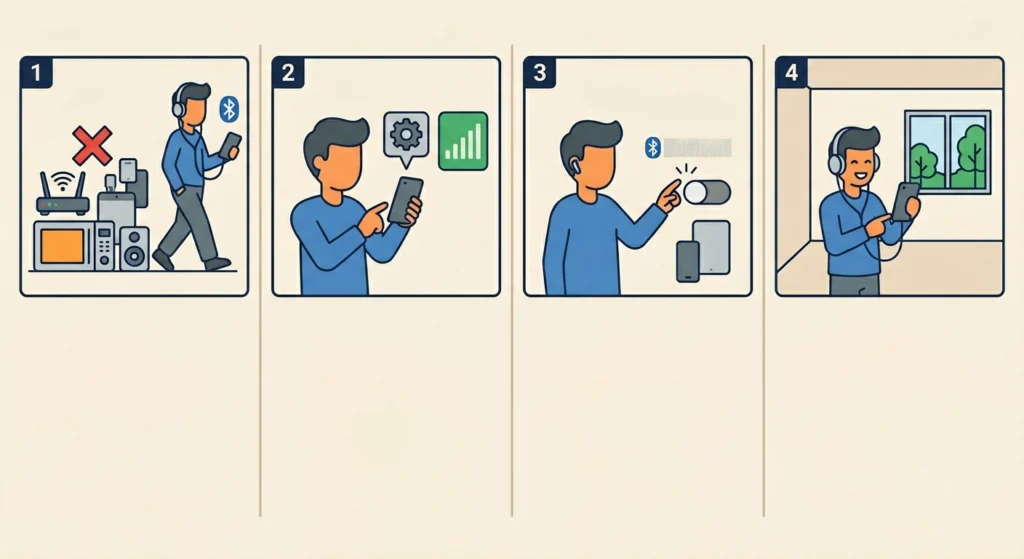
Bluetooth operates on the 2.4 GHz frequency band – the same band used by Wi-Fi routers, microwaves, baby monitors, and other wireless devices. When multiple devices compete for that frequency at the same time, it creates interference that causes audio stuttering.
- Step 1: Move away from Wi-Fi routers, microwaves, or crowded areas with many Bluetooth devices.
- Step 2: If possible, switch the connected device’s Wi-Fi to a 5 GHz network instead of 2.4 GHz to reduce overlap.
- Step 3: Turn off Bluetooth on nearby devices that are not actively in use.
- Step 4: Test playback in a different room or outdoor space to confirm if interference is the culprit.
This works best when the stuttering only happens in specific locations, like near a desk setup with multiple gadgets or in an office with crowded wireless networks.
Fix 2: Close the Distance Between Earbuds and Source Device
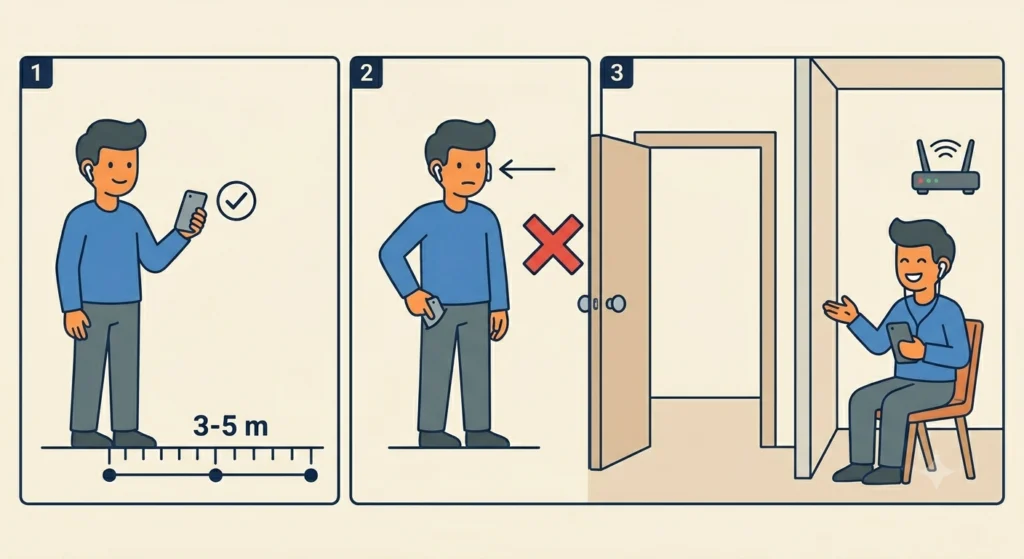
Bluetooth has a practical range limit, and walls, furniture, and even the human body can significantly reduce that range. Most consumer earbuds perform best within 10 meters of the source device in open space – far less with obstacles in between.
- Step 1: Keep the phone, tablet, or computer within 3 to 5 meters of the earbuds during playback.
- Step 2: Avoid placing the device in a pocket on the opposite side of the body from the earbuds.
- Step 3: Do not leave the source device in a different room while expecting stable audio.
Most people find that simply moving the phone to the same side as the dominant earbud reduces stuttering noticeably – especially with true wireless stereo (TWS) earbuds that rely on a primary earbud to relay signal to the secondary one.
Fix 3: Charge the Earbuds Fully Before Use
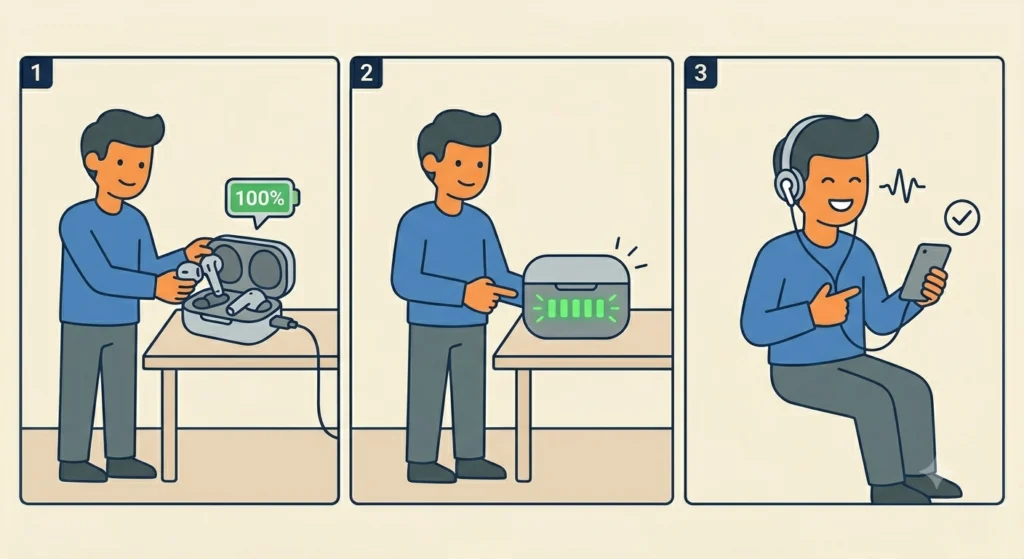
Low battery is a sneaky cause of audio stuttering. When the earbuds drop below a certain charge level, the Bluetooth chip reduces power output to preserve battery life, which weakens the signal and causes dropouts.
- Step 1: Place the earbuds back in the charging case and charge them to 100%.
- Step 2: Make sure the charging case itself has enough charge to power the earbuds.
- Step 3: After a full charge, test playback again to see if the stuttering is gone.
If the earbuds are old and the battery degrades quickly, it may be worth checking the manufacturer’s app for individual earbud battery health if that feature is available.
Fix 4: Re-Pair the Earbuds to the Source Device
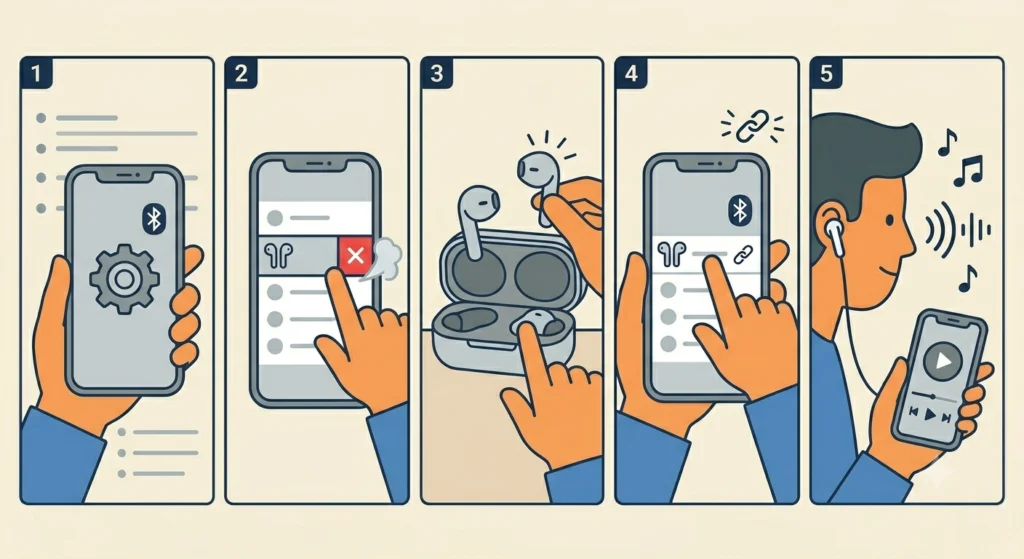
Pairing data can become corrupted over time, especially after software updates on the phone or computer. A fresh pairing clears out any saved connection issues and re-establishes a clean link.
- Step 1: On the source device, go to Bluetooth settings and find the earbuds in the paired devices list.
- Step 2: Select ‘Forget’ or ‘Remove’ to delete the saved pairing.
- Step 3: Put the earbuds back into pairing mode (usually by holding the button on the case or earbuds until the LED flashes).
- Step 4: Pair them again from scratch through the Bluetooth menu.
- Step 5: Test audio playback immediately after the new pairing is complete.
For Windows users who keep running into pairing issues, following a proper process to re-pair Bluetooth earbuds for stereo sound on Windows can make a real difference in stability.
Pro-Tip: Before re-pairing, reset the earbuds to factory settings using the manufacturer’s reset method (often a long press on both earbuds simultaneously for 5-10 seconds). This clears all previously stored device pairings from the earbuds themselves, not just from the phone – which gives a truly clean slate for the new pairing.
Fix 5: Update the Earbuds Firmware
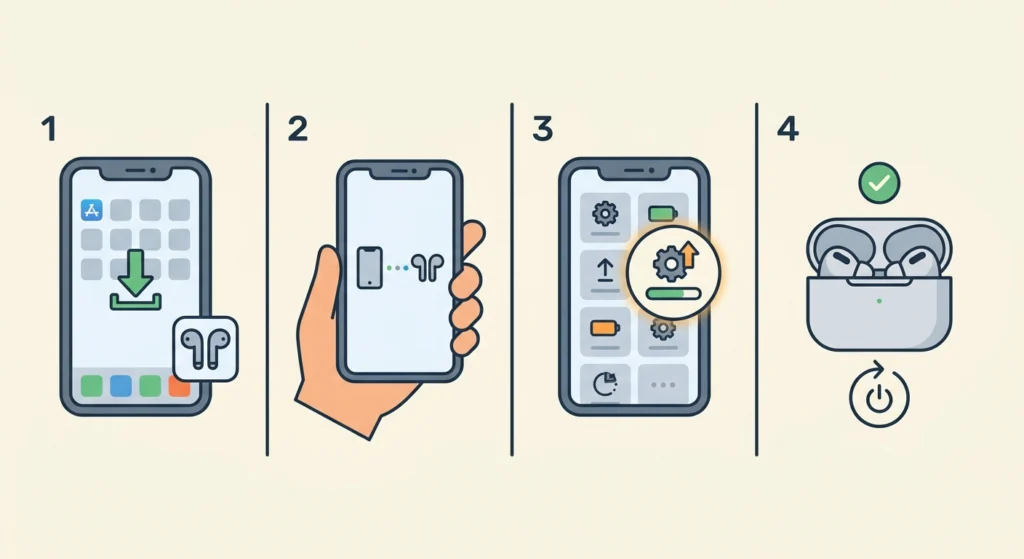
Manufacturers regularly push firmware updates that fix Bluetooth stability issues, improve codec handling, and patch audio dropout bugs. Running outdated firmware is a common and overlooked cause of persistent stuttering.
- Step 1: Download the official companion app for the earbuds (Sony Headphones Connect, Samsung Galaxy Wearable, Jabra Sound+, etc.).
- Step 2: Open the app and connect the earbuds.
- Step 3: Navigate to the firmware or software update section.
- Step 4: Install any available updates and restart the earbuds afterward.
Keep the earbuds within range of the phone throughout the update process to avoid a failed installation.
Fix 6: Change the Bluetooth Audio Codec
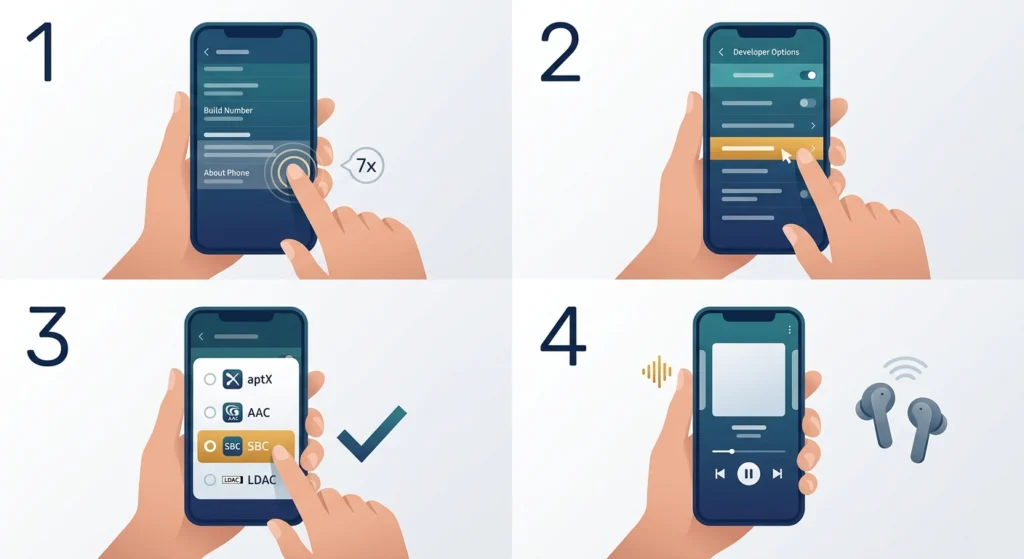
Bluetooth audio quality and stability depend heavily on the codec being used to transmit audio. Some codecs like aptX, AAC, and LDAC prioritize audio quality but require more bandwidth and processing power, which can cause stuttering on older devices or weak connections. Switching to SBC – the most basic and universally compatible codec – often resolves stuttering at the cost of slightly lower audio quality.
- Step 1: On Android, go to Settings and enable Developer Options (tap ‘Build Number’ seven times in ‘About Phone’).
- Step 2: Inside Developer Options, find ‘Bluetooth Audio Codec’.
- Step 3: Switch the codec to SBC for maximum connection stability.
- Step 4: Reconnect the earbuds and test playback.
On iOS and Windows, codec selection is handled automatically and cannot be changed manually. However, on Windows 11, adjusting audio output settings can help optimize how the system handles Bluetooth audio delivery.
Fix 7: Disable Absolute Volume and Audio Enhancements
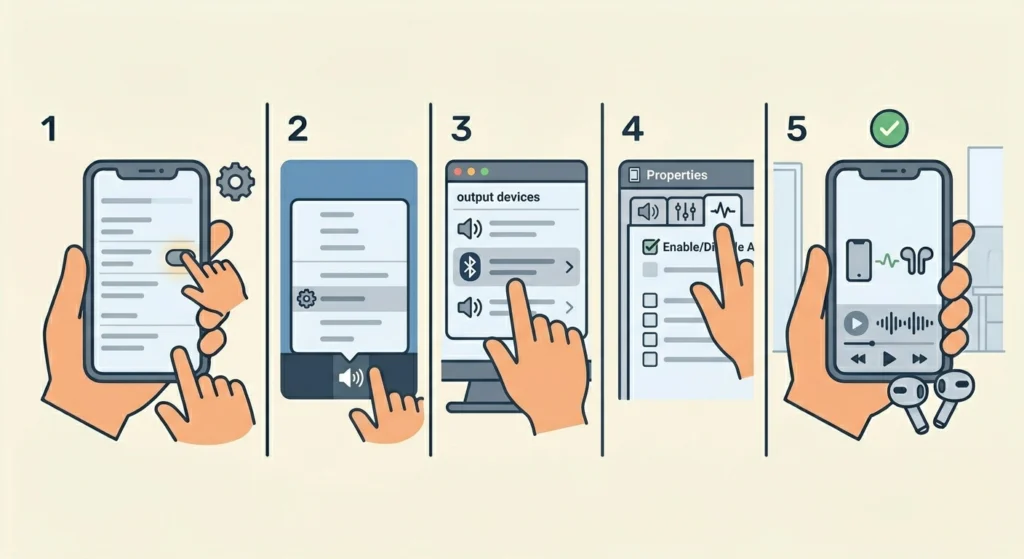
On Android, the ‘Absolute Volume’ feature links the phone’s volume directly to the earbuds’ internal volume control. This can cause conflicts with some earbuds and lead to stuttering. Audio enhancements on Windows can also introduce processing delays that manifest as stuttering.
- Step 1: On Android Developer Options, find ‘Disable Absolute Volume’ and toggle it on.
- Step 2: On Windows 11, right-click the speaker icon in the taskbar and open ‘Sound settings’.
- Step 3: Click on the Bluetooth audio output device and open its properties.
- Step 4: Navigate to the ‘Enhancements’ tab and check ‘Disable all enhancements’.
- Step 5: Click Apply, then reconnect the earbuds and test.
For deeper audio configuration on Windows 11, resetting audio settings back to defaults can clear any software-level configurations that are causing interference with Bluetooth audio.
Fix 8: Update or Reinstall Bluetooth Drivers (Windows)
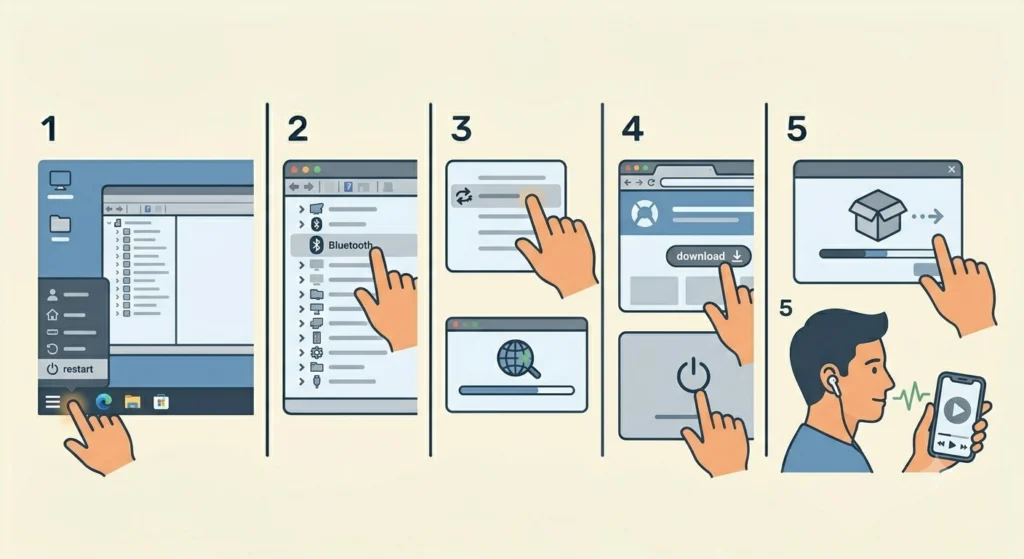
On Windows, outdated or corrupted Bluetooth drivers can cause intermittent audio stuttering even when the hardware is perfectly fine. The key is to make sure the drivers are current and properly installed.
- Step 1: Press Windows + X and open ‘Device Manager’.
- Step 2: Expand the ‘Bluetooth’ section and right-click on the Bluetooth adapter.
- Step 3: Select ‘Update driver’ and choose ‘Search automatically for drivers’.
- Step 4: If no update is found, visit the laptop or motherboard manufacturer’s website and download the latest Bluetooth driver manually.
- Step 5: Install the driver, restart the computer, and test the earbuds again.
Pro-Tip: If updating does not help, try uninstalling the Bluetooth driver entirely from Device Manager and restarting Windows. The system will automatically reinstall a clean version of the driver on reboot, which often resolves deep-seated driver conflicts causing persistent audio stutter.
Tips for Preventing Bluetooth Earbuds Stuttering
- Keep the earbuds charged above 30% before starting any listening session to avoid battery-related dropouts.
- Store earbuds in their case when not in use to preserve battery health and protect internal components.
- Avoid using earbuds in areas with high wireless traffic like airports, gyms, or conference centers without expecting some level of signal competition.
- Keep firmware up to date through the manufacturer’s app – updates regularly address Bluetooth stability.
- Limit the number of Bluetooth devices actively paired and connected to the source device at the same time.
- Restart the earbuds and the connected device periodically – a quick power cycle clears temporary connection errors.
Common Problems and What Causes Them
- Stuttering only in specific locations: Almost always caused by wireless interference from nearby devices or Wi-Fi networks operating on the 2.4 GHz band.
- Stuttering when the phone is in a pocket: The body blocks the Bluetooth signal. Keep the device on the same side as the primary earbud or in a location with line-of-sight.
- Stuttering that gets worse over time during a session: Usually tied to battery drain. Charge the earbuds fully before use.
- Stuttering only on one earbud: Common with TWS earbuds where the secondary earbud receives its signal from the primary one. Try swapping which ear each bud is in, or reset and re-pair both.
- Stuttering after a phone or computer update: Software updates sometimes reset audio settings or introduce Bluetooth driver issues. Re-pair the earbuds and check for firmware updates on both devices.
- Stuttering with high-quality audio files or streaming: High-bitrate audio combined with bandwidth-heavy codecs like LDAC can overwhelm the connection. Switch to SBC or reduce streaming quality temporarily.
- Stuttering every few seconds at a consistent interval: Often caused by a software process on the device competing for processing time. Close background apps and disable unnecessary audio enhancements.
Frequently Asked Questions
Why do Bluetooth earbuds stutter during playback?
Bluetooth earbuds stutter during playback mainly due to signal interference, low battery, distance from the source device, audio codec mismatches, or corrupted pairing data. Identifying which of these applies to the situation is the first step toward a fix.
Does distance affect Bluetooth audio quality?
Yes, significantly. Most consumer Bluetooth earbuds have a reliable range of around 10 meters in open space. Walls, doors, and even the human body can cut that range in half or more. Staying close to the source device with minimal obstacles between them reduces stuttering substantially.
Can Wi-Fi cause Bluetooth earbuds to stutter?
Yes. Both Bluetooth and Wi-Fi at 2.4 GHz share the same frequency band, which means they can interfere with each other. Switching the router to a 5 GHz band or moving away from the router while using the earbuds can help reduce this conflict.
Should the codec be changed to stop stuttering?
On Android devices, switching the Bluetooth audio codec to SBC in Developer Options can reduce stuttering by using a less bandwidth-intensive transmission method. While SBC slightly reduces audio quality, it is the most stable codec for maintaining a consistent connection.
How does low battery cause Bluetooth stuttering?
When the earbuds’ battery falls below a certain threshold, the Bluetooth chip reduces power output to extend remaining battery life. This weakens the wireless signal and makes the connection unstable, often resulting in audio dropouts before the earbuds finally run out of battery entirely.
Does re-pairing the earbuds actually fix stuttering?
Very often, yes. Pairing data stored on both the earbuds and the source device can become corrupted over time, particularly after system updates. Forgetting the device and re-pairing from scratch re-establishes a clean connection that resolves many cases of persistent stuttering.
Can firmware updates fix Bluetooth stuttering?
Yes. Manufacturers release firmware updates specifically to address Bluetooth stability issues, codec handling bugs, and audio dropout problems. Keeping the earbuds’ firmware current through the official companion app is one of the most effective long-term prevention measures.
Why do only one earbud stutter while the other plays fine?
True wireless stereo (TWS) earbuds typically use one earbud as a primary receiver that then relays audio to the second earbud. If the secondary earbud is getting weak signal from the primary – due to distance, obstruction, or a pairing issue – it will stutter while the primary plays cleanly. Resetting and re-pairing both earbuds together usually resolves this.
Do audio enhancements on Windows cause Bluetooth stuttering?
They can. Windows audio enhancements like equalization, spatial sound, and effects add processing overhead that can introduce latency or cause stuttering with Bluetooth audio. Disabling all enhancements from the sound device properties in Windows Settings often resolves software-related stuttering.
What is the quickest fix for Bluetooth earbuds stuttering right now?
The fastest things to try are: move closer to the phone or computer, charge the earbuds if the battery is low, and turn off nearby Bluetooth devices that are not in use. These three steps resolve the majority of stuttering cases without needing to change any settings or reinstall drivers.