
Disabling absolute Bluetooth volume on Android is one of the simplest fixes for headphones or earbuds that suddenly blast at full volume or drop to almost nothing without warning. This happens because Android tries to sync volume levels between the phone and the connected device, and that sync does not always play nicely with every pair of headphones on the market. The good news is that turning this feature off takes only a few minutes once Developer Options are unlocked.
Key Takeaways
- Absolute volume is a Bluetooth feature that syncs the phone volume with the connected headphones or earbuds
- Disabling it requires access to Developer Options on the Android device
- The fix works on most Android phones, including Samsung, Pixel, and other major brands
- No app installation or root access is needed to complete this process
- Turning off absolute volume can resolve sudden volume jumps, muting issues, and unresponsive volume buttons on Bluetooth earbuds
Step-by-Step Guide to Disable Absolute Bluetooth Volume on Android
Before jumping into the fix, Developer Options need to be visible on the device, since this setting is hidden by default on every Android version. The steps below apply to stock Android and most manufacturer skins, though the exact wording of a few menus may differ slightly depending on the phone brand.
Method 1: Enable Developer Options
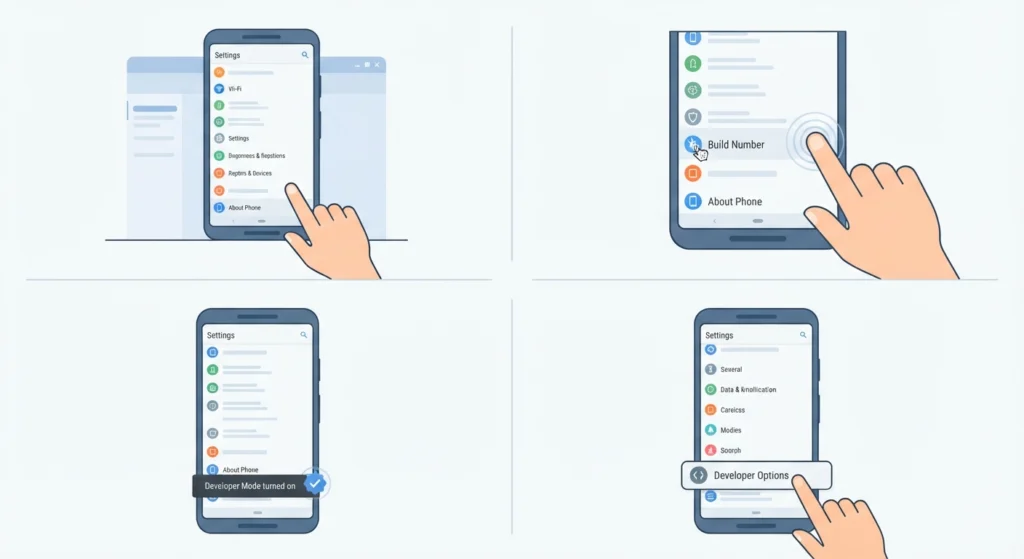
- Step 1: Open the Settings app and scroll down to About Phone
- Step 2: Find the Build Number entry, which is usually near the bottom of that screen
- Step 3: Tap Build Number seven times in a row until a message confirms that Developer Mode has been turned on
- Step 4: Go back to the main Settings menu and look for a new option called Developer Options, often located under System or at the very bottom of the settings list
Pro-Tip: Some Samsung devices place Developer Options under Settings, then Developer Options directly, while other brands nest it inside a System or Additional Settings folder. If it does not appear right away, searching ‘developer’ in the settings search bar usually finds it in a couple of seconds.
Method 2: Turn Off the Absolute Volume Toggle

- Step 1: Open Developer Options from the Settings menu
- Step 2: Scroll down until the Networking section appears
- Step 3: Locate the toggle labeled Disable Absolute Volume
- Step 4: Switch it on to disable the feature
- Step 5: Turn Bluetooth off and back on, or restart the phone, so the change takes full effect on the connected headphones
Once the toggle is flipped, reconnect the Bluetooth earbuds or headphones and test the volume buttons on both the phone and the device itself. Volume changes should now feel gradual and predictable instead of jumping between extremes.
Why This Setting Causes Volume Problems in the First Place
Absolute volume is part of the AVRCP Bluetooth profile, and its job is to keep the volume level on the phone matched with the volume level on the headphones. In theory, that sounds convenient. In practice, plenty of budget and mid-range Bluetooth earbuds do not communicate volume steps accurately, which causes the phone to misread the current level and swing it too far in either direction. Turning off absolute volume hands full control back to the phone, so the volume buttons behave the same way they would with wired headphones.
Tips for a Smoother Bluetooth Audio Experience
- Keep the Bluetooth firmware on the earbuds updated through the manufacturer’s companion app when one is available
- Forget and re-pair the device after disabling absolute volume, since a fresh pairing often clears out any leftover volume sync data
- Adjust the volume in small increments right after reconnecting to let the phone and headphones settle into a matching level
- For anyone who also connects the same earbuds to a Windows laptop, the process for how to re-pair Bluetooth earbuds for stereo sound follows a similar logic of clearing the old connection before starting fresh
- Volume behavior on a PC can sometimes be improved further by adjusting audio output settings to match the default format the headphones expect
Pro-Tip: Testing the fix with a music app that has visible volume steps, rather than a video app, makes it much easier to notice whether the jumps have actually stopped.
Common Problems and Fixes
The Disable Absolute Volume Toggle Is Missing
This usually means Developer Options were not fully refreshed. Restarting the phone after enabling Developer Mode, then checking the Networking section again, resolves this in most cases.
Volume Still Jumps After Disabling the Toggle
The Bluetooth connection needs to fully reset for the change to apply. Turning Bluetooth off, waiting ten seconds, then turning it back on and reconnecting the headphones, clears out the old session and applies the new setting properly.
Headphones Disconnect Randomly After the Change
Forgetting the device from the Bluetooth list and pairing it again as a new connection typically fixes disconnection issues that show up right after toggling this setting.
Microphone Stops Working on Bluetooth Headphones
Absolute volume changes rarely affect the microphone directly, but if a headset microphone stops being recognized around the same time, checking a guide on resolving microphone detection problems can help narrow down whether the issue is related to drivers or the Bluetooth profile itself.
Frequently Asked Questions
What does absolute Bluetooth volume actually do?
It syncs the volume level of the phone with the volume level of the connected Bluetooth device, so both show the same number and move together when either one is adjusted.
Is it safe to disable absolute volume on Android?
Yes. Disabling it only changes how volume is synced between the phone and the headphones. It does not affect any other Bluetooth function, call quality, or audio codec.
Will this setting reset after an Android update?
It can. Major Android updates sometimes reset Developer Options entirely, so it is worth checking the toggle again after installing a system update.
Does this fix work on all Android phones?
The Disable Absolute Volume toggle is available on stock Android and most manufacturer skins, including Samsung One UI and Pixel devices. A small number of heavily customized Android skins may label or hide the option differently.
Why do some Bluetooth earbuds not have this problem at all?
Higher-end earbuds tend to implement the AVRCP volume steps more accurately, which means the phone reads the volume level correctly and never needs the absolute volume feature disabled.
Does disabling absolute volume affect sound quality?
No. This setting only controls how volume levels are synced. Audio quality, codec selection, and playback performance stay exactly the same.
Can this be done without enabling Developer Options?
No, the toggle only exists inside Developer Options, so that menu has to be unlocked first before the setting becomes visible.
What happens if the toggle gets turned back on by accident?
The phone simply goes back to syncing volume with the connected headphones, and the same volume jump behavior may return. Turning the toggle back off resolves it again immediately.
Does this setting apply to Bluetooth speakers as well as headphones?
Yes. Absolute volume affects any Bluetooth audio device using the AVRCP profile, which includes speakers, headphones, earbuds, and even some car audio systems.
Is there a way to check if absolute volume is currently causing the problem?
Comparing the volume behavior before and after toggling the setting is the most reliable check. If the volume jumps disappear after disabling it and reconnecting the device, absolute volume was the cause.