
Learning how to fix Amazon Echo Buds not showing up in the app takes only a few minutes once the right order of steps is clear. Most of the time, the buds are fine. The Alexa app simply has not registered them, or an old pairing is getting in the way. The fixes below go from quickest to most thorough, so start at the top and stop as soon as the buds appear.
Quick Summary
- Best first move: turn on Bluetooth, open the Alexa app, and put the buds into pairing mode from the case.
- Pairing mode: open the case and press the case button for 3 seconds until the blue light flashes.
- Still missing: force close the app, refresh the phone connection, then try again.
- Last resort: choose Forget Device in the app, then factory reset the buds by holding the case button for 15 seconds.
- Time needed: about 5 to 10 minutes.
Fix 1: Put the Echo Buds Into Pairing Mode and Register Them in the App
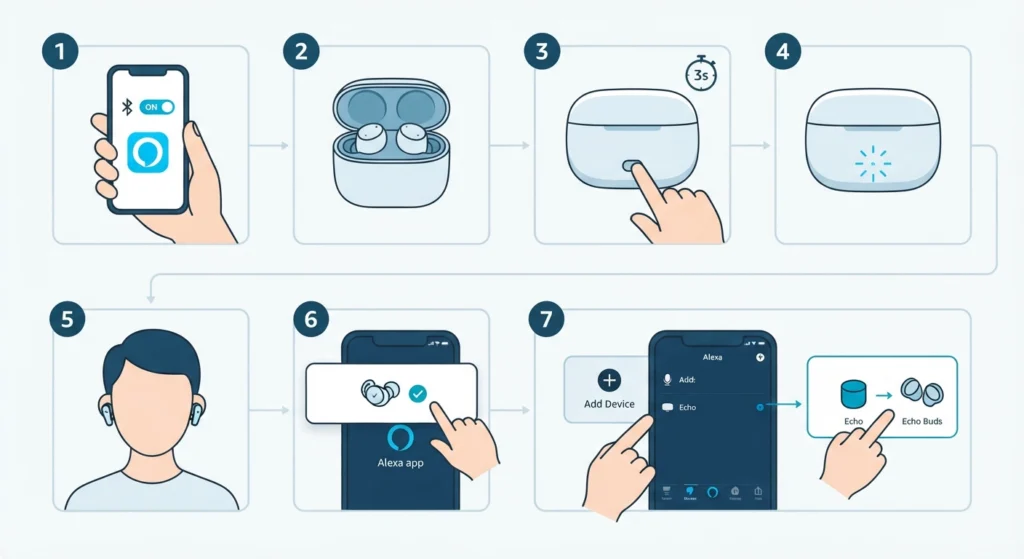
The Alexa app can only list Echo Buds after they have been registered through its setup flow. Pairing the buds in the phone’s Bluetooth menu alone will not make them appear. This is the step most people skip, and it is the most common reason the buds never show up.
- Step 1: Turn on Bluetooth on the phone and open the Alexa app.
- Step 2: Place the Echo Buds in the charging case and close the lid.
- Step 3: Press the button on the case for 3 seconds to enter pairing mode.
- Step 4: Confirm that the light on the case is flashing blue.
- Step 5: Put the Echo Buds in your ears.
- Step 6: Tap the pop-up notification in the Alexa app saying the Echo Buds have been detected.
- Step 7: If no notification appears, open the Alexa app, select Devices, look for the Add Device option, choose Amazon Echo, then choose Echo Buds and follow the on-screen instructions.
Pro-Tip: For Echo Buds (2nd gen) and Echo Buds (2023 release), registration in the Alexa app has to happen first. Only after that will the buds pair properly with other Bluetooth devices.
Fix 2: Refresh the Connection Between the Phone and the App
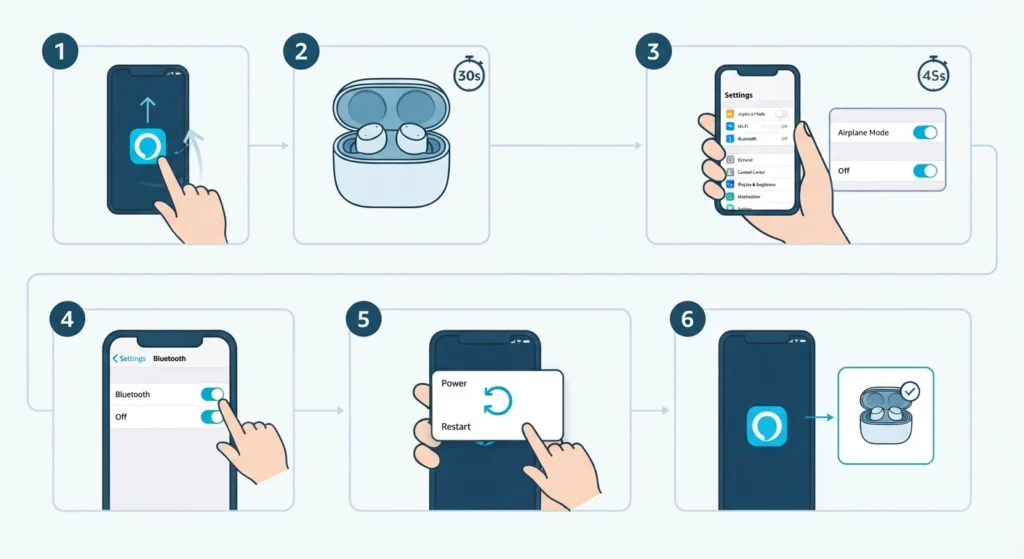
Sometimes the buds are ready but the phone and app are stuck on an old connection. Think of it like a web page that needs a reload. A quick reset of the wireless side often clears it.
- Step 1: Force close the Alexa app.
- Step 2: Place the Echo Buds in the case for 30 seconds.
- Step 3: Turn on Airplane mode on the phone, wait 45 seconds, then turn it off.
- Step 4: Turn Bluetooth off, then turn it back on.
- Step 5: Restart the phone if the buds still do not appear.
- Step 6: Reopen the Alexa app and repeat the pairing steps from Fix 1.
Fix 3: Forget the Device and Factory Reset the Echo Buds
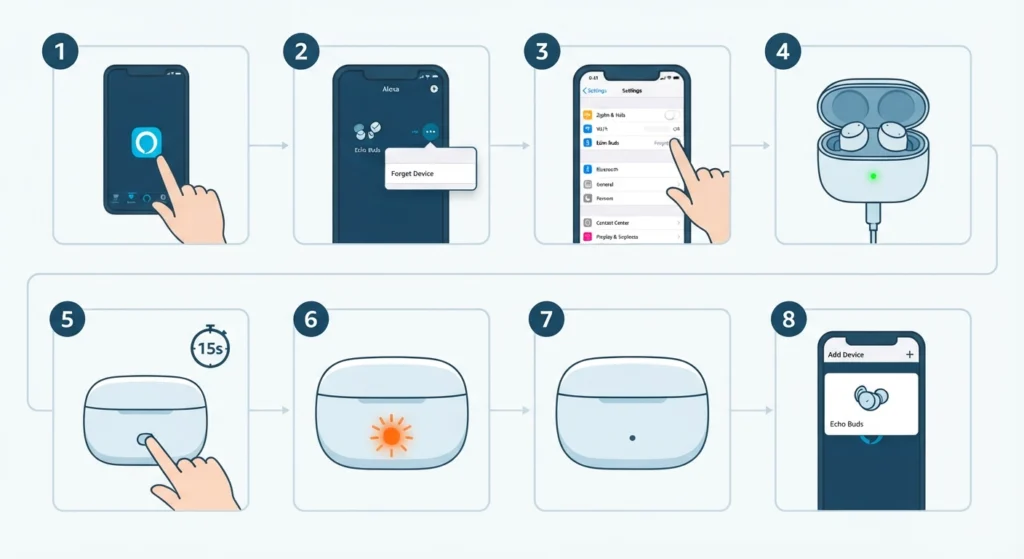
When the first two fixes do not work, a full reset removes any stored pairing data and gives the buds a clean start. This method works best when the buds were previously connected to another phone or when they are unresponsive.
- Step 1: Open the Alexa app and select Devices.
- Step 2: Check whether the Echo Buds are listed. If they are, select them and choose Forget Device.
- Step 3: Open the phone’s Bluetooth settings and unpair the Echo Buds.
- Step 4: Put the Echo Buds in the case and charge until the LED is green.
- Step 5: Close the case and press the button on the case for 15 seconds.
- Step 6: Release the button when the LED begins flashing orange.
- Step 7: Wait until the LED stops flashing orange. That means the factory reset is complete.
- Step 8: Set the buds up again using the steps in Fix 1.
Pro-Tip: After a factory reset, unpair the Echo Buds from any other device they were connected to, such as a laptop or tablet. Leftover pairings on those devices can interfere with the fresh setup.
Helpful Tips for Keeping Echo Buds Visible in the App
- Keep the Alexa app updated from the Google Play Store or the App Store, since a missing update can cause connection trouble.
- Make sure the charging case is fully charged. Even when the earbuds themselves have power, a drained case can stop them from connecting.
- Register the buds in the Alexa app before pairing them with any other device.
- Pairing the buds with a Windows laptop after registration? This guide on re-pairing Bluetooth earbuds on Windows covers the PC side. When pairing in Windows, choose the entry with the headphones icon if several devices appear.
- If the buds connect to a Windows 11 PC but the sound comes from the wrong place, adjusting the audio output settings usually sorts it out.
Common Problems While Fixing Echo Buds Not Showing in the App
The Case Light Does Not Turn Blue
Remove the Echo Buds from the case and place them back in. Close the case, wait 30 seconds, then open it and press the case button for 3 seconds again.
The Buds Will Not Pair With a New iPhone or iPad
Open the Alexa app, select Devices, then All Devices. If the buds are listed, select them and choose Deregister. Factory reset the buds and restart the phone. If pairing still fails, changing the language in the iOS settings, running the pairing steps, then switching back to the original language can help.
A Replacement Earbud Will Not Connect
For Echo Buds (2023 release), a replacement earbud must be set up as a pair. It cannot be mixed with a previous earbud. The Quick Start Guide included with the replacement has the exact steps.
Frequently Asked Questions
Why are my Echo Buds not showing up in the Alexa app?
The most common reasons are that the buds were never registered through the Alexa app, Bluetooth is off, the case is low on charge, or an older pairing is still stored on the buds or the phone.
Can Echo Buds work without the Alexa app?
The buds need to be set up in the Alexa app first. For Echo Buds (2nd gen) and Echo Buds (2023 release), registration in the app is required before they can pair with other Bluetooth devices.
How long should the case button be pressed for pairing mode?
Press the button on the case for 3 seconds with the buds inside. A flashing blue light means pairing mode is active.
How long does a factory reset take on Echo Buds?
Press the case button for 15 seconds and release it when the LED starts flashing orange. The reset is finished once the orange light stops flashing.
Do the buds need to be charged before a reset?
Yes. Place the buds in the case and charge them until the LED is green before starting the factory reset.
Should the buds be unpaired from the phone before setting them up again?
Yes. After choosing Forget Device in the Alexa app, also remove the Echo Buds from the phone’s Bluetooth settings. This prevents an old connection from blocking the new setup.
Does the Alexa app need to be open during pairing?
Yes. Opening the app before putting the buds in pairing mode lets it detect them and show the pop-up notification.
Why does a Windows laptop show several devices when the buds are in pairing mode?
Windows can list more than one entry for the same device. Choose the one with the headphones icon. If the microphone is not detected afterward on Windows 11, resolving microphone detection problems is the next place to look.
Will a factory reset remove the buds from other devices?
The reset clears the buds’ settings, so any laptop or tablet they were paired with should be unpaired from that device and paired again after setup.