
Absolute volume problems on Android headphones happen when the phone and the Bluetooth earbuds stop agreeing on a single volume level, causing sudden jumps, mutes, or a volume bar that refuses to move. This is a common Bluetooth sync issue, and it usually has a quick fix.
Key Takeaways
- Absolute volume issues are caused by a sync conflict between the phone and the Bluetooth headphones, not by broken hardware in most cases.
- Disabling the Absolute Volume toggle in Developer Options solves the problem for the majority of Android devices.
- Re-pairing, clearing Bluetooth cache, and updating firmware are the next best fixes if the toggle option is not available.
- Some Samsung, Xiaomi, and OnePlus devices hide this setting differently, so brand-specific steps matter.
- Keeping both the phone software and the headphone firmware updated prevents this issue from returning.
Fix 1: Turn Off Absolute Volume in Developer Options
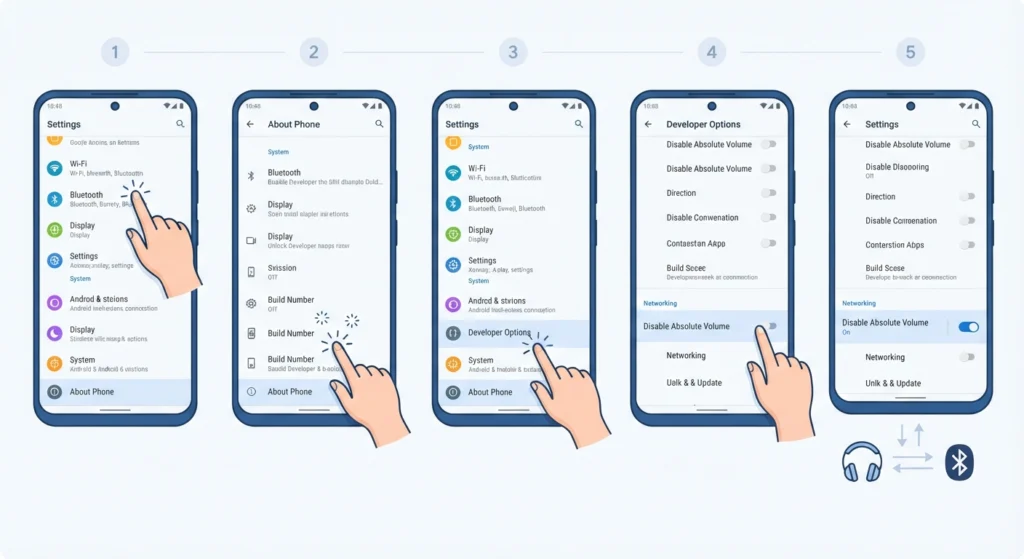
This is the most direct and effective solution for most Android phones, including Pixel, Samsung, and OnePlus devices running Android 10 and above.
- Step 1: Open Settings and scroll down to About Phone.
- Step 2: Tap Build Number seven times until a message confirms Developer Mode has been enabled.
- Step 3: Go back to the main Settings menu and open Developer Options, usually found under System.
- Step 4: Scroll to the Networking section and look for Disable Absolute Volume.
- Step 5: Toggle it on to disable the feature, then disconnect and reconnect the headphones.
This works best when the headphones are already connected before flipping the toggle, since some phones need an active connection to refresh the setting properly.
Fix 2: Restart the Bluetooth Connection
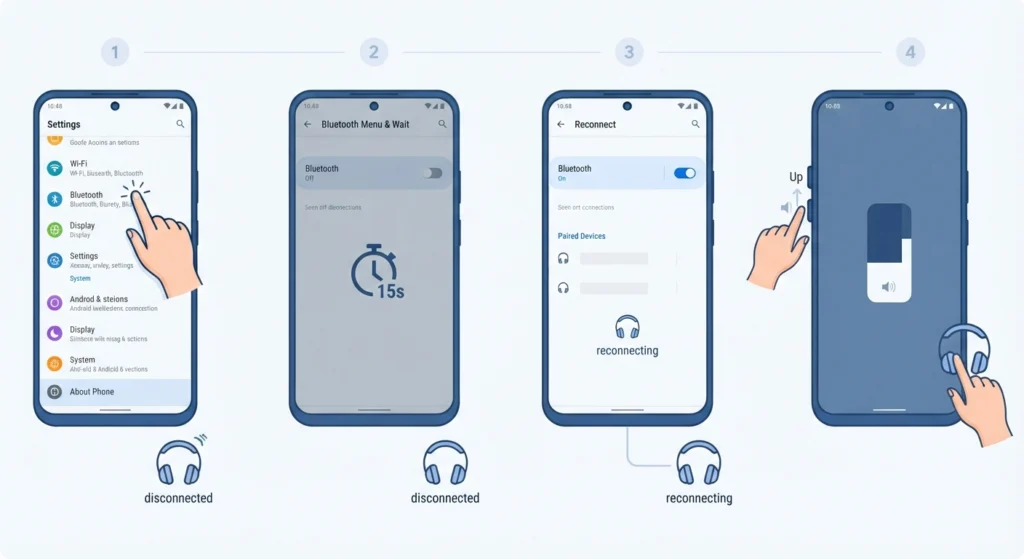
A simple restart clears temporary glitches in the Bluetooth stack that often trigger the volume sync error in the first place.
- Step 1: Open Settings and tap Bluetooth.
- Step 2: Turn Bluetooth off and wait about fifteen seconds.
- Step 3: Turn Bluetooth back on and reconnect the headphones from the paired devices list.
- Step 4: Test the volume buttons on both the phone and the headphones to confirm normal behavior.
Fix 3: Forget and Re-Pair the Headphones
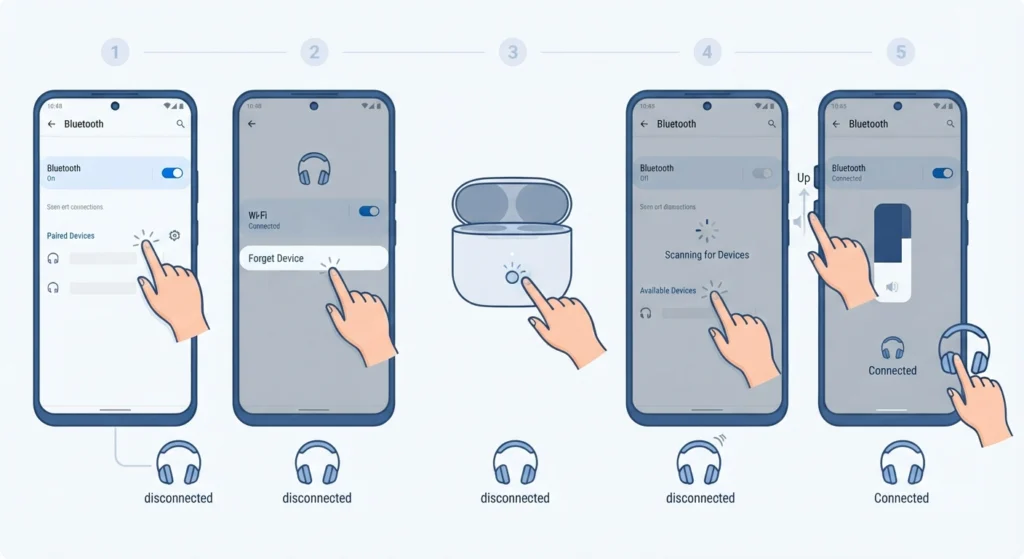
Most people find that a fresh pairing resolves absolute volume glitches that a simple restart could not fix, especially after a recent Android update.
- Step 1: Open Settings, then Bluetooth, and tap the gear icon next to the headphone name.
- Step 2: Select Forget or Unpair Device.
- Step 3: Put the headphones into pairing mode using the manufacturer’s method, usually a long press on the case button.
- Step 4: Search for new devices on the phone and select the headphones once they appear.
- Step 5: Confirm the connection and test the volume slider immediately after pairing.
The same re-pairing logic applies across platforms. Anyone switching the same earbuds between an Android phone and a laptop can follow a similar process explained in this guide on re-pairing Bluetooth earbuds for stereo sound to keep the connection stable on both devices.
Fix 4: Clear the Bluetooth Cache
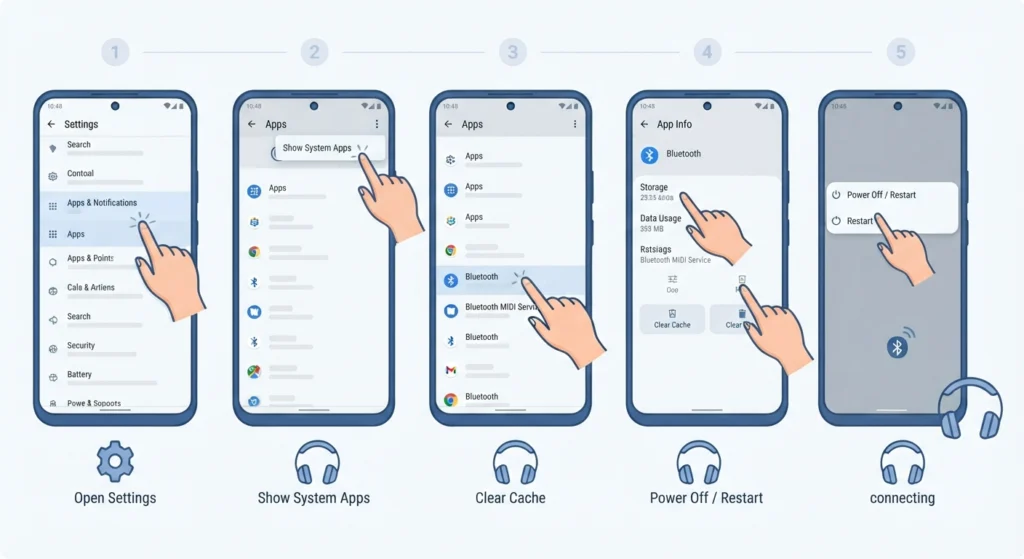
Cached Bluetooth data can hold onto an outdated volume profile, which keeps causing the same glitch even after re-pairing.
- Step 1: Open Settings and go to Apps or Application Manager.
- Step 2: Tap the three-dot menu and select Show System Apps.
- Step 3: Find Bluetooth or Bluetooth Midi Service and open its App Info page.
- Step 4: Tap Storage, then Clear Cache. Avoid Clear Data unless the cache alone does not help.
- Step 5: Restart the phone and reconnect the headphones.
Fix 5: Update Headphone Firmware and Android System Software
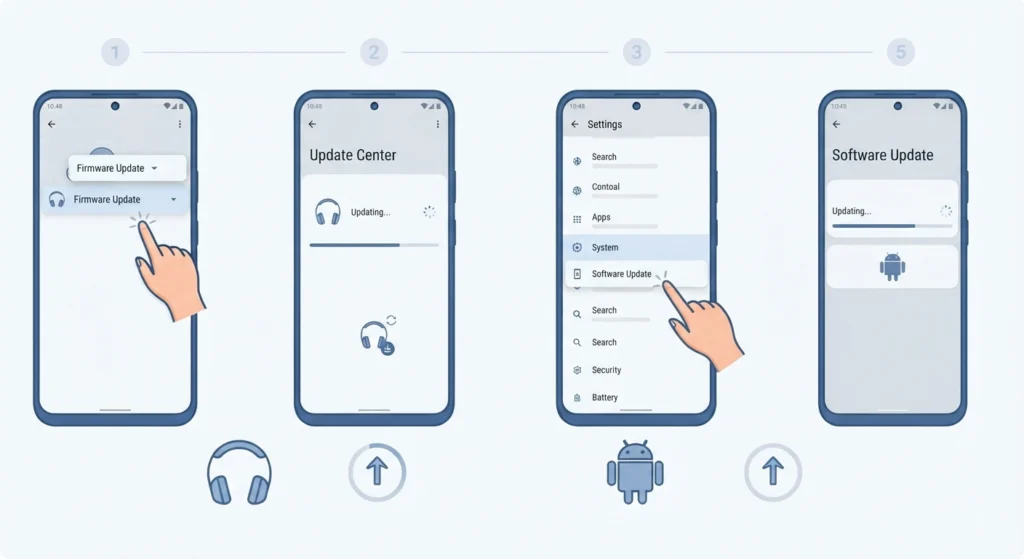
Outdated firmware on the earbuds or an outdated Android build is one of the most overlooked causes of absolute volume errors.
- Step 1: Open the headphone manufacturer’s companion app, such as Galaxy Wearable, Mi Fit, or the relevant OEM app.
- Step 2: Check for a firmware update and install it if one is available.
- Step 3: Separately, open phone Settings, go to System, then Software Update.
- Step 4: Install any pending Android updates, since manufacturers frequently patch Bluetooth audio bugs in these releases.
Pro-Tip: Firmware updates and Android updates fix different parts of the same problem. Skipping one while updating only the other often leaves the volume sync issue partially unresolved.
Fix 6: Reset Network and Bluetooth Settings
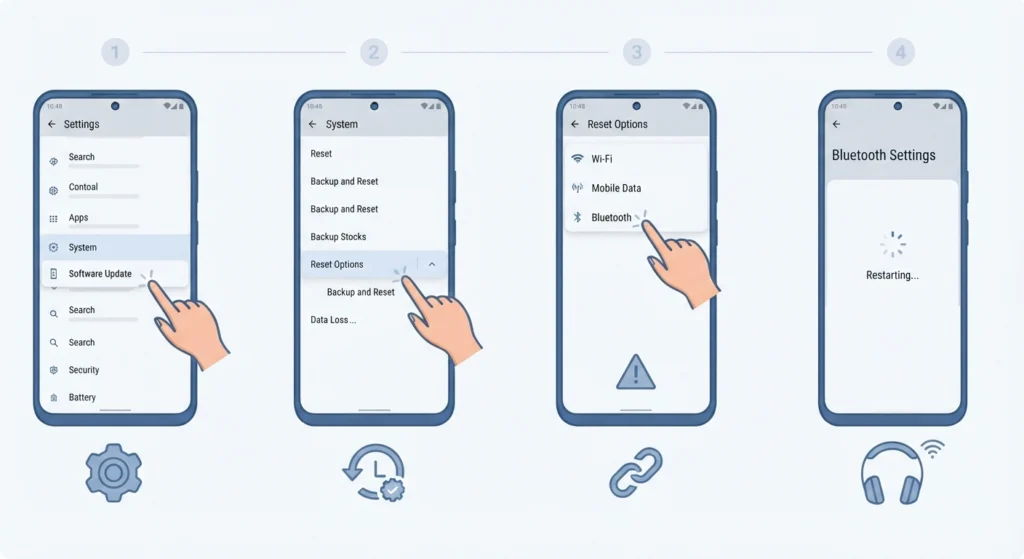
When none of the earlier fixes hold, a full network settings reset clears every stored Bluetooth profile and forces the phone to build a clean connection.
- Step 1: Open Settings and search for Reset Options.
- Step 2: Select Reset Wi-Fi, Mobile, and Bluetooth.
- Step 3: Confirm the reset. Note that this removes all saved Wi-Fi passwords and paired Bluetooth devices.
- Step 4: Re-pair the headphones from scratch once the phone restarts.
Pro-Tip: This fix should be treated as a last resort since it clears every saved network and paired device, not just the headphones causing the issue.
Tips to Prevent Absolute Volume Issues From Returning
- Keep automatic firmware updates enabled in the headphone’s companion app so patches install without manual checks.
- Avoid connecting the same headphones to multiple devices at once, since simultaneous connections can confuse the volume sync protocol.
- Adjust volume using the phone rather than the physical buttons on the earbuds when the issue first appears, since this reduces the chance of a mismatch.
- For anyone who also uses the same headphones on a Windows 11 laptop, the settings work a little differently. A guide on adjusting audio output settings and another on resetting audio settings can help keep volume behavior consistent across both devices.
Common Problems With Absolute Volume on Android
Volume Jumps to Maximum Unexpectedly
This usually happens right after reconnecting the headphones. It is almost always tied to the absolute volume sync feature misreading the last saved level, and Fix 1 resolves it in most cases.
Volume Slider Freezes or Does Not Move
A frozen slider is typically a sign of a stuck Bluetooth cache. Clearing the cache in Fix 4 usually restores normal control within a few seconds of reconnecting.
Volume Resets Every Time the Phone Reboots
This points to a firmware mismatch. Updating both the phone and the headphones, as described in Fix 5, prevents the setting from reverting after every restart.
One Earbud Is Louder Than the Other
While this can resemble an absolute volume issue, it is often a separate hardware balance problem. Checking the balance slider under Accessibility settings should be the first step before repeating the Bluetooth fixes above.
Frequently Asked Questions
What causes absolute volume problems on Android headphones?
Absolute volume problems happen when the Android phone and the Bluetooth headphones fail to stay synced on the same volume level, usually due to a Bluetooth protocol conflict, outdated firmware, or a corrupted cache.
Is disabling Absolute Volume safe for the phone?
Yes. Disabling Absolute Volume through Developer Options only changes how the phone and headphones sync volume levels. It does not affect any other system function or void any warranty.
Why does the Disable Absolute Volume option not appear on some phones?
Some manufacturers, particularly certain Samsung and Xiaomi models, hide or rename this setting, or place it under a different menu inside Developer Options. If it is missing, Fix 3 through Fix 6 remain effective alternatives.
Will re-pairing the headphones delete any saved settings?
Re-pairing only removes the Bluetooth connection profile for that specific device. Equalizer settings and app data saved inside the headphone’s companion app usually remain untouched.
Does clearing the Bluetooth cache delete paired devices?
No. Clearing the cache only removes temporary system data. All currently paired devices stay connected, and no personal settings are lost.
How often should headphone firmware be updated?
Checking for firmware updates once a month is a reasonable habit, especially after installing a major Android update, since compatibility issues are most common right after an OS upgrade.
Can a factory reset fix absolute volume problems permanently?
A full factory reset is rarely necessary. The network settings reset in Fix 6 addresses the same root cause without erasing personal files, photos, or installed apps.
Do wired headphones experience the same absolute volume issue?
No. Absolute volume is a Bluetooth-specific feature. Wired headphones rely on a direct analog connection and are not affected by this particular sync problem.
Why does the issue only happen with certain headphone brands?
Some manufacturers implement the Bluetooth AVRCP volume profile differently, which can create small compatibility gaps with specific Android skins. This is why the same headphones may work flawlessly on one phone brand and glitch on another.
Can using a different Bluetooth codec help fix the issue?
Switching between codecs such as SBC and AAC in Developer Options can sometimes reduce sync errors, since certain codecs handle the volume protocol more reliably on specific chipsets.