
Denon PerL Pro low volume in one earbud is usually a settings or buildup problem rather than a dead driver, and most cases can be fixed at home in a few minutes. Work through the methods below in order, starting with the quickest checks.
Key Takeaways:
- Check the left-right balance on the phone or PC first, because it is the fastest fix.
- Hold the touch buttons on both earbuds for 10 seconds to run a device reset.
- Clean the ear tips with water and mild detergent. Never use alcohol or strong cleaners.
- Redo the personalization in a quiet room so the hearing profile is created cleanly.
- Use the factory reset in the Denon Headphones app only as the last step, since it deletes hearing profiles.
Step-by-Step Guide to Fix Low Volume in One Earbud
Each method below stands on its own. After every method, play a song with clear stereo separation and check whether both sides now sound equal. Stop as soon as the volume evens out.
Method 1: Check the Left-Right Audio Balance
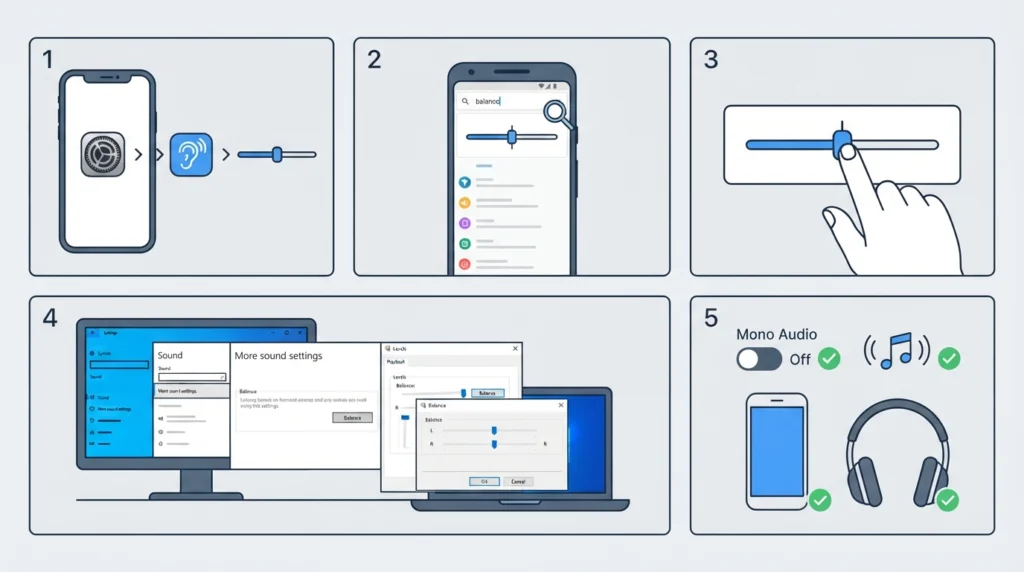
A balance slider nudged slightly off center is one of the most common reasons one side sounds quieter. It happens more often than most people expect, especially after accessibility settings get changed.
- Step 1: On an iPhone, open Settings, go to Accessibility, then Audio and Visual, and find the Balance slider.
- Step 2: On an Android phone, open Settings and search for ‘balance’ or look under Accessibility. Samsung phones place it under hearing settings as left and right sound balance. Menu names vary by brand and software version.
- Step 3: Move the slider to the exact center so both sides are equal.
- Step 4: On a Windows 11 PC, open Settings, go to System, then Sound, then More sound settings. Double-click the PerL Pro under the Playback tab, open Levels, and press Balance to confirm both channels match. The guide on adjusting audio output settings in Windows 11 covers the same area in more detail.
- Step 5: Also make sure Mono Audio is not producing an uneven result, then play a stereo track to test.
Pro-Tip: Test with the same song on a second device, such as a tablet. If the volume is even there, the earbuds are fine and the problem lives in the first device’s settings.
Method 2: Run a Device Reset on the Earbuds
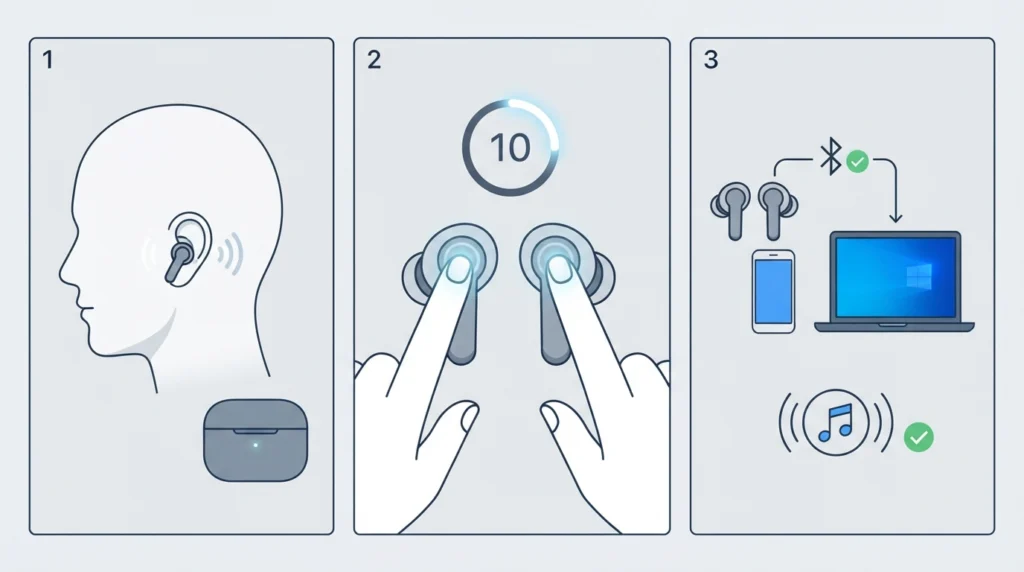
A device reset clears minor glitches without touching the saved hearing profiles. It takes about ten seconds.
- Step 1: Place both earbuds in the ears.
- Step 2: Press and hold the touch buttons on both earbuds at the same time for 10 seconds.
- Step 3: Reconnect the earbuds to the phone or PC if needed and play a test track.
Method 3: Clean the Ear Tips and Earbuds
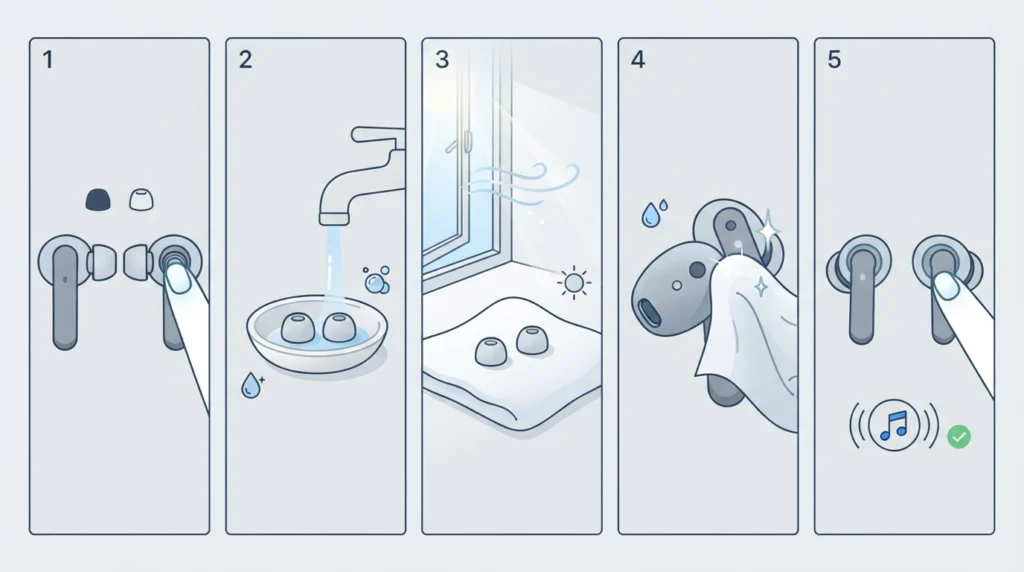
Earwax and dust build up inside the ear tips over time, and one side often clogs faster than the other. Think of it like a garden hose with a pinch in one end. The source is fine, but less sound gets through.
- Step 1: Remove the ear tips from both earbuds.
- Step 2: Wash the ear tips with water and a mild detergent.
- Step 3: Rinse them and let them dry completely.
- Step 4: Wipe the earbuds with a soft, damp cloth.
- Step 5: Reattach the dry ear tips firmly and test the volume again.
Pro-Tip: Denon advises against alcohol, cleaning solvents, and strong detergents on the earbuds. Harsh products can damage the finish, so plain water and a mild soap are enough.
Method 4: Reseat the Ear Tips and Improve the Fit
Low volume often comes from a poor seal rather than a real volume difference. When one earbud sits loosely, bass and overall loudness drop on that side.
- Step 1: Remove the earbud and reinsert it, twisting gently until it sits snugly in the ear.
- Step 2: Check that the ear tip is pushed fully onto the earbud nozzle on both sides.
- Step 3: Try a different ear tip size from the ones included in the box if one ear feels loose.
- Step 4: Play a test track and compare both sides again.
Method 5: Redo the Personalization in the Denon Headphones App
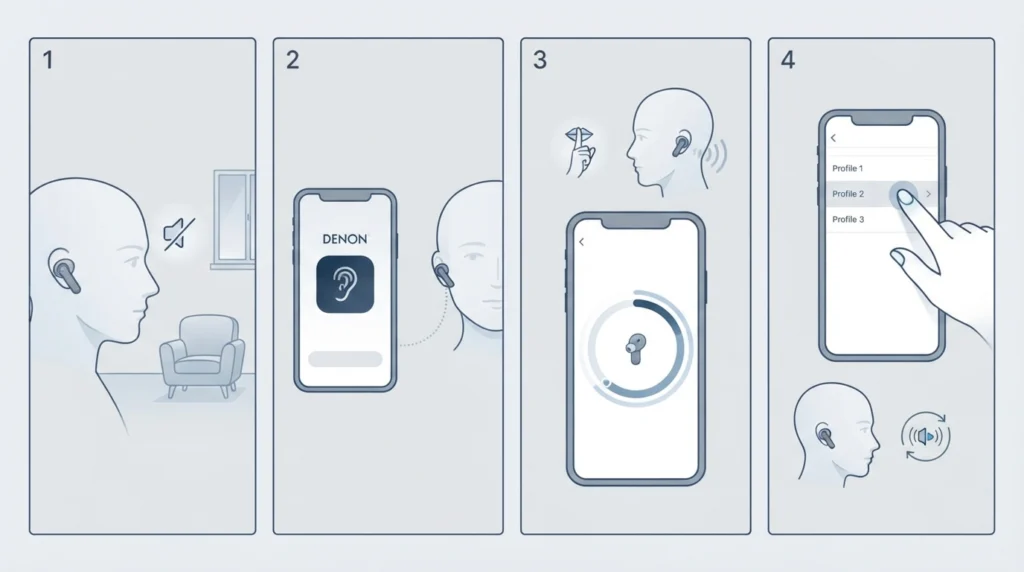
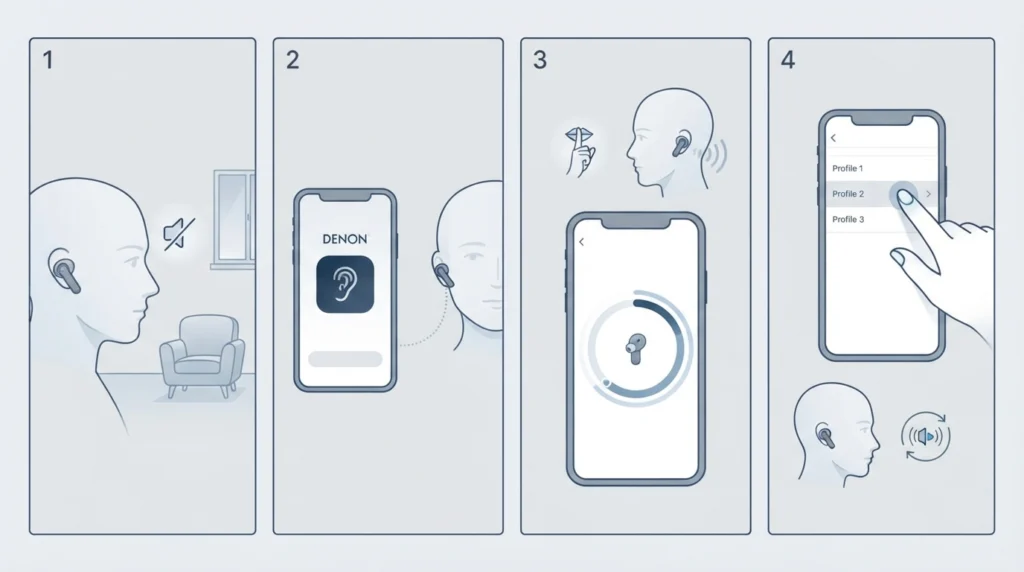
The PerL Pro builds a sound profile using Masimo Adaptive Acoustic Technology. Per Denon, the earbuds use sensitive microphones during personalization, so movement, outside noise, and heavy breathing can affect the resulting hearing profile. A flawed profile can make the sound feel uneven.
- Step 1: Move to a quiet room and sit still.
- Step 2: Open the Denon Headphones app with the earbuds in your ears.
- Step 3: Start the personalization process again and stay quiet and still until it finishes.
- Step 4: If more than one hearing profile is saved, switch between them in the app and test each one.
Method 6: Update the Earbud Firmware
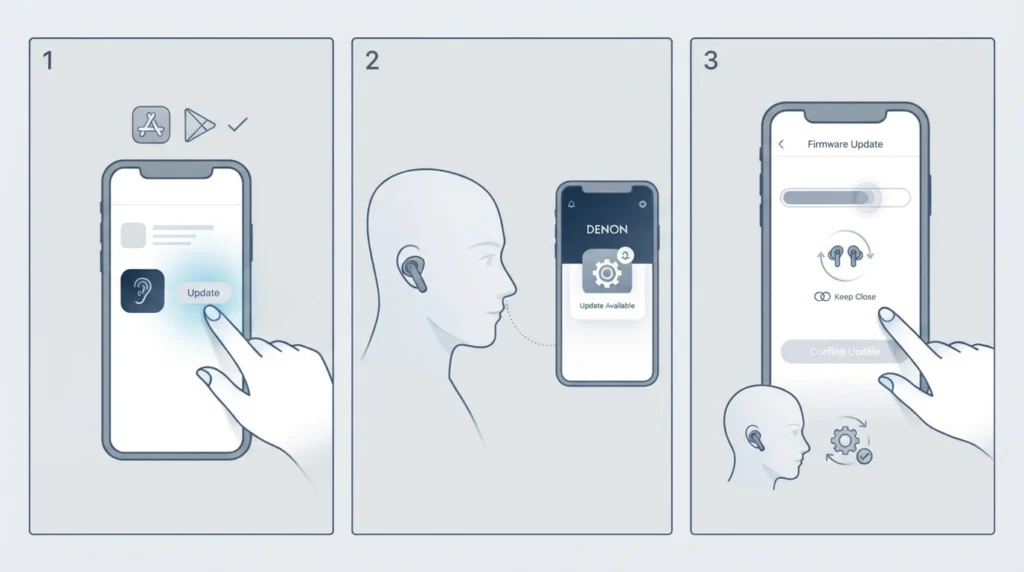
Denon notes that some improvements are delivered to the PerL Pro through firmware updates, so keeping both the earbuds and the app current is a sensible step.
- Step 1: Update the Denon Headphones app from the App Store or Google Play.
- Step 2: Wear the earbuds and open the app.
- Step 3: Follow the on-screen prompt to install any available firmware update, and keep the earbuds close to the phone until it completes.
Method 7: Factory Reset and Re-Pair the Earbuds
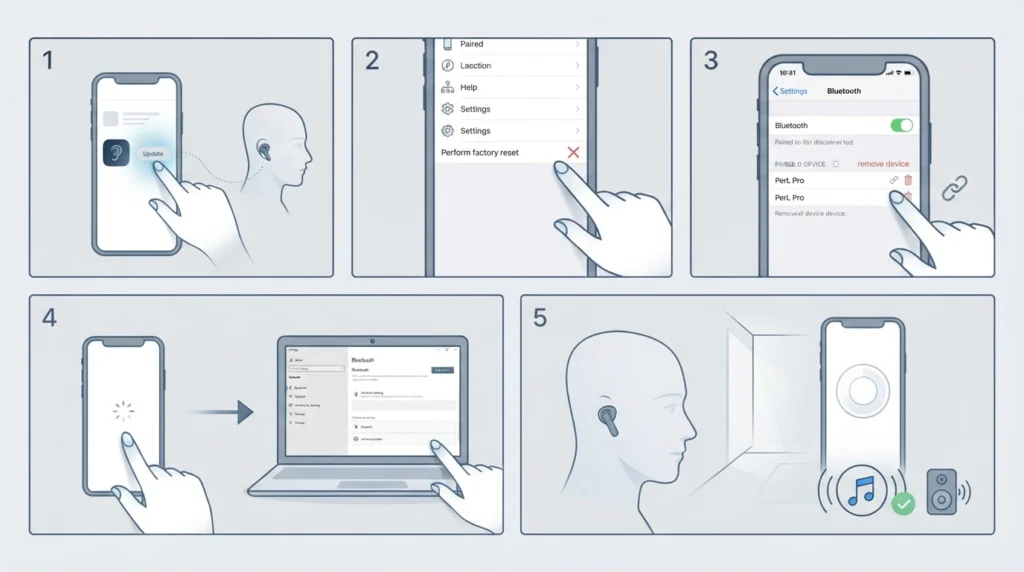
This is the final fix, and it should come last because it erases saved hearing profiles. A factory reset returns the earbuds to a clean state.
- Step 1: Open the Denon Headphones app.
- Step 2: Tap the Settings tab, then tap ‘Perform factory reset’.
- Step 3: Remove the PerL Pro from the Bluetooth list on the phone or PC.
- Step 4: Pair the earbuds again. On a PC, the walkthrough to re-pair Bluetooth earbuds for stereo sound on Windows shows the process clearly.
- Step 5: Create a new hearing profile in a quiet room and test the volume on both sides.
Tips to Keep Both Earbuds Sounding Even
- Wipe the earbuds and wash the ear tips regularly so buildup never gets a chance to block sound.
- Always create hearing profiles in a quiet place without moving around.
- Keep the Denon Headphones app and earbud firmware up to date.
- Check that Social Mode is not active when judging sound quality, since Denon lists it as something to verify.
- If the issue appears only on a PC, review the steps for resetting audio settings in Windows 11 before changing anything on the earbuds.
Common Problems and Quick Fixes
One Earbud Is Quiet Only on a Single Device
This points to a balance or accessibility setting on that device, not the earbuds. Return to Method 1 and center the balance slider.
Volume Dropped Gradually Over Weeks
Slow loss of loudness on one side usually matches a clogged ear tip. Method 3 fixes it in most cases.
Sound Seems Thin or Weak Only When Worn
A loose fit is the likely cause. Reseat the earbud or try another ear tip size as covered in Method 4.
Sound Became Uneven After Personalizing
Noise or movement during the process can affect the hearing profile. Redo it in a quiet room using Method 5.
Frequently Asked Questions
Why is one Denon PerL Pro earbud quieter than the other?
The most common reasons are an off-center balance setting, blocked ear tips, a loose fit, or a hearing profile created in a noisy setting.
How do I reset Denon PerL Pro earbuds?
Hold the touch buttons on both earbuds for 10 seconds to run a device reset. A deeper factory reset is available in the Denon Headphones app under Settings.
Does a factory reset delete my hearing profiles?
Yes. Denon states that performing a factory reset in the app deletes the saved hearing profiles, so a new one must be created afterward.
Can alcohol be used to clean the earbuds?
No. Denon recommends against alcohol, cleaning solvents, and strong detergents. Ear tips can be washed with water and mild detergent, and the earbuds wiped with a soft, damp cloth.
Which app is needed to personalize the PerL Pro?
The Denon Headphones app is used to create hearing profiles, install firmware updates, and access the factory reset option.
Can the wrong ear tip size make one side sound quieter?
Yes. A weak seal reduces perceived loudness and bass on that side. Trying another of the included ear tip sizes often helps.
Where is the balance setting on Windows 11?
Open Settings, go to System, then Sound, then More sound settings. Double-click the earbuds under Playback, open the Levels tab, and select Balance.
Should the earbuds be reset before cleaning?
No. Cleaning is faster and does not erase anything, so it makes more sense to try it before any reset.
Who should be contacted if none of the methods work?
Denon support is the right contact, since the earbuds may need inspection or service.