
A Corsair HS80 Max that refuses to connect usually comes down to one of a handful of predictable causes – a dongle stuck in the wrong mode, outdated firmware, or a USB port that cannot supply a stable signal. This guide walks through the exact fixes that resolve the issue, in the order most likely to work first.
Quick Summary Table
- Most common cause: the headset accidentally switched from RF mode to Bluetooth mode
- Second most common cause: outdated dongle or headset firmware
- Fastest fix: toggle the power button once to switch back to RF mode
- Most reliable long-term fix: update firmware through iCUE
- Average time to resolve: 5 to 15 minutes
- Tools needed: USB-A port, iCUE software, patience for one firmware update
Method 1: Switch the Headset Back to RF Mode
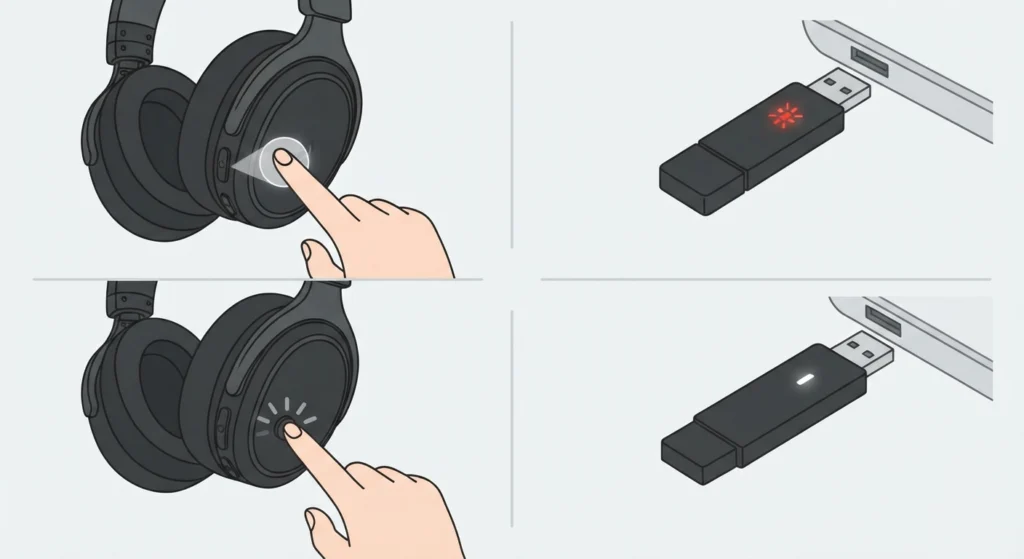
This is the single most common reason the HS80 Max shows a blinking red light on the dongle instead of connecting. A quick, accidental press of the power button can shift the headset out of RF mode and into Bluetooth mode, which the dongle cannot communicate with.
- Step 1: Locate the power button on the left ear cup of the headset.
- Step 2: Press it once, quickly, without holding it down.
- Step 3: Watch the dongle LED – it should shift from blinking red to solid white within a few seconds.
- Step 4: If the light stays red, repeat the quick press one more time, since it is easy to toggle back into Bluetooth mode by mistake.
A solid white light on the dongle confirms the headset and receiver are talking to each other correctly. If this does not resolve things, move to the firmware check below, since a large share of ongoing HS80 Max connection failures trace back to dongle firmware rather than the headset itself.
Method 2: Update the Dongle and Headset Firmware

Corsair has confirmed that many random disconnects and pairing failures on the HS80 Max stem from outdated firmware on the USB dongle, not a hardware fault. Updating it typically resolves the problem completely.
- Step 1: Download and install iCUE from the official Corsair website if it is not already installed.
- Step 2: Plug the USB dongle into the PC and power on the headset.
- Step 3: Open iCUE and select the HS80 Max from the device list on the left side.
- Step 4: Click on the settings gear icon, then look for the firmware section.
- Step 5: Select ‘Check for Updates’ and allow the update to download and install fully – do not disconnect the dongle during this process.
- Step 6: Once complete, a ‘Latest Version’ label should appear, confirming the firmware is current.
- Step 7: Restart the PC and reconnect the dongle to confirm the fix has taken hold.
Pro-Tip: Never unplug the dongle mid-update, even if the process looks stalled for a minute. Interrupting a firmware flash can leave the dongle in a corrupted state that requires a full driver reinstall to recover.
Method 3: Reinstall iCUE and the HS80 Max Drivers
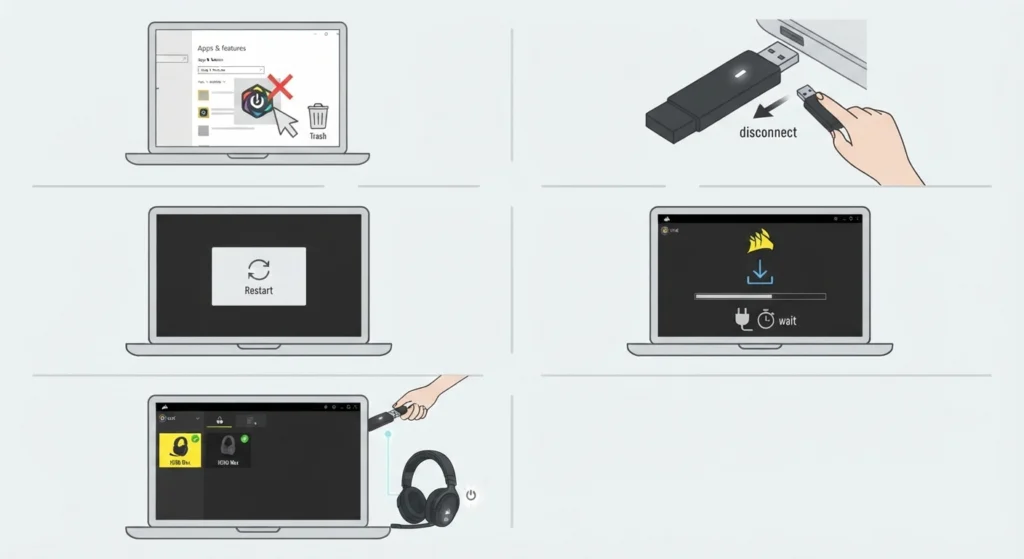
Windows sometimes installs an older, generic driver for the HS80 Max before iCUE gets the chance to load the correct one. This creates a conflict where the headset appears to be detected but never actually produces sound or a stable connection.
- Step 1: Uninstall iCUE completely through Windows Settings > Apps.
- Step 2: Unplug the HS80 Max dongle from the PC.
- Step 3: Restart the computer to clear any cached driver data.
- Step 4: Reinstall iCUE from the official source and let it finish setup fully before plugging anything in.
- Step 5: Plug the dongle back in and power on the headset, allowing iCUE to detect and install the correct drivers automatically.
This is often the fix that works when a headset was functioning fine for weeks and then suddenly stopped being recognized after a Windows update.
Method 4: Try a Different USB Port
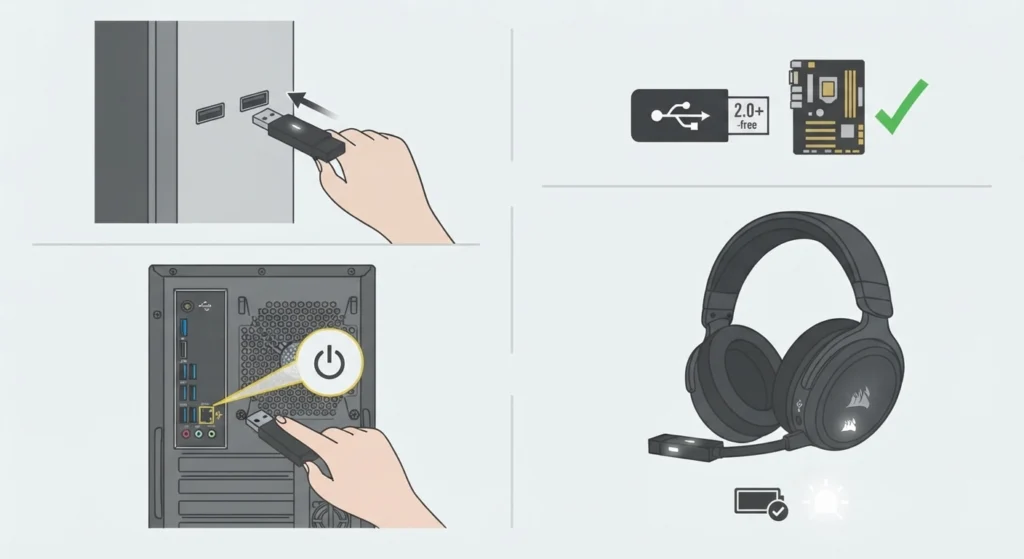
Not every USB-A port on a desktop or laptop delivers the same power output, and the HS80 Max dongle depends on a stable connection to maintain its wireless link.
- Step 1: Unplug the dongle from its current port.
- Step 2: Plug it directly into a rear USB port on a desktop tower, avoiding front-panel ports and USB hubs where possible.
- Step 3: Confirm the port supports USB 2.0 or higher, since older or underpowered ports can fail to sustain the connection.
- Step 4: Power the headset back on and check for a solid white LED on the dongle.
Laptop users sometimes find that USB-C to USB-A adapters introduce enough signal loss to cause intermittent drops. Plugging directly into a native USB-A port, if available, tends to produce a noticeably more stable result.
Method 5: Check the Distance and Interference Around the Dongle
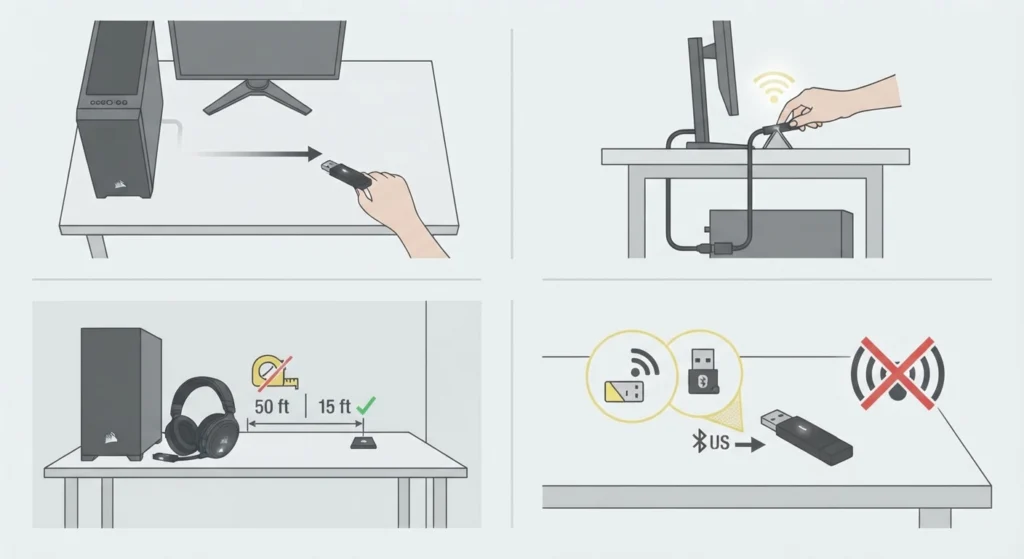
The HS80 Max uses an RF wireless connection rated for a maximum range of roughly 50 feet, but that number assumes a clear line of sight. Walls, metal desks, and nearby electronics all cut into that range in practice.
- Step 1: Move the USB dongle to an open area on the desk rather than tucking it behind a monitor or PC tower.
- Step 2: If using a USB extension cable, position the dongle so it sits closer to eye level rather than at floor level near other cables.
- Step 3: Reduce the distance between the headset and the dongle to under 15 feet while testing.
- Step 4: Remove other wireless devices, like USB Wi-Fi adapters or Bluetooth transmitters, from directly beside the dongle, since overlapping frequencies can cause dropouts.
Method 6: Confirm the Battery Has Enough Charge
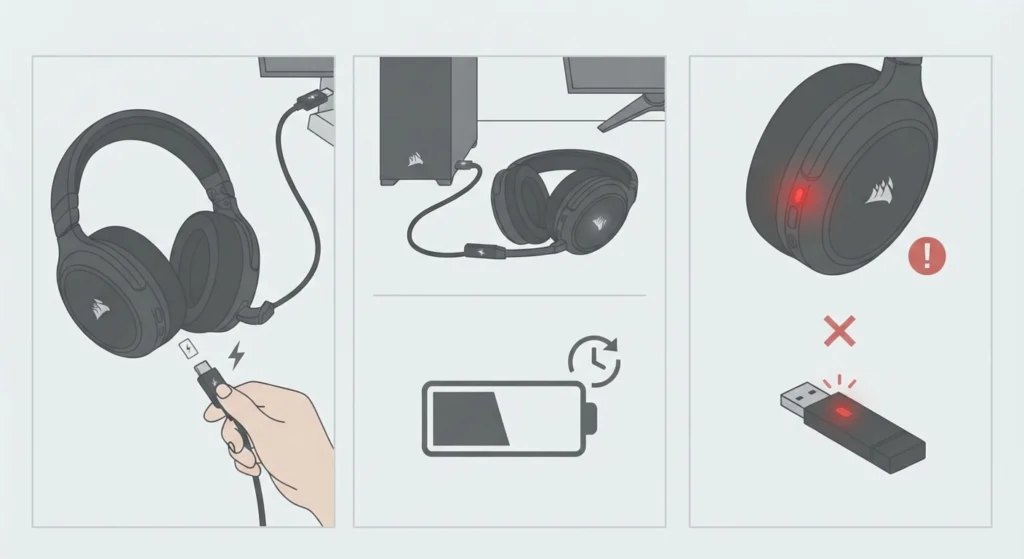
A headset running on a critically low battery can behave exactly like one with a connection problem – the dongle may blink red simply because the headset lacks the power to maintain a stable RF link.
- Step 1: Connect the headset to the PC using the included USB charging cable.
- Step 2: Allow it to charge for at least 15 to 20 minutes before testing the wireless connection again.
- Step 3: Check the Headset Status LED for a low-battery red indicator before assuming the dongle itself is at fault.
Letting the battery drain completely and sit unused for long stretches can also make future power-on attempts less reliable, so keeping it topped off between sessions is worth the habit.
Tips to Keep the HS80 Max Connection Stable
- Keep iCUE updated automatically rather than checking for updates manually every few months.
- Store the dongle in the same USB port consistently, since Windows sometimes treats a new port as a new device and reinstalls drivers unnecessarily.
- Avoid placing the dongle inside a metal PC case or behind a monitor stand, as both reduce signal strength.
- If switching between wireless and Bluetooth pairing modes often, get familiar with the single power-button press versus the longer press, since mixing the two up is the most frequent cause of dropped connections.
- Set the HS80 Max as the default communication and playback device inside Windows sound settings after every fresh driver install to avoid silent audio despite a solid connection.
Common Problems and Troubleshooting
Dongle LED blinks red and never turns solid
This almost always points to the headset sitting in Bluetooth mode or being out of range. Confirm RF mode with a quick power button press and bring the headset closer to the dongle before testing further.
Headset connects but produces no sound
Once the connection itself is stable, the remaining issue is usually a Windows output setting rather than the headset. Checking the audio output configuration in Windows 11 resolves this in most cases, since the HS80 Max can sometimes get set as a secondary device rather than the default.
Microphone not detected despite the headset working for audio
This is a separate driver path from playback audio on Windows. Reviewing the steps for fixing microphone detection usually isolates and resolves this without needing to touch the headset itself.
Connection worked before but now drops randomly
This pattern matches the known dongle firmware issue Corsair has already addressed through updates. Running the firmware update in Method 2 above resolves this for the vast majority of affected users.
PC does not recognize the dongle at all
Try a different USB port first, then confirm the dongle is not physically damaged. If iCUE never detects it under any port, a full driver reinstall following Method 3 typically clears this up.
Frequently Asked Questions
Why does the Corsair HS80 Max keep disconnecting from the PC?
The most common cause is outdated firmware on the USB dongle. Corsair identified this as a known issue and released a firmware update that resolves it for most users experiencing random disconnects.
How can it be confirmed the HS80 Max is in RF mode and not Bluetooth mode?
A quick, single press of the power button toggles between RF and Bluetooth mode. If the dongle LED turns solid white after pressing it once, the headset is correctly in RF mode.
What does a blinking red light on the HS80 Max dongle mean?
A rapidly blinking red light means the dongle is powered on but cannot detect the headset. This usually means the headset is out of range, powered off, in Bluetooth mode, or needs to be re-paired.
How far can the HS80 Max be from the PC and still stay connected?
The wireless RF connection is rated for up to roughly 50 feet under ideal conditions with a clear line of sight. Walls and large electronics can reduce this range noticeably.
Does the HS80 Max need iCUE installed to work on a PC?
Basic audio functionality can work without iCUE in many cases, but firmware updates, EQ settings, and full driver support all require iCUE to be installed.
Can a USB hub cause connection problems with the HS80 Max?
Yes. USB hubs, especially unpowered ones, can fail to deliver a stable enough connection for the dongle. Plugging directly into a native USB-A port on the PC is more reliable.
Why does the headset connect but show no audio output?
This is typically a Windows sound settings issue rather than a hardware problem. The HS80 Max may not be set as the default output device even though the connection itself is stable.
Is it normal for the HS80 Max to lose connection after a Windows update?
It can happen if Windows installs a generic driver over the correct Corsair driver. Reinstalling iCUE after a major Windows update typically resolves this.
How long does it take to charge the HS80 Max if the battery died completely?
A full charge typically takes a couple of hours, though the headset can usually be used while charging via the included USB cable.
Should the dongle firmware and headset firmware both be updated?
Yes. iCUE checks and updates both the dongle and the headset separately, and keeping both current avoids most of the recurring connection issues reported by users.