
Want to watch a late-night movie without waking the house? Learning how to connect Bluetooth headphones to a Sony Bravia TV takes only a couple of minutes and a few remote clicks. Pair once, and the headphones usually reconnect on their own the next time they are switched on.
Key Takeaways
- Works on Bravia models with built-in Bluetooth, typically those running Google TV or Android TV.
- The path is Settings, then Remote & Accessories, then Add accessory.
- The headphones must be in pairing mode before the TV can find them.
- The whole process takes about 2 minutes.
- Once paired, the TV remembers the headphones for next time.
Method 1: Pair Bluetooth Headphones With the Sony Bravia TV
Charge the headphones and keep them within a few feet of the TV before starting. Menu names can differ slightly between Bravia software versions, but the path below matches current Google TV and Android TV models.
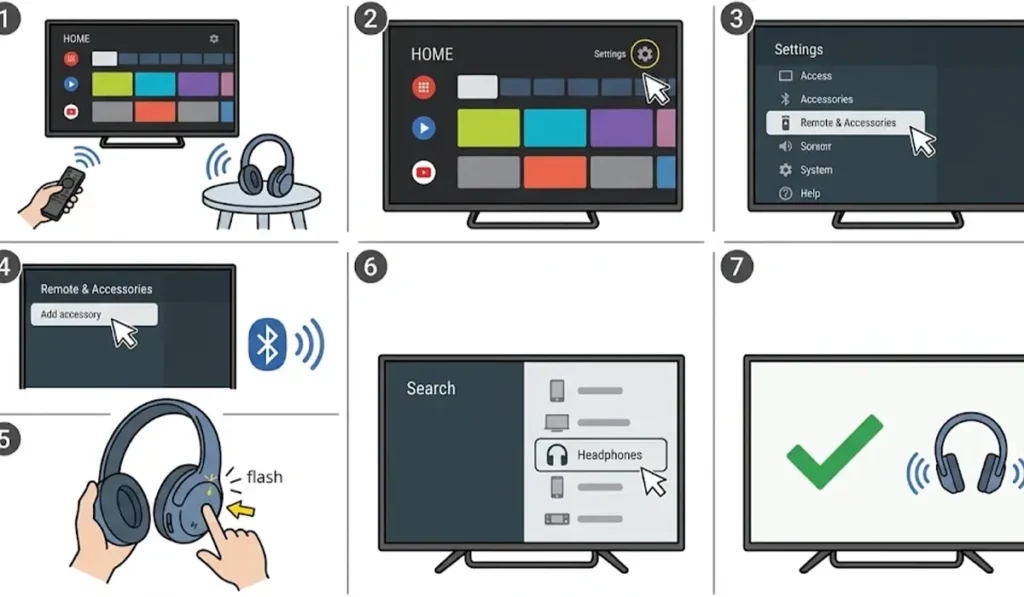
- Step 1: Turn on the TV and press the Home button on the remote.
- Step 2: Open Settings from the Home screen.
- Step 3: Select Remote & Accessories.
- Step 4: Choose Add accessory (some versions label it Pair accessory). The TV starts searching for nearby Bluetooth devices.
- Step 5: Put the headphones into pairing mode. On most models, this means holding the power or Bluetooth button until the light flashes or a voice prompt announces pairing.
- Step 6: Select the headphones by name when they appear in the list on the TV.
- Step 7: Confirm the pairing request if one appears. Once the connection is made, the sound moves to the headphones.
Pro-Tip: Headphones tend to grab the last device they were connected to. If they were recently used with a phone, switch off Bluetooth on that phone first. Otherwise, the headphones may reconnect to the phone instead of entering pairing mode for the TV.
Method 2: Reconnect Headphones That Are Already Paired
After the first pairing, reconnecting is much quicker. This works best when the headphones have not been paired with a different device in the meantime.
- Step 1: Turn on the headphones while standing near the TV. They often reconnect automatically.
- Step 2: If the sound still comes from the TV speakers, open Settings and select Remote & Accessories.
- Step 3: Select the headphones from the list of saved accessories to reconnect them.
Tips for a Better Listening Experience
- Keep a clear line of sight between the headphones and the TV. Bluetooth signals can weaken when walls or furniture are in the way.
- Remember that the TV volume and the headphone volume are separate. If the sound seems quiet, raise both.
- Bluetooth adds a small delay by nature. If speech looks slightly out of sync with the picture, headphones with a low-latency or gaming mode may help.
- Headphones that also serve a Windows laptop may need to be paired again there after being used with the TV. This guide on how to re-pair Bluetooth earbuds for stereo sound on Windows covers the process.
- If the laptop no longer detects the headphones afterward, this walkthrough on troubleshooting headphone detection is a good next stop. On Windows 11, the page on adjusting audio output settings helps pick the right device.
Pro-Tip: Not every Sony Bravia model has built-in Bluetooth audio, especially older ones. Check the model’s specifications or manual before starting. If the Remote & Accessories menu has no option to add an accessory, the TV likely lacks this feature.
Common Problems and Fixes
Fix 1: Headphones Do Not Appear in the List
Switch the headphones off, then hold the pairing button again until the light flashes. Move closer to the TV and start the search once more. Make sure the headphones are not connected to a phone or tablet nearby.
Fix 2: Paired but No Sound
Raise the volume on both the TV and the headphones. Then turn the headphones off and on again so the connection restarts.
Fix 3: Remove the Headphones and Pair Again
Open Remote & Accessories, select the headphones, and choose the option to remove or forget the device. Then repeat Method 1 from the beginning for a fresh pairing.
Frequently Asked Questions
Can a Sony Bravia TV connect to Bluetooth headphones?
Yes, many Sony Bravia models can. Models with built-in Bluetooth, typically those running Google TV or Android TV, let headphones pair through the Remote & Accessories menu.
Where is the Bluetooth setting on a Sony Bravia TV?
Open Settings, then Remote & Accessories, then Add accessory. The exact wording can vary slightly by model and software version.
Do all Bluetooth headphones work with a Sony Bravia TV?
Most standard Bluetooth headphones and earbuds are able to pair. Compatibility can still vary by TV model and headphone brand, so the product manuals are worth a quick look.
Do the TV speakers turn off when headphones connect?
In most cases, the sound moves from the TV speakers to the headphones once they are connected. Disconnecting the headphones brings the sound back to the TV.
Does pairing need to be repeated every time?
No. After the first pairing, the TV saves the headphones. Turning them on near the TV usually reconnects them automatically.
How do headphones get into pairing mode?
Most headphones need the power or Bluetooth button held for a few seconds until a light flashes or a voice prompt says pairing. The exact button and light pattern differ by brand.
Can AirPods connect to a Sony Bravia TV?
AirPods can pair with non-Apple devices that have Bluetooth. Open the charging case lid, then press and hold the setup button on the back until the status light flashes white. Then select the AirPods in the TV’s accessory list.
Why is there a slight delay between picture and sound?
Bluetooth audio naturally adds a small delay. Headphones with a low-latency mode can reduce it, and wired or transmitter-based options tend to reduce it further.
What can be done if the TV has no Bluetooth?
A Bluetooth transmitter connected to the TV’s audio output can send sound to wireless headphones. The transmitter must match an audio output the TV actually has.
How can the headphones be disconnected from the TV?
Switching off the headphones disconnects them right away. To remove them completely, open Remote & Accessories, select the headphones, and choose the option to remove or forget the device.