
Learning how to connect Bluetooth headphones to a Roku TV takes only a few minutes, and the trick is knowing that most Roku TVs send sound to headphones through a phone or a small transmitter. Both options are covered below, one step at a time.
Key Takeaways
- The easiest option is the free Roku mobile app with a feature called Private Listening.
- The phone and the Roku TV must be on the same Wi-Fi network.
- Bluetooth headphones pair with the phone, not with the TV, in Method 1.
- A Bluetooth transmitter is the alternative when a phone is not an option.
- Up to four phones can use Private Listening on one Roku device at the same time.
Method 1: Use the Roku Mobile App for Private Listening
This is the official way to listen privately on a Roku TV, and it works with any Bluetooth headphones or earbuds. The Roku TV streams the sound over Wi-Fi to the phone, and the phone passes it along to the headphones over Bluetooth. Think of the phone as a relay between the TV and the headphones.
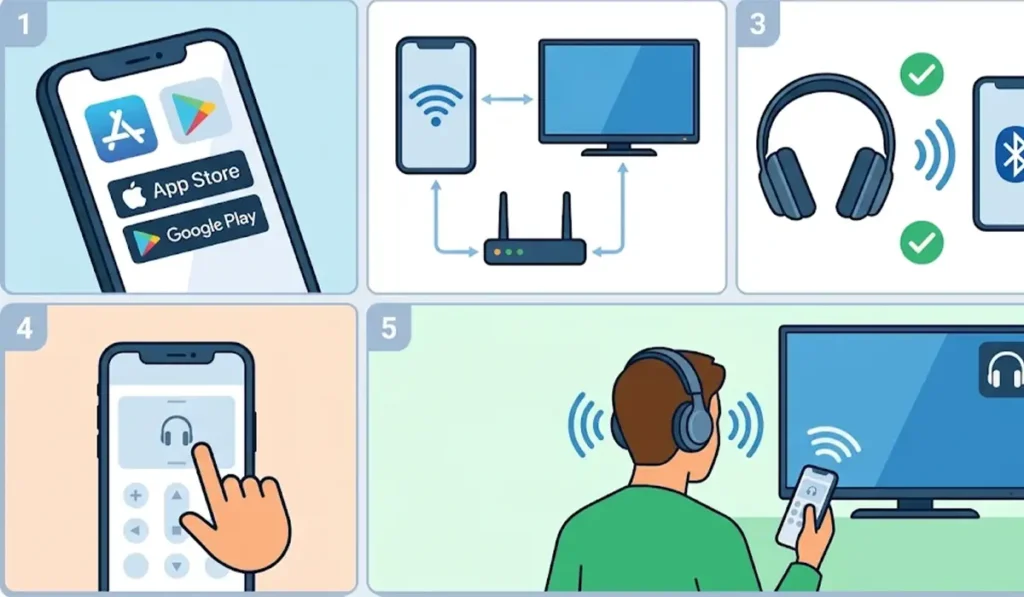
- Step 1: Install the free Roku mobile app from the App Store or Google Play and sign in.
- Step 2: Connect the phone to the same Wi-Fi network as the Roku TV.
- Step 3: Put the Bluetooth headphones in pairing mode and pair them with the phone in its Bluetooth settings.
- Step 4: Open the Roku mobile app and let it find the Roku TV.
- Step 5: Tap Remote at the bottom of the screen.
- Step 6: Tap the headphones icon to turn on Private Listening. A headphones icon appears on the TV screen to confirm it is active.
- Step 7: Play a show or movie. The sound now comes through the headphones instead of the TV speakers.
Pro-Tip: Turn on Private Listening before starting a movie or show. Starting it first avoids audio hiccups at the beginning of playback.
Method 2: Use a Bluetooth Transmitter
This method works well when the phone needs to stay free for calls or other apps. A Bluetooth transmitter plugs into the TV and sends the audio straight to the headphones, much like a tiny radio station for one listener.
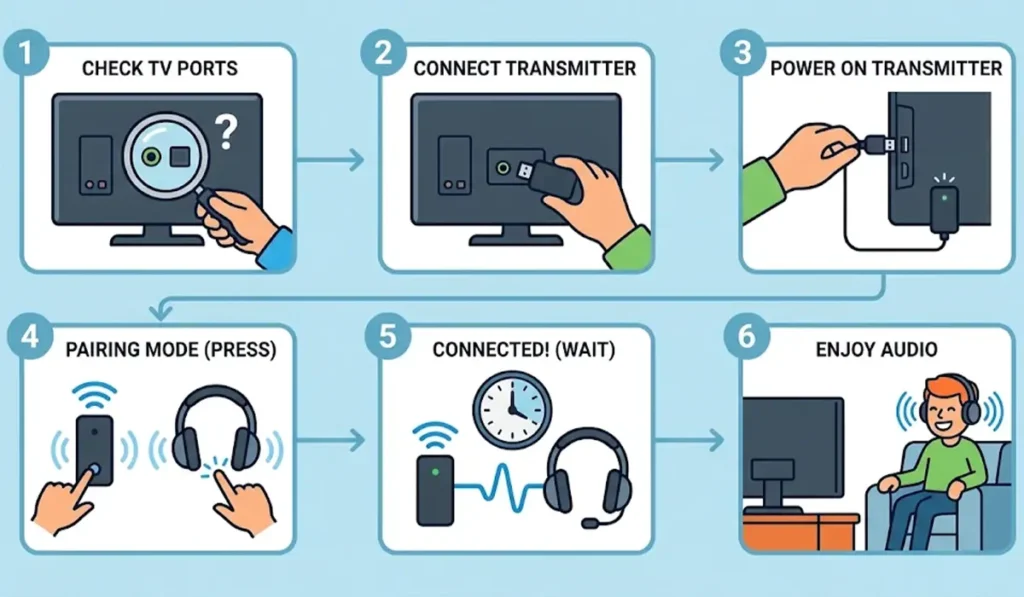
- Step 1: Check the back or side of the Roku TV for an audio output, such as a headphone jack or an optical digital audio port.
- Step 2: Buy a Bluetooth transmitter that matches that port and connect it with the right cable.
- Step 3: Power the transmitter using a USB port on the TV or a USB wall adapter.
- Step 4: Put the transmitter in pairing mode, then put the Bluetooth headphones in pairing mode.
- Step 5: Wait until the transmitter light shows that the headphones are connected.
- Step 6: Play something on the Roku TV and confirm the sound comes through the headphones.
Pro-Tip: To keep voices lined up with lip movements, choose a transmitter and headphones that both support a low-latency codec such as aptX Low Latency.
Tips for Better Sound
- Charge the headphones fully before a long movie night.
- Keep the phone close to the headphones and within range of a strong Wi-Fi signal.
- Headphones that are also used with a Windows computer may need a fresh start now and then, and this guide on re-pairing Bluetooth earbuds for stereo sound shows how.
- If the same headphones are switched between a TV setup and a Windows 11 PC, adjusting audio output settings on the PC keeps the sound going to the right place.
- When a Windows PC does not recognize the headphones after they were used with the TV, this walkthrough on headphone detection problems can help.
Common Problems and Fixes
Fix 1: The Headphones Icon Is Missing
Update the Roku mobile app to the latest version. If the icon is still missing after updating, the Roku device does not support mobile Private Listening, and Method 2 is the better choice.
Fix 2: The Sound Is Out of Sync With the Picture
Make sure the latest Roku mobile app is installed, then use the audio delay adjustment in the app to bring the sound back in line with the picture.
Fix 3: No Sound in the Headphones
Turn Private Listening off and on again. If that does not work, re-pair the headphones with the phone, then close and reopen the Roku mobile app and try once more.
Frequently Asked Questions
Can Bluetooth headphones connect directly to a Roku TV?
Most Roku TVs do not pair with Bluetooth headphones directly. The Roku mobile app or a Bluetooth transmitter is the reliable way to listen privately.
Is the Roku mobile app free?
Yes. The Roku mobile app is a free download for iPhone and Android phones.
Does the phone need to be on the same Wi-Fi network as the Roku TV?
Yes. The Roku TV sends the audio to the phone over Wi-Fi, so both devices must be on the same network.
Do the headphones pair with the TV or the phone?
With the Roku mobile app, the headphones pair with the phone. The phone then receives the TV audio and plays it through the headphones.
How many people can use Private Listening at once?
Up to four mobile devices can connect to one Roku device for Private Listening, with each person using a separate phone.
Will the TV speakers stay on during Private Listening?
The audio moves to the headphones while Private Listening is active, so the room stays quiet.
Can AirPods or other earbuds be used?
Yes. Any Bluetooth earbuds or headphones that pair with the phone work with Private Listening in the Roku mobile app.
Why is there a slight delay between the picture and the sound?
Bluetooth can add a small delay. The Roku mobile app includes an audio delay adjustment, and low-latency Bluetooth gear helps when using a transmitter.
When is a Bluetooth transmitter the better choice?
A transmitter is handy when the phone is needed for other tasks or when a phone is not available. It connects to the TV and sends audio to the headphones on its own.