
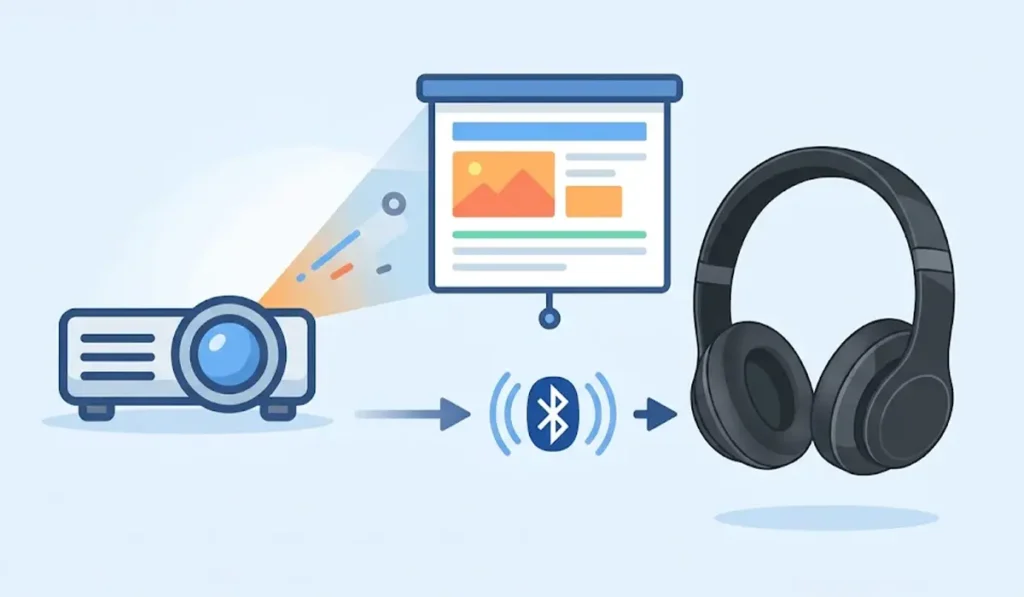
Knowing how to connect Bluetooth headphones to a projector makes movie nights, gaming sessions, and presentations far more private and far less noisy. Some projectors pair with headphones directly, while others need a small helper device, and the right method depends on what the projector offers. The three methods below cover every common setup in plain, simple steps.
Key Takeaways:
- Projectors with a Bluetooth output or audio device menu can pair with headphones directly.
- Projectors without that feature work well with a Bluetooth transmitter plugged into the audio output port.
- A streaming device attached to the projector can handle the Bluetooth pairing instead.
- Headphones must be in pairing mode before the projector or transmitter can find them.
Method 1: Pair Headphones Directly With the Projector
This is the fastest route and works on projectors that list Bluetooth headphones as a supported audio output. Most smart projectors with a built-in operating system offer this option inside the sound or Bluetooth settings.
- Step 1: Turn on the projector and open the main Settings menu using the remote.
- Step 2: Open the Bluetooth, Sound, or Audio Output section, depending on the projector model.
- Step 3: Switch Bluetooth on and choose the option to scan for or add a new device.
- Step 4: Put the headphones into pairing mode. On most models, this means holding the power or Bluetooth button until a light starts flashing or a voice prompt says pairing.
- Step 5: Select the headphones from the list of found devices on the projector screen.
- Step 6: Wait for the status to change to Connected, then play a video to confirm that the sound now comes through the headphones.
Pro-Tip: Some projectors include Bluetooth only so a phone can play music through the projector speaker. In that case, the Bluetooth menu has no option to scan for headphones. If the menu only shows a pairing name for the projector itself, skip to Method 2 instead of spending time on repeated attempts.
Method 2: Use a Bluetooth Transmitter With Any Projector
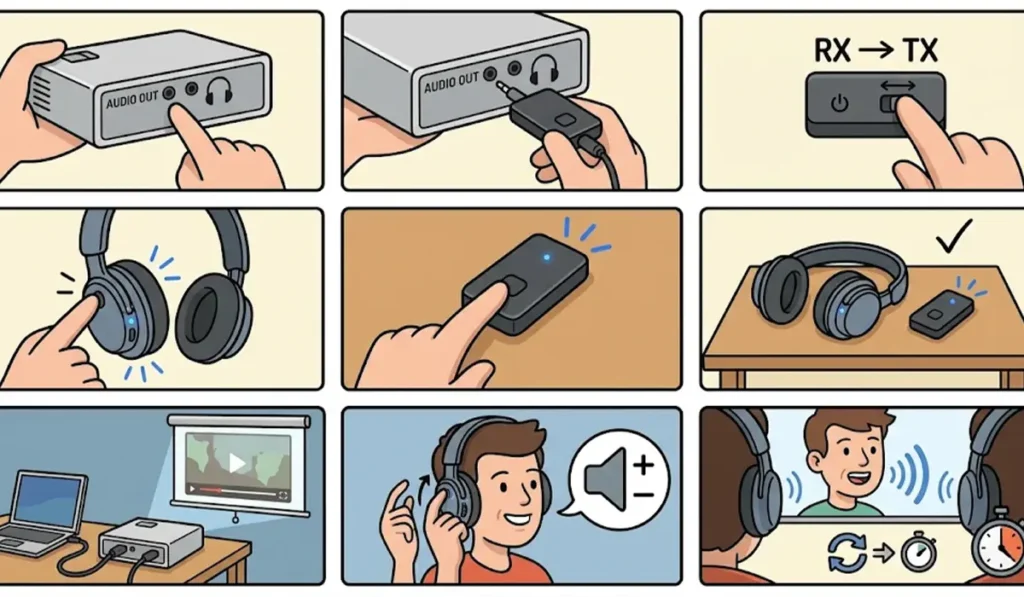
A Bluetooth transmitter is a small adapter that sends the projector’s audio to wireless headphones. This works best when the projector has no Bluetooth output but does have a 3.5mm audio out, RCA, or optical audio port. Think of it as a tiny radio station that broadcasts only to the headphones.
- Step 1: Check the back or side of the projector for an audio out port, usually marked Audio Out, AUX, Headphone, or Optical.
- Step 2: Plug the transmitter into that port using the matching cable or connector.
- Step 3: Power the transmitter through its USB cable or built-in battery, and set its switch to TX or transmit mode if it has one.
- Step 4: Put the headphones into pairing mode.
- Step 5: Hold the pairing button on the transmitter until its light flashes, then keep both devices close together until the light turns solid.
- Step 6: Play a video on the projector and adjust the volume on the headphones.
Pro-Tip: Look for a transmitter that supports a low-latency codec such as aptX Low Latency, and use headphones that support the same one. This keeps the voices matched with the lips on screen, which matters most for movies and games.
Method 3: Pair Headphones With a Streaming Device Connected to the Projector
Many people already plug a streaming stick or Android-based box into the projector’s HDMI port. In that case, the headphones can pair with the streaming device, and the sound follows the video it plays.
For Fire TV Stick
- Step 1: Put the headphones into pairing mode.
- Step 2: On the Fire TV home screen, open Settings, then choose Controllers and Bluetooth Devices. On some versions, this menu is named Remotes and Bluetooth Devices.
- Step 3: Select Other Bluetooth Devices, then Add Bluetooth Devices.
- Step 4: Choose the headphones from the list and wait for the connection to finish.
For Google TV or Android TV Devices
- Step 1: Put the headphones into pairing mode.
- Step 2: Open Settings, then choose Remotes and Accessories.
- Step 3: Select Pair Remote or Accessory, then pick the headphones when they appear.
- Step 4: Start a video and confirm that the sound plays through the headphones.
Tips for Better Sound and Less Delay
- Keep the headphones within a few meters of the projector or transmitter, with as few walls or objects between them as possible.
- Charge the headphones fully before a long movie so the battery does not run out halfway through.
- Most people find that placing the transmitter at the front or side of the projector, rather than tucked behind it, gives a steadier signal.
- When a Windows 11 laptop feeds the projector over HDMI, the audio may default to the projector. Use the guide on adjusting audio output settings to send sound to the headphones instead.
- If the headphones were previously paired with a laptop and sound only comes from one side, the guide to re-pairing Bluetooth earbuds for stereo sound shows how to reset that connection.
Common Problems and Quick Fixes
Fix 1: Headphones Do Not Appear in the Device List
Turn the headphones off, then hold the pairing button again until the light flashes. Also make sure the headphones are not still connected to a phone, since most headphones connect to one source at a time. If the headphones are being paired through a Windows laptop first, the headphone detection troubleshooting guide can help.
Fix 2: Sound Is Delayed Behind the Picture
Bluetooth adds a small delay by nature. A transmitter and headphones that both support a low-latency codec reduce it, and moving closer to the source also helps.
Fix 3: Sound Still Plays From the Projector Speaker
Open the projector or streaming device sound settings and set the audio output to the Bluetooth headphones. Some projectors also need the internal speaker option switched off.
Fix 4: The Connection Keeps Dropping
Move away from other wireless devices such as Wi-Fi routers and microwaves, and keep the headphones charged. Removing the pairing and pairing again often steadies the link.
Frequently Asked Questions
Can any projector connect to Bluetooth headphones?
No. Only projectors with a Bluetooth output feature can pair with headphones directly. Other projectors can still work with a Bluetooth transmitter.
How can it be checked whether a projector supports Bluetooth headphones?
Open the projector Bluetooth or sound settings and look for an option to scan for or add devices. The user manual or the manufacturer product page also lists Bluetooth features.
Is a Bluetooth transmitter needed for every projector?
A transmitter is only needed when the projector cannot pair with headphones on its own. It requires an audio out port such as 3.5mm, RCA, or optical.
Which port should the transmitter be plugged into?
Use the projector audio out port, often labeled Audio Out, AUX, Headphone, or Optical. Choose a transmitter that matches that port type.
Can two pairs of headphones be used on one projector?
Only when the transmitter or device specifically supports dual headphone connections. Many transmitters list this feature on the product page.
Why is the audio behind the video?
Bluetooth sends sound with a short delay. Low-latency codecs on both the transmitter and headphones keep that delay smaller.
Do headphones need to be in pairing mode every time?
Pairing mode is needed the first time. After that, most headphones reconnect automatically when turned on near a paired device.
Can AirPods be connected to a projector?
AirPods can pair with a projector or streaming device that offers a Bluetooth headphone option, or with a Bluetooth transmitter. Put them in pairing mode by holding the button on the charging case.
What is the best distance between headphones and the projector?
Staying within a few meters with a clear line of sight gives the most stable signal, although the exact range depends on the Bluetooth version of the devices.
Will the projector speaker turn off when headphones connect?
This depends on the projector. Many mute the speaker automatically, while others need the audio output changed in settings.