
Need to connect Bluetooth headphones to a Peloton Bike so the music and the instructor stay between your ears? The good news is that the whole job happens on the touchscreen and takes just a few taps. This guide walks through the exact process, whether the headphones are standard Bluetooth ones or AirPods.
Quick Summary:
- Where to go: Settings (top right of the screen), then Bluetooth Audio
- What to do first: Put the headphones into pairing mode
- Final tap: Select the headphones from the list and press Connect
- Next rides: The bike recognizes previously paired headphones
Method 1: Connect Standard Bluetooth Headphones
This method works for most wireless headphones and earbuds, including popular brands like Bose, Sony, and JBL. The key is to have the headphones charged, turned on, and ready to pair before touching the bike screen.
- Step 1: Charge the headphones and turn them on.
- Step 2: Tap Settings in the top right corner of the Peloton screen.
- Step 3: Tap Bluetooth Audio.
- Step 4: Put the headphones into pairing mode. On most models, this means holding the power or Bluetooth button until a light starts flashing.
- Step 5: Find the headphones in the list of available devices on the screen.
- Step 6: Select the headphones and tap Connect.
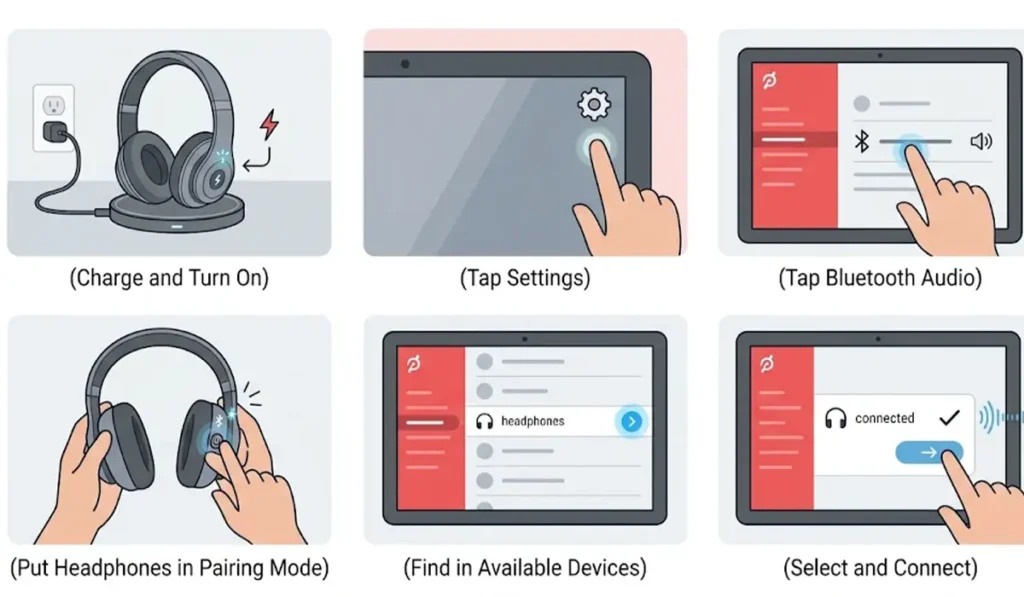
Once the connection goes through, the class audio plays through the headphones instead of the bike speakers.
Pro-Tip: Put the headphones into pairing mode only after opening the Bluetooth Audio screen. Headphones left in pairing mode for a long time often time out, and then they vanish from the list right when it matters.
Method 2: Connect AirPods to a Peloton Bike
AirPods pair with a Peloton Bike just like any other Bluetooth earbuds. The only difference is how pairing mode gets triggered.
- Step 1: Place the AirPods in the charging case and keep the lid open.
- Step 2: Tap Settings in the top right corner of the Peloton screen.
- Step 3: Tap Bluetooth Audio.
- Step 4: Press and hold the setup button on the back of the case until the light flashes white.
- Step 5: Select the AirPods from the list on the Peloton screen.
- Step 6: Tap Connect.
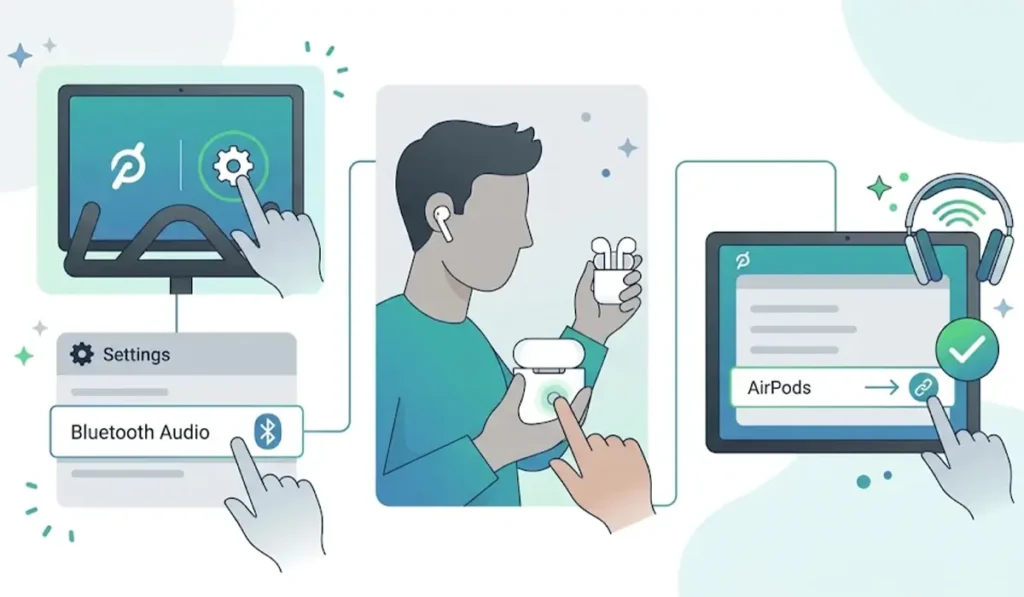
For Powerbeats Pro, hold the power button until the light flashes, then follow the same on-screen steps.
Method 3: Reconnect Headphones Later
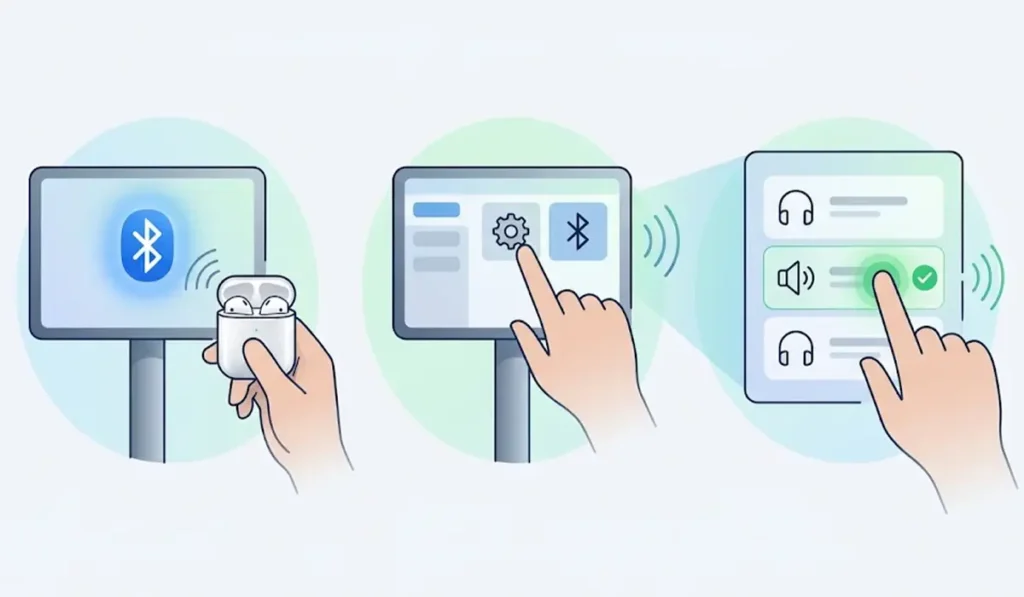
After the first pairing, there is no need to repeat the full setup. Most people find that opening the AirPods case or powering on paired headphones is enough for the bike to recognize them.
- Step 1: Turn on the paired headphones near the bike.
- Step 2: If they do not connect on their own, tap Settings, then Bluetooth Audio.
- Step 3: Select the headphones from the list.
Tips for a Smoother Pairing
- Charge the headphones before pairing, since a low battery can interrupt the process.
- Sweat-resistant headphones are a safer choice for workouts, because regular earbuds are not built for heavy sweat.
- Headphones can only be in pairing mode with one device at a time, so turning off Bluetooth on a nearby phone helps the bike find them first.
- Headphones used with a Windows PC may need to be paired there again later. This guide on how to re-pair Bluetooth earbuds on Windows covers the process.
Common Pairing Problems
Fix 1: Headphones Do Not Appear in the List
Confirm the headphones are in pairing mode, not just powered on. Turn them off, turn them on again, and re-enter pairing mode while the Bluetooth Audio screen is open.
Fix 2: Headphones Appear but Will Not Connect
Move the headphones closer to the screen and try Connect again. If the problem continues, remove the Peloton from the headphones’ saved devices list on the paired phone or computer, then repeat the pairing steps. If the headphones stop being detected on a Windows PC afterward, this page on troubleshooting headphone detection can help.
Frequently Asked Questions
Can any Bluetooth headphones connect to a Peloton Bike?
Most Bluetooth headphones and earbuds can connect, including models from brands like Bose, Sony, and JBL.
Do AirPods work with a Peloton Bike?
Yes. AirPods pair through the same Bluetooth Audio screen as other wireless headphones.
Where is the Bluetooth Audio setting on a Peloton Bike?
Tap Settings in the top right corner of the touchscreen, then tap Bluetooth Audio.
Does the Peloton Bike need to be paired every time?
No. After the first pairing, the bike recognizes the headphones when they are turned on or when the AirPods case is opened.
Does this work on the Peloton Bike+?
Yes. The Bike, Bike+, Tread, and Tread+ all support Bluetooth headphones.
Is the Peloton app needed to pair headphones?
No. Pairing is done directly on the bike touchscreen.
How do headphones get into pairing mode?
The method varies by model. On many headphones, holding the power button until a light flashes does it. The headphones’ manual lists the exact method.
Can wired headphones be used instead?
Yes. The Peloton Bike has a headphone jack for wired headphones.
Can a Bluetooth speaker connect to a Peloton Bike?
Yes. Bluetooth speakers connect through the same Bluetooth Audio screen.
Are sweat-resistant headphones necessary?
They are not required for pairing, but they are a better fit for workouts since sweat can damage headphones that are not built for it.