
Learning how to connect Bluetooth headphones to a Steam Deck takes only a few taps, and it means no more tangled cables during a long gaming session. The Steam Deck has Bluetooth built in, so no adapter or extra gear is needed. Pairing works in both Gaming Mode and Desktop Mode, and both methods are covered below.
Key Takeaways
- The Steam Deck has built-in Bluetooth, so no adapter is required.
- In Gaming Mode, the Bluetooth menu is found under Steam button > Settings > Bluetooth.
- Headphones must be in pairing mode before the Steam Deck can see them.
- After the first pairing, most headphones reconnect on their own when powered on.
- The whole process usually takes under two minutes.
Method 1: Connect Bluetooth Headphones in Gaming Mode
This is the quickest route and the one most players use. Keep the headphones within a few feet of the Steam Deck while pairing.
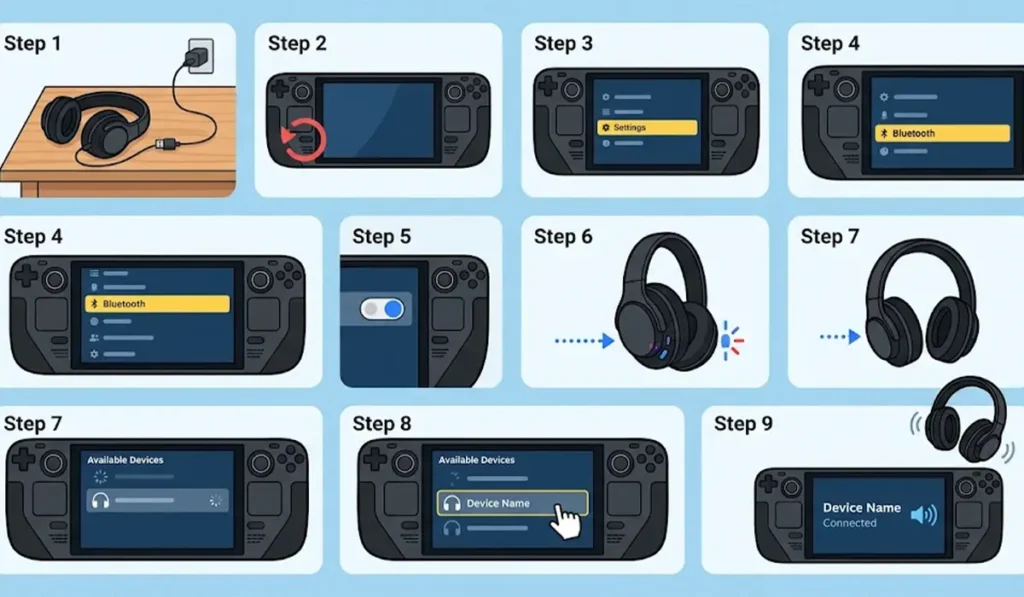
- Step 1: Charge the headphones and make sure they are turned off or not connected to a phone, tablet, or computer nearby.
- Step 2: Press the Steam button on the left side of the Steam Deck to open the main menu.
- Step 3: Select Settings from the menu.
- Step 4: Choose Bluetooth from the list on the left side of the screen.
- Step 5: Turn the Bluetooth toggle on if it is off.
- Step 6: Put the headphones into pairing mode. This is usually done by holding the power or Bluetooth button until a light starts flashing or a voice prompt says pairing.
- Step 7: Wait a few seconds for the headphones to appear in the list of available devices.
- Step 8: Select the headphones by name and confirm the connection.
- Step 9: Wait for the status to show Connected. Audio now plays through the headphones.
Pro-Tip: Headphones that are already connected to a phone will often skip pairing mode and jump straight back to that phone. Turn Bluetooth off on the phone first, then put the headphones in pairing mode. This one step solves most cases where the headphones refuse to show up on the Steam Deck.
Method 2: Connect Bluetooth Headphones in Desktop Mode
Desktop Mode works well for anyone who is already using the Steam Deck like a small PC. The steps are similar, just with a different menu layout.
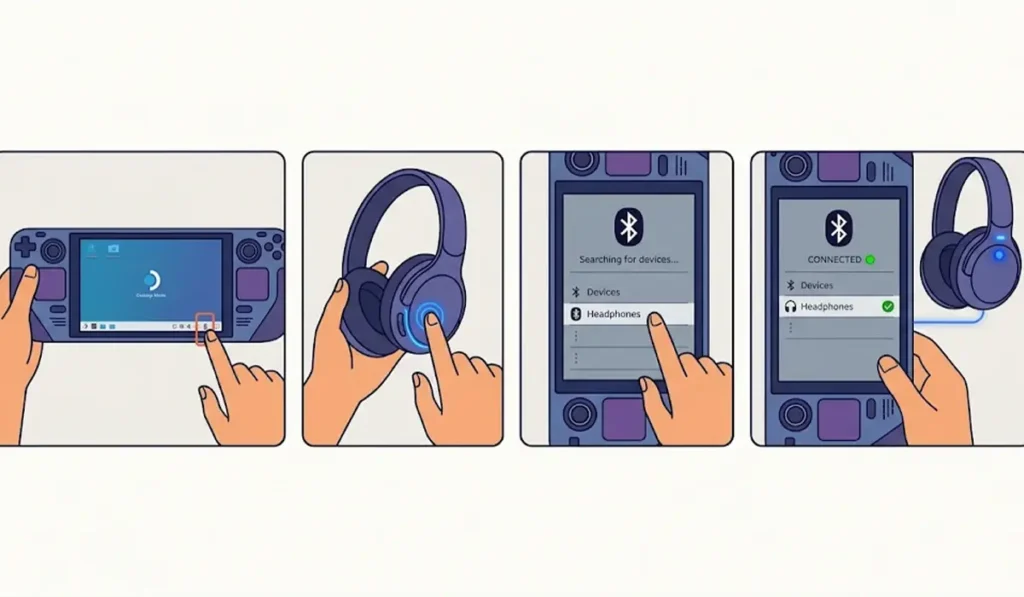
- Step 1: Press the Steam button, select Power, and choose Switch to Desktop.
- Step 2: Click the Bluetooth icon in the system tray at the bottom right of the screen.
- Step 3: Make sure Bluetooth is turned on.
- Step 4: Put the headphones into pairing mode.
- Step 5: Open the Bluetooth settings and choose the option to add a new device.
- Step 6: Select the headphones from the list when they appear.
- Step 7: Confirm the pairing and wait for the headphones to show as connected.
Tips for a Better Bluetooth Audio Experience
- Keep the headphones close to the Steam Deck. Walls and distance can weaken the connection, much like a Wi-Fi signal fading in the next room.
- Charge the headphones before a long session. A low battery can cause the sound to cut out or the headphones to disconnect.
- Use the volume buttons on the top left of the Steam Deck together with the volume controls on the headphones to find a comfortable level.
- Bluetooth audio can add a small delay compared with a wired connection. Fast-paced games feel best when the headphones are close and the battery is healthy.
- Headphones that are also used with a Windows PC may need to be re-paired for stereo sound. This guide on how to re-pair Bluetooth earbuds for stereo sound on Windows walks through it.
- If the same headphones sound off on a Windows 11 computer, adjusting audio output settings is a good place to start.
Pro-Tip: After the first successful pairing, the Steam Deck remembers the headphones. Next time, simply turn the headphones on with Bluetooth enabled on the Steam Deck, and the connection usually restores itself without repeating the steps above.
Common Problems and Quick Fixes
Fix 1: Headphones Do Not Appear in the List
Confirm the headphones are in pairing mode, not just turned on. A flashing light is the usual sign. Move them closer to the Steam Deck and wait a few seconds for the list to refresh.
Fix 2: Headphones Are Connected to Another Device
Headphones usually stay linked to the last device they used. Turn off Bluetooth on that phone or tablet, then put the headphones back into pairing mode.
Fix 3: Turn Bluetooth Off and On
Switch the Bluetooth toggle off in the Steam Deck settings, wait a moment, then switch it back on and scan again.
Fix 4: Remove the Headphones and Pair Again
Select the headphones in the Bluetooth menu, choose the option to forget or remove the device, then repeat the pairing steps from the beginning.
Fix 5: Restart the Steam Deck
A simple restart clears many temporary glitches. After restarting, enable Bluetooth and try pairing again. If the headphones also fail to show up on a Windows PC, this guide on troubleshooting headphone detection can help rule out a problem with the headphones themselves.
Frequently Asked Questions
Does the Steam Deck support Bluetooth headphones?
Yes. The Steam Deck has built-in Bluetooth, so most Bluetooth headphones and earbuds can be paired directly.
Where is the Bluetooth setting on the Steam Deck?
In Gaming Mode, press the Steam button, open Settings, and select Bluetooth. In Desktop Mode, click the Bluetooth icon in the system tray.
Is a Bluetooth adapter needed for the Steam Deck?
No. Bluetooth is already built into the device, so an adapter is not needed for standard headphones.
Which Bluetooth version does the Steam Deck use?
The original Steam Deck LCD models use Bluetooth 5.0, while the Steam Deck OLED uses Bluetooth 5.3.
Can AirPods connect to a Steam Deck?
Yes. Open the charging case, hold the setup button on the back until the light flashes white, then select the AirPods from the Bluetooth list on the Steam Deck.
Do Bluetooth headphones reconnect automatically?
Usually, yes. Once paired, headphones typically reconnect when they are powered on and Bluetooth is enabled on the Steam Deck.
Can Bluetooth headphones be used in Desktop Mode?
Yes. Headphones can be paired and used in Desktop Mode through the Bluetooth icon in the system tray.
Is there audio delay with Bluetooth headphones on the Steam Deck?
Bluetooth audio can add a small delay compared with a wired connection. The Steam Deck also has a 3.5mm headphone jack for anyone who prefers a wired option.
How can paired headphones be removed from the Steam Deck?
Open the Bluetooth settings, select the headphones, and choose the option to forget or remove the device.
Why are the headphones paired but not producing sound?
Check that the headphones show as Connected, that their own volume is turned up, and that the Steam Deck volume is not muted.