
Learning how to connect Bluetooth headphones to a Samsung Galaxy Watch is the easiest way to listen to music, podcasts, and workout playlists without carrying a phone. The process takes only a few taps, and the same steps work for earbuds, over-ear headphones, and Galaxy Buds.
Key Takeaways:
- Pairing happens directly on the watch, under Settings, Connections, Bluetooth, then Bluetooth audio.
- The headphones must be in pairing mode before the watch can find them.
- Once paired, the headphones reconnect automatically in most cases when they are switched on near the watch.
- The whole process usually takes less than a couple of minutes.
Method 1: Pair Bluetooth Headphones Using the Watch Settings
This is the main way to connect any pair of Bluetooth headphones to a Galaxy Watch. Before starting, charge the headphones and keep them close to the watch.
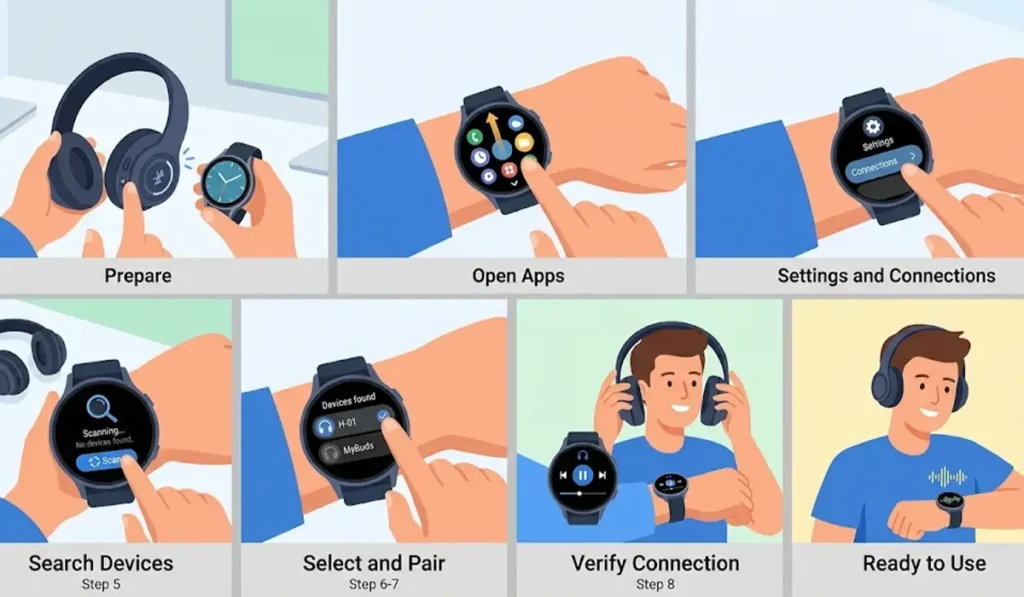
- Step 1: Put the headphones in pairing mode. On most models, this means holding the power or Bluetooth button until a light flashes or a voice prompt confirms pairing mode.
- Step 2: Wake the watch and swipe up from the watch face to open the apps screen.
- Step 3: Open Settings and tap Connections.
- Step 4: Tap Bluetooth, then tap Bluetooth audio.
- Step 5: Wait while the watch searches for nearby devices. If the list stays empty, tap Scan to search again.
- Step 6: Tap the name of the headphones when it appears in the list.
- Step 7: Confirm the pairing if the watch asks for it. The headphones will show as connected once the process is done.
- Step 8: Start playing audio on the watch to check that the sound comes through the headphones.
Pro-Tip: If the headphones are currently connected to a phone, tablet, or laptop, they may not show up on the watch. Turn off Bluetooth on the other device or disconnect the headphones from it first, then put them back into pairing mode. Most people find that this single step solves the problem of headphones not appearing in the list.
Method 2: Reconnect Headphones That Were Paired Before
Once headphones have been paired, there is no need to repeat the full setup every time. This method works best when the headphones have been used with the watch recently.
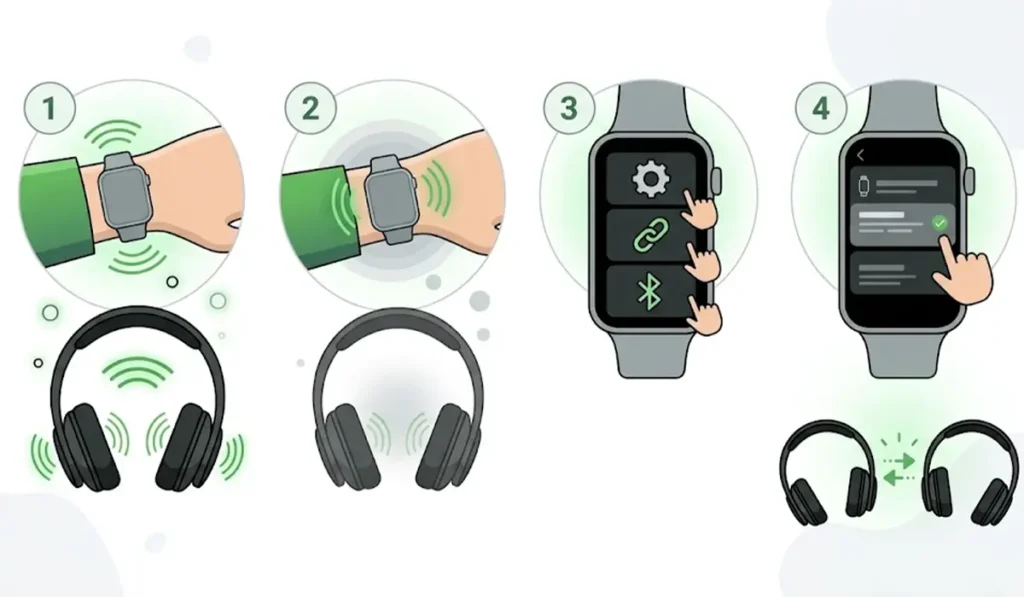
- Step 1: Turn on the headphones and keep them close to the watch.
- Step 2: Wait a few seconds, since the watch will often reconnect on its own.
- Step 3: If it does not connect, open Settings, tap Connections, then Bluetooth, then Bluetooth audio.
- Step 4: Tap the headphone name in the list to connect.
Tips for a Smoother Connection
- Keep the headphones within a short distance of the watch while pairing. Pairing from across the room is a common reason for a failed attempt.
- Charge both the watch and the headphones before starting. Low battery on either device can interrupt pairing.
- Remember that audio played through the watch goes to the connected headphones, so music stored on the watch or streamed through a watch app is what will be heard.
- Headphones that are also used with a computer may need extra setup there. This guide on re-pairing Bluetooth earbuds for stereo sound on Windows is useful for that situation.
- If the same headphones are not detected by a Windows PC, this walkthrough on troubleshooting headphone detection covers the computer side.
Pro-Tip: Name recognition makes pairing faster. Check the headphone name in the manual or app beforehand, so the right device is easy to spot when several Bluetooth devices appear in the list.
Common Problems When Connecting Headphones
Fix 1: Headphones Do Not Appear in the List
Make sure the headphones are in pairing mode, not just turned on. A steady light usually means they are connected to another device, while a flashing light usually means they are ready to pair. Tap Scan on the watch to search again.
Fix 2: Headphones Pair but No Sound Plays
Check that the headphone volume and the watch volume are both turned up. Then start audio from the watch itself, since audio from a phone does not automatically play through headphones connected to the watch.
Fix 3: Headphones Will Not Reconnect Automatically
Turn the headphones off and on again, then open the Bluetooth audio screen on the watch and tap the headphone name. This forces a fresh connection without repeating the whole pairing process.
Frequently Asked Questions
Can any Bluetooth headphones connect to a Samsung Galaxy Watch?
Most Bluetooth headphones and earbuds that support audio streaming can connect to a Galaxy Watch. Brand does not matter, as long as the headphones can enter pairing mode.
Where is the Bluetooth audio option on a Galaxy Watch?
The option is found by opening Settings on the watch, tapping Connections, then Bluetooth, and then Bluetooth audio.
Does the phone need to be nearby to pair headphones with the watch?
No. The headphones pair directly with the watch, so the pairing steps are done on the watch itself.
Do the headphones need to be in pairing mode?
Yes. The watch can only find headphones that are in pairing mode and not already connected to another device.
Can Galaxy Buds be connected the same way?
Yes. Galaxy Buds can be paired through the same Bluetooth audio screen on the watch.
How can it be confirmed that the headphones are connected?
The headphone name shows as connected in the Bluetooth audio list, and sound from the watch plays through the headphones.
How can headphones be disconnected from the watch?
Turning the headphones off disconnects them. The connection can also be managed from the Bluetooth audio screen on the watch.
Does using Bluetooth headphones drain the watch battery faster?
Streaming audio over Bluetooth uses extra power, so battery life can be shorter during long listening sessions.
Will older Galaxy Watch models work the same way?
Galaxy Watch models support Bluetooth audio, though menu names and layouts can differ slightly between models and software versions.
Is the pairing process needed every time?
No. After the first pairing, the headphones usually reconnect on their own when turned on near the watch.