
Key Takeaways
- Most Smart TVs released after 2018 support direct Bluetooth headphone pairing through the built-in settings menu
- The process usually takes less than two minutes once the headphones are in pairing mode
- Samsung, LG, Sony, and Android TVs each have slightly different menu paths, but the core steps stay the same
- Older TVs without Bluetooth may still work using a separate Bluetooth transmitter
- Audio delay and connection drops are common but easy to fix with a few adjustments
Connecting Bluetooth headphones to a Smart TV has become one of the simplest ways to enjoy private, high-quality audio without disturbing anyone else in the room. Whether it’s a late-night movie or a football match that needs full concentration, pairing headphones directly to the TV removes the need for extra cables or soundbars. This guide walks through the exact steps needed to get headphones connected, along with brand-specific instructions and quick fixes for common pairing issues.
Step-by-Step Guide to Connect Bluetooth Headphones to a Smart TV
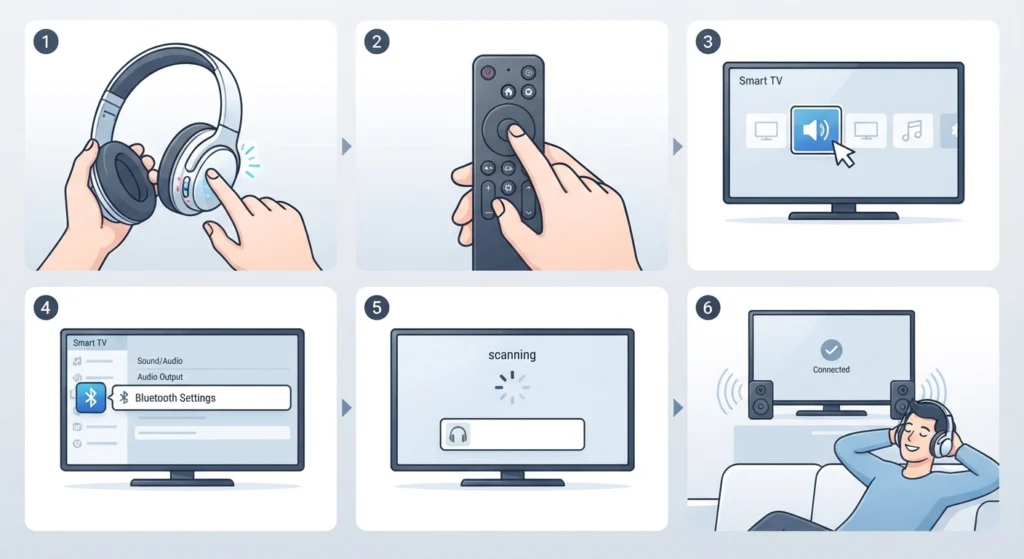
The steps below apply to most modern Smart TVs, including Samsung, LG, Sony, Android TV, and Roku TV models. This works best when the headphones are fully charged and kept within three to five feet of the TV during setup.
- Step 1: Turn on the Bluetooth headphones and press the pairing button until the LED light starts flashing, indicating pairing mode is active
- Step 2: On the Smart TV remote, press the Home or Settings button to open the main menu
- Step 3: Navigate to Sound settings, then select Sound Output or Audio Output, depending on the TV brand
- Step 4: Choose Bluetooth Speaker List or Bluetooth Device List from the available options
- Step 5: Wait a few seconds while the TV scans for nearby devices, then select the headphones once the name appears on screen
- Step 6: Confirm the connection and play any video or audio to test the sound
Once connected, most TVs will remember the headphones and reconnect automatically the next time both devices are turned on within range of each other.
Method 1: Connecting Bluetooth Headphones on Samsung Smart TV
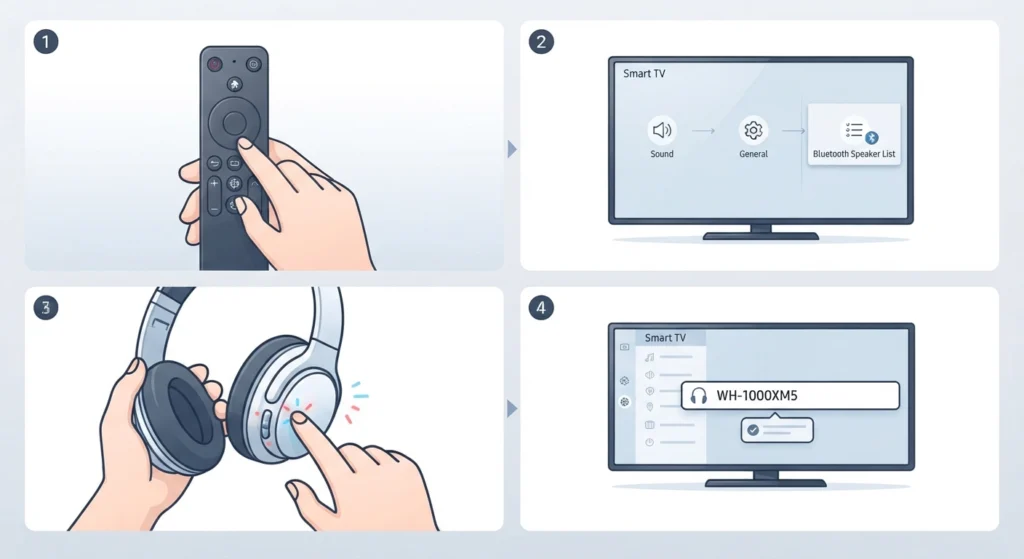
Samsung TVs running Tizen OS handle Bluetooth audio a little differently than other brands, but the process stays simple.
- Step 1: Press the Settings button on the Samsung remote
- Step 2: Go to Sound, then General, then select Bluetooth Speaker List
- Step 3: Put the headphones into pairing mode
- Step 4: Select the headphones once they appear in the list and wait for the connected status to show
Pro Tip: Samsung TVs only support one Bluetooth audio device at a time, so any previously connected speaker or soundbar needs to be disconnected first for the headphones to show up correctly.
Method 2: Connecting Bluetooth Headphones on LG Smart TV
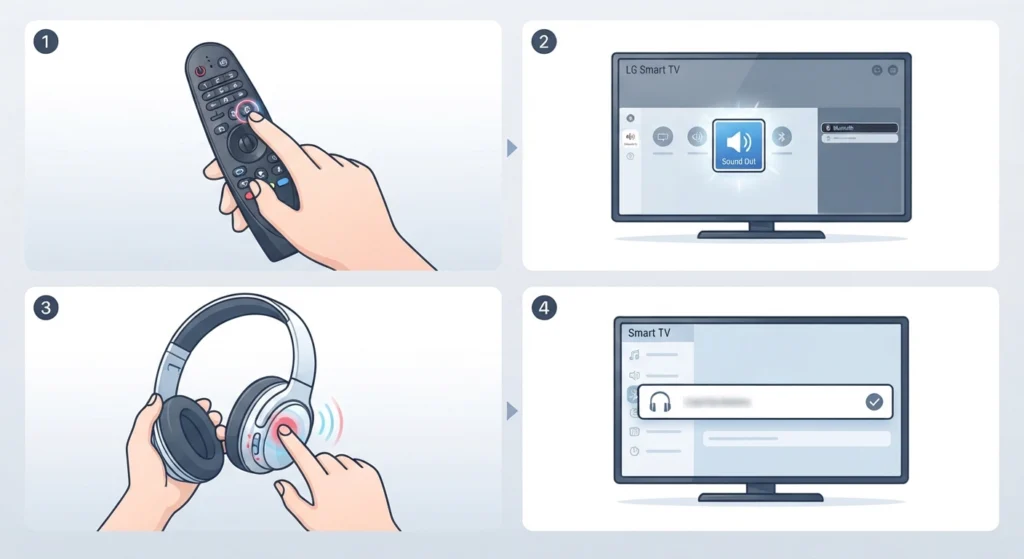
LG’s webOS platform keeps things fairly straightforward for anyone switching from a wired setup.
- Step 1: Open the Quick Settings menu using the remote
- Step 2: Select Sound Out, then choose Bluetooth
- Step 3: Turn on the headphones’ pairing mode and wait for the LG TV to detect it
- Step 4: Tap the device name to complete the connection
Method 3: Connecting Bluetooth Headphones on Sony and Android TV
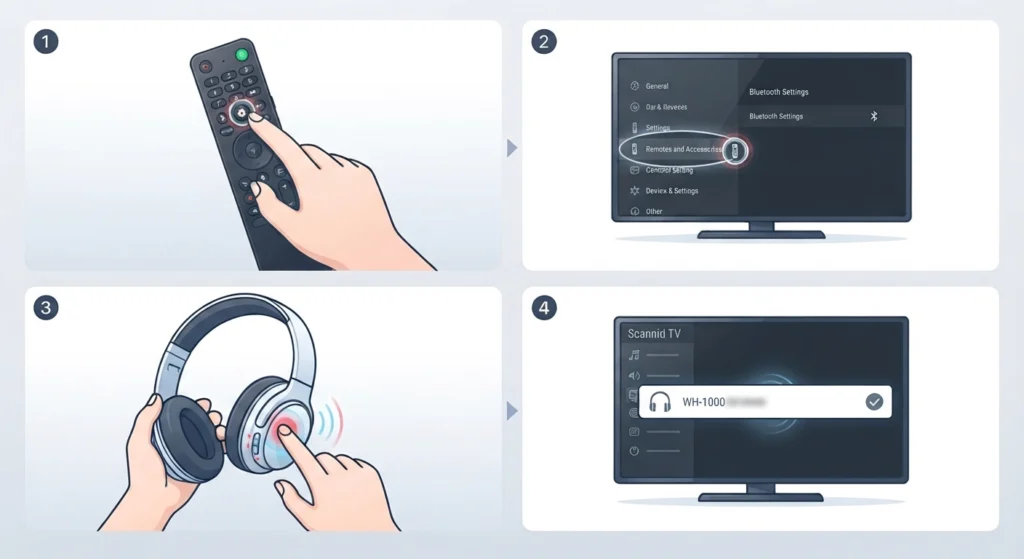
Android-based TVs, including most Sony models, use a slightly more general Bluetooth menu shared across apps.
- Step 1: Go to Settings, then Remotes and Accessories
- Step 2: Select Add Accessory or Bluetooth Settings
- Step 3: Activate pairing mode on the headphones
- Step 4: Choose the device from the detected list to finish pairing
Android TV models tend to hold onto paired device memory well, so reconnecting later usually happens automatically without repeating these steps.
Tips for a Better Bluetooth Headphone Experience on Smart TV
- Keep the TV’s software updated, since manufacturers often release patches that improve Bluetooth stability
- Avoid placing the TV near routers or microwaves, as these can interfere with the Bluetooth signal
- Charge headphones fully before long viewing sessions to avoid mid-movie disconnections
- Disconnect other paired devices like phones or laptops before pairing with the TV to prevent conflicts
- For gaming or fast-paced content, check the TV’s audio settings for a lower-latency Bluetooth mode if available
Pro Tip: If the headphones were previously used with a Windows laptop, it often helps to re-pair the earbuds for proper stereo sound before switching them over to a TV, since some devices retain mono audio settings from the last connection.
Common Problems When Pairing Bluetooth Headphones to a Smart TV
Headphones Not Showing Up in the Bluetooth List
This usually happens when the headphones are not actually in pairing mode, or when they are already connected to another device such as a phone. Turning Bluetooth off on any other paired device before scanning on the TV solves this in most cases.
Audio and Video Out of Sync
A small delay between sound and picture is common with Bluetooth due to how audio is processed wirelessly. Most TVs include an audio sync or lip-sync adjustment option under the sound settings menu that can correct this within a second or two.
Sound Cuts Out Randomly
Interference from other wireless devices is the most frequent cause. Moving closer to the TV or removing physical obstacles between the headphones and the TV often resolves the issue. If the problem continues, it may help to review the steps for resetting audio settings to clear any conflicting configurations.
TV Won’t Remember Paired Headphones
Some TVs clear Bluetooth memory after a firmware update or factory reset. Re-pairing the headphones from scratch using the steps above usually fixes this permanently.
Frequently Asked Questions
Can any Bluetooth headphones connect to a Smart TV?
Most modern Bluetooth headphones work with Smart TVs as long as the TV itself has built-in Bluetooth support. Older TVs without this feature need a separate Bluetooth transmitter plugged into the audio output.
Why is there a delay between the video and audio?
Bluetooth audio naturally introduces a small processing delay. Most TVs include a sync adjustment setting that lines the audio back up with the video within a second.
Can two Bluetooth headphones be connected to the same TV at once?
Some newer TV models support dual audio output for two Bluetooth headphones at the same time, though this feature depends on the specific brand and model. Checking the sound settings menu will confirm if it’s available.
Do Bluetooth headphones need to be charged before pairing?
Yes, headphones should have enough battery to stay powered on during the pairing process. A low battery can cause the connection to drop shortly after pairing.
Why can’t the TV find the headphones during pairing?
This is often because the headphones are not in active pairing mode, or they’re still connected to another device like a phone or laptop. Disconnecting from other devices first usually solves this.
Is a Bluetooth adapter needed for older Smart TVs?
TVs without built-in Bluetooth require a small Bluetooth audio transmitter connected to the headphone jack or optical output to enable wireless headphone support.
How far can Bluetooth headphones stay from the TV without losing connection?
Most Bluetooth headphones maintain a stable connection within about 30 feet, though walls and other electronics can reduce that range.
Does connecting Bluetooth headphones affect TV speaker sound?
Once headphones are connected, most TVs automatically mute the built-in speakers to send audio exclusively through the Bluetooth device.
What should be done if the sound keeps cutting out?
Reducing interference by moving closer to the TV usually helps. It can also be useful to review how to manage connected devices through managing audio input devices, especially if multiple Bluetooth accessories are competing for the same connection.
Can Bluetooth headphones be used while charging?
Yes, most Bluetooth headphones support simultaneous charging and playback, though this depends on the specific model’s design.