
Connecting Bluetooth headphones to a MacBook takes less than a minute once the headphones are in pairing mode. This guide walks through the exact steps needed to pair, connect, and start listening on any modern MacBook running macOS.
Key Takeaways
- Bluetooth headphones connect to a MacBook through System Settings or Control Center in under a minute.
- Headphones must be in pairing mode before the MacBook can detect them.
- Once paired, headphones reconnect automatically the next time they are turned on near the MacBook.
- Most audio issues after pairing come down to output selection, not the Bluetooth connection itself.
Step-by-Step Guide to Connect Bluetooth Headphones to MacBook
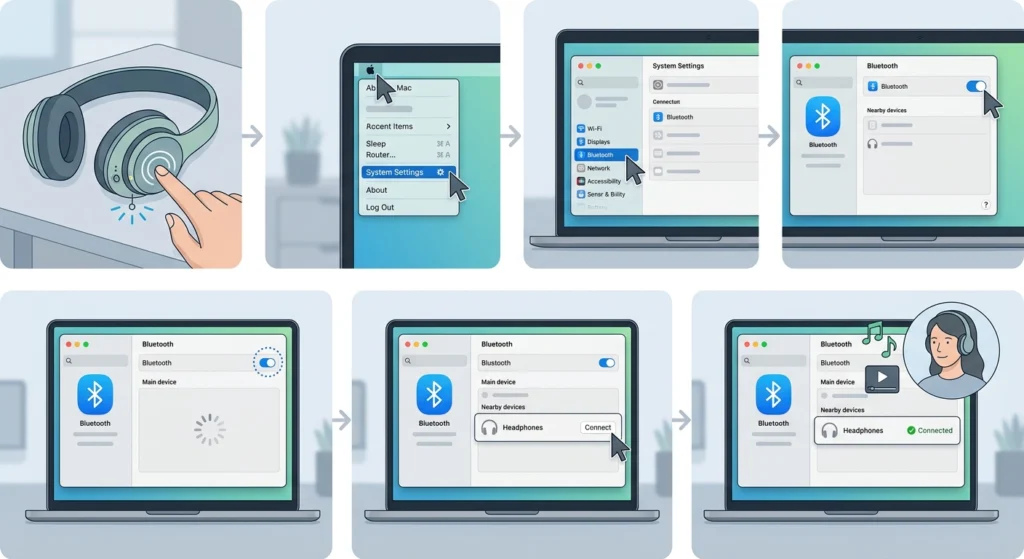
The process below works for AirPods, Beats, Sony, Bose, and most third-party Bluetooth headphones. Follow the steps in order for the smoothest connection.
- Step 1: Turn on the Bluetooth headphones and press the pairing button until the indicator light starts flashing. Most headphones need a long press of three to five seconds to enter pairing mode.
- Step 2: Click the Apple menu in the top-left corner of the screen, then select System Settings.
- Step 3: Select Bluetooth from the sidebar menu on the left.
- Step 4: Turn on the Bluetooth toggle at the top of the panel if it is not already switched on.
- Step 5: Wait a few seconds for the headphones to appear under the list of nearby devices.
- Step 6: Click Connect next to the headphone’s name.
- Step 7: Wait for the status to change to Connected. Play a song or video to confirm the audio comes through the headphones.
Method 2: Connect Using Control Center
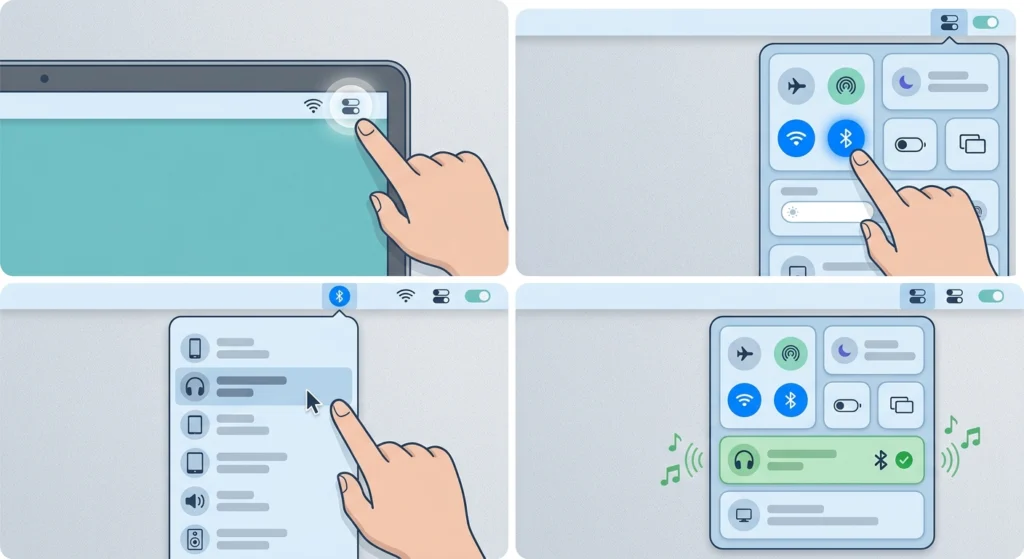
Control Center offers a faster route for headphones that have already been paired once before.
- Step 1: Click the Control Center icon in the top-right menu bar, shaped like two toggle switches.
- Step 2: Click the Bluetooth icon inside Control Center.
- Step 3: Select the headphones from the list of available devices.
- Step 4: Confirm the headphone name now appears with a filled Bluetooth icon, showing an active connection.
Pro-Tip: Keep the headphones within three feet of the MacBook during the first pairing attempt. Bluetooth pairing signals are weaker than an already-established connection, and distance is the most common reason a device fails to show up on the list the first time.
Tips for a Better Bluetooth Connection
- Charge the headphones fully before the first pairing attempt, since low battery can interrupt the handshake process.
- Keep the MacBook’s software updated, as Apple regularly improves Bluetooth stability through macOS updates.
- Forget the device and re-pair it if the headphones were previously connected to another Apple device under the same iCloud account, since this sometimes causes a silent auto-connect conflict.
- Rename the headphones from the Bluetooth settings panel if multiple similar devices make it hard to tell them apart in the list.
- Anyone who also switches between a MacBook and a Windows 11 laptop can follow a similar logic when it comes to re-pairing Bluetooth earbuds for stereo sound, since both systems rely on the same pairing mode step.
Common Problems and Fixes
Fix 1: Headphones Do Not Appear in the Bluetooth List
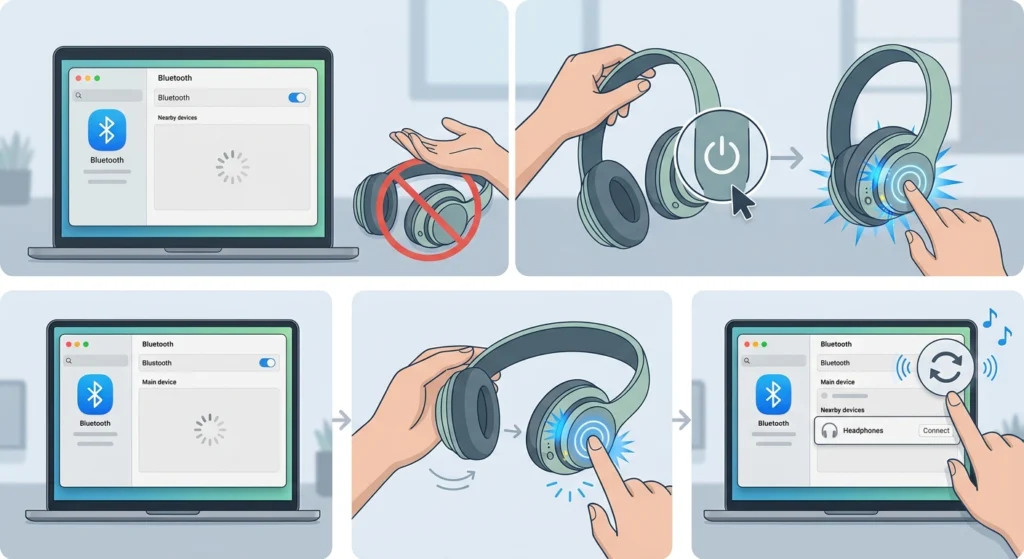
This usually means the headphones are not in pairing mode. Turn the headphones off, then back on while holding the pairing button until the light flashes rapidly. Refresh the Bluetooth panel on the MacBook after that.
Fix 2: Headphones Connect but No Sound Plays
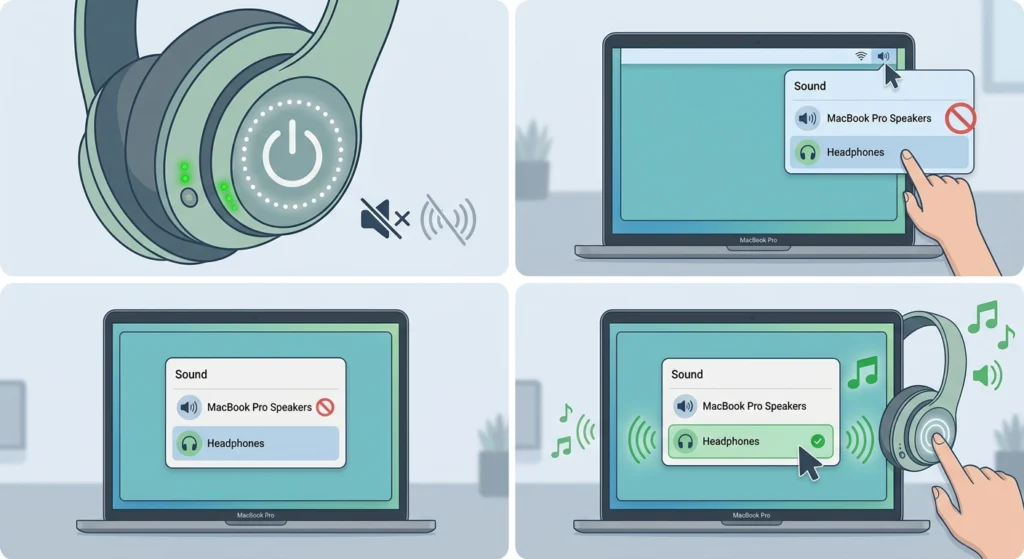
Sound output may still be set to the MacBook’s built-in speakers. Open the Sound settings and select the headphones as the active output device. Windows 11 users running into a similar issue can check the steps for adjusting audio output settings, which covers the same output-selection fix on that platform.
Fix 3: Audio Cuts Out or Skips
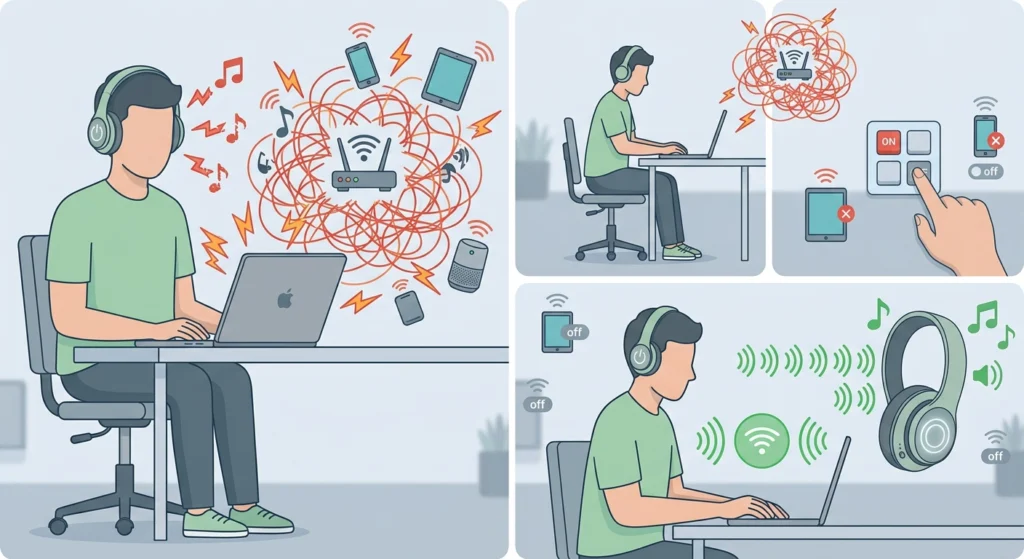
This is often caused by interference from other wireless devices nearby, such as routers or other Bluetooth accessories. Moving closer to the MacBook and turning off unused Bluetooth devices usually resolves the issue.
Fix 4: Microphone Does Not Work During Calls
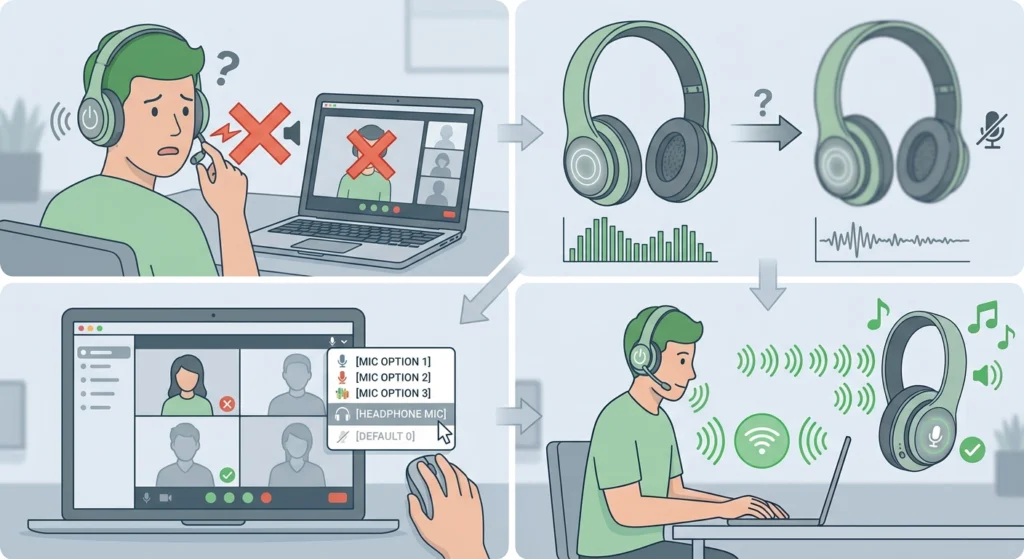
Some headphones switch to a lower-quality audio profile automatically when the microphone is active, which can make the mic seem unresponsive at first. Selecting the headphones directly in the app being used for the call, such as a video conferencing tool, usually fixes this.
Frequently Asked Questions
Why won’t Bluetooth headphones connect to a MacBook?
The most common reason is that the headphones are not in pairing mode. Bluetooth headphones need to be actively broadcasting a pairing signal, which usually requires holding down a dedicated button until the indicator light flashes.
How long does it take to pair Bluetooth headphones with a MacBook?
Pairing typically takes between ten and thirty seconds once the headphones are in pairing mode and Bluetooth is enabled on the MacBook.
Do Bluetooth headphones reconnect automatically to a MacBook?
Yes. After the first successful pairing, most headphones reconnect automatically whenever they are turned on within range of the MacBook.
Can two Bluetooth headphones be connected to a MacBook at the same time?
Some newer MacBook models support audio sharing to two sets of headphones simultaneously through a feature found in Control Center, though not all headphone models support this function.
Why does a MacBook show connected but no audio plays through the headphones?
This happens when the sound output setting is still pointed to the built-in speakers instead of the headphones. Switching the output device in Sound settings resolves this in most cases.
Is a MacBook restart needed after pairing Bluetooth headphones?
No restart is required. The connection takes effect immediately once the headphones show as connected in the Bluetooth panel.
Why do Bluetooth headphones keep disconnecting from a MacBook?
Frequent disconnections are often linked to low battery on the headphones, outdated macOS software, or interference from other wireless devices in the same room.
Can AirPods and non-Apple Bluetooth headphones both connect the same way?
Yes, the pairing process is nearly identical. AirPods pair slightly faster because of Apple’s proprietary chip, but the underlying Bluetooth steps are the same for any headphone brand.
Does updating macOS improve Bluetooth headphone performance?
Yes. Apple frequently refines Bluetooth stability and audio codec support in macOS updates, so keeping the system updated often reduces connection drops.
What should be done if headphones pair but the microphone quality sounds poor?
This is usually related to the audio profile the headphones switch to during calls. Managing which input device is active can help, and steps for managing audio input devices outline a comparable fix for those also troubleshooting this on Windows 11.