
Late-night movie marathons and sleeping family members rarely go well together, which is where learning how to connect Bluetooth headphones to a TCL Roku TV pays off. The whole process takes place inside the Roku settings menu and only needs a few button presses.
Key Takeaways
- Menu path: Home, Settings, Remotes & devices, Wireless headphones, Add new wireless headphones.
- Headphones need to support Bluetooth 4.2 or newer.
- The Wireless headphones option appears only on Roku devices that support Bluetooth headphone pairing.
- Once paired, headphones can be reconnected from the same menu.
Steps to Connect Bluetooth Headphones to a TCL Roku TV
Keep the Roku remote and the headphones within reach before starting. This works best when the headphones are charged and sitting close to the TV.
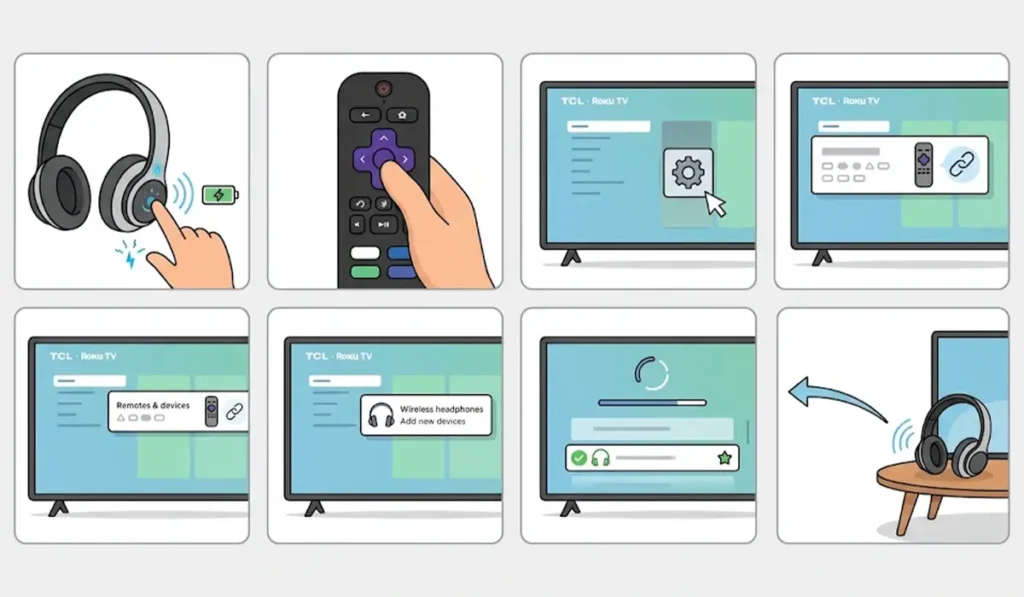
- Step 1: Put the headphones in pairing mode. On most models, this means holding the power or Bluetooth button until the indicator light starts flashing. The exact button varies by brand, so the headphone manual is the quickest reference.
- Step 2: Press the Home button on the Roku remote.
- Step 3: Scroll down and select Settings.
- Step 4: Select Remotes & devices.
- Step 5: Select Wireless headphones.
- Step 6: Select Add new wireless headphones.
- Step 7: Choose the headphones from the list when they appear on the screen. After a few seconds, the connection completes and sound plays through the headphones.
Pro-Tip: Check Step 5 first. Roku shows the Wireless headphones option only on compatible devices, so seeing it in the menu is the quickest confirmation that the TV can pair directly with Bluetooth headphones.
How to Reconnect Paired Headphones
After the first pairing, there is no need to start from scratch. Think of it like a saved Wi-Fi network: the TV remembers the headphones.
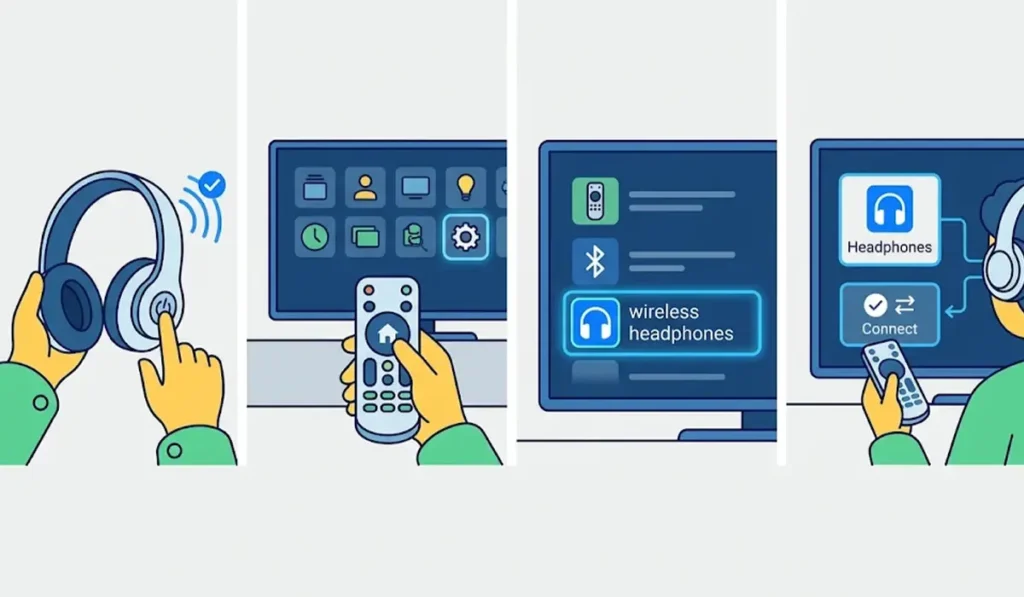
- Step 1: Turn on the headphones.
- Step 2: Press Home, then select Settings.
- Step 3: Select Remotes & devices, then Wireless headphones.
- Step 4: Select the headphones from the list, then choose Connect.
While a show is already playing, a faster route exists. Press the Star button on the Roku remote, select Wireless headphones, choose the headphones, and select Connect.
Tips for a Smoother Connection
- Pair headphones with the TV while they are not actively connected to a phone or tablet. Headphones that are already linked to another device often will not show up in the list.
- Stay within a short distance of the TV during pairing. Bluetooth works best at close range, typically under 30 feet.
- Headphones can reconnect on their own when switched on. This behavior is controlled by the auto-detect setting, found by selecting the headphones inside the Wireless headphones menu.
- Headphones shared with a computer sometimes need a fresh start there as well. This guide on how to re-pair Bluetooth earbuds for stereo sound on Windows is a handy reference for that side of things.
- If the same headphones are not being recognized on a PC, this walkthrough on troubleshooting headphone detection covers the Windows side.
Pro-Tip: Turn the TV volume down before the headphones connect for the first time. Some headphones start at a higher volume than expected, and a sudden jump is not fun for the ears.
Common Problems When Pairing
Fix 1: The Wireless Headphones Option Is Missing
This means the TV does not support direct Bluetooth headphone pairing. Roku displays the option only on devices with that capability, so nothing in the settings can add it.
Fix 2: The Headphones Do Not Appear in the List
Confirm the headphones are in pairing mode, with the indicator light flashing. Disconnect them from any phone or tablet nearby, then try Add new wireless headphones again.
Fix 3: The Connection Will Not Complete
Restart both the Roku TV and the headphones, then repeat the pairing steps. Roku community support recommends this restart before trying the menu steps again.
Frequently Asked Questions
Can a TCL Roku TV connect to Bluetooth headphones?
Yes, on models that support Bluetooth headphone pairing. Compatible devices show a Wireless headphones option in the Roku settings.
Where are the Bluetooth headphone settings on a Roku TV?
Press Home, select Settings, then Remotes & devices, then Wireless headphones.
Which Bluetooth version do the headphones need?
Any Bluetooth headphones that support Bluetooth version 4.2 or greater can connect to a compatible Roku device.
Why is there no Wireless headphones option on the TV?
The option appears only on compatible devices. If it is missing, the TV does not support direct Bluetooth headphone pairing.
How can headphones be reconnected after the first pairing?
Go to Settings, then Remotes & devices, then Wireless headphones. Select the headphones and choose Connect. While content is playing, pressing the Star button on the remote also leads to the Wireless headphones menu.
How can headphones be stopped from reconnecting automatically?
Open the Wireless headphones menu, select the headphones, and change the auto-detect setting.
What should be done if the headphones will not show up during pairing?
Make sure the headphones are in pairing mode and are not connected to another device. Then restart both the TV and the headphones and try again.
Is private listening in the Roku mobile app the same thing?
No. Private listening through the Roku mobile app is a separate feature. Pairing through the Wireless headphones menu connects the headphones directly to the TV.
Do the headphones need to be close to the TV?
Yes. Bluetooth works best over short distances, so keeping the headphones close to the TV during pairing helps the connection go through smoothly.