
Learning how to connect Bluetooth headphones to a Vizio Smart TV takes only a few minutes, and the payoff is real: late-night movies without waking the house, clearer dialogue, and no more arguments over the volume.
The process is simple on models that include a Bluetooth Headphones option in the menu. Vizio TVs vary by model, so the first thing to check is whether that option shows up. If it does, Method 1 is all that is needed. If not, Method 2 covers the easy workaround.
Key Takeaways:
- Pairing works on Vizio models that show a Bluetooth Headphones option in the TV menu.
- The basic path is Menu or Settings, then Bluetooth Headphones, then the headphones name.
- Headphones must be in pairing mode before the TV starts searching.
- A Bluetooth transmitter plugged into the TV audio output works for models without the option.
- The built-in connection supports one pair of headphones at a time.
Method 1: Pair Headphones Using the Built-In Bluetooth Menu
This is the quickest route. It uses nothing but the TV remote and the headphones.
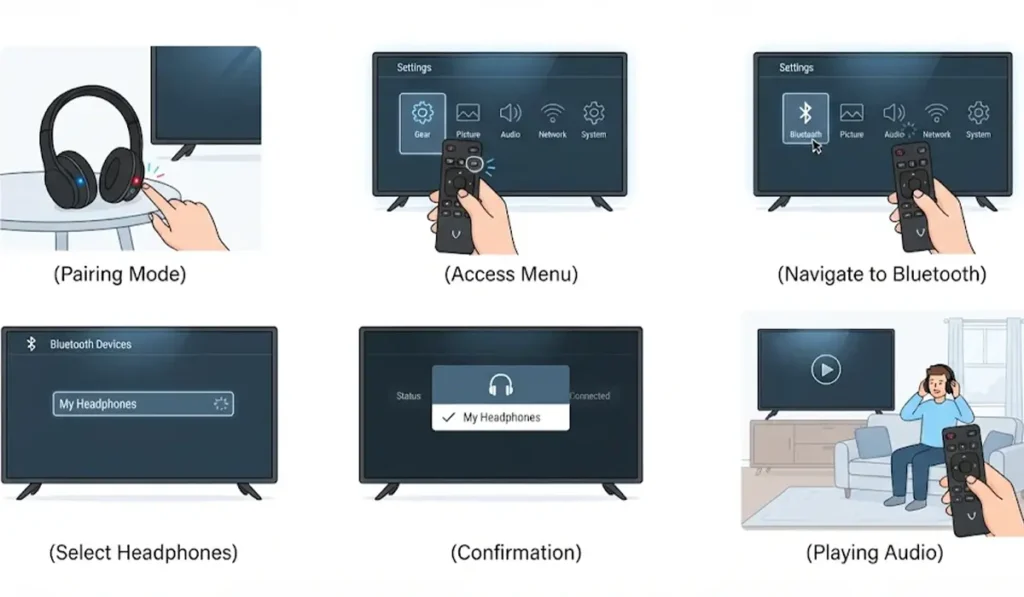
- Step 1: Put the headphones into pairing mode. This usually means holding the power or Bluetooth button until a light starts flashing. Keep the headphones within a few feet of the TV.
- Step 2: Press the Menu or Settings button on the Vizio remote.
- Step 3: Look for the Bluetooth Headphones option. Depending on the model and software version, it may appear directly in the menu or inside the Audio or TV Settings area. If the option is nowhere to be found, skip to Method 2.
- Step 4: Select Bluetooth Headphones and press OK.
- Step 5: Wait while the TV scans, then choose the headphones from the list of available devices.
- Step 6: Confirm the connection. Sound moves to the headphones, and the Vizio remote can be used to adjust the volume.
Pro-Tip: Some headphones show up on the list with LE- in front of the name. That is normal. It simply marks a low-energy Bluetooth connection, so select that entry like any other.
Method 2: Connect Headphones With a Bluetooth Transmitter
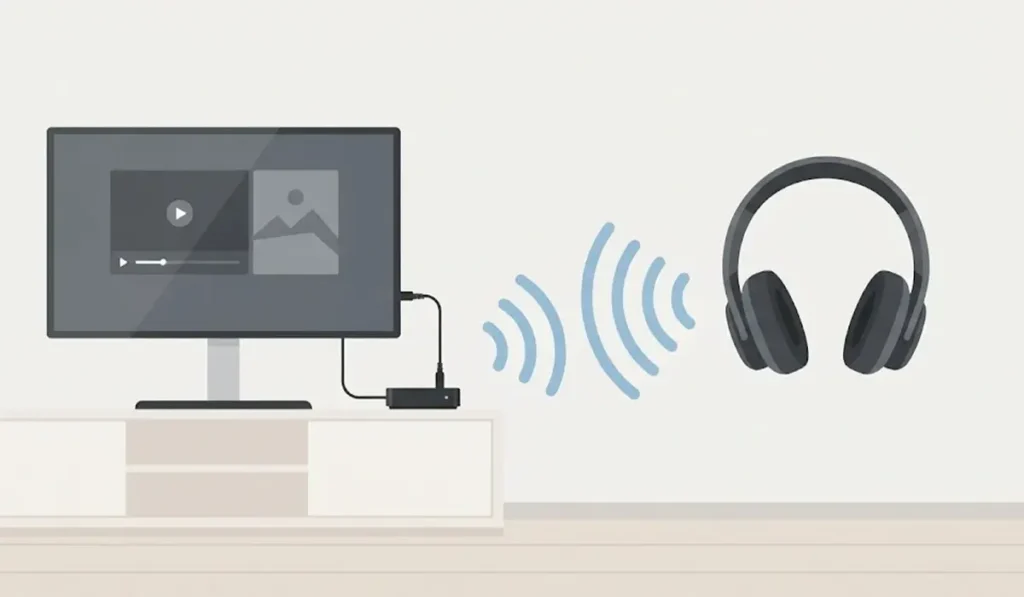
Some Vizio models only use Bluetooth for the mobile app and do not send audio to headphones. A small Bluetooth transmitter fixes that by sending the TV sound to the headphones on its own.
- Step 1: Plug the transmitter into an audio output on the TV. Depending on the TV and the transmitter, that may be an optical port, a 3.5mm headphone jack, or red and white RCA outputs.
- Step 2: Connect the transmitter to power and turn it on.
- Step 3: Put the headphones into pairing mode.
- Step 4: Pair the headphones with the transmitter by following the steps in the transmitter manual.
- Step 5: Play something on the TV. The sound should now come through the headphones.
Pro-Tip: Check the back or side panel of the TV before buying a transmitter. The adapter needs to match an output port the TV actually has.
Tips for a Smoother Connection
- Charge the headphones first. A low battery can interrupt pairing or cause dropouts.
- Turn off Bluetooth on a phone or tablet that was recently paired with the headphones, so it does not grab the connection first.
- To go back to the TV speakers, open the same Bluetooth Headphones menu and choose TV Speakers.
- The TV keeps the headphones saved after pairing, so a Disconnected message in the menu is expected when they are switched off.
- Stay reasonably close to the TV. Walls and long distances weaken the signal.
Common Problems and Quick Fixes
Fix 1: The Bluetooth Headphones Option Is Missing
Not every Vizio model supports Bluetooth audio output. Start by opening the System menu and choosing Check for Updates, since Vizio has added Bluetooth headphone support to some models through software updates. If the option is still missing, use Method 2.
Fix 2: The Headphones Do Not Appear on the List
Turn the headphones off, then put them back into pairing mode and run the scan again. Make sure they are not already connected to a phone, laptop, or another device. Moving them closer to the TV also helps.
Fix 3: Sound Still Plays Through the TV Speakers
Open the Bluetooth Headphones menu and confirm the headphones are selected rather than TV Speakers. If they show as disconnected, select them again to reconnect.
Fix 4: Pairing Worked Before but Stopped
Remove the headphones from the saved device list on the TV, put them back into pairing mode, and pair them again from the start. Windows users who run into similar pairing trouble on a PC can follow this guide to re-pair Bluetooth earbuds on Windows, which uses the same remove-and-pair-again idea.
Headphones that also get used with a computer sometimes act up there too. This walkthrough on fixing headphone detection problems on Windows covers that side.
Frequently Asked Questions
Do all Vizio Smart TVs support Bluetooth headphones?
No. Support depends on the model. Some Vizio TVs offer Bluetooth audio output, while others only use Bluetooth for the mobile app.
How can a Vizio TV be checked for Bluetooth headphone support?
Press the Menu or Settings button on the remote and look for a Bluetooth Headphones option. The TV model number can also be entered on the Vizio support website to find model-specific details.
What types of Bluetooth headphones work with a Vizio TV?
Standard Bluetooth headphones and earbuds that support the A2DP audio profile should work on models with Bluetooth audio output. That covers over-ear, on-ear, and in-ear styles.
Can AirPods connect to a Vizio Smart TV?
On a model with the Bluetooth Headphones option, AirPods can be paired like any other earbuds. Open the case and hold the button on the back until the light flashes, then pick them from the list on the TV.
Why does LE- appear before the name of the headphones?
The prefix marks a low-energy Bluetooth connection. It is normal and does not mean anything went wrong.
Can two pairs of headphones connect at the same time?
The built-in Bluetooth connection supports one pair of headphones at a time. A dual-pair Bluetooth transmitter is the option for two listeners.
Will the TV speakers and headphones play at the same time?
Audio normally plays through one output at a time. To switch back to the speakers, choose TV Speakers in the Bluetooth Headphones menu.
Can the Vizio remote control the volume of the headphones?
Yes. After the headphones are connected, the volume buttons on the Vizio remote adjust the sound.
What is the best option if the TV has no Bluetooth Headphones menu?
A Bluetooth transmitter connected to the TV audio output is the simplest fix. Once the headphones are paired with the transmitter, the TV sound plays through them.