
Learning how to connect Bluetooth headphones to a Windows 11 laptop takes only a few minutes, and the process is almost identical for every brand. Whether it is a pair of over-ear cans for work calls or tiny earbuds for a commute playlist, the same few clicks get them talking to the laptop.
Key Takeaways:
- Bluetooth must be switched on in Windows 11 before anything else.
- The headphones need to be in pairing mode, not just powered on.
- Pairing is done once, and after that the headphones reconnect with a single click.
- Selecting the headphones as the sound output makes sure audio actually plays through them.
Method 1: Connect Through the Settings App
This is the most reliable way to pair a brand-new pair of headphones, and it works on every Windows 11 laptop that has Bluetooth.
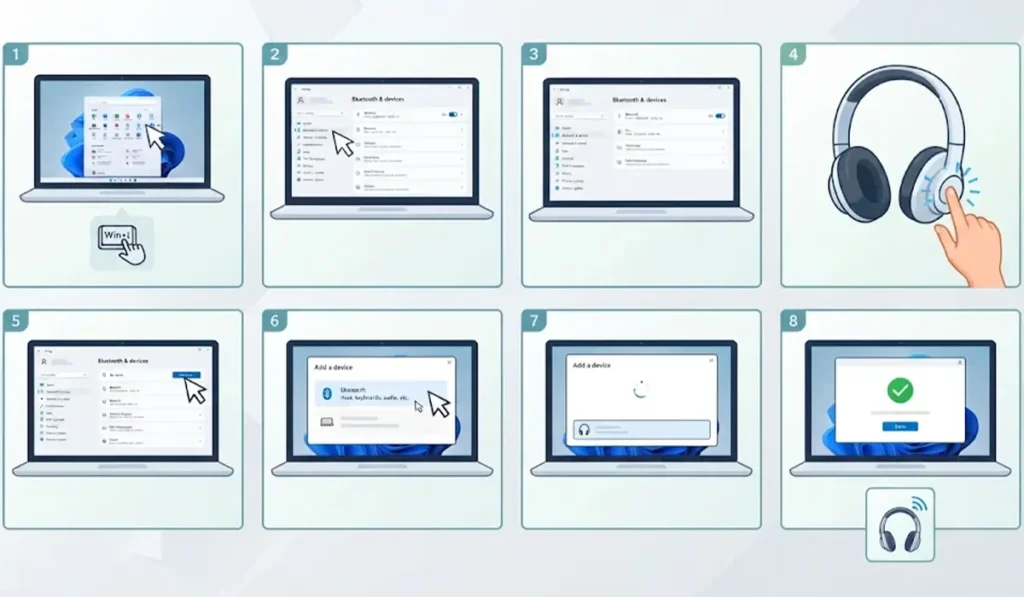
- Step 1: Open the Start menu and click Settings, or press the Windows key and the I key together.
- Step 2: Click Bluetooth & devices in the left sidebar.
- Step 3: Turn the Bluetooth toggle to On.
- Step 4: Put the headphones into pairing mode. On most models, this means holding the power or Bluetooth button for a few seconds until an indicator light starts flashing.
- Step 5: Back on the laptop, click Add device at the top of the page.
- Step 6: Choose Bluetooth in the window that appears.
- Step 7: Wait for the headphones to show up in the list, then click their name.
- Step 8: When Windows shows that the device is connected, click Done.
Pro-Tip: Pairing mode is different from simply turning headphones on. If the light is not flashing, the laptop will not find them. Also, if the headphones were last used with a phone, they may jump back to that phone automatically, so switch off Bluetooth on the phone first.
Method 2: Pair Faster With Swift Pair
Some headphones support Swift Pair, a Windows feature that shows a pop-up the moment compatible headphones enter pairing mode nearby. Think of it like a doorbell that rings as soon as the headphones arrive.
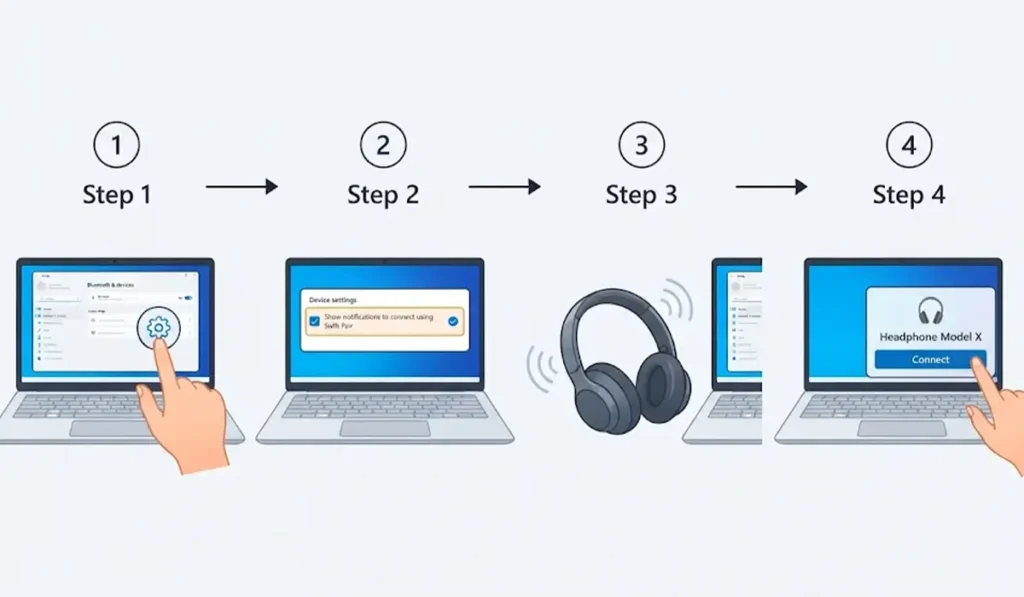
- Step 1: Open Settings and click Bluetooth & devices, then click Devices.
- Step 2: Under Device settings, tick the option to show notifications to connect using Swift Pair.
- Step 3: Put the headphones into pairing mode while they are close to the laptop.
- Step 4: Click Connect when the notification appears in the corner of the screen.
Swift Pair only works with headphones that support it. If no pop-up appears, Method 1 will still do the job.
Method 3: Reconnect Paired Headphones From Quick Settings
Once headphones have been paired, there is no need to dig through Settings again. Most people find that this is the method used every day.
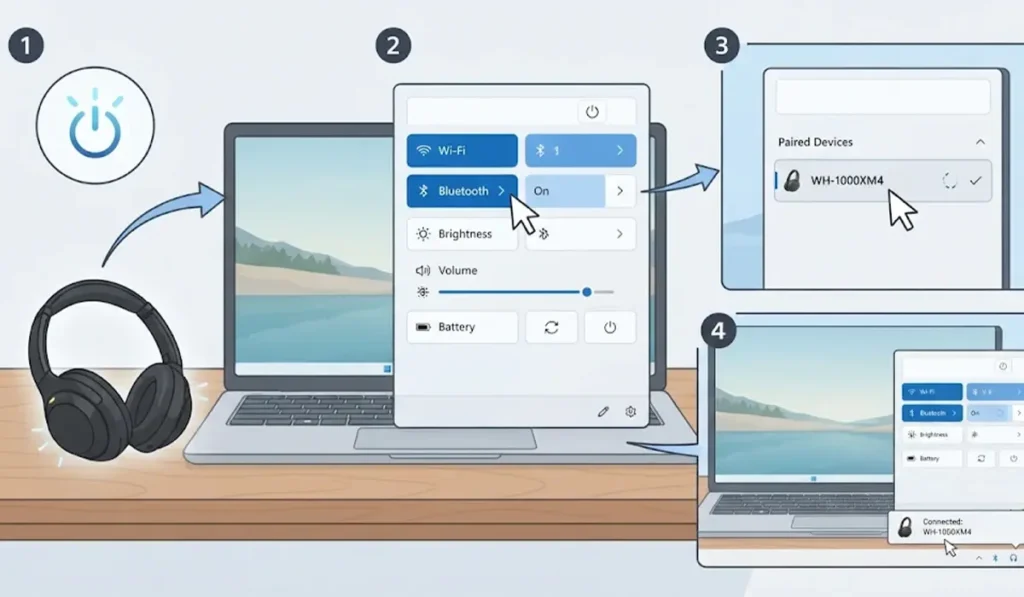
- Step 1: Turn on the headphones.
- Step 2: Click the network, volume, and battery icons at the right side of the taskbar to open Quick Settings.
- Step 3: Make sure the Bluetooth tile is switched on.
- Step 4: Click the small arrow on the Bluetooth tile to see paired devices, then click the headphones to connect.
Many headphones also reconnect on their own as soon as they are powered on near a laptop with Bluetooth enabled.
Set the Headphones as the Sound Output
Sometimes the headphones are connected, yet the sound keeps coming from the laptop speakers. This works best when the output is chosen manually. For a closer look at output options, the guide on adjusting audio output settings covers more detail.
- Step 1: Open Settings and click System, then click Sound.
- Step 2: Find the Output section and select the headphones from the list.
- Step 3: Play a song or video to confirm the sound is coming through the headphones.
Tips for a Smooth Bluetooth Connection
- Keep the headphones within a few feet of the laptop during pairing, since a shorter distance gives a steadier signal.
- Charge the headphones before pairing. A very low battery can stop pairing mode from working properly.
- Close the laptop lid only after checking that audio is playing, because some laptops change sound behavior when the lid is shut.
- If the headphones have a built-in microphone, the guide on managing audio input devices explains how to pick it for calls.
- Keep the headphones’ own app, if the brand offers one, up to date, since firmware updates often improve connection stability.
Common Problems and Quick Fixes
Fix 1: Headphones Do Not Show Up in the List
Turn Bluetooth off and on again in Settings, then put the headphones back into pairing mode and search again. If they still do not appear, the guide on troubleshooting headphone detection walks through further checks.
Fix 2: Headphones Are Connected but There Is No Sound
Open Settings, click System, then Sound, and select the headphones under Output. Also check that the volume is turned up on both the laptop and the headphones.
Fix 3: Pairing Fails or Keeps Disconnecting
Go to Settings, click Bluetooth & devices, then Devices. Open the three-dot menu beside the headphones and choose Remove device. Then pair them again from the beginning using Method 1.
Frequently Asked Questions
Can any Bluetooth headphones connect to a Windows 11 laptop?
Yes. Almost all Bluetooth headphones and earbuds work with Windows 11, as long as the laptop has Bluetooth built in or a Bluetooth adapter attached.
How can it be checked whether a laptop has Bluetooth?
Open Settings and click Bluetooth & devices. If a Bluetooth toggle appears at the top, the laptop supports it. Device Manager also lists a Bluetooth category when the hardware is present.
How are headphones put into pairing mode?
On most models, holding the power or Bluetooth button for a few seconds until a light flashes does the trick. The exact button and light pattern vary by brand, so the headphones’ manual is the best reference.
Do headphones reconnect automatically after the first pairing?
Usually, yes. After the first pairing, most headphones reconnect when they are turned on and Bluetooth is enabled on the laptop.
How are Bluetooth headphones disconnected from a Windows 11 laptop?
Open Quick Settings, click the arrow on the Bluetooth tile, and select the headphones to disconnect them. They can also be turned off, or disconnected from the Devices page in Settings.
Can one pair of headphones connect to a phone and a laptop at the same time?
Only if the headphones support multipoint connection. Without that feature, headphones stay connected to one device at a time.
Is a driver needed to use Bluetooth headphones on Windows 11?
In most cases, no. Windows 11 installs the needed support automatically during pairing. Some brands offer a companion app for extra features like equalizer settings.
How are paired headphones removed from the laptop?
Go to Settings, click Bluetooth & devices, then Devices. Open the three-dot menu beside the headphones and select Remove device.
Can the microphone on Bluetooth headphones be used on Windows 11?
Yes, if the headphones have a built-in microphone. It can be selected under the Input section in System, then Sound settings.