
Learning how to connect Bluetooth headphones to a Linux computer takes only a few minutes, and the process is a lot like introducing two people at a party. Once the headphones and the computer have been introduced and agree to trust each other, they reconnect on their own next time. This guide covers the three most reliable ways to get it done.
Key Takeaways
- Put the headphones in pairing mode first, otherwise the computer cannot see them.
- Method 1 uses GNOME Settings, Method 2 uses KDE Plasma, and Method 3 uses the bluetoothctl terminal tool.
- After pairing, select the headphones as the sound output so audio actually plays through them.
- Marking the headphones as trusted lets them reconnect automatically later.
- Desktops without built-in Bluetooth need a USB Bluetooth adapter.
Method 1: Connect Through GNOME Settings (Ubuntu, Fedora, Debian)
This is the easiest route for anyone using the GNOME desktop, which is the default on Ubuntu, Fedora Workstation, and Debian. Most people find that the whole thing takes under a minute.
- Step 1: Turn on the headphones and hold the power or Bluetooth button until the light starts flashing. This puts them in pairing mode.
- Step 2: Open Settings on the computer and click Bluetooth in the left sidebar.
- Step 3: Make sure the Bluetooth switch at the top is turned on.
- Step 4: Wait a few seconds for the headphones to appear in the Devices list.
- Step 5: Click the headphone name. If a pairing code or confirmation prompt appears, confirm it.
- Step 6: Wait until the status next to the headphone name changes to Connected.
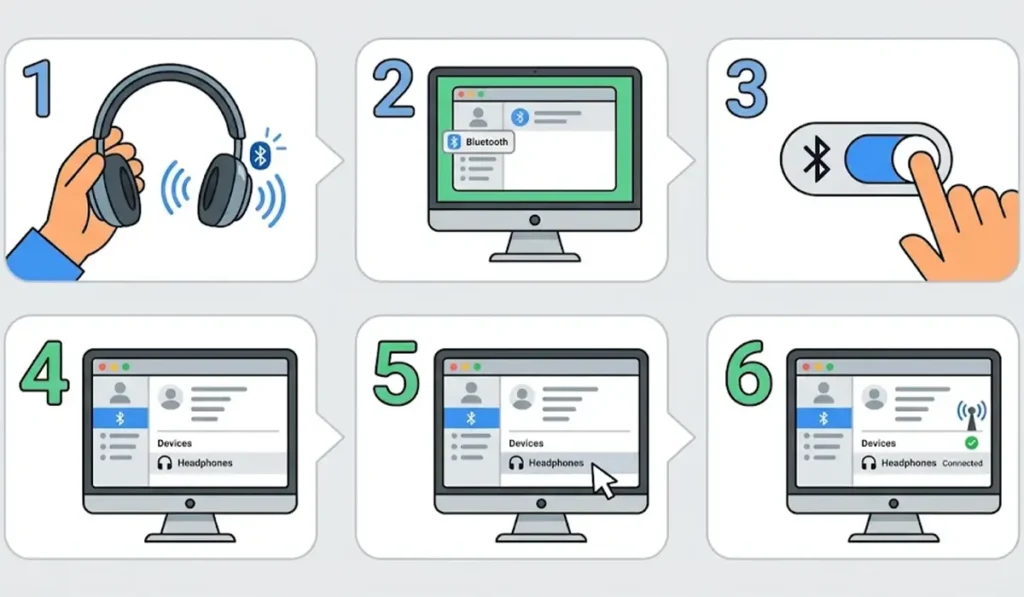
Pro-Tip: Keep the Bluetooth settings page open while the headphones are in pairing mode. On GNOME, the computer is only actively scanning while that page is open, so closing it too early is the most common reason headphones never show up in the list.
Method 2: Connect Through KDE Plasma
KDE Plasma is used on Kubuntu, KDE Neon, and many other distributions. The layout is a little different, but the idea is the same.
- Step 1: Put the headphones in pairing mode by holding the power or Bluetooth button until the light flashes.
- Step 2: Open System Settings and click Bluetooth.
- Step 3: Click Add New Device.
- Step 4: Select the headphones from the list and click Next.
- Step 5: Confirm the pairing prompt if one appears, then wait for the device to show as connected.
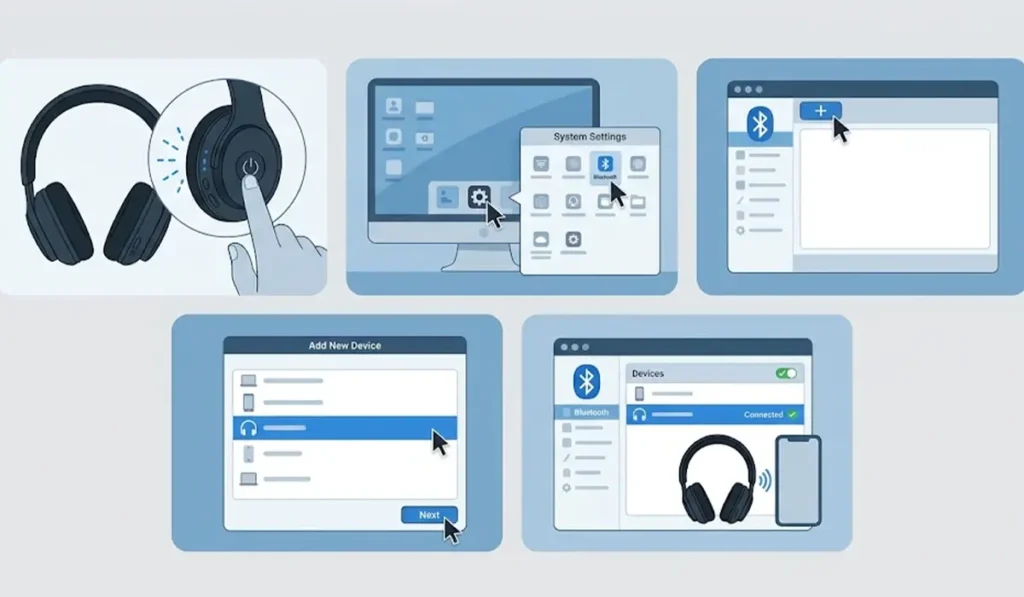
Method 3: Connect Using bluetoothctl in the Terminal
This method works on nearly any Linux distribution, including ones with no desktop environment or with a lightweight window manager. It looks technical, but it is really just a short list of commands typed one at a time.
- Step 1: Put the headphones in pairing mode.
- Step 2: Open a terminal and type bluetoothctl, then press Enter. The prompt changes to show the Bluetooth controller.
- Step 3: Type power on and press Enter.
- Step 4: Type agent on and press Enter, then type default-agent and press Enter.
- Step 5: Type scan on and press Enter. Nearby devices appear in the output along with their addresses, which look like AA:BB:CC:DD:EE:FF.
- Step 6: Find the headphones in the list and copy their address.
- Step 7: Type pair followed by a space and the address, then press Enter.
- Step 8: Type trust followed by a space and the same address, then press Enter. This lets the headphones reconnect automatically in the future.
- Step 9: Type connect followed by a space and the same address, then press Enter.
- Step 10: Type scan off, then type exit to leave bluetoothctl.
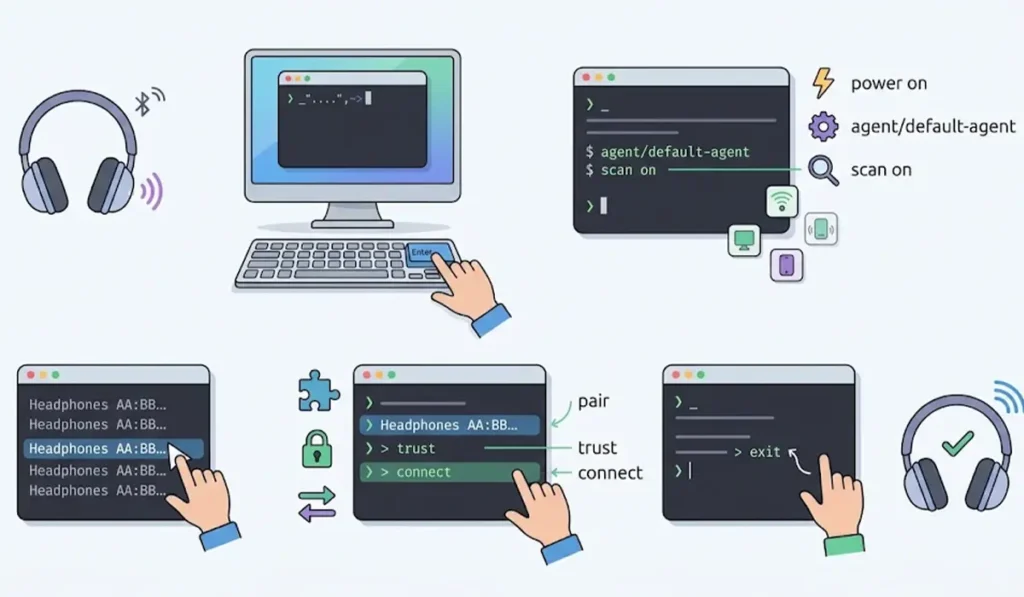
Final Step: Select the Headphones as the Sound Output
Pairing and playing are two different things. Linux sometimes keeps sending audio to the speakers even after the headphones show as connected, so one quick check is worth doing.
- Step 1: Open Settings and go to Sound (on KDE, open System Settings and go to Audio).
- Step 2: Under Output, choose the headphones from the list of output devices.
- Step 3: Play a song or video to confirm the sound comes through the headphones.
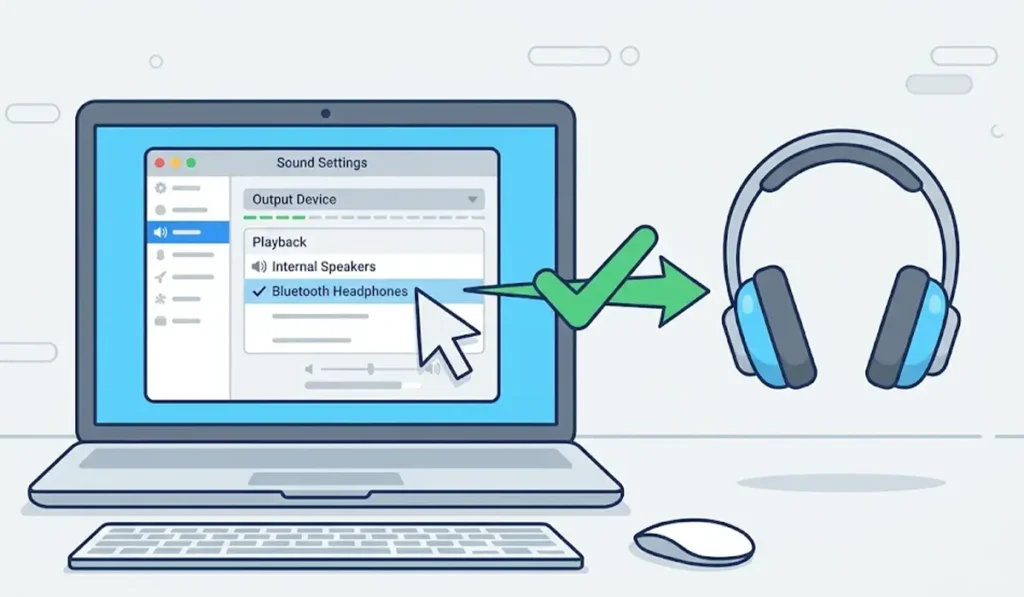
Pro-Tip: If the headphones are listed with more than one profile, pick the one named High Fidelity Playback (A2DP Sink) for listening to music. The headset profile is meant for calls and sounds noticeably thinner.
Tips for a Smoother Bluetooth Headphone Experience
- Disconnect the headphones from a phone or tablet before pairing them with the computer. Many headphones prefer reconnecting to the last device they used.
- Keep the headphones within a few meters of the computer while pairing. Walls and distance weaken the signal.
- Charge the headphones before pairing. A very low battery can interrupt pairing.
- Use the trust option so the headphones reconnect on their own after being switched on.
- Windows users who also use the same headphones on a PC can follow this guide on how to re-pair Bluetooth earbuds for stereo sound on Windows.
- Windows 11 users can also review how to adjust audio output settings to choose the right playback device.
Common Problems and Quick Fixes
Fix 1: Headphones Do Not Appear in the Device List
Switch the headphones off, turn them back on, and hold the pairing button again until the light flashes. Then reopen the Bluetooth settings page so the scan restarts.
Fix 2: Bluetooth Is Switched Off or Blocked
If the Bluetooth switch will not turn on, open a terminal and type rfkill unblock bluetooth, then press Enter. Try turning Bluetooth on again afterward.
Fix 3: Connected but No Sound
Open the Sound settings and make sure the headphones are selected as the output device. Windows users facing a similar issue can read this guide on troubleshooting headphone detection.
Fix 4: Pairing Keeps Failing
Remove the headphones from the Bluetooth device list, put them back in pairing mode, and pair them again from the start. A fresh pairing clears out old connection data.
Frequently Asked Questions
Can any Bluetooth headphones connect to a Linux computer?
Yes. Standard Bluetooth headphones and earbuds work with Linux, as long as the computer has working Bluetooth hardware and the system Bluetooth service is running.
Do Bluetooth drivers need to be installed first?
Usually not. Most current Linux distributions include Bluetooth support by default, so the headphones can be paired right after the system is installed.
How can the headphone address be found in the terminal?
Open bluetoothctl, type scan on, and watch the list of nearby devices. Each device is shown with its name and address. Typing devices lists the devices already known to the computer.
Will the headphones reconnect automatically next time?
Yes, in most cases. Once the headphones are paired and trusted, switching them on usually reconnects them without repeating the pairing steps.
How can the headphones be disconnected or removed?
Open the Bluetooth settings, select the headphones, and choose Disconnect to pause the connection or Remove Device to forget them completely. In bluetoothctl, the disconnect and remove commands followed by the address do the same job.
Can AirPods be connected to a Linux computer?
Yes. AirPods can be paired like any other Bluetooth headphones by putting them in pairing mode with the button on the case. Basic audio works, but some Apple-specific features are not available on Linux.
Can the headphone microphone be used on Linux?
Yes, if the headphones have a built-in microphone. The computer switches to the headset profile for calls, and sound quality during calls is lower than during music playback.
What if the computer has no Bluetooth?
Many desktop computers have no built-in Bluetooth. A small USB Bluetooth adapter plugged into a USB port adds the feature, and the same pairing steps apply.