
Learning how to connect Bluetooth headphones to a Meta Quest 3 takes only a couple of minutes, and the payoff is private, richer sound without relying on the built-in speakers. Whether it is a pair of over-ear headphones or a set of earbuds, the pairing process is quick and works much like pairing with a phone.
Quick Summary:
- Put the headphones into pairing mode before opening the Quest settings.
- Open Settings on the Quest 3 and go to the Bluetooth option under Devices.
- Choose the headphones from the list of nearby devices to finish pairing.
- Once paired, the headphones usually reconnect on their own when powered on.
Method 1: Pair Bluetooth Headphones Through Quest Settings
This is the main way to connect any Bluetooth headphones or earbuds. The key is to have the headphones in pairing mode before searching, since most models only broadcast to new devices for a short window.
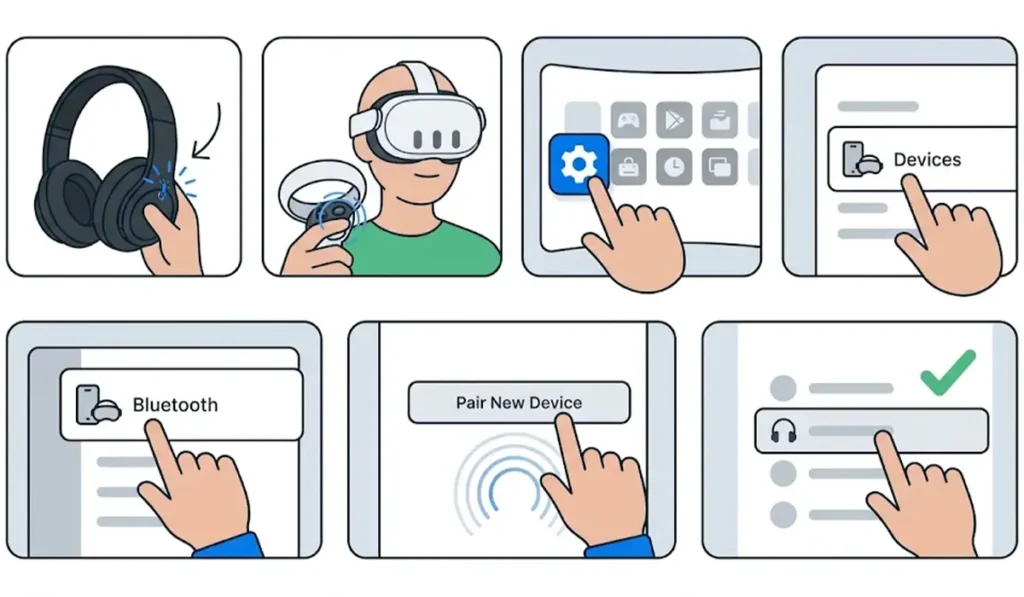
- Step 1: Turn on the headphones and put them into pairing mode. This usually means holding the power or Bluetooth button until a light flashes or a voice prompt confirms pairing mode. For earbuds, open the charging case and hold the button on the case.
- Step 2: Put on the Meta Quest 3 and press the Meta button on the right controller to open the universal menu.
- Step 3: Open Quick Settings, then select Settings.
- Step 4: Go to Devices and choose Bluetooth.
- Step 5: Select the option to pair a new device and wait while the Quest 3 searches for nearby Bluetooth gear.
- Step 6: Choose the headphones from the list. Once the status shows Connected, sound from games and videos plays through them.
Pro-Tip: Headphones that were last used with a phone or laptop often grab that device first when powered on. Turning off Bluetooth on the other device before pairing keeps the headphones free for the Quest 3.
Method 2: Reconnect Previously Paired Headphones
After the first pairing, the Quest 3 remembers the headphones. In most cases, switching them on while wearing the headset is enough to bring them back automatically. When that does not happen, a manual reconnect takes seconds.
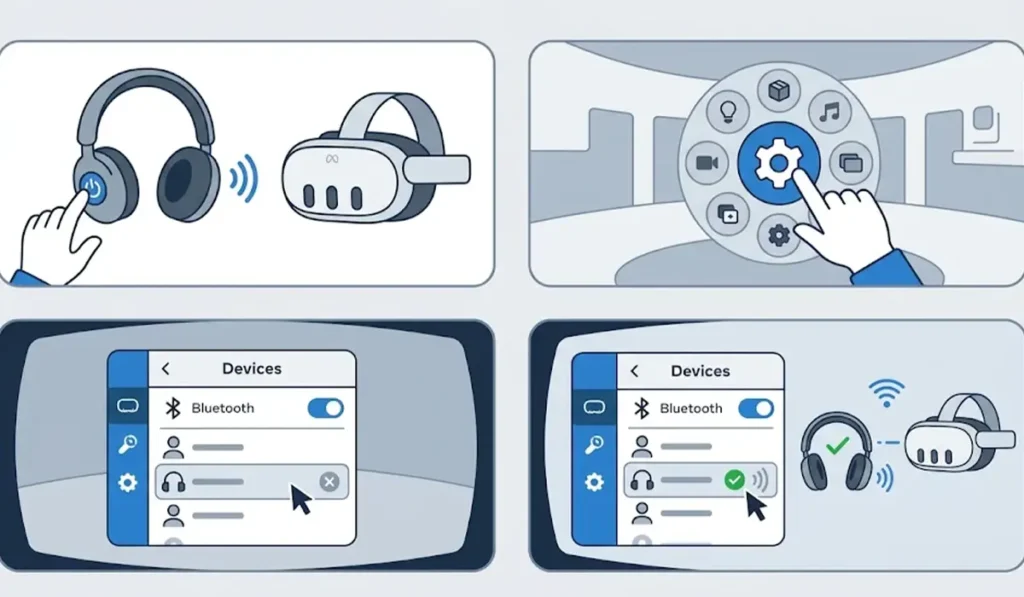
- Step 1: Turn on the headphones and keep them close to the headset.
- Step 2: Open the universal menu, then go to Settings and choose Devices.
- Step 3: Select Bluetooth to see the list of paired devices.
- Step 4: Tap the headphones by name to reconnect them.
Tips for Better Wireless Audio on Quest 3
- Charge the headphones fully before a long session, since a battery dying mid-game is the most common interruption.
- Keep the headphones on the same side of the room as the headset and avoid blocking the signal with large objects.
- Expect a very slight delay with any Bluetooth audio. It is rarely noticeable in videos, but fast rhythm games can feel a touch off.
- Headphones that are also used with a computer may need a fresh pairing there, and this guide on how to re-pair Bluetooth earbuds for stereo sound on Windows covers that side of things.
Common Problems When Connecting Headphones to Quest 3
Fix 1: Headphones Do Not Appear in the List
This almost always means the headphones are not in pairing mode or are still connected to another device. Disconnect them from the phone or laptop, switch them off, and then restart pairing mode. Keeping them within a few feet of the headset also helps. For PC-side detection issues, the headphone detection troubleshooting guide for Windows can help confirm the headphones themselves are working.
Fix 2: Sound Still Plays From the Headset Speakers
Check that the Bluetooth list shows the headphones as Connected, not just Paired. If the status says otherwise, tap the headphones by name to reconnect them.
Fix 3: Audio Cuts Out or Stutters
Move closer to the headset and keep a clear line between the headphones and the Quest 3. Other wireless gadgets nearby can interfere, so turning off unused Bluetooth devices often smooths things out.
Fix 4: Headphones Will Not Pair After Several Tries
Remove the headphones from the Bluetooth list on the Quest 3, then put them into pairing mode again and repeat Method 1 from the start. A clean pairing resolves most stubborn connection problems.
Frequently Asked Questions
Can Bluetooth headphones connect to a Meta Quest 3?
Yes. The Meta Quest 3 supports Bluetooth audio devices, so headphones and earbuds can be paired through the headset settings.
Where are the Bluetooth settings on a Meta Quest 3?
Open the universal menu with the Meta button, go to Settings, and choose Bluetooth under Devices.
Do AirPods work with a Meta Quest 3?
AirPods can be paired like other Bluetooth headphones. Open the charging case and hold the button on the case until the light flashes white, then select them in the Quest Bluetooth list.
Why is there a delay between the video and the sound?
Bluetooth audio naturally adds a small delay because the sound is transmitted wirelessly. How noticeable it is depends on the headphones and the app being used.
Do the headphones need to be disconnected from a phone first?
It helps. Many headphones automatically connect to the last device they used, so turning off Bluetooth on the phone before pairing prevents the headphones from reconnecting to it.
Will the headphones reconnect automatically next time?
In most cases, yes. After the first pairing, the headset remembers the headphones and reconnects when they are turned on nearby.
Does the same process work for a Meta Quest 3S?
Yes. The Quest 3S follows the same pairing steps through the Bluetooth settings.
How can headphones be removed from the Quest 3?
Open the Bluetooth list in the Quest settings, select the headphones, and choose the option to forget or unpair them. They can be paired again later using Method 1.