
Connecting Beats Fit Pro to iPhone and Android is a quick process once the correct pairing method is followed for each device. These earbuds use Bluetooth 5.0 along with Apple’s H1 chip, which means pairing steps differ slightly depending on the phone being used. This guide walks through the exact steps needed to get Beats Fit Pro connected and working properly on both platforms.
Quick Summary Table
- Device needed: Beats Fit Pro earbuds with charging case
- iPhone pairing time: Under 30 seconds with one-touch setup
- Android pairing time: Under 2 minutes through Bluetooth settings
- Software required: iOS 14.6 or later, Android 6.0 or later with Beats app recommended
- Pairing button location: Small button on the back of the charging case
How to Connect Beats Fit Pro to iPhone
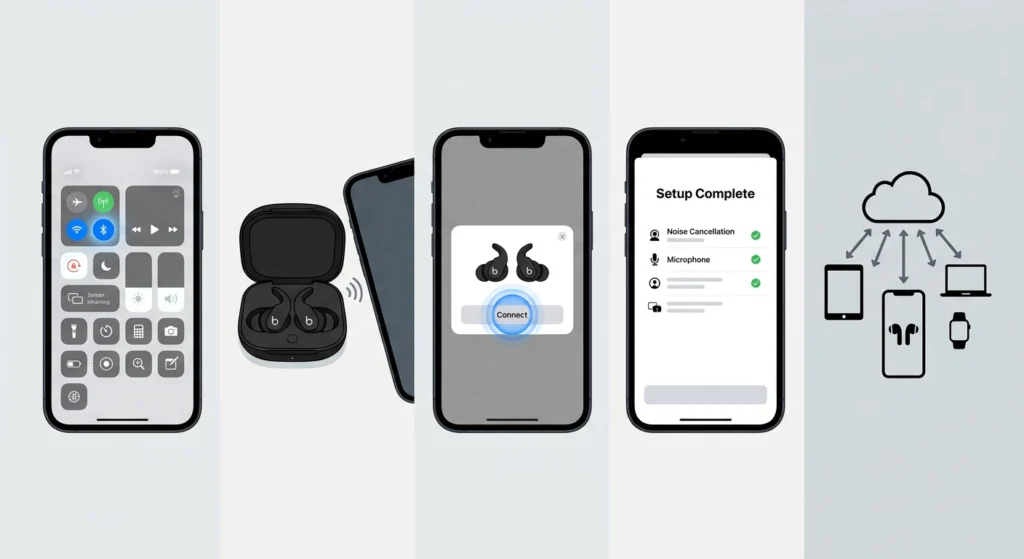
iPhone users get the smoothest pairing experience thanks to the H1 chip built into Beats Fit Pro. This chip allows the earbuds to show up automatically on screen, similar to how AirPods behave.
- Step 1: Make sure Bluetooth is turned on through the iPhone’s Control Center or Settings app.
- Step 2: Open the charging case lid while the earbuds are inside, keeping the case close to the iPhone.
- Step 3: Wait for the setup animation to appear on the iPhone screen, then tap Connect.
- Step 4: Follow the on-screen prompts to finish setup, including naming the earbuds if desired.
- Step 5: Once connected, the earbuds will automatically pair with any other device signed into the same Apple ID through iCloud.
Pro-Tip: If the setup animation does not appear, close and reopen the case lid once more while staying within a few inches of the iPhone. Distance and a closed lid are the most common reasons this step gets skipped.
How to Connect Beats Fit Pro to Android
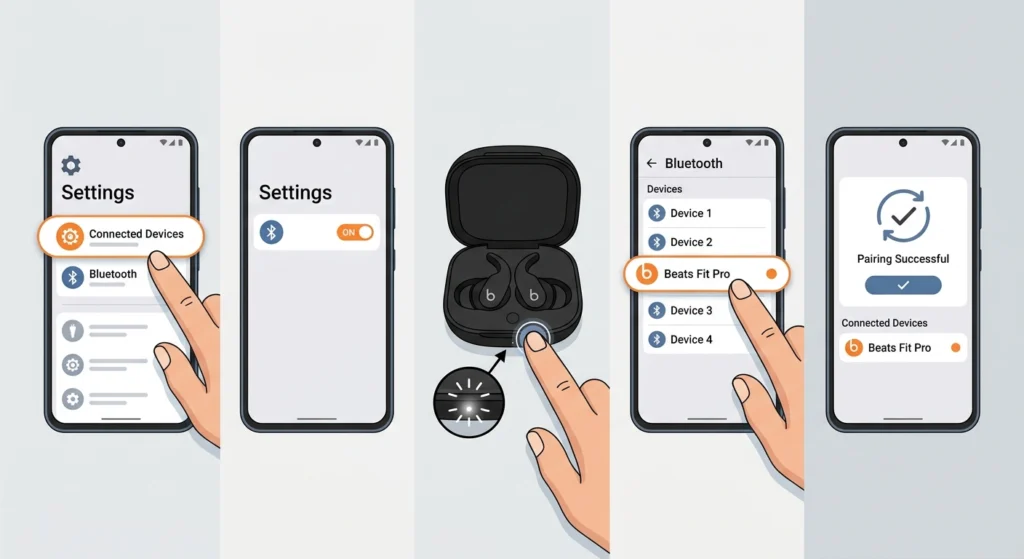
Android pairing relies on standard Bluetooth pairing rather than the automatic prompt seen on iPhone. The process is still simple and only takes a couple of extra taps.
- Step 1: Open Settings on the Android phone and tap on Connected Devices or Bluetooth, depending on the phone model.
- Step 2: Turn on Bluetooth if it is not already active.
- Step 3: Open the Beats Fit Pro charging case with the earbuds inside, then press and hold the system button on the back of the case until the LED light flashes white.
- Step 4: On the Android phone, tap Pair New Device and select Beats Fit Pro from the list of available devices.
- Step 5: Confirm the pairing request if a prompt appears, then wait a few seconds for the connection to complete.
Pro-Tip: Installing the Beats app on Android unlocks battery level readouts, firmware updates, and customizable controls. Without the app, the earbuds still work fine, but some extra features stay hidden.
Tips for a Smooth Connection
- Keep the charging case within close range of the phone during the first pairing attempt, since distance can interrupt the connection.
- Charge the earbuds to at least 20 percent before pairing, since low battery can sometimes prevent the LED indicator from activating.
- Forget the device first if reconnecting after a factory reset, then pair again as if it were a brand new device.
- Update the phone’s operating system before pairing if it has been a while since the last update, since outdated software occasionally blocks new Bluetooth connections.
Common Problems and Fixes
Fix 1: Earbuds Not Showing Up in Bluetooth List
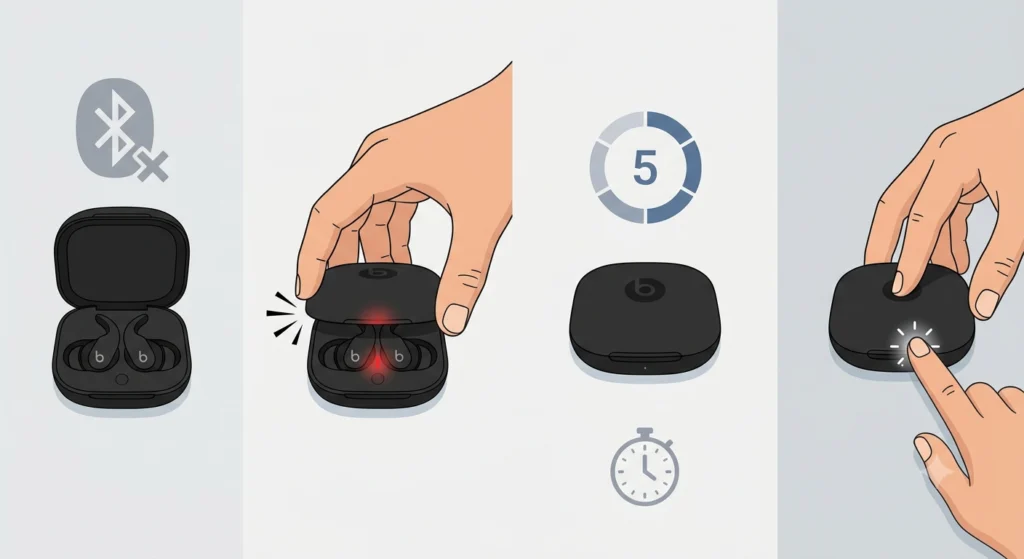
This usually happens when the case lid has been open too long without triggering pairing mode. Close the lid, wait five seconds, then reopen it and press the system button again until the light flashes white.
Fix 2: Connected But No Sound
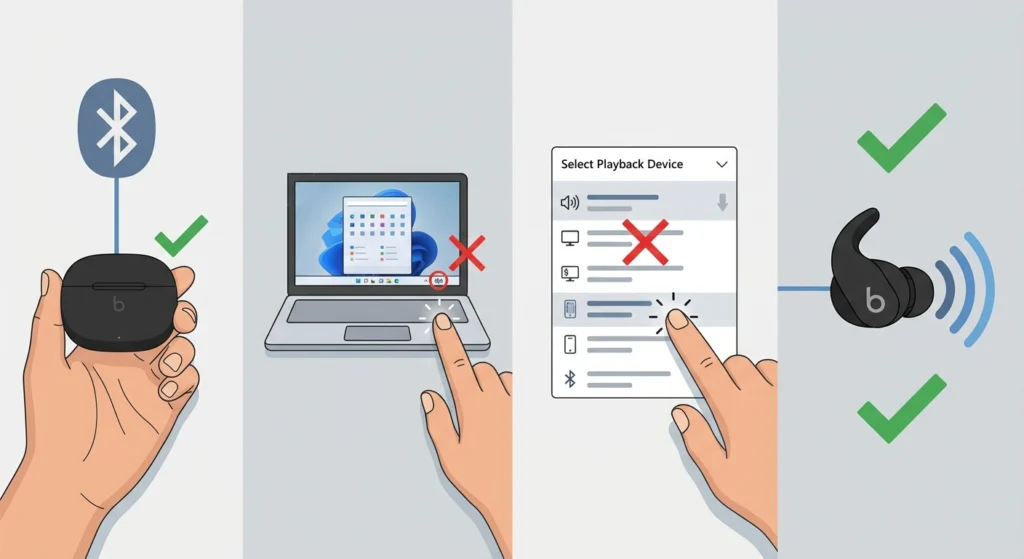
Sound issues after pairing are often related to audio output settings rather than the Bluetooth connection itself. On Windows devices specifically, this guide on adjusting audio output settings walks through fixing this exact issue.
Fix 3: One Earbud Not Working
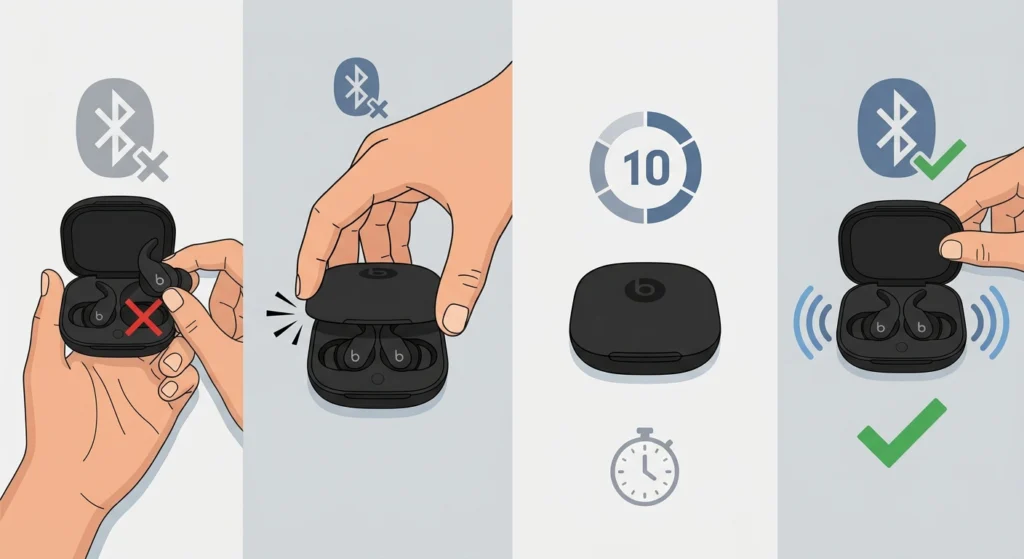
Place both earbuds back in the case, close the lid for ten seconds, then take them out again. This resets the connection between the two earbuds and usually resolves the imbalance.
Fix 4: Microphone Not Detected on Calls
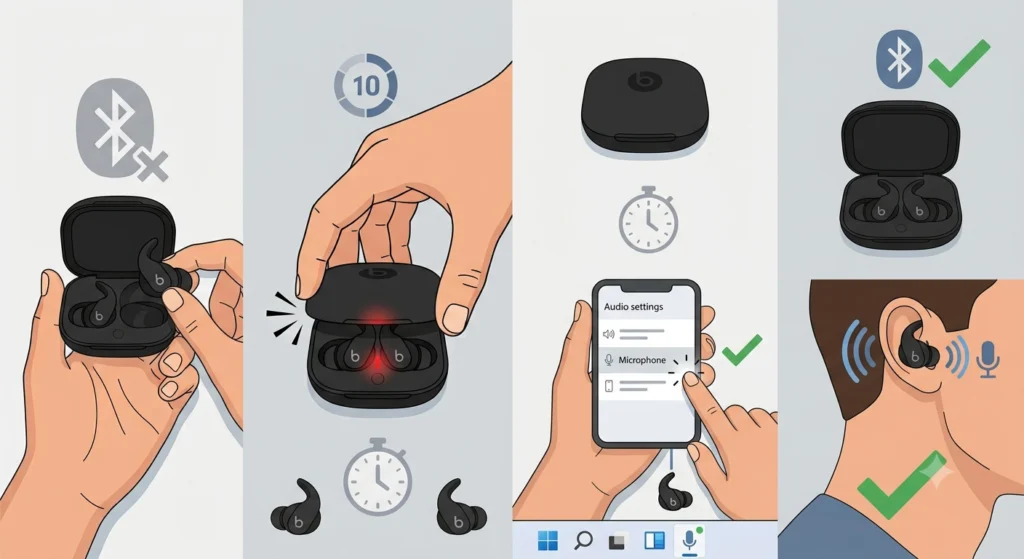
This is a common complaint, especially among Windows 11 users using Beats Fit Pro for calls or meetings. A detailed fix for this can be found in this guide on resolving microphone detection problems.
Frequently Asked Questions
Can Beats Fit Pro connect to two devices at the same time?
Yes, Beats Fit Pro supports Apple’s automatic switching feature between devices signed into the same Apple ID, such as an iPhone and iPad. Manual switching is required when connecting to an Android device alongside an Apple device.
Do Beats Fit Pro work with Android the same way they work with iPhone?
The core listening experience is the same on both platforms, though Android lacks the automatic pairing animation. Some Apple-exclusive features, such as automatic device switching, are not available on Android.
Why is the LED light not flashing on the charging case?
A low battery is the most common cause. Charge the case for at least 15 minutes before attempting to pair again.
Is the Beats app required to use Beats Fit Pro on Android?
No, the app is not required for basic playback and calls. It is recommended for battery readouts, firmware updates, and control customization.
How long does the pairing button need to be held down?
The system button on the back of the case usually needs to be held for about five seconds, or until the LED indicator switches from amber to flashing white.
Can Beats Fit Pro be paired with a Windows laptop?
Yes, Beats Fit Pro can pair with Windows laptops through standard Bluetooth settings. This guide on how to re-pair Bluetooth earbuds for stereo sound on Windows is useful if the earbuds play in mono instead of stereo.
What should be done if the earbuds keep disconnecting?
This is often related to outdated Bluetooth drivers or interference from other wireless devices nearby. Resetting the earbuds and forgetting the device before re-pairing usually resolves frequent disconnections.
Does resetting Beats Fit Pro delete previous pairings?
Yes, a full reset clears all previous device pairings, requiring the earbuds to be set up again on each device.
Can both earbuds be used separately for calls?
Yes, either earbud can be used independently for calls and audio playback, which is useful for longer battery life across a full day.
Is a wired connection an option for Beats Fit Pro?
No, Beats Fit Pro is a wireless-only earbud with no wired audio option.