
Dealing with CMF Buds Pro 2 low volume in one earbud is frustrating, especially when music suddenly feels lopsided and thin. The good news is that the cause is usually simple, and most cases can be sorted out in a few minutes with the steps below.
Key Takeaways:
- Method 1 rules out a source or track problem in under a minute.
- Method 2 and Method 3 cover the physical causes: a clogged speaker mesh and a poor ear tip seal.
- Method 4 and Method 5 fix software settings: audio balance and the equalizer.
- Method 6 and Method 7 cover the firmware update and the factory reset, which should be saved for last.
How to Fix CMF Buds Pro 2 Low Volume in One Earbud: Step-by-Step Guide
Method 1: Rule Out the Audio Source

Some tracks are simply mixed unevenly, and some apps or devices send an unbalanced signal. A quick test saves a lot of guessing.
- Step 1: Play a different song or video from a different app.
- Step 2: Pair the earbuds with a second phone or laptop and play the same audio.
- Step 3: If both sides sound equal on the second device, the cause is a setting on the first device. Continue with Method 4. If the same side stays quiet, continue with Method 2.
Method 2: Clean the Speaker Mesh and Ear Tips
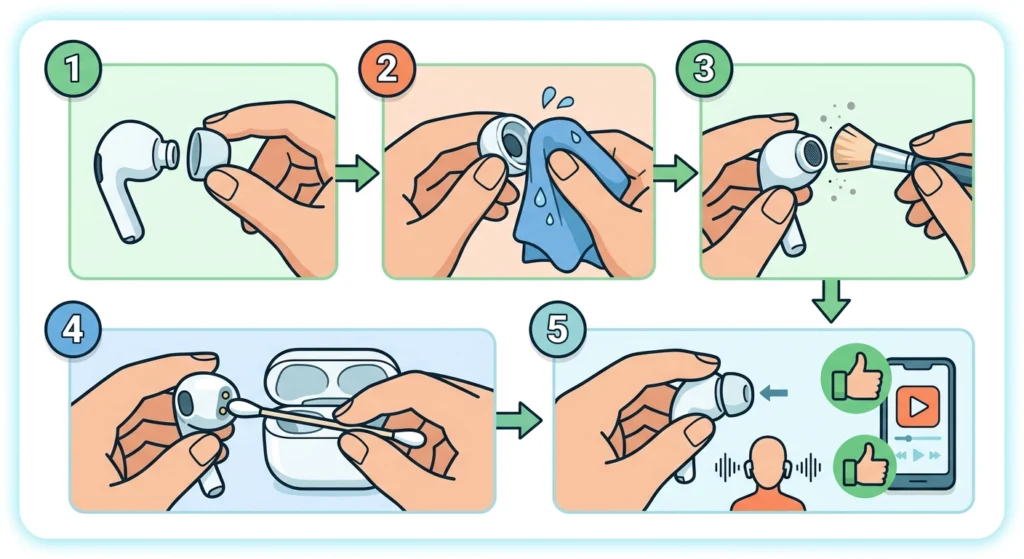
Earwax and dust build up on the speaker mesh over time. Think of it like a dirty window: the light is still there, but less of it gets through. One side often clogs faster than the other, especially if one ear produces more wax.
- Step 1: Pull the silicone ear tip off the weaker earbud.
- Step 2: Wipe the tip with a slightly damp cloth, then let it dry fully before putting it back.
- Step 3: Gently brush the speaker mesh with a soft, dry brush or a dry cotton swab. Use light strokes so debris is not pushed deeper.
- Step 4: Wipe the charging contacts on the earbud and inside the case with a dry cloth.
- Step 5: Refit the ear tip firmly and test the volume again.
Pro-Tip: Avoid sharp objects, liquids, and compressed air on the mesh. Pins can puncture it, and liquid can reach the driver. A dry brush is all that is needed.
Method 3: Fix the Ear Tip Fit
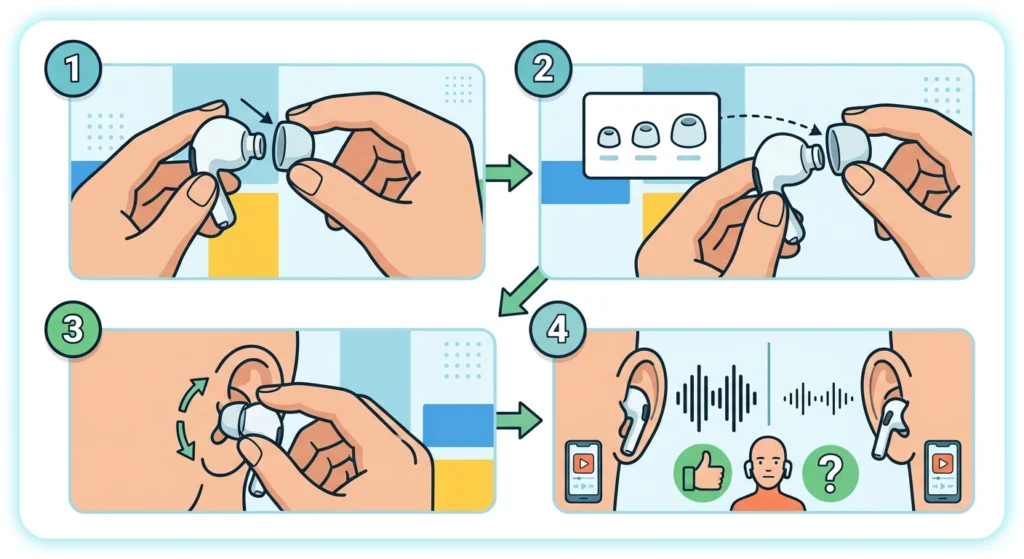
The buds arrive with medium ear tips attached, and other sizes are included in the box. A loose seal lets sound leak out, so the music feels quieter and thinner. A different tip size on each side is completely normal, since most people have slightly different ear canals.
- Step 1: Remove the ear tip from the quieter earbud.
- Step 2: Fit a larger or smaller tip from the box.
- Step 3: Insert the earbud with a gentle twist until it sits snugly.
- Step 4: Play a track with some bass and compare both sides. A good seal makes the low end noticeably fuller.
Method 4: Check the Audio Balance Setting

Phones and computers have a left and right balance slider. If it has been nudged to one side, one earbud will always sound weaker, no matter how clean it is.
- Step 1: On iPhone, open Settings, then Accessibility, then Audio and Visual, and look at the Balance slider.
- Step 2: On Android, open Settings, then Accessibility, and look for Audio adjustment or Audio balance. The name varies by brand.
- Step 3: Move the slider back to the exact center.
- Step 4: On a Windows 11 PC, follow the guide on adjusting audio output settings to even out the left and right channels.
Method 5: Reset the Equalizer in the Nothing X App

The Nothing X app includes an equalizer for the CMF Buds Pro 2. A heavily customized curve can make the sound feel weak or unbalanced, so returning to the default is a simple way to remove that variable.
- Step 1: Open the Nothing X app and connect to the CMF Buds Pro 2.
- Step 2: Open the Equalizer section.
- Step 3: Select the default preset, or reset any custom settings.
- Step 4: Play music again and compare both earbuds.
Method 6: Update the Firmware

Firmware updates for the CMF Buds Pro 2 are delivered through the Nothing X app. Installing the latest version rules out a software cause.
- Step 1: Place both earbuds in the charging case and keep the case close to the phone.
- Step 2: Open the Nothing X app and check for a firmware update.
- Step 3: Start the update and keep the app open until it finishes.
- Step 4: Take the earbuds out and test the volume again.
Method 7: Factory Reset and Re-Pair the Earbuds
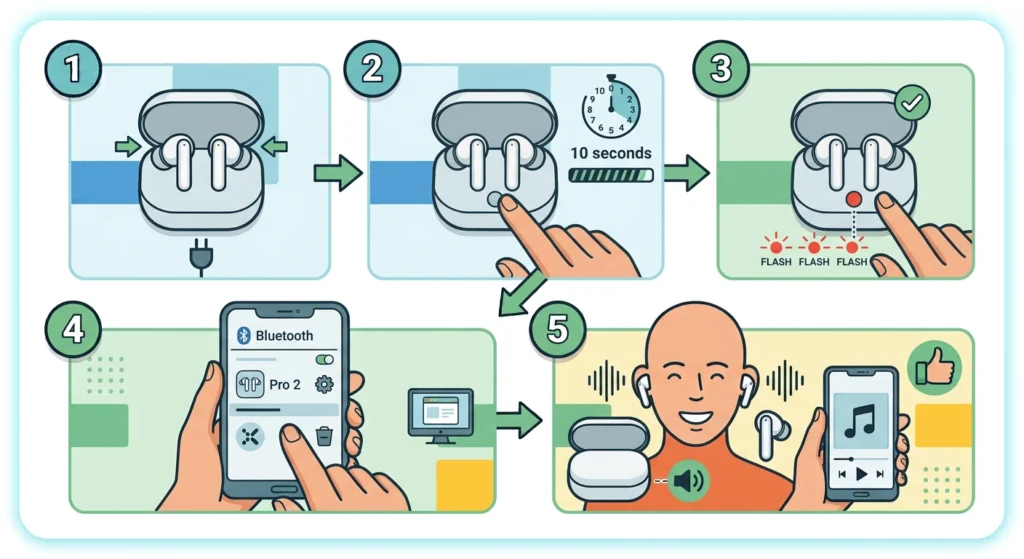
If the earbuds are still uneven, a reset clears the pairing data between the left earbud, the right earbud, and the phone. This works best as the final step, because it removes all saved connections.
- Step 1: Put both earbuds into the charging case and leave the lid open.
- Step 2: Press and hold the function button on the charging case for 10 seconds.
- Step 3: Release the button when the red light flashes three times. This confirms the reset is complete.
- Step 4: Remove the CMF Buds Pro 2 from the Bluetooth list on the phone, using Forget This Device on iPhone or the equivalent option on Android.
- Step 5: Pair the earbuds again as new. On a Windows PC, the guide to re-pairing Bluetooth earbuds for stereo sound covers the full process.
Pro-Tip: Skipping the removal of the old pairing is the most common reason a reset seems to do nothing. The phone can keep trying to use the old connection, so make sure the earbuds are forgotten before pairing again.
Tips to Keep Both Earbuds Sounding Even
- Wipe the ear tips and speaker mesh every week or two, depending on how often the earbuds are used.
- Dry the earbuds after workouts before placing them in the case.
- Fit the ear tips firmly so they cannot loosen and slip off inside the ear.
- Keep the Nothing X app updated so firmware updates are not missed.
- Store the earbuds in the case when not in use so the contacts stay clean and the battery stays balanced.
Common Problems After Trying These Fixes
Volume Is Still Low After Cleaning
The ear tip is probably not sealing properly. Go back to Method 3 and try a different tip size on that side.
One Earbud Is Quiet Only on a Windows PC
This points to a PC audio setting rather than the earbuds. The guide on resetting audio settings on Windows 11 can clear a stuck configuration.
The Problem Returns After a Reset
Make sure the old pairing was removed from the phone before pairing again, as covered in the Pro-Tip under Method 7.
The Same Earbud Stays Quiet on Every Device
If the same earbud is quiet on every device and nothing above helps, contact Nothing support or the seller about warranty options. A hardware fault cannot be fixed with settings.
Frequently Asked Questions
Why is one CMF Buds Pro 2 earbud quieter than the other?
The usual reasons are a clogged speaker mesh, a poor ear tip seal, an uneven balance setting on the phone, or a pairing glitch. Working through Method 1 to Method 7 covers each of them.
Can cleaning really fix low volume in one earbud?
Yes. Earwax and dust can partly block the speaker mesh, which reduces the sound coming out. A dry brush or dry cotton swab is usually enough.
Does ear tip size affect how loud the earbuds sound?
It does. A loose seal lets sound escape and weakens the bass, so the music feels quieter. The earbuds ship with medium tips attached and include other sizes in the box.
Where is the audio balance setting on an iPhone?
Open Settings, then Accessibility, then Audio and Visual, and look for the Balance slider. It should sit exactly in the middle.
Where is the audio balance setting on Android?
Open Settings, then Accessibility, and look for Audio adjustment or Audio balance. The exact name depends on the phone brand.
How do I factory reset the CMF Buds Pro 2?
Put both earbuds in the charging case with the lid open. Press and hold the function button on the case for 10 seconds until the red light flashes three times.
Do the earbuds need to be paired again after a reset?
Yes. A factory reset restores the earbuds to their default state, so the old pairing should be removed from the phone and the earbuds paired again.
How do I update the firmware on the CMF Buds Pro 2?
Connect the earbuds to the Nothing X app, check for a firmware update, and let it finish while the earbuds stay in the case near the phone.
Can the equalizer make one side sound quieter?
The equalizer reshapes the overall sound, so a heavily customized curve can make music feel thin or weak. Resetting it to the default preset removes that variable.
What should be done if nothing fixes the problem?
If one earbud stays quiet on every device after all the steps, contact Nothing support or the seller about a warranty check, since a hardware fault may be the cause.