
Key Takeaways
- Bowers & Wilkins Px7 S3 not connecting to Bluetooth is usually solved by forgetting the device on the phone or laptop and re-pairing from scratch.
- Manual pairing mode is triggered by sliding the power switch on the left earpiece up and holding it for 5 seconds until the LED flashes blue.
- Keep the headphones within 10 cm of the source device during the pairing process for a reliable handshake.
- A factory reset clears old paired device history when the headphones refuse to connect to anything new.
- The Px7 S3 can stay linked to two devices at once, so a full device may block a new connection.
- Windows shows two separate Bluetooth profiles for the Px7 S3, which can confuse the pairing process if not handled correctly.
Bowers & Wilkins Px7 S3 not connecting to Bluetooth is one of the most common issues new owners run into, especially right out of the box or after a firmware update. The good news is that this pair of headphones has a straightforward pairing system, and most connection failures come down to a handful of predictable causes. This guide walks through the exact steps to get the Px7 S3 talking to a phone, laptop, or tablet again, without wasting time on unrelated troubleshooting.
Step-by-Step Guide to Fix Px7 S3 Bluetooth Connection Issues
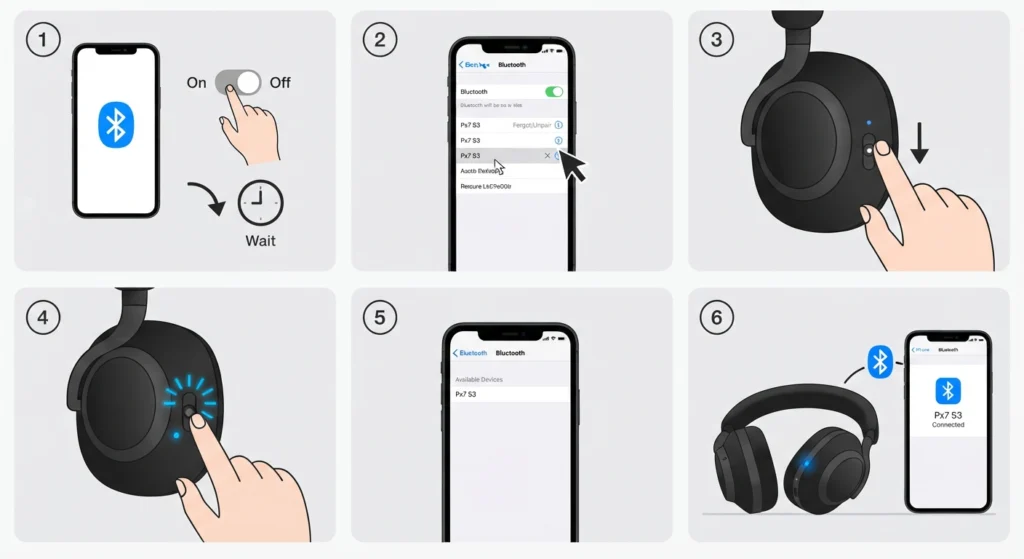
This is the process that resolves the majority of pairing failures, whether the headphones are brand new or have been used for months. The key is starting with a clean slate on both the headphones and the source device.
- Step 1: Turn off Bluetooth on the phone, tablet, or computer that will not connect, wait a few seconds, then turn it back on.
- Step 2: Open the Bluetooth settings on that device and locate ‘Px7 S3’ in the paired devices list. Select forget, remove, or unpair.
- Step 3: Power off the Px7 S3 by sliding the power switch on the left earpiece down to the bottom position until the LED goes dark.
- Step 4: Slide the power switch back up to the middle position to turn the headphones on. Since the paired device was just removed, the headphones should automatically enter pairing mode and the LED will flash blue.
- Step 5: On the source device, open Bluetooth settings, search for available devices, and select ‘Px7 S3’ from the list.
- Step 6: Wait for the LED to turn solid blue or for an audible tone in the headphones, which confirms the connection was successful.
Pro-Tip: Place the headphones no further than 10 cm from the phone or laptop while pairing. Bluetooth pairing signals are weaker than regular playback signals, and a little distance is often the only thing standing between a failed handshake and a successful one.
Method 2: Manually Trigger Pairing Mode
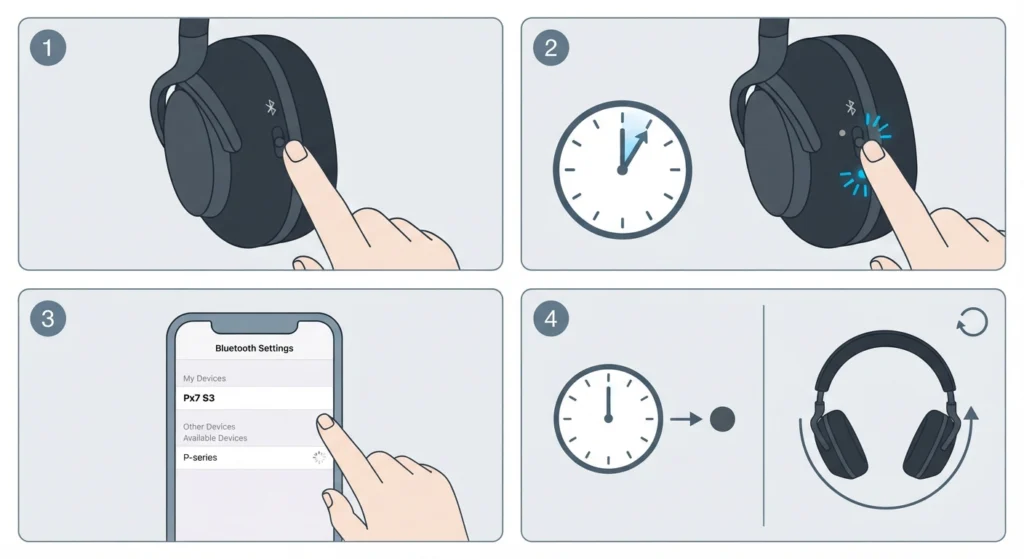
If the headphones already have a device paired but a new device needs to connect, forgetting the old pairing is not necessary. Manual pairing mode handles this without disrupting existing connections.
- Step 1: With the headphones already powered on, slide the power switch upward toward the Bluetooth icon.
- Step 2: Hold the switch in that position for 5 seconds until the status LED starts flashing blue.
- Step 3: On the new source device, open Bluetooth settings and select ‘Px7 S3’ from the discovered devices list.
- Step 4: If no device connects within 2 minutes, pairing mode will exit automatically. Simply repeat the process.
Method 3: Factory Reset the Px7 S3
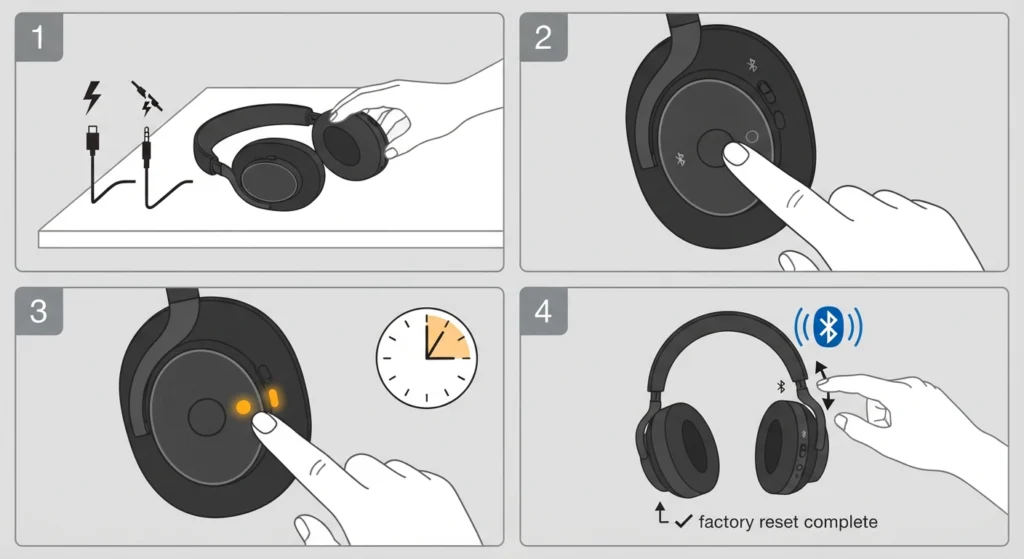
When the headphones refuse to pair with any device, even after a standard forget-and-reconnect attempt, a factory reset clears the internal memory and paired device history completely.
- Step 1: Take the headphones off and disconnect any charging or audio cables.
- Step 2: Slide the power switch up while simultaneously pressing and holding the Quick Action button on the left earpiece.
- Step 3: Keep holding both for 3 seconds until the LED flashes amber, signaling the reset is complete.
- Step 4: Power the headphones on again and begin pairing as if they were brand new.
Method 4: Reboot the Headphones
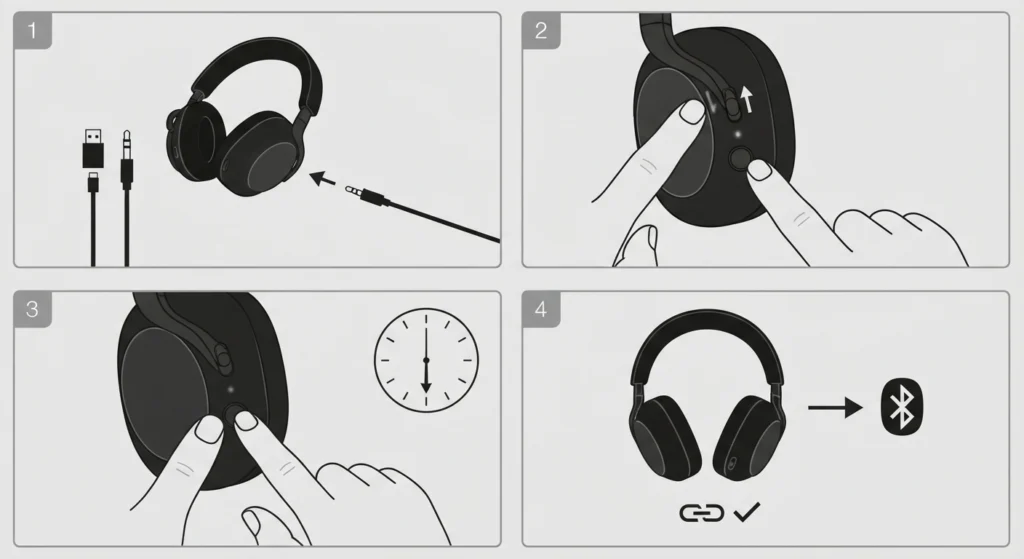
A reboot is a lighter fix than a factory reset since it does not erase paired devices, but it does clear a frozen or unresponsive Bluetooth radio.
- Step 1: Remove the headphones from the head and unplug any connected cables.
- Step 2: Slide the power switch up while pressing and holding the Quick Action button on the left earpiece.
- Step 3: Hold both for 6 seconds until the LED turns off completely.
- Step 4: Turn the headphones back on and attempt to reconnect to the usual device.
Method 5: Reconnect Using the Bowers & Wilkins Music App
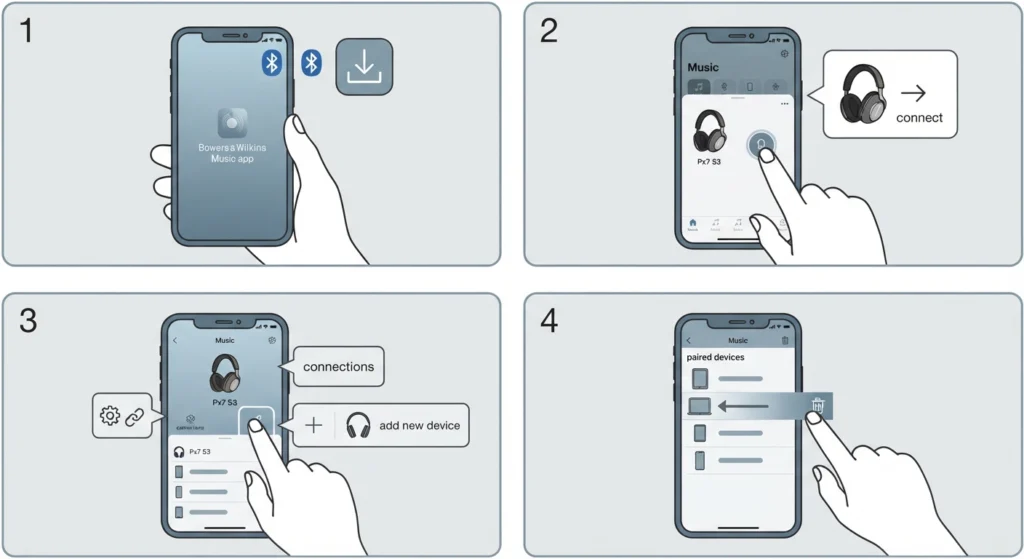
The Bowers & Wilkins Music app is the most reliable way to manage connections on the Px7 S3, and it replaced the older Headphone Control app entirely for this model.
- Step 1: Install the Bowers & Wilkins Music app and open it with Bluetooth enabled on the phone.
- Step 2: Select the Px7 S3 when it appears in the app and follow the on-screen pairing prompt.
- Step 3: Once linked, tap the connections icon and choose ‘Pair a new device’ to add any additional source device.
- Step 4: Use the paired devices screen to remove old entries by swiping left, which prevents the eight-device memory limit from filling up.
Fixing Px7 S3 Bluetooth Connection Problems on Windows 11
Windows handles the Px7 S3 slightly differently than a phone does, since it registers the headphones as two separate audio profiles: Stereo for music and Hands-Free for calls. This is normal, but it does trip people up when the headphones show as connected yet no sound comes through. Removing both entries and reconnecting from scratch through the guide on re-pairing Bluetooth earbuds for stereo sound in Windows usually resolves the mismatch between the two profiles. If audio is still routing to the wrong output after pairing succeeds, walking through the steps for adjusting audio output settings in Windows 11 will confirm the Stereo profile is selected as the active playback device.
Tips for a Stable Px7 S3 Bluetooth Connection
- Keep the headphones charged above 30 percent before attempting to pair, since low battery can interrupt the Bluetooth radio.
- Update the headphones through the Bowers & Wilkins Music app whenever a software update is available, since older firmware occasionally causes intermittent drops.
- Avoid pairing in crowded Bluetooth environments like coffee shops or offices, where signal interference from other devices is common.
- Remember that the Px7 S3 supports Google Fast Pair on compatible Android phones, which speeds up the process by skipping the manual settings menu entirely.
Pro-Tip: If the connection drops randomly during use rather than failing at pairing, check how many devices are currently linked. Since the Px7 S3 supports two simultaneous connections, a phone and a laptop both trying to hold the link at once can cause playback to jump between them unexpectedly.
Common Problems and Troubleshooting
A few recurring issues show up alongside Bluetooth connection failures, and each one has a specific cause worth knowing.
- Headphones connect but produce no sound – this typically means Windows or macOS selected the Hands-Free profile instead of Stereo. Selecting the correct output device fixes it immediately, and the steps for resetting audio settings in Windows 11 cover this scenario in more detail.
- Pairing mode exits before a device is found – this happens because the 2-minute pairing window closed. Simply repeat the manual pairing steps and connect faster the second time.
- Headphones show up but refuse to complete pairing – this is often a sign that the eight-device memory is full. A factory reset clears the list and resolves the issue.
- Audio cuts out only during calls – this points to the Hands-Free profile losing priority. Checking the active input device in the sound settings usually restores clear call audio.
Frequently Asked Questions
Why is the Px7 S3 not connecting to Bluetooth right out of the box?
New units automatically enter pairing mode the very first time they are powered on. If the pairing window closed before a device was selected, simply hold the power switch up for 5 seconds to trigger pairing mode manually.
How does someone manually put the Px7 S3 into pairing mode?
Slide the power switch on the left earpiece up toward the Bluetooth icon and hold it there for 5 seconds. The status LED will flash blue once pairing mode is active.
How many devices can the Px7 S3 stay connected to at the same time?
The headphones support multipoint connectivity, allowing two devices to stay linked simultaneously, though audio or calls can only be taken from one device at a time.
Does the Px7 S3 support Google Fast Pair?
Yes. Compatible Android devices can detect the Px7 S3 through Google Fast Pair simply by enabling Bluetooth and bringing the phone close to the headphones.
Why does Windows show two separate Bluetooth entries for the Px7 S3?
Windows registers the headphones as both a Stereo profile for media playback and a Hands-Free profile for calls. This is expected behavior, not a pairing error.
How long does the Px7 S3 stay in pairing mode before timing out?
Pairing mode automatically exits after 2 minutes if no device connects. Repeating the manual pairing steps restarts the window.
What does a flashing amber LED mean on the Px7 S3?
A flashing amber LED appears during a factory reset, confirming that the paired device history has been cleared and the headphones are ready to be set up again.
Should firmware be updated before trying to pair the Px7 S3 again?
Checking for updates through the Bowers & Wilkins Music app is a reasonable step if connection problems persist after a reset, since outdated firmware can affect Bluetooth stability.
What is the difference between a reset and a reboot on the Px7 S3?
A factory reset erases all paired device history, while a reboot simply restarts the internal system without deleting any saved connections.
Can the Px7 S3 play audio from two connected devices at once?
No. While two devices can remain connected simultaneously, audio playback or calls can only be active on one of them at a time.