
Beats Fit Pro low volume in one earbud is a frustrating issue, but the cause is usually easy to track down and fix within minutes. Most cases come down to a blocked speaker mesh, a loose ear tip seal, or an audio balance setting that got shifted by accident.
Key Takeaways
- Earwax buildup on the speaker mesh is the most common cause of uneven volume
- A poor ear tip seal can make one side sound quieter even when the volume is fine
- A quick reset often clears firmware glitches that affect one earbud only
- Audio balance settings on the connected device can silently shift volume to one side
- Re-pairing from scratch fixes most stubborn cases that survive a reset
Fix 1: Clean the Earbud Mesh and Speaker Vents
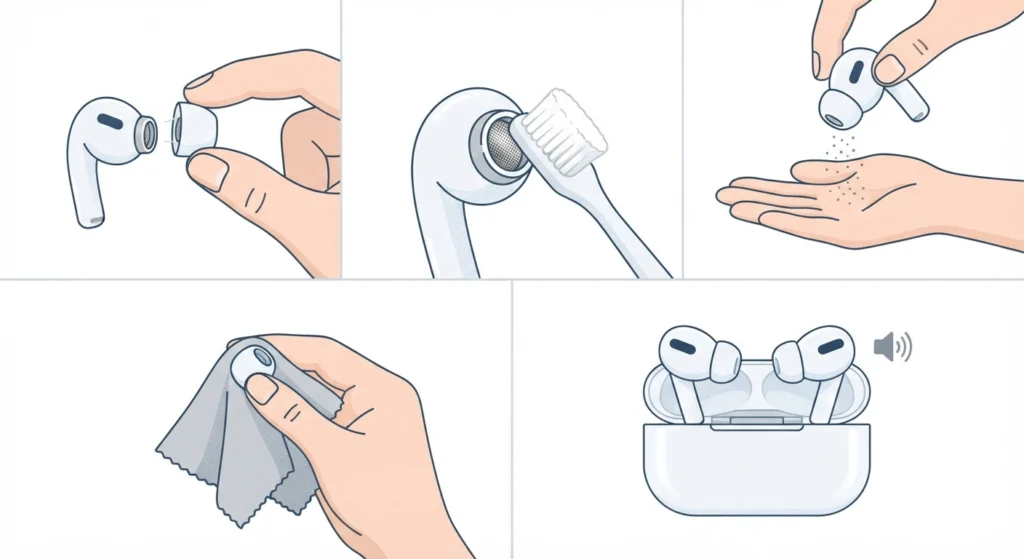
This is the first thing to check, and it solves the problem more often than people expect. Earwax, dust, and lint collect on the small mesh grille over time, and that buildup muffles sound on whichever side is blocked. The result feels exactly like a low volume in one earbud even though nothing is broken.
- Step 1: Remove the ear tips from both earbuds
- Step 2: Use a dry, soft-bristled brush (a clean toothbrush works well) to gently sweep across the speaker mesh
- Step 3: Hold the earbud with the mesh facing down and lightly tap it against a hand to release loosened debris
- Step 4: Wipe the ear tips with a dry microfiber cloth before reattaching them
- Step 5: Test the volume in both ears before moving to the next fix
Pro Tip: Never use water, alcohol, or sharp objects on the mesh. A dry brush or a can of compressed air held at a safe distance is the safest way to clear debris without damaging the driver.
Fix 2: Check the Ear Tip Fit and Seal
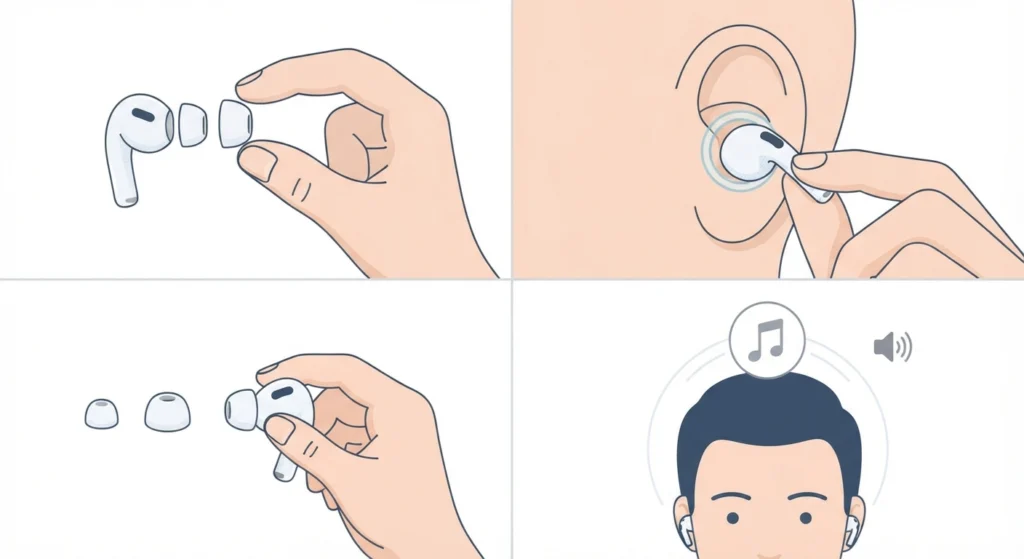
A loose seal changes how sound reaches the ear canal, and that alone can make one earbud sound noticeably quieter than the other. This is easy to overlook because the earbud still plays audio normally, just at a reduced perceived volume.
- Step 1: Remove both ear tips and check that they are the same size on each earbud
- Step 2: Reinsert each earbud and twist gently until a snug, sealed fit is felt
- Step 3: Try one size larger or smaller if the current tips feel loose or fall out easily
- Step 4: Play a song at a fixed volume and compare loudness side by side
Most people find that switching to a slightly larger tip size on the quieter side resolves the issue immediately, since ear canal shapes are rarely identical on both sides.
Fix 3: Reset the Beats Fit Pro Earbuds
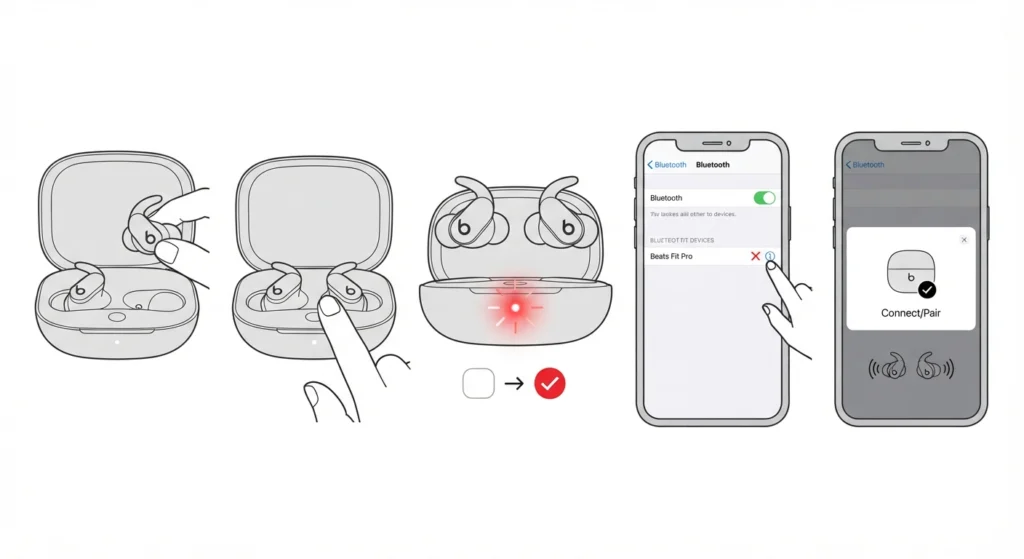
A reset clears temporary firmware glitches that sometimes affect only one earbud, especially after a software update or an unstable connection. This works best when cleaning and fit have already been ruled out.
- Step 1: Place both earbuds in the charging case
- Step 2: Keep the case lid open and press and hold the button on the back of the case
- Step 3: Hold the button until the LED light flashes white, then red, indicating the reset is complete
- Step 4: Forget the device from Bluetooth settings on the connected phone or computer
- Step 5: Re-pair the earbuds and test volume on both sides
Fix 4: Update the Firmware
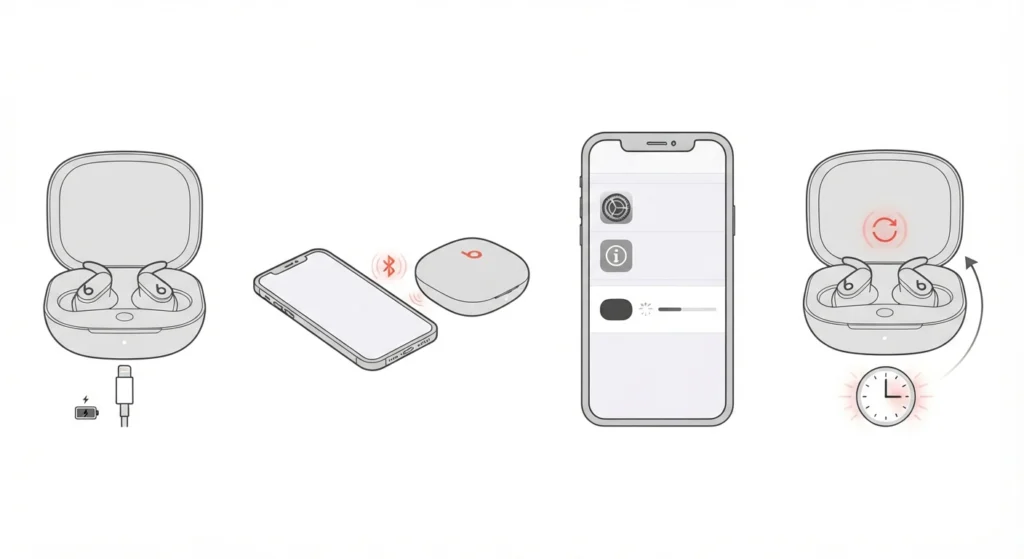
Outdated firmware occasionally causes uneven audio output between the two earbuds. Beats pushes firmware updates automatically through a connected iPhone, but the update only installs while the earbuds are charging, connected, and within range.
- Step 1: Place the earbuds in the case and connect the case to power
- Step 2: Keep the connected iPhone nearby with Bluetooth turned on
- Step 3: Open Settings, then General, then About, and select the Beats Fit Pro to check the current firmware version
- Step 4: Leave the earbuds charging and connected for at least 20 to 30 minutes to allow the update to complete in the background
Fix 5: Check the Audio Balance Settings on the Connected Device
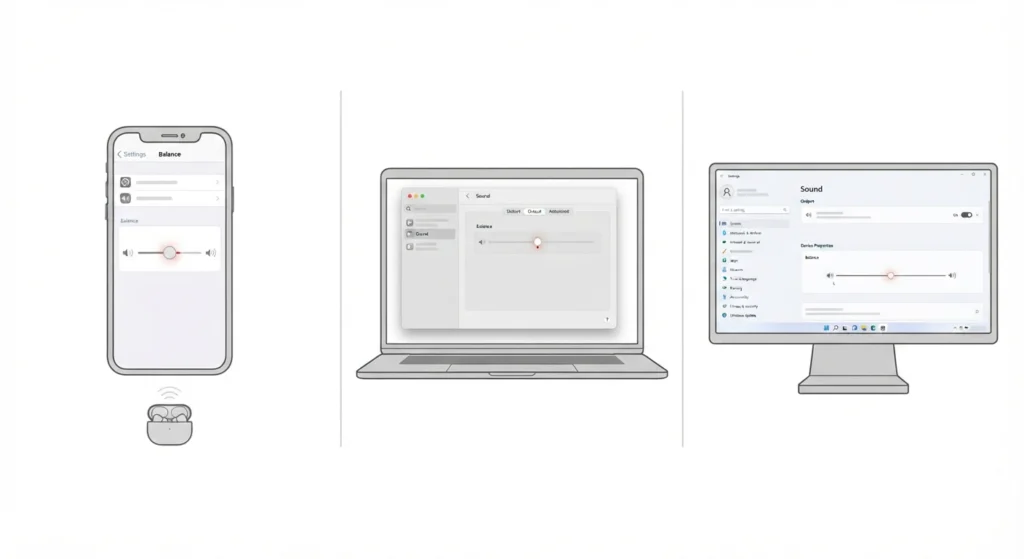
This step gets missed constantly, yet it is one of the most common causes of one-sided volume. Phones, laptops, and desktops all have a left-right balance slider, and it only takes an accidental tap or a stuck key to shift it toward one side.
- Step 1: On iPhone, open Settings, then Accessibility, then Audio/Visual, and confirm the Balance slider sits in the center
- Step 2: On a Mac, open System Settings, then Sound, and check the Balance slider under Output
- Step 3: On Windows 11, open Sound settings and check the left-right balance under the device properties
Windows users who still notice uneven sound after centering the balance slider may find it useful to go through the process of adjusting audio output settings, since some drivers reset the balance value after a system update.
Fix 6: Re-Pair the Earbuds from Scratch
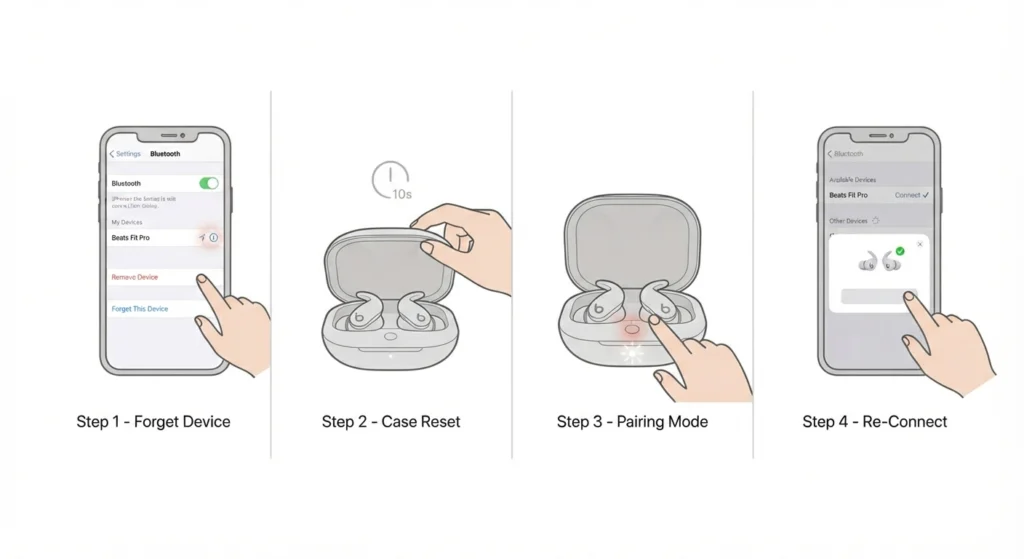
A corrupted Bluetooth pairing profile can send an inconsistent audio signal to one earbud while leaving the other unaffected. Removing the old pairing and starting fresh clears out that corrupted connection entirely.
- Step 1: Open Bluetooth settings on the connected device and forget the Beats Fit Pro
- Step 2: Place both earbuds in the case, close the lid for 10 seconds, then reopen it
- Step 3: Press and hold the case button until the LED flashes white to enter pairing mode
- Step 4: Select Beats Fit Pro from the available devices list and confirm the connection
For anyone connecting through a Windows laptop, the guide on how to re-pair Bluetooth earbuds for stereo sound walks through the same process with extra detail on avoiding mono playback, which is a related issue that sometimes gets confused with low volume in one ear.
Fix 7: Compare Battery Levels Between Both Earbuds
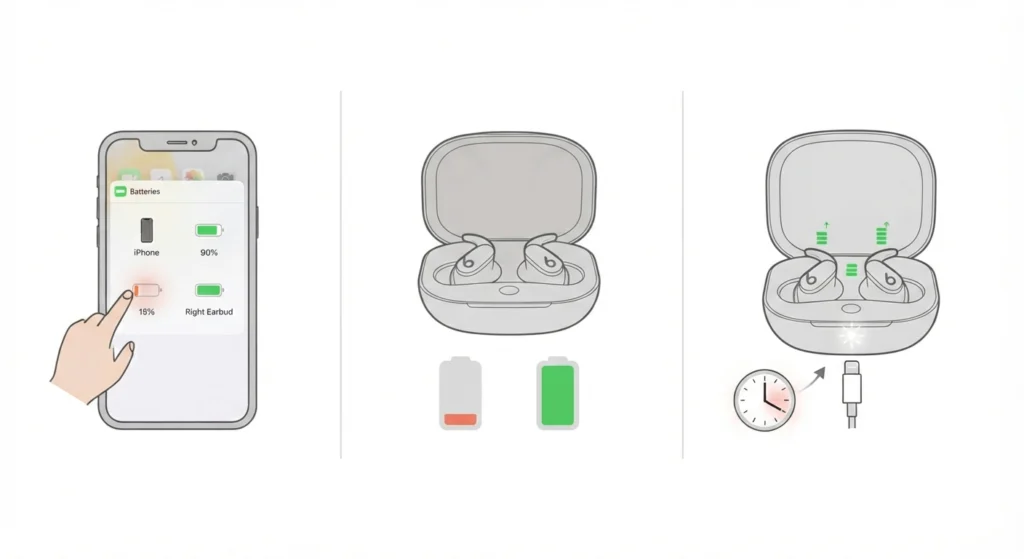
An earbud running on very low battery can reduce its own output slightly before it shuts off completely. This is less common than the causes above, but it is worth ruling out, especially if the volume issue only shows up later in the day.
- Step 1: Open the battery widget on the connected iPhone or check the Beats app for individual earbud percentages
- Step 2: Compare the charge level of the quieter earbud against the other one
- Step 3: Charge both earbuds fully in the case for at least 20 minutes before testing again
Tips to Prevent This From Happening Again
- Wipe the earbuds with a dry cloth after each use, especially after workouts
- Store the earbuds in the case rather than a pocket or bag to reduce dust exposure
- Keep firmware updated by charging near a connected iPhone at least once a week
- Avoid adjusting volume with wet or sweaty fingers, since moisture can affect touch controls
- Check the ear tip size every few months, since ear shape sensitivity can change slightly over time
Pro Tip: A monthly cleaning routine takes less than two minutes and prevents most volume complaints before they start. This works best when it becomes a habit rather than something done only after a problem appears.
Common Problems and Troubleshooting
Volume Is Still Uneven After a Reset
This usually points to a hardware issue with the speaker driver rather than a software glitch. If cleaning, fit, and reset have all been tried without success, contacting Apple Support for a hardware check is the next reasonable step.
One Earbud Sounds Muffled Instead of Just Quiet
A muffled sound almost always means the mesh is still partially blocked. Repeating the cleaning process with more focus on the small vent holes around the mesh typically resolves this.
Volume Drops Only When Switching Between Devices
This points back to the balance setting on the specific device being used, since each device stores its own audio settings independently. Anyone who frequently switches between a phone and a Windows PC may want to look into resetting audio settings on the PC side to rule out a driver-level cause.
Frequently Asked Questions
Why is only one Beats Fit Pro earbud quieter than the other?
The most common reasons are a blocked speaker mesh, a loose ear tip seal, or a shifted balance setting on the connected device. Working through cleaning, fit, and balance checks in order resolves the majority of cases.
Can earwax really affect Beats Fit Pro volume?
Yes. Earwax and debris on the speaker mesh physically block sound waves from reaching the ear, which reduces perceived volume on that side even though the earbud itself is functioning normally.
How often should Beats Fit Pro earbuds be cleaned?
A light cleaning once a week is enough for regular use, with more frequent cleaning recommended for anyone who wears them during workouts or in dusty environments.
Does resetting the Beats Fit Pro delete the pairing history?
Resetting clears the current pairing and any saved settings on the earbuds, so they will need to be paired again as if they were new. This does not affect anything stored on the connected phone or computer.
Why does one earbud sound quieter only on a Windows laptop?
This typically points to a balance setting or driver configuration on the Windows device rather than the earbuds themselves, since the same earbuds usually sound even when connected to a phone.
Is it normal for ear tip size to affect volume?
Yes. A poor seal from an ill-fitting ear tip changes how sound reaches the ear canal, which can make volume feel lower on one side even when both earbuds are outputting the same level.
How long does a Beats Fit Pro firmware update take?
Firmware updates usually complete within 20 to 30 minutes as long as the earbuds stay charging and connected to a nearby iPhone with Bluetooth enabled throughout the process.
Can low battery cause one earbud to sound quieter?
It can, though this is less common than a blocked mesh or a fit issue. An earbud nearing a critically low charge may reduce output slightly before powering off.
Should both Beats Fit Pro earbuds be charged at the same rate?
They generally charge at a similar rate when placed correctly in the case, though slight differences in usage throughout the day can cause one earbud to drain faster than the other.
When should Beats Fit Pro low volume be treated as a hardware issue?
If cleaning, ear tip adjustments, a reset, and a balance check all fail to resolve the issue, the speaker driver itself may be affected, and reaching out to Apple Support for a hardware inspection is the appropriate next step.