
The Anker Soundcore Space Q45 is a well-built headphone, but like any wireless audio device, it can sometimes play audio from only one ear cup. This is a frustrating issue, especially when it happens in the middle of listening. The good news is that most cases of the Anker Soundcore Space Q45 one side not working are caused by simple software or connection issues that can be fixed at home without any tools or technical background.
Quick Summary
| Fix | Best For | Difficulty |
|---|---|---|
| Check audio balance settings | Audio leaning to one side | Easy |
| Re-pair Bluetooth connection | Wireless connection issues | Easy |
| Reset the headphones | Firmware or pairing glitches | Easy |
| Update firmware via Soundcore app | Bug-related audio problems | Easy |
| Test with a wired connection | Identifying hardware vs software issue | Easy |
| Clean the audio jack and ear cup | Physical blockage or debris | Easy |
Step-by-Step Guide to Fix Anker Soundcore Space Q45 One Side Not Working
Fix 1: Check the Audio Balance Setting on Your Device
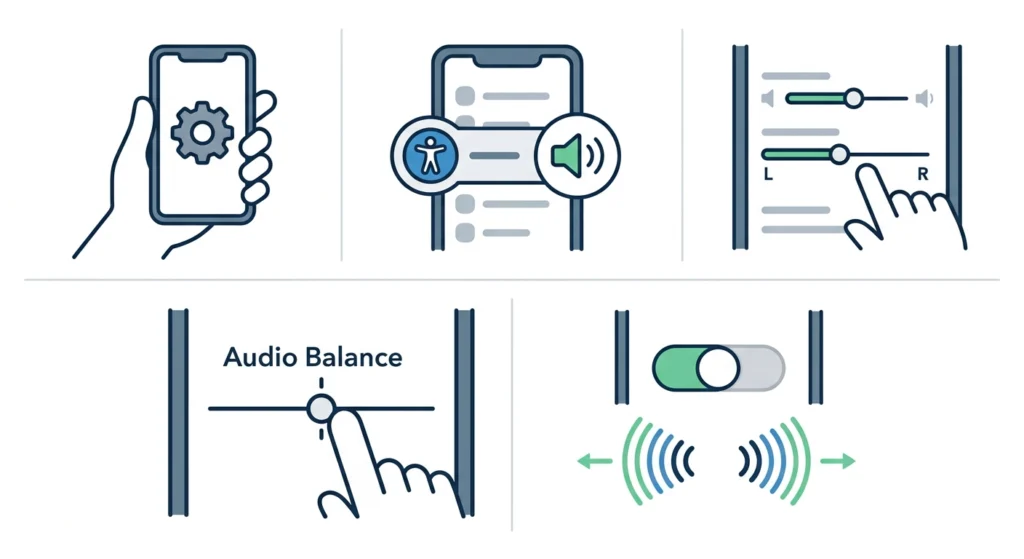
Before anything else, check if the audio balance on the connected device is centered. A shifted balance setting means all sound gets pushed to one ear, making it seem like the headphone has a hardware problem when it actually does not.
- Step 1: Open the Settings app on your phone, tablet, or computer.
- Step 2: Navigate to ‘Accessibility’ or ‘Sound’ settings depending on your device.
- Step 3: Look for ‘Audio Balance’ or ‘Mono Audio’ settings.
- Step 4: Make sure the slider is centered between left and right.
- Step 5: Disable ‘Mono Audio’ if it is turned on, as this can limit audio output.
This is one of the most overlooked causes. Someone may have accidentally nudged the balance slider, and a quick re-center solves the whole problem instantly. For Windows 11 users, adjusting audio output settings properly can make a significant difference in how audio is distributed across both ear cups.
Fix 2: Disconnect and Re-Pair the Bluetooth Connection
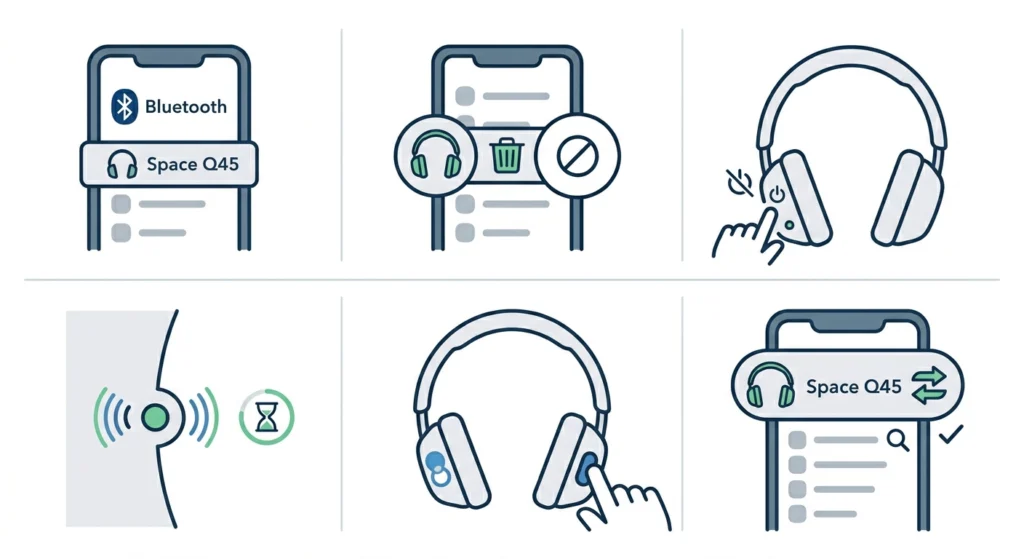
A partial or corrupted Bluetooth connection is a very common reason why one ear cup stops producing sound. Re-pairing essentially refreshes the connection and often restores both channels.
- Step 1: On the connected device, go to Bluetooth settings and find the Space Q45 in the paired device list.
- Step 2: Select ‘Forget’ or ‘Unpair’ the device.
- Step 3: Turn off the headphones completely by holding the power button until the LED turns off.
- Step 4: Wait about 10 seconds, then power the headphones back on.
- Step 5: Put the Space Q45 into pairing mode by holding the Bluetooth button until the LED flashes blue and white alternately.
- Step 6: On the device, scan for Bluetooth devices and reconnect to the Space Q45.
This works best when the audio issue appeared suddenly without any physical impact to the headphones. A fresh pairing clears out any corrupted connection data that might be limiting audio to one channel. Check out this guide on how to re-pair Bluetooth earbuds for stereo sound on Windows for a more detailed walkthrough.
Pro-Tip: After re-pairing, play a stereo test audio track – not just music – to confirm both sides are working before assuming the fix worked. Search ‘left right audio test’ on YouTube for a quick check.
Fix 3: Reset the Anker Soundcore Space Q45
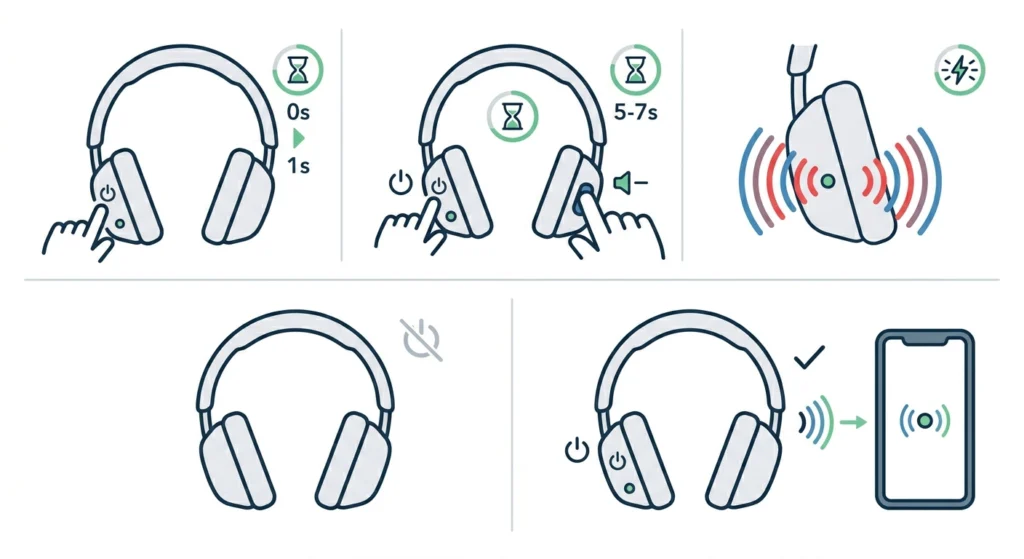
A factory reset clears all stored pairing data and returns the headphones to their default settings. This is one of the most reliable fixes for persistent one-sided audio problems caused by firmware or internal configuration issues.
- Step 1: Turn on the headphones.
- Step 2: Press and hold the power button and the volume down button simultaneously for about 5 to 7 seconds.
- Step 3: Wait for the LED to flash red and blue alternately, which confirms the reset is complete.
- Step 4: The headphones will power off automatically after the reset.
- Step 5: Turn them back on and re-pair with the device from scratch.
The key is to hold both buttons long enough. Releasing too early may only trigger a different function rather than a full reset. After the reset, treat it like a brand-new device during the pairing process.
Fix 4: Update the Firmware Through the Soundcore App
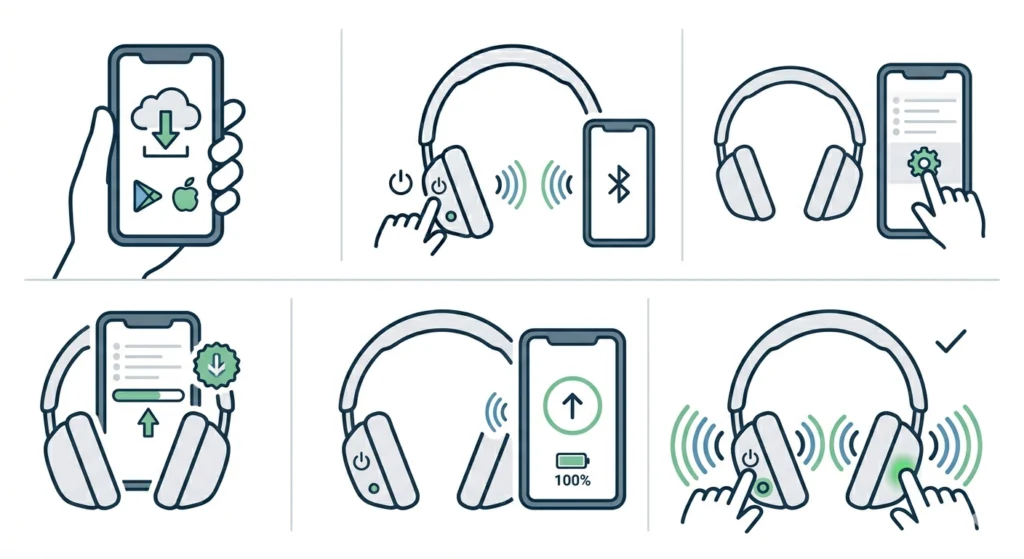
Outdated firmware is a known cause of audio channel imbalance and one-sided sound issues in wireless headphones. Anker regularly releases firmware updates through the Soundcore app that address these kinds of bugs.
- Step 1: Download the Soundcore app from the App Store or Google Play Store if not already installed.
- Step 2: Open the app and connect the Space Q45 to the app via Bluetooth.
- Step 3: Tap on the headphones in the app and go to ‘Settings’ or ‘Device Info’.
- Step 4: Look for a firmware update option and tap ‘Update’ if one is available.
- Step 5: Keep the headphones close to the phone and fully charged during the update process.
- Step 6: Once updated, restart the headphones and test both ear cups.
Most people skip this step entirely, but a firmware update alone has resolved audio imbalance issues for many Space Q45 users. The Soundcore app also allows adjustments to EQ settings and audio balance, which are worth checking while already in the app.
Fix 5: Test Using the Wired 3.5mm Connection
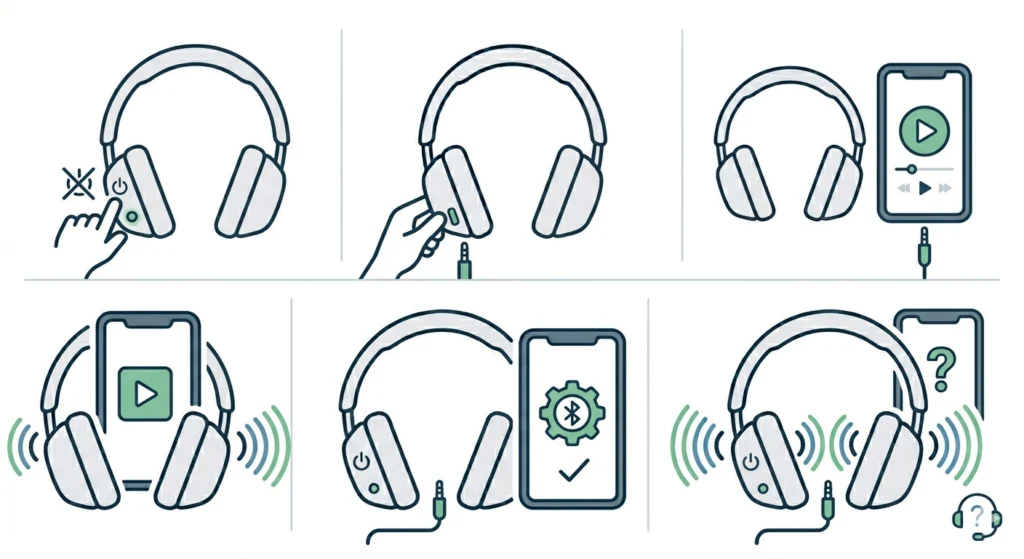
The Space Q45 includes a 3.5mm audio cable for wired use. Testing with the cable helps determine whether the issue is with Bluetooth or with the physical hardware of the headphone itself.
- Step 1: Power off the headphones completely.
- Step 2: Connect the included 3.5mm cable from the headphones to a device with a headphone jack.
- Step 3: Play audio and check if both ear cups now produce sound.
- Step 4: If both sides work via the cable, the issue is Bluetooth-related, not hardware.
- Step 5: If one side is still silent through the cable, there may be a physical driver issue that requires contacting Anker support.
This step is important because it separates the problem clearly. Wireless audio issues and physical hardware failures need completely different solutions, so knowing which category the problem falls into saves a lot of time.
Fix 6: Clean the 3.5mm Jack and Ear Cup Area
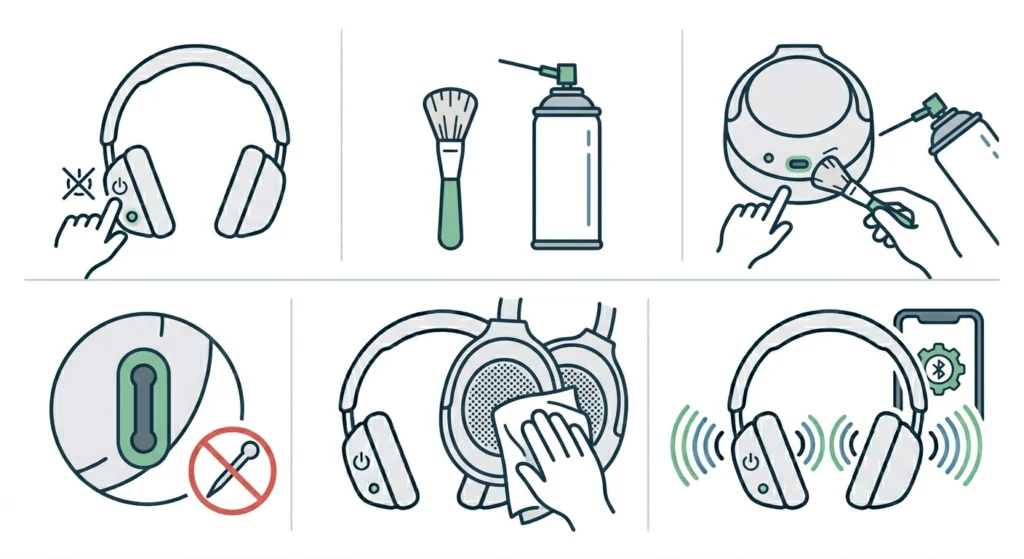
Debris, lint, or oxidation inside the 3.5mm port can cause a poor connection that cuts off audio to one channel. This is especially common for headphones stored in bags or pockets regularly.
- Step 1: Power off the headphones.
- Step 2: Use a dry, soft-bristled brush or a can of compressed air to gently clean the 3.5mm audio jack on the headphones.
- Step 3: Avoid inserting any sharp objects into the port, as this can cause damage.
- Step 4: Wipe the outer grille of both ear cups gently with a dry cloth.
- Step 5: Reconnect the cable or Bluetooth and test audio again.
Pro-Tip: A small amount of isopropyl alcohol (90% or higher) on a cotton swab can help clean oxidation from the 3.5mm port exterior. Make sure everything is completely dry before connecting any cable or powering on the headphones.
Tips for Keeping the Space Q45 Working Properly
- Always store the headphones in the included case to prevent physical damage to the drivers or cable ports.
- Keep the firmware updated regularly through the Soundcore app to prevent known audio bugs.
- Avoid letting the battery fully drain repeatedly, as deep discharge cycles can affect internal components over time.
- When not in use for extended periods, store with at least 50% battery charge.
- Check the audio balance setting on new devices before assuming the headphones have an issue.
- Avoid exposing the headphones to extreme heat or moisture, which can degrade the internal speaker components.
Common Problems and Troubleshooting
One side cuts out only during calls
This is usually a microphone or call audio routing issue rather than a speaker problem. Check the call audio settings on the phone and make sure the Space Q45 is set as the default audio output device, not just the default microphone.
One side works with wired but not wireless
This points to a Bluetooth channel assignment issue. Resetting and re-pairing the headphones almost always resolves this. In some cases, resetting audio settings on a Windows 11 device can also help clear incorrect audio routing that causes one-channel Bluetooth audio.
One side stops working after a firmware update
Occasionally a new firmware version introduces a bug. In this case, performing a factory reset after the update and then re-pairing the device often clears the issue. If the problem persists, report it to Anker support as they typically release a patch update within a few weeks.
The left ear cup is completely silent
If the left side produces absolutely no sound in any mode – wired or wireless – and after a reset, there is a possibility of a hardware failure. At that point, contacting Anker directly for a warranty replacement is the right step. The Space Q45 comes with an 18-month warranty in most regions.
Audio works but sounds weaker on one side
An uneven volume between sides is typically a balance setting issue. Double-check the audio balance slider on the connected device. Also check within the Soundcore app, as some EQ presets can subtly shift perceived channel volume.
Frequently Asked Questions
Why is only one ear working on my Anker Soundcore Space Q45?
The most common causes are an off-center audio balance setting on the connected device, a corrupted Bluetooth connection, or a firmware glitch. In rare cases, it can be a hardware issue with the internal speaker driver. Start with the software fixes before assuming hardware failure.
How do I reset the Anker Soundcore Space Q45?
Hold the power button and the volume down button at the same time for 5 to 7 seconds until the LED flashes red and blue. The headphones will power off automatically, confirming the reset is complete. Then turn them back on and re-pair with the device.
Will a factory reset delete my EQ settings?
Yes, a factory reset will erase all custom EQ settings and paired device history stored on the headphones. After resetting, the EQ will return to the default flat setting and all devices will need to be re-paired. Custom EQ profiles saved in the Soundcore app itself are not affected, so they can be reapplied after re-pairing.
Can a Bluetooth connection cause one side to go silent?
Absolutely. A partial or corrupted Bluetooth pairing is one of the most frequent causes of single-channel audio on wireless headphones. The fix is to forget the device from Bluetooth settings and fully re-pair from scratch, which refreshes the connection data.
Does the Soundcore app fix one-sided audio issues?
The Soundcore app can help in a few ways. It allows firmware updates that patch known audio bugs, lets users check and adjust the in-app EQ balance, and provides a connection status overview. It is worth checking the app before attempting a full reset.
Is the Anker Soundcore Space Q45 covered by warranty for one-sided audio failure?
Yes, the Space Q45 comes with an 18-month warranty from Anker in most regions. If the one-sided audio issue is confirmed to be a hardware defect after trying all software fixes, contacting Anker support with proof of purchase should qualify for a repair or replacement.
How do I know if the problem is hardware or software?
Test the headphones using the wired 3.5mm cable. If both sides work through the cable but one side is silent over Bluetooth, the issue is software or connection-related. If one side is still silent through the cable as well, it is likely a hardware failure that requires contacting Anker support.
Can a dirty audio jack cause one side to stop working?
Yes, especially if the headphones are used in wired mode frequently. Debris, lint, and oxidation inside the 3.5mm port can interrupt the signal to one channel. Cleaning the port gently with compressed air or a soft brush usually resolves this specific issue.
Why does the left side sound quieter than the right side on my Space Q45?
This is almost always caused by an off-center balance slider on the connected device or within the Soundcore app. Go to the audio or accessibility settings on the device and make sure the balance is set to center. Also check if any EQ preset is active that might be affecting perceived loudness on one side.
What should I do if none of these fixes work?
If all software fixes have been tried including resetting, re-pairing, firmware updates, and wired testing, and the issue persists, the problem is most likely hardware-related. Contact Anker customer support directly through their website. Provide the purchase date and a description of the steps already taken. If the headphones are within the warranty period, a replacement is typically offered.