
Learning how to fix JLab Studio Pro ANC not charging usually takes only a few minutes, because the cause is most often a cable, a power source, or a dirty port rather than a dead battery. This guide walks through each fix in the order most likely to work.
Key Takeaways
- While charging, a red LED should light up. It turns off when the battery is full.
- The USB-C cable that comes in the box is the best one to test with first.
- A different wall adapter or USB port solves many cases on its own.
- Lint inside the USB-C port is a common hidden cause.
- The headphones are covered by a two-year JLab warranty if every fix fails.
Step-by-Step Guide to Fix JLab Studio Pro ANC Not Charging
Work through these fixes in order. Each one rules out a different cause, so stop as soon as the red LED lights up.
Fix 1: Check the Charging Light
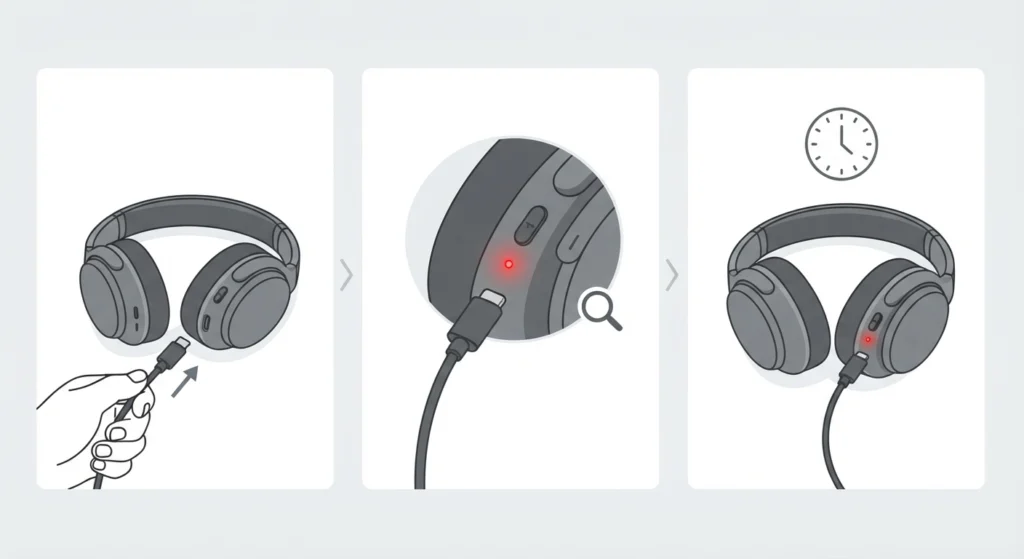
- Step 1: Plug the USB-C cable firmly into the headphones, then into a power source.
- Step 2: Look at the LED near the controls. A red light means charging has started.
- Step 3: Wait a minute or two. A deeply drained battery can take a moment before the light appears.
Fix 2: Swap the USB-C Cable
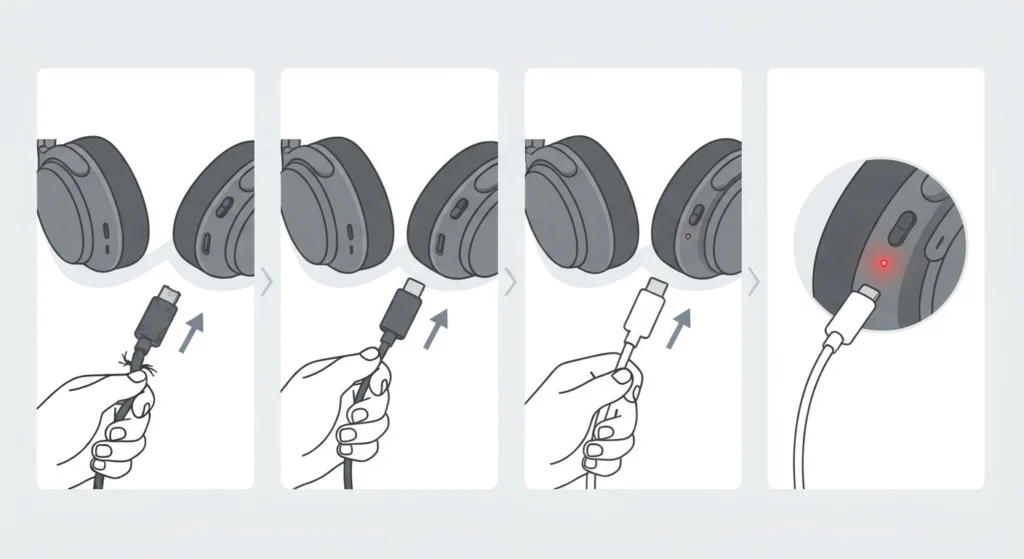
Cables wear out faster than most people expect, especially if they live in a bag or get bent at the connector. Think of it like a garden hose with a kink: the water source is fine, but nothing gets through.
- Step 1: Disconnect the current cable.
- Step 2: Connect the USB-C cable that came in the box.
- Step 3: If the box cable is lost, try another USB-C cable known to work with a phone or tablet.
- Step 4: Check whether the red LED turns on.
Pro-Tip: Some USB-C cables are built only for power and others only for data, and cheap or damaged ones can fail either way. Test with a cable that has already charged another device successfully, so the cable is ruled out in one try.
Fix 3: Change the Power Source
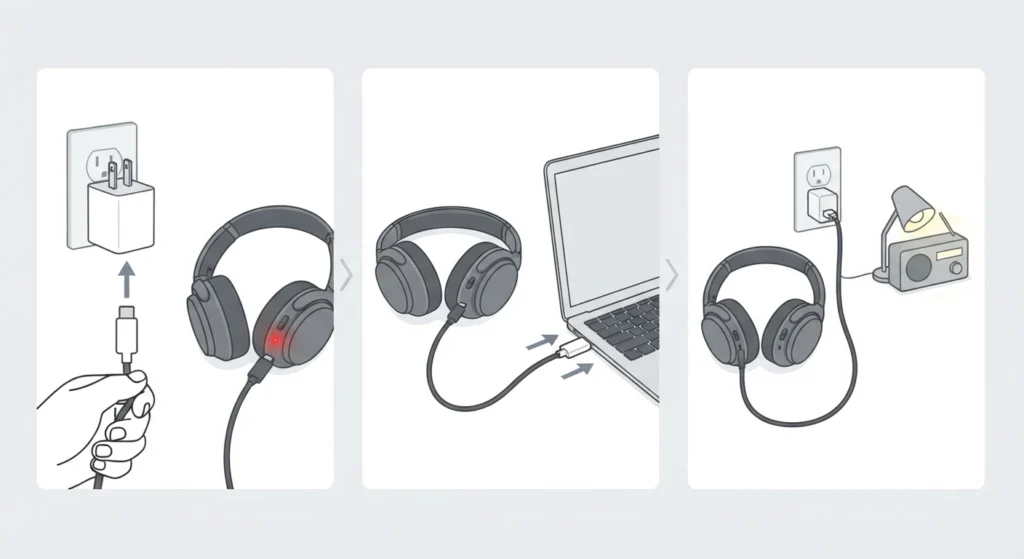
This works best when the headphones were plugged into a laptop or a multi-port hub. Those ports sometimes deliver weak or unstable power.
- Step 1: Plug the cable into a standard wall adapter, such as a phone charger.
- Step 2: If a wall adapter is not available, try a different USB port on the computer.
- Step 3: Make sure the wall outlet itself works by testing it with another device.
Fix 4: Clean the USB-C Port
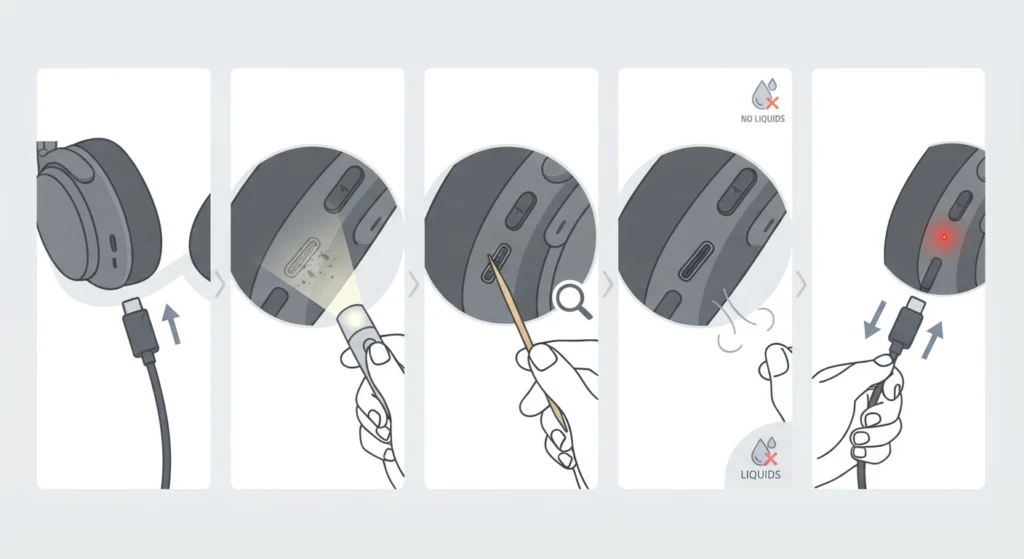
Pocket lint and dust pack into charging ports over time. The cable can look fully inserted while the connector never touches the contacts inside.
- Step 1: Unplug the cable and make sure the headphones are not connected to anything.
- Step 2: Shine a flashlight into the port and look for lint or debris.
- Step 3: Gently scrape the debris out with a wooden or plastic toothpick. Avoid metal tools, since they can damage the contacts.
- Step 4: Do not use liquids. Blowing lightly into the port can also help clear loose dust.
- Step 5: Reconnect the cable and check the LED.
Fix 5: Let the Headphones Charge Undisturbed
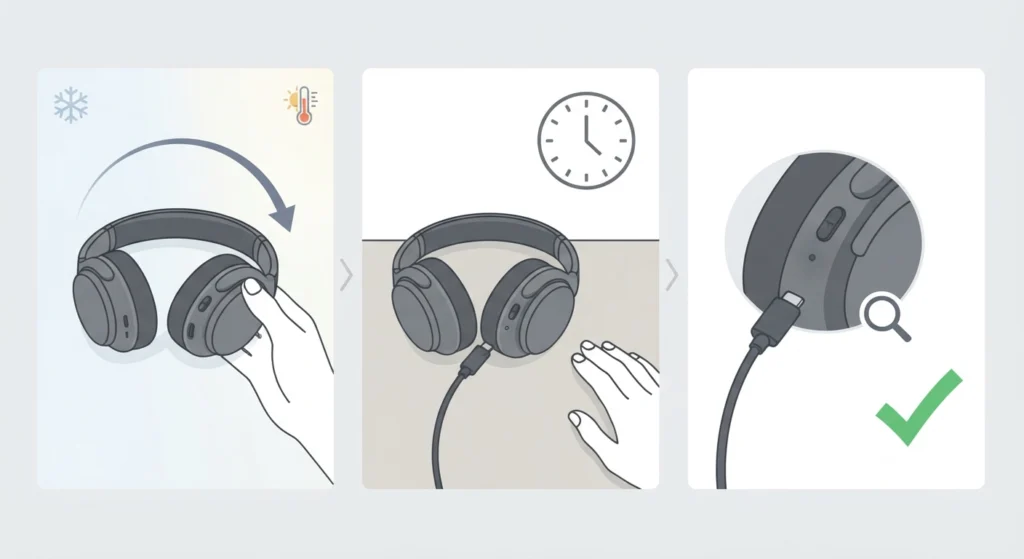
A battery that has been left empty for a long time may need a little patience. Temperature matters too, because headphones left in a hot car or a freezing room can refuse to charge until they return to normal room temperature.
- Step 1: Move the headphones to a room-temperature spot.
- Step 2: Connect the cable and leave the headphones alone for about an hour.
- Step 3: Check whether the red LED has turned off, which signals a full charge.
Fix 6: Contact JLab Support
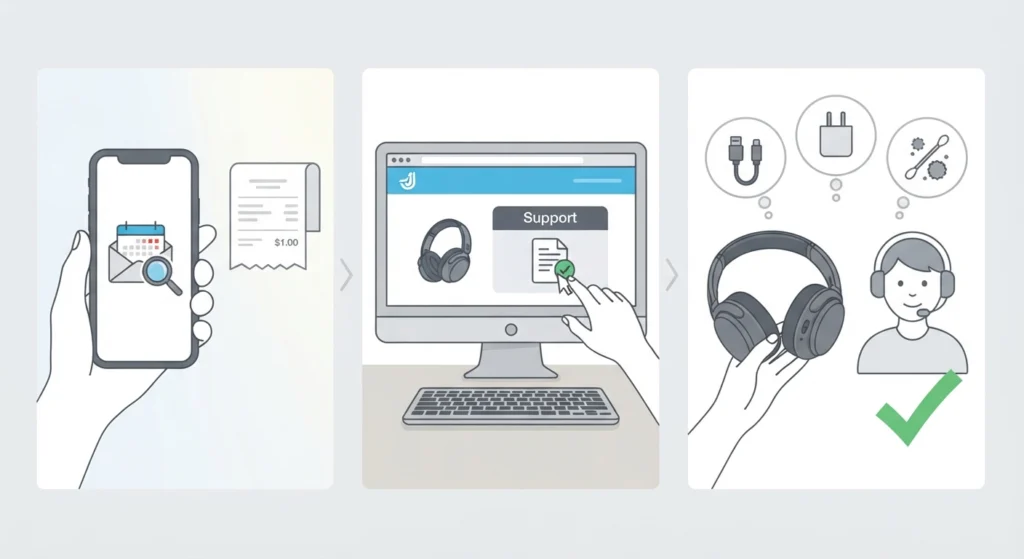
If none of the fixes above bring the red LED back, the charging port or battery may be faulty. JLab covers the Studio Pro ANC with a two-year warranty, so a replacement or repair may be possible.
- Step 1: Find the purchase receipt or order confirmation.
- Step 2: Visit the JLab support website and open a request for the Studio Pro ANC.
- Step 3: Mention that the cable, power source, and port cleaning have already been tried.
Tips to Keep the Headphones Charging Reliably
- Keep the original USB-C cable in the same spot so it does not get lost or damaged.
- Plug the cable in straight rather than at an angle, and avoid yanking it out by the wire.
- Store the headphones in a case or pouch so lint stays out of the port.
- Avoid leaving them in direct sun, a hot car, or freezing conditions.
- Charge on a stable surface so the cable is not pulled while the headphones are plugged in.
Pro-Tip: Never push hard if the cable does not seem to fit. Forcing it can bend the port contacts, and that turns a simple cleaning job into a repair.
Common Problems After Fixing the Charging Issue
Red LED Never Turns On
Repeat the cable and power source swaps first. If the light still does not appear with a known-good cable and adapter, the port or battery likely needs a warranty check.
Red LED Turns Off Quickly
A red LED that goes out means charging has finished, so the headphones may simply have been close to full. Power them on and check that they work normally.
Headphones Charge but Will Not Connect to a PC
Charging and Bluetooth are separate systems. If the headphones are charged but paired audio is not working on a computer, re-pairing the Bluetooth device on Windows is the next step to try.
Headphones Are Charged but No Sound on Windows 11
Windows sometimes sends audio to the wrong device after a reconnect. Adjusting the audio output settings usually brings sound back to the headphones.
Frequently Asked Questions
Why are my JLab Studio Pro ANC headphones not charging?
The most common causes are a worn USB-C cable, a weak power source, or lint blocking the charging port. Checking each of these in order usually finds the problem.
What color is the charging light on the JLab Studio Pro ANC?
A red LED shows while the headphones are charging, and it turns off once charging is complete.
How long should the first charge take?
About an hour is generally enough for the initial charge. The red LED turning off is the sign that charging has finished.
What type of charging cable do the JLab Studio Pro ANC headphones use?
The headphones charge through USB-C, and a USB Type-C charging cable is included in the box.
Can a laptop USB port charge the headphones?
Yes, a laptop port can charge them in many cases, but a standard wall adapter often provides steadier power. Trying a wall adapter is a quick way to rule out a weak port.
Is it safe to clean the USB-C port myself?
Yes, when done gently with the cable unplugged. Use a wooden or plastic toothpick, avoid metal tools, and never use liquids inside the port.
Can extreme temperatures stop the headphones from charging?
Extreme heat or cold can affect batteries and charging behavior. Letting the headphones return to room temperature before charging is a safe approach.
Does the JLab warranty cover a charging problem?
JLab offers a two-year warranty on the Studio Pro ANC. Contact JLab support with proof of purchase to find out whether a charging fault qualifies.
Is the red LED the only way to tell the headphones are charging?
The red LED is the main indicator to watch. If it never lights with a known-good cable and power source, the headphones are likely not charging.