
Key Takeaways
- Anker Soundcore Life Q30 not recognized by your PC is usually a pairing or Bluetooth service issue, not a hardware fault.
- Most cases are solved by removing the old pairing, putting the headphones back into pairing mode, and adding them again.
- Restarting the Bluetooth Support Service and updating the Bluetooth driver fixes most of the remaining cases.
- Selecting the headphones as the output device in Sound settings is the final step that makes audio play.
When the Soundcore Life Q30 refuses to show up on a Windows computer, the problem is almost always on the software side. The headphones themselves rarely fail. The steps below go from the quickest fix to the more thorough ones, so work through them in order.
Step-by-Step Guide to Get Your Life Q30 Recognized on Windows 11
Method 1: Turn Bluetooth Off and On, Then Check Airplane Mode
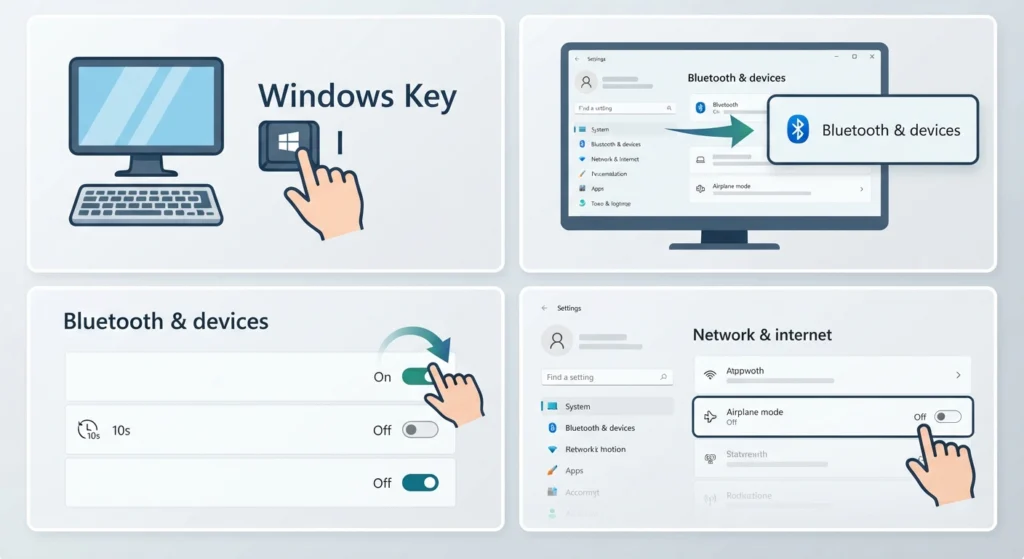
It sounds too simple, but a stuck Bluetooth radio is one of the most common reasons a device goes missing from the list. A quick toggle resets it.
- Step 1: Press Windows key + I to open Settings.
- Step 2: Click Bluetooth & devices.
- Step 3: Switch the Bluetooth toggle off, wait about 10 seconds, then switch it back on.
- Step 4: Open Network & internet and make sure Airplane mode is off.
Method 2: Remove the Old Pairing and Pair Again
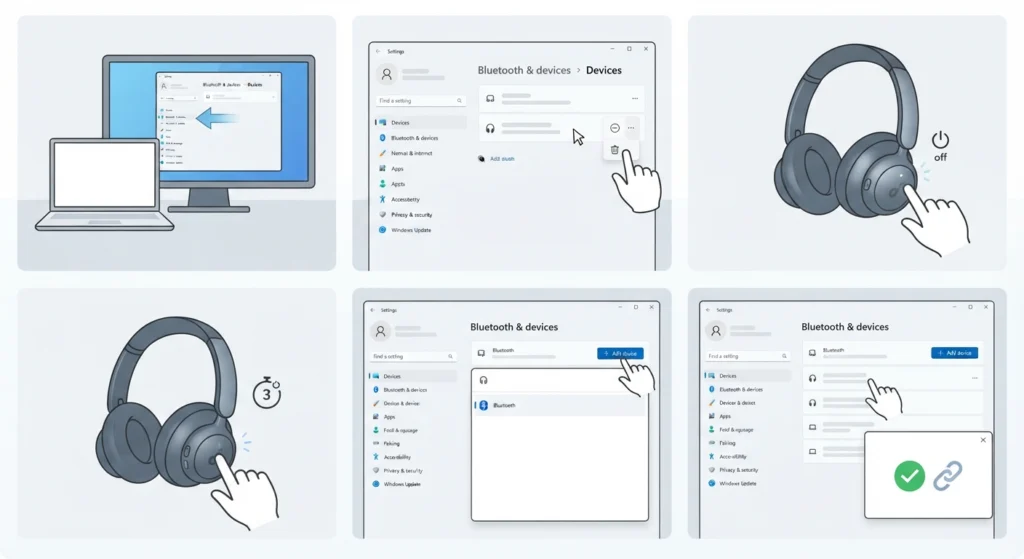
A broken or outdated pairing record is the classic cause. The headphones may be listed as paired, yet Windows cannot actually use them. Deleting the entry and starting clean solves this more often than anything else. For a deeper walkthrough on clean pairing, this guide on how to re-pair Bluetooth earbuds for stereo sound on Windows covers the same idea in more detail.
- Step 1: Go to Settings > Bluetooth & devices > Devices.
- Step 2: Find Soundcore Life Q30 in the list, click the three dots next to it, and choose Remove device.
- Step 3: Turn the headphones off completely.
- Step 4: Press and hold the power button for about 3 seconds until the voice prompt or flashing light confirms pairing mode.
- Step 5: On the PC, click Add device, then choose Bluetooth.
- Step 6: Select Soundcore Life Q30 when it appears and wait for the Connected message.
Pro-Tip: Make sure the headphones are not already connected to a phone or tablet nearby. The Life Q30 tends to reconnect automatically to the last device it knew, which means it may never appear as available on the PC. Turn off Bluetooth on the phone first, then enter pairing mode.
Method 3: Run the Windows Bluetooth Troubleshooter
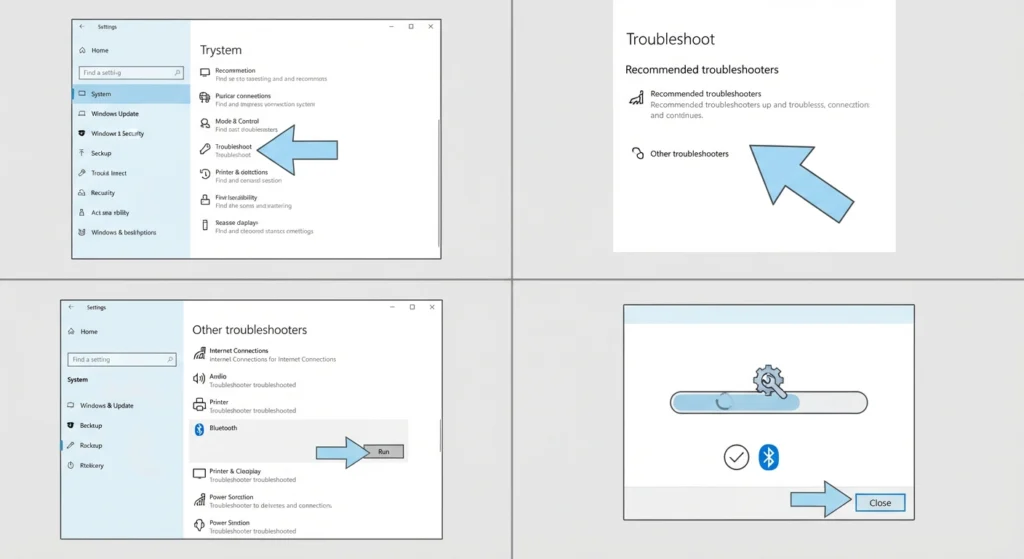
Windows includes a built-in tool that detects and repairs common Bluetooth faults automatically. It takes less than a minute.
- Step 1: Open Settings > System > Troubleshoot.
- Step 2: Click Other troubleshooters.
- Step 3: Find Bluetooth and click Run.
- Step 4: Follow the prompts, apply any suggested fix, then try pairing again.
Method 4: Restart the Bluetooth Support Service

If this background service is stopped or stuck, Windows cannot discover any Bluetooth device. Restarting it often brings the headphones back instantly.
- Step 1: Press Windows key + R, type services.msc, and press Enter.
- Step 2: Scroll down and find Bluetooth Support Service.
- Step 3: Right-click it and choose Restart. If Restart is greyed out, choose Start.
- Step 4: Double-click the service and set Startup type to Automatic, then click Apply and OK.
- Step 5: Try pairing the headphones again.
Method 5: Update or Reinstall the Bluetooth Driver

An outdated or corrupted driver can make the PC blind to otherwise healthy Bluetooth devices. Think of the driver as the translator between Windows and the Bluetooth chip. If the translator is confused, nothing gets through.
- Step 1: Right-click the Start button and open Device Manager.
- Step 2: Expand the Bluetooth category.
- Step 3: Right-click the Bluetooth adapter and choose Update driver.
- Step 4: Select Search automatically for drivers and let Windows finish.
- Step 5: If nothing new is found, right-click the adapter again, choose Uninstall device, then restart the PC. Windows reinstalls the driver on boot.
Method 6: Select the Life Q30 as the Output Device
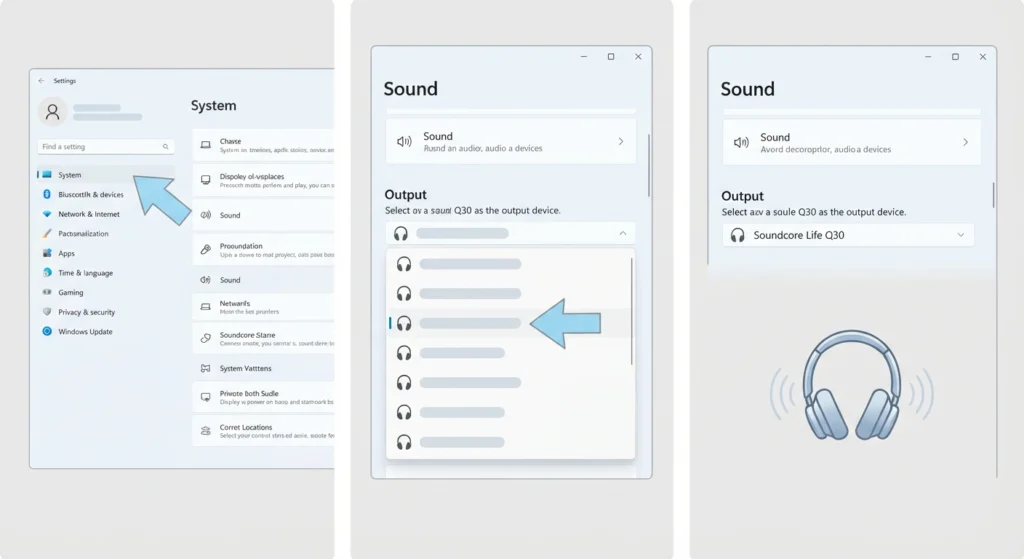
Sometimes the headphones are connected, but Windows keeps sending sound to the speakers. That can look like the PC does not recognize them. Setting the output manually fixes it. The guide on adjusting audio output settings explains this screen further.
- Step 1: Open Settings > System > Sound.
- Step 2: Under Output, choose Soundcore Life Q30 from the list.
- Step 3: Play a video or song to confirm the sound comes through the headphones.
Tips for a Stable Connection
- Keep the headphones within a few meters of the PC while pairing. Walls and other wireless devices can weaken the signal.
- Charge the headphones before pairing. A very low battery can cause unstable connections.
- Keep Windows and the Bluetooth driver updated through Windows Update.
- Use the Soundcore app on a phone to keep the headphone firmware current.
- If audio settings on the PC have become messy over time, this guide on resetting audio settings can help bring everything back to default.
Common Problems After Pairing
Headphones Show as Paired but Not Connected
Click the headphones in the Bluetooth devices list and choose Connect. If that fails, repeat Method 2 to remove and add them again.
Headphones Do Not Appear in the Device List
Confirm the headphones are truly in pairing mode and not connected to another device. Then follow Method 4 to restart the Bluetooth service.
Connected but No Sound
Follow Method 6 and make sure the Life Q30 is selected as the output device, and that the volume is raised on both the PC and the headphones.
Frequently Asked Questions
Why is the Soundcore Life Q30 not showing up on a PC?
The most common reasons are that the headphones are not in pairing mode, they are connected to another device, or the Bluetooth service on Windows is not running properly.
How can the Soundcore Life Q30 be put into pairing mode?
Turn the headphones off, then press and hold the power button for about 3 seconds until the voice prompt or flashing indicator signals that pairing mode is active.
Does the Soundcore Life Q30 work with Windows 11?
Yes. The Life Q30 is a standard Bluetooth headset and connects to Windows 11 through the Bluetooth settings page, as long as the PC has a working Bluetooth adapter.
Does a PC need built-in Bluetooth?
The PC needs a Bluetooth adapter. Many laptops include one, while many desktops need a USB Bluetooth dongle.
Why does Windows say the headphones are paired but there is no sound?
Windows may still be using another output device. Open Settings > System > Sound and choose the Life Q30 under Output.
Should the old pairing be removed before pairing again?
Yes. Removing the old entry clears a possibly corrupted pairing record and gives Windows a fresh start with the headphones.
Can a phone connection stop the headphones from appearing on the PC?
Yes. The headphones may reconnect automatically to a phone they already know, which keeps them from being discovered by the PC. Turning off Bluetooth on the phone first avoids this.
How is the Bluetooth driver updated in Windows 11?
Open Device Manager, expand Bluetooth, right-click the adapter, choose Update driver, and select the option to search automatically for drivers.
Can a low battery cause connection problems?
It can. Charging the headphones with the included USB-C cable before pairing helps keep the connection stable.
What does it mean if the Bluetooth toggle is missing in Windows 11 settings?
This usually points to a driver or service issue. Check Device Manager for the Bluetooth adapter, then follow Method 4 and Method 5 above.