
AirPods Pro 2 not pairing with a phone is one of the most common Bluetooth issues owners run into, especially after a software update or a case battery drain. This guide walks through the exact fixes that resolve pairing failures fast, without wasting time on unrelated troubleshooting.
Key Takeaways
- Most pairing failures come from a low case battery, a stuck Bluetooth cache, or an outdated firmware version.
- A full reset of the AirPods Pro 2 solves the majority of pairing problems within minutes.
- Forgetting the device in Bluetooth settings before re-pairing prevents connection loops.
- Keeping both the phone and the earbuds updated avoids repeat pairing failures.
Step-by-Step Guide to Fix AirPods Pro 2 Not Pairing
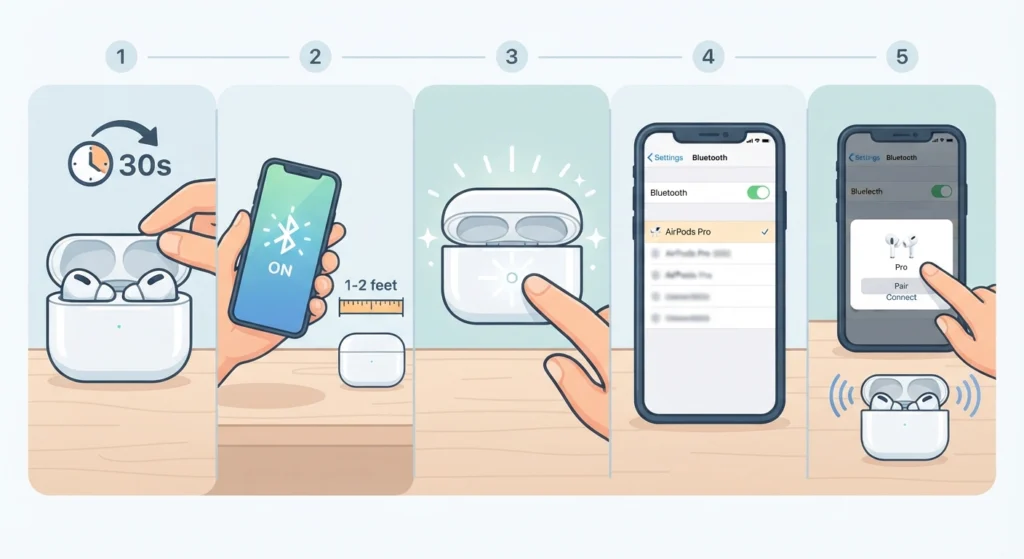
Follow these steps in order. Skipping ahead usually means repeating steps later, so it helps to go through each one before moving to the next.
- Step 1: Place both AirPods Pro 2 inside the charging case and close the lid for at least 30 seconds.
- Step 2: Turn on Bluetooth on the phone and move within 1 to 2 feet of the case.
- Step 3: Open the case lid and press the setup button on the back of the case for about 10 seconds, until the status light flashes white.
- Step 4: On the phone, go to Bluetooth settings and select AirPods Pro from the list of available devices.
- Step 5: Confirm the pairing prompt on screen, then wait for the connection tone before closing the settings menu.
This sequence covers the majority of pairing attempts. When it does not work on the first try, the next section covers the reset method that clears deeper connection issues.
Method 1: Fully Reset the AirPods Pro 2
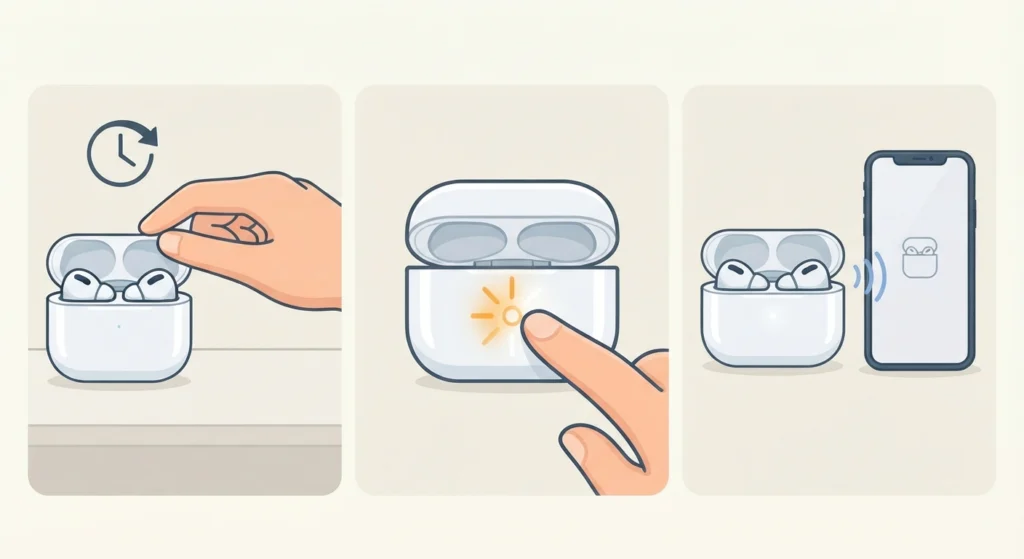
A full reset clears any corrupted pairing data stored on the earbuds themselves, which is often the real reason the phone keeps failing to detect them.
- Step 1: Put both AirPods Pro 2 back in the case and close the lid for 30 seconds.
- Step 2: Open the lid and press and hold the setup button until the light flashes amber, then white.
- Step 3: Release the button once the light turns white, then attempt pairing again from the phone.
Pro Tip: A reset only works if the case has enough charge. A case sitting below 10 percent battery often produces a flashing light that never stabilizes, which looks like a pairing failure but is actually a power issue.
Method 2: Forget the Device and Re-Pair
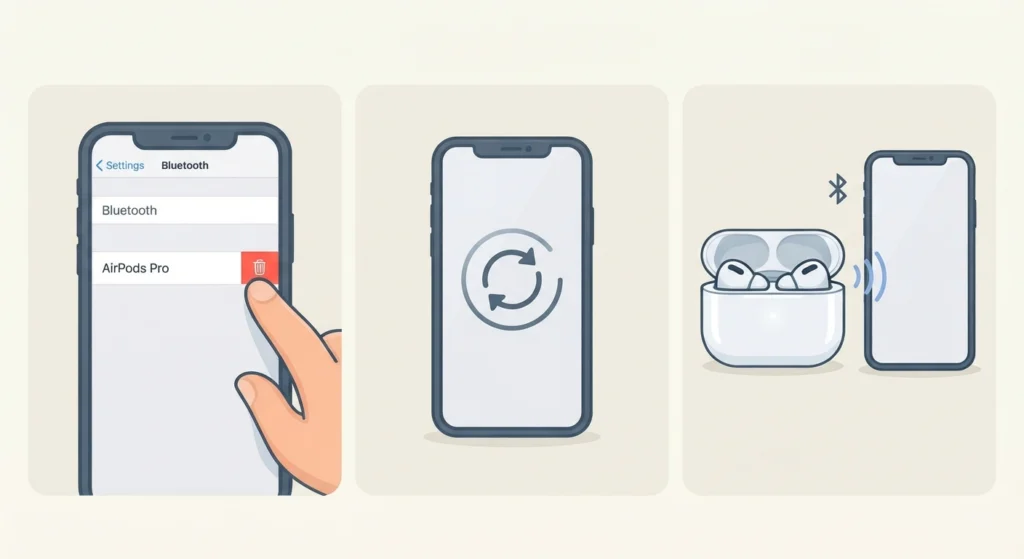
Sometimes the phone holds onto an old, broken Bluetooth profile for the AirPods Pro 2. Removing that profile before pairing again clears the confusion.
- Step 1: Open Bluetooth settings on the phone and locate AirPods Pro in the device list.
- Step 2: Select the option to forget or unpair the device.
- Step 3: Restart the phone before attempting to pair again from scratch.
Method 3: Update Firmware and Software
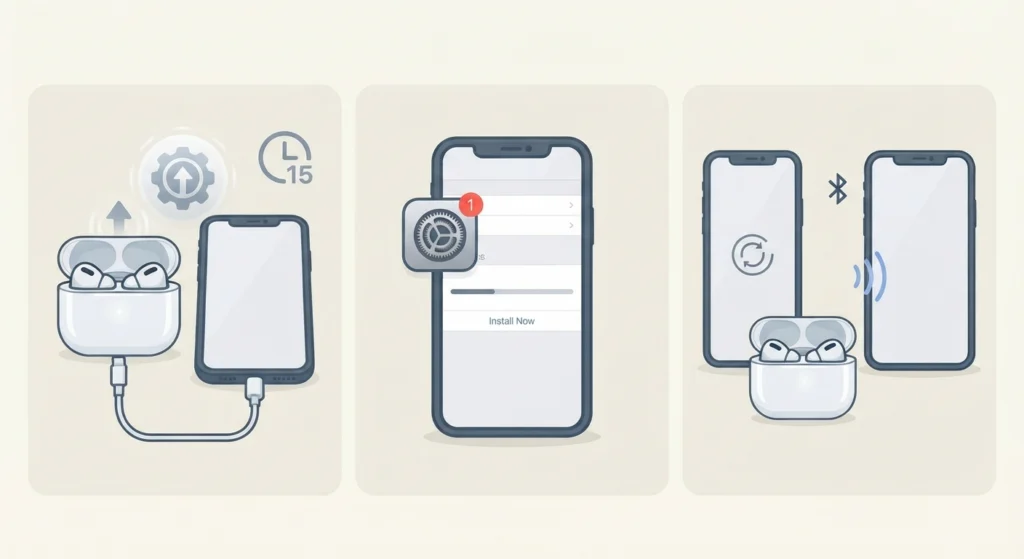
Outdated firmware on the AirPods Pro 2 or an old operating system on the phone can block pairing entirely, even when every other step is done correctly.
- Step 1: Connect the AirPods Pro 2 to any previously paired Apple device and leave them charging nearby for 15 minutes so firmware updates automatically.
- Step 2: Check the phone’s software update settings and install any pending updates.
- Step 3: Restart both devices and attempt the pairing steps again.
Method 4: Pairing AirPods Pro 2 to a Windows PC or Laptop
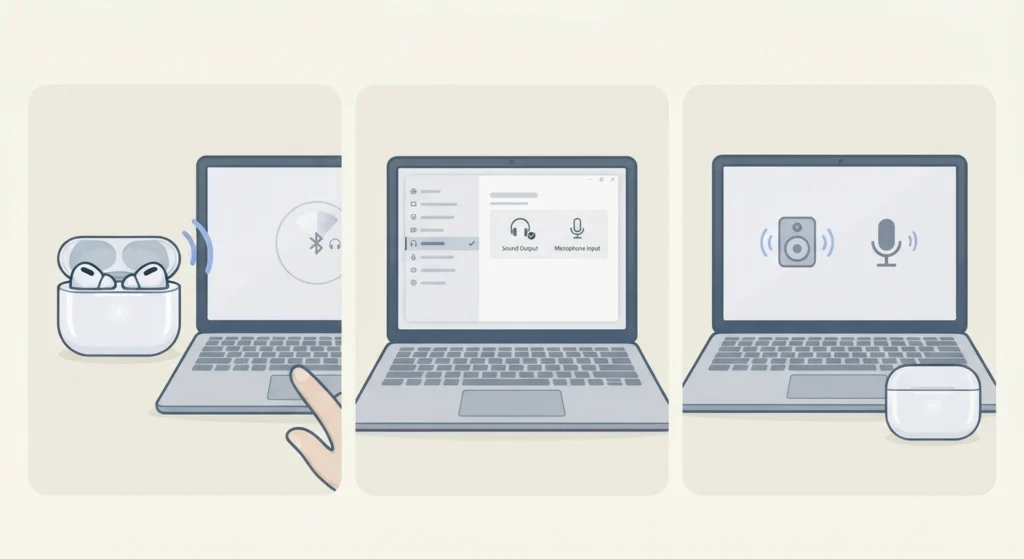
Pairing issues are not limited to phones. When AirPods Pro 2 also refuse to connect to a Windows 11 laptop, the fix usually involves clearing the existing Bluetooth pairing first. A detailed walkthrough on how to re-pair Bluetooth earbuds for proper stereo sound on Windows covers this exact scenario step by step. If the microphone stops working after pairing on a PC, the guide for resolving microphone detection problems on Windows 11 addresses that separately.
Tips to Prevent Future Pairing Problems
- Keep the charging case above 20 percent battery before attempting to pair, since a low case charge often mimics a pairing failure.
- Avoid pairing near other active Bluetooth devices, as interference from speakers or other earbuds can delay detection.
- Reset network settings on the phone occasionally if multiple Bluetooth devices show inconsistent behavior, not just the AirPods.
- Store the AirPods Pro 2 in the case when not in use rather than leaving them out, since this preserves battery health and pairing stability.
Pro Tip: Turning off Bluetooth on every other nearby device, even briefly, removes competition for the connection and often fixes a pairing attempt that has failed multiple times in a row.
Common Problems When Pairing AirPods Pro 2
Status Light Does Not Turn On
This usually points to a drained case battery. Charging the case for at least 15 minutes before trying again resolves this in most situations.
Phone Detects AirPods but Connection Fails
This typically happens when a corrupted Bluetooth profile still exists on the phone. Forgetting the device and restarting the phone, as covered in Method 2, clears this.
AirPods Pair but Audio Only Plays Through Phone Speaker
This is usually an audio output setting rather than a pairing issue. Adjusting the correct playback device, similar to the process described in the guide for adjusting audio output settings on Windows 11, applies the same logic on mobile audio menus.
Frequently Asked Questions
Why do AirPods Pro 2 suddenly stop pairing with a phone that worked before?
This usually happens after a software update on either the phone or the AirPods, or when the Bluetooth cache becomes corrupted over time. Forgetting the device and re-pairing resolves most of these cases.
How long should the setup button be held during a reset?
The setup button should be held for about 10 to 15 seconds, until the status light changes from amber to a steady white flash.
Do AirPods Pro 2 need to be fully charged before pairing?
A full charge is not required, but the case should have at least 20 percent battery to avoid unstable connection attempts.
Can AirPods Pro 2 be paired with an Android phone?
Yes, AirPods Pro 2 can pair with Android devices through standard Bluetooth settings, though some Apple-specific features like automatic switching between devices will not be available.
Why does one AirPod connect but not the other?
This is often a sign that one earbud has a lower charge or a temporary firmware mismatch. Placing both earbuds back in the case for a full reset usually fixes this.
Is it necessary to reset network settings on the phone to fix this issue?
Not always. Resetting network settings is a broader fix and should only be used if forgetting the device and resetting the AirPods does not resolve the pairing failure.
How often should AirPods Pro 2 firmware be updated?
Firmware updates happen automatically whenever the AirPods are charging and connected to a paired Apple device with internet access, so manual checks are rarely needed.
Can interference from other Bluetooth devices cause pairing failures?
Yes, nearby active Bluetooth devices, particularly speakers or other headphones, can compete for the connection and delay or block pairing attempts.
What should be done if AirPods Pro 2 do not appear in the Bluetooth list at all?
This typically means the case lid was not held open long enough during setup, or the case battery is too low to broadcast a signal. Charging the case and repeating the setup button step usually solves it.
Does restarting the phone actually help with pairing issues?
Yes, a restart clears temporary Bluetooth service errors on the phone that can silently block new device connections, and it is one of the fastest fixes to try.