
If audio sounds louder in one ear, your headphones feel off-center, or the left and right speakers are playing at different levels, adjusting volume balance settings in Windows can usually fix it in less than a minute.
Windows 11 and Windows 10 both include built-in controls for changing the volume of the left and right audio channels independently. You do not need third-party software for a basic balance adjustment. This guide also covers the most common problems: Bluetooth sliders that move together, a missing or greyed-out Balance option, settings that keep resetting, and balance for hearing loss in one ear.
Quick answer for Windows 11: Press Windows + I, go to System > Sound, select your output device, expand Volume, then adjust the Left channel and Right channel sliders. If you want centered stereo sound, set both channels to the same level, such as 100 and 100.
Volume balance only changes how loud the left channel is compared with the right. Your main volume slider still controls overall loudness.
Which Volume Balance Fix Do You Need?
Find your symptom below and jump straight to the right fix.
| Symptom | What to do |
|---|---|
| One side is louder or quieter | Adjust the Left and Right sliders in Settings |
| Moving one slider moves the other (Bluetooth) | Disable Bluetooth Absolute Volume |
| Balance button missing or greyed out | Use the Settings method or the manufacturer app |
| Balance keeps resetting | Check drivers and companion audio software |
| Balance is equal but one side is still quiet | Test the hardware, enhancements, and spatial audio |
| Hearing loss in one ear | Combine balance with Mono audio |
How to Adjust Volume Balance on Windows 11
The easiest way to change left and right audio levels in Windows 11 is through the Settings app. If the controls are unavailable there, you can also check the classic Sound Control Panel.
Shortcut: Press Windows + R, type ms-settings:sound, and press Enter to open the Sound settings page directly.
Method 1: Use Windows 11 Settings
This is the recommended method because Windows displays the channel controls directly on the output device’s Properties page when the device and driver support separate left and right adjustment.
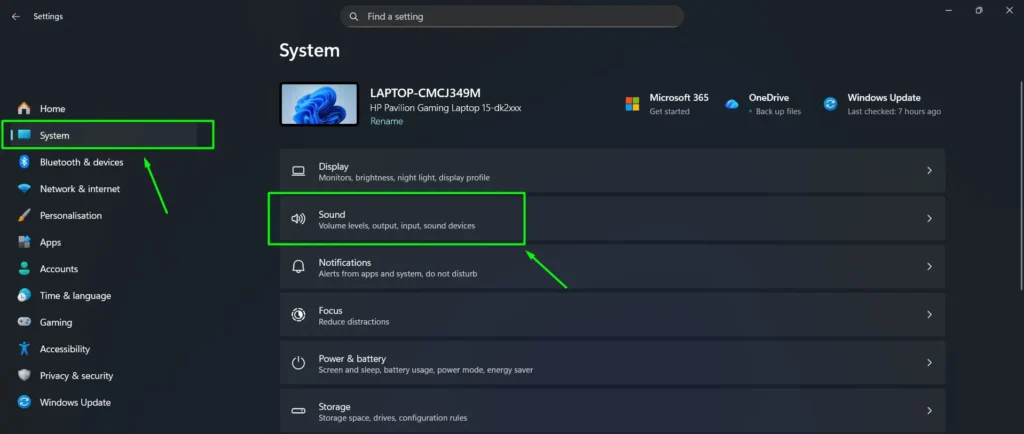
- Step 1: Press Windows + I to open Settings. Select System, then click Sound.
- Step 2: Under Output, click the speakers, headphones, earbuds, or other output device you are currently using.
Alternative: You can also scroll to Advanced, open All sound devices, and select the device from there.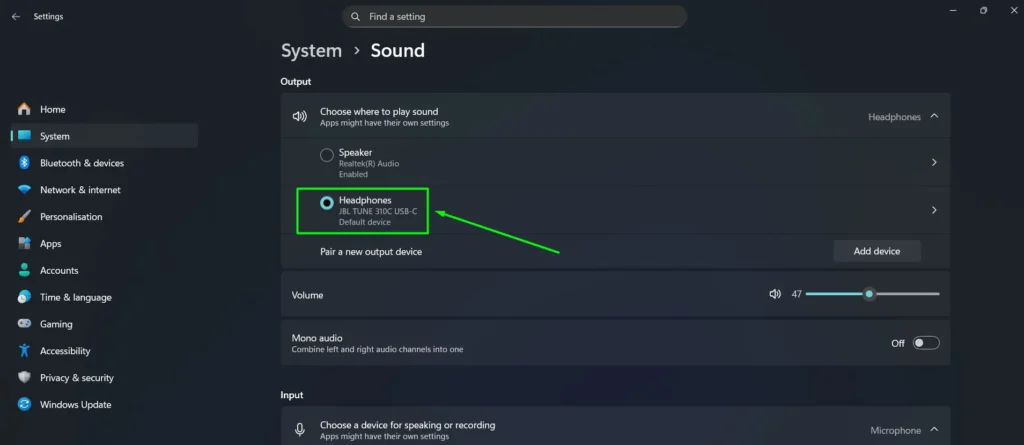
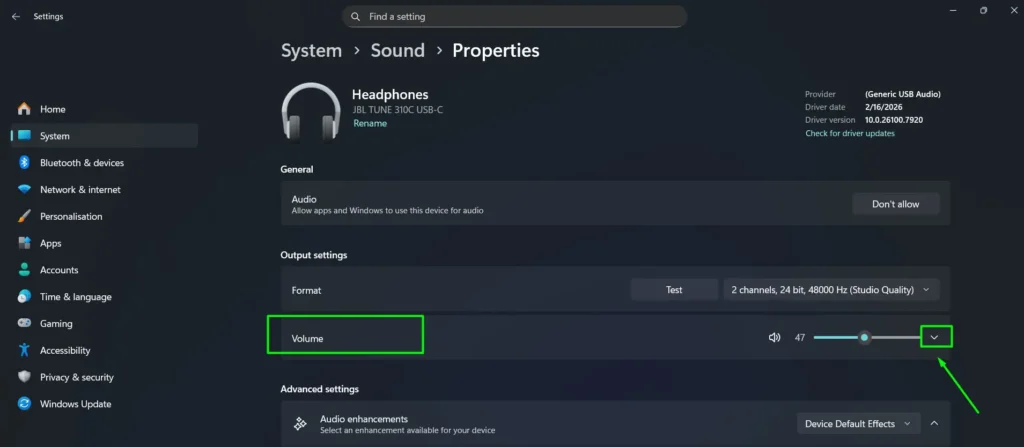
- Step 3: Find Volume under Output settings. If the Left and Right controls are hidden, click the arrow on the Volume row to expand it.
- Step 4: Adjust the Left channel and Right channel sliders. For equal stereo volume, set both to the same value. Changes take effect immediately.
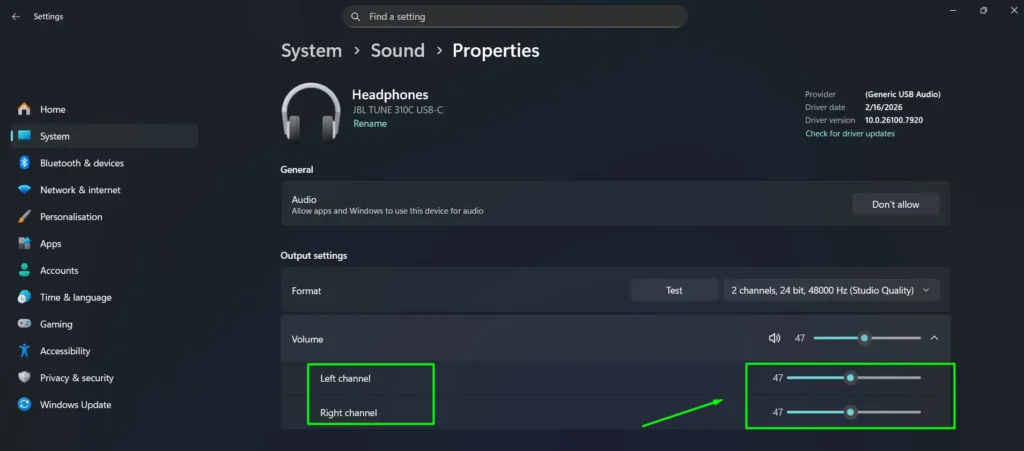
Tip: If your goal is simply to restore normal centered audio, start by setting the Left and Right channels to the same level, such as 100 and 100, then test your headphones or speakers again.
Using Bluetooth headphones? The path is the same: Settings > System > Sound > your Bluetooth device > Volume. If dragging one slider moves the other one too, see the Bluetooth fix below.
Method 2: Use the Sound Control Panel
The classic Sound Control Panel provides another way to adjust left and right balance. This is useful for devices whose drivers still expose a dedicated Balance button.
Quick shortcut: Press Windows + R, type mmsys.cpl, then press Enter to open the Sound window directly.
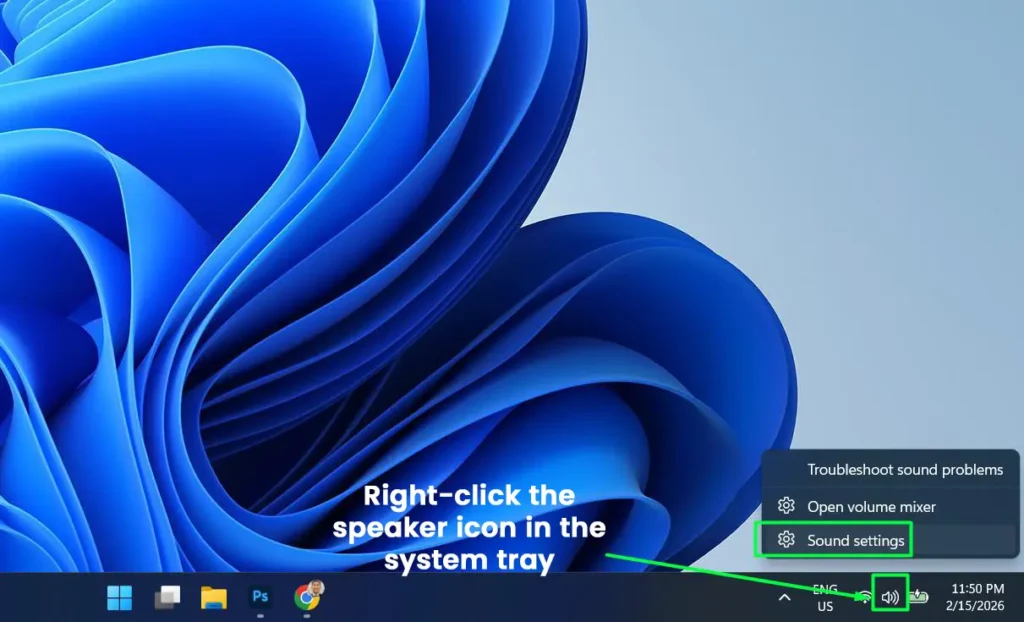
- Step 1: Right-click the speaker icon on the taskbar and select Sound settings.
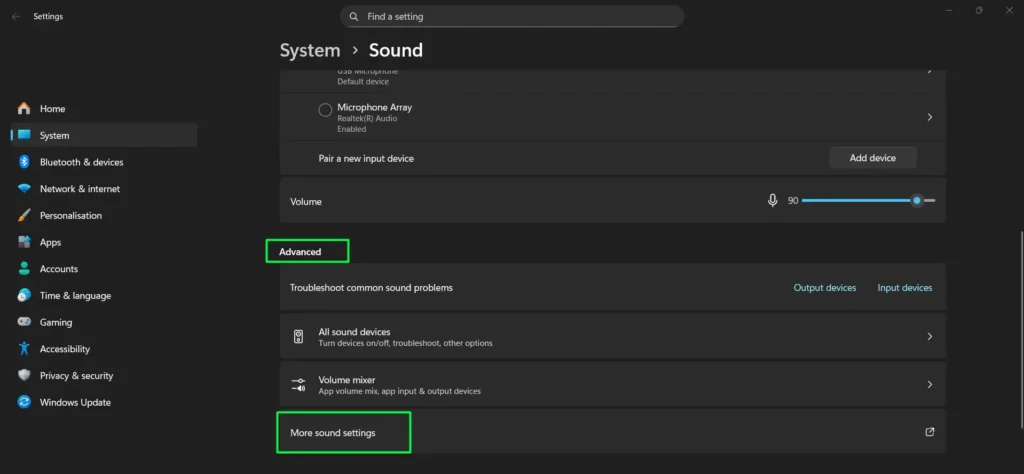
- Step 2: Scroll down and select More sound settings.
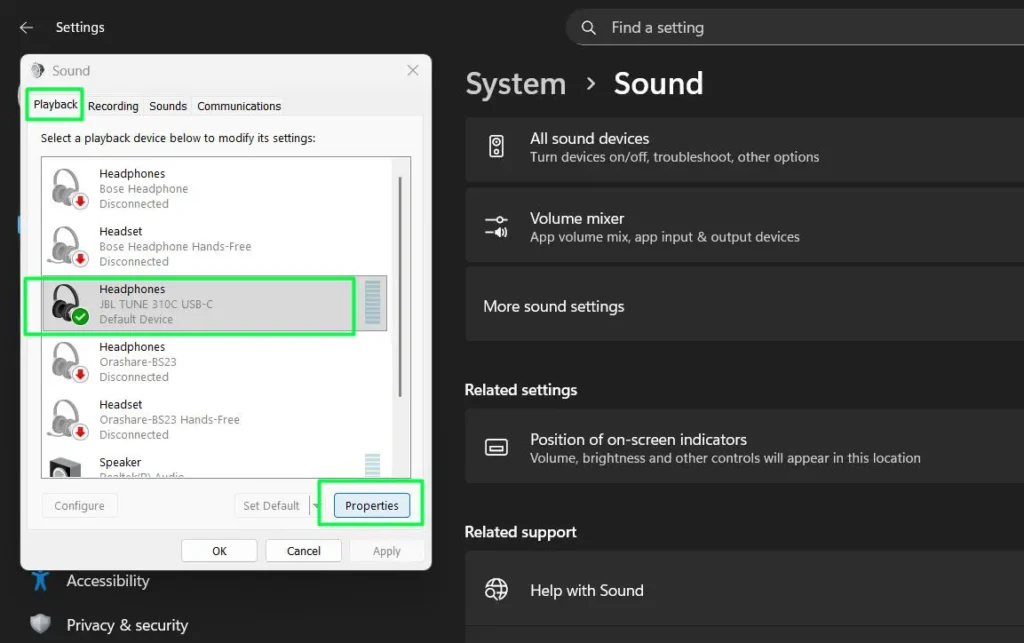
- Step 3: Open the Playback tab and select the output device you want to adjust.
- Step 4: Click Properties.
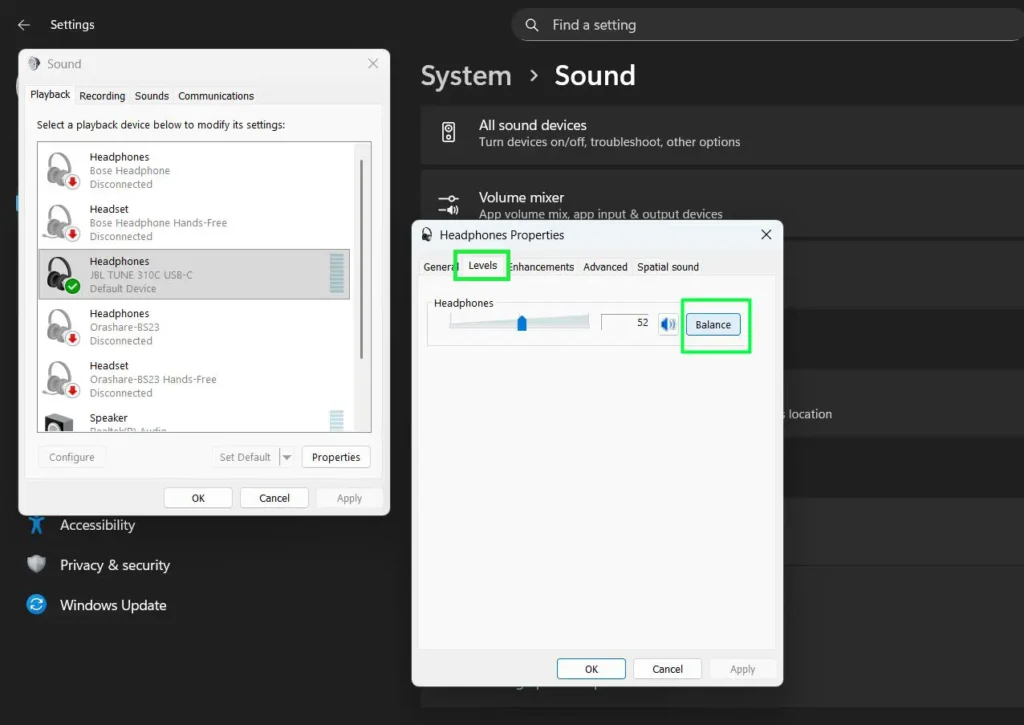
- Step 5: Open the Levels tab and click Balance, if the option is available.
- Step 6: Adjust the Left (L) and Right (R) values. Set them to equal values if you want centered sound.
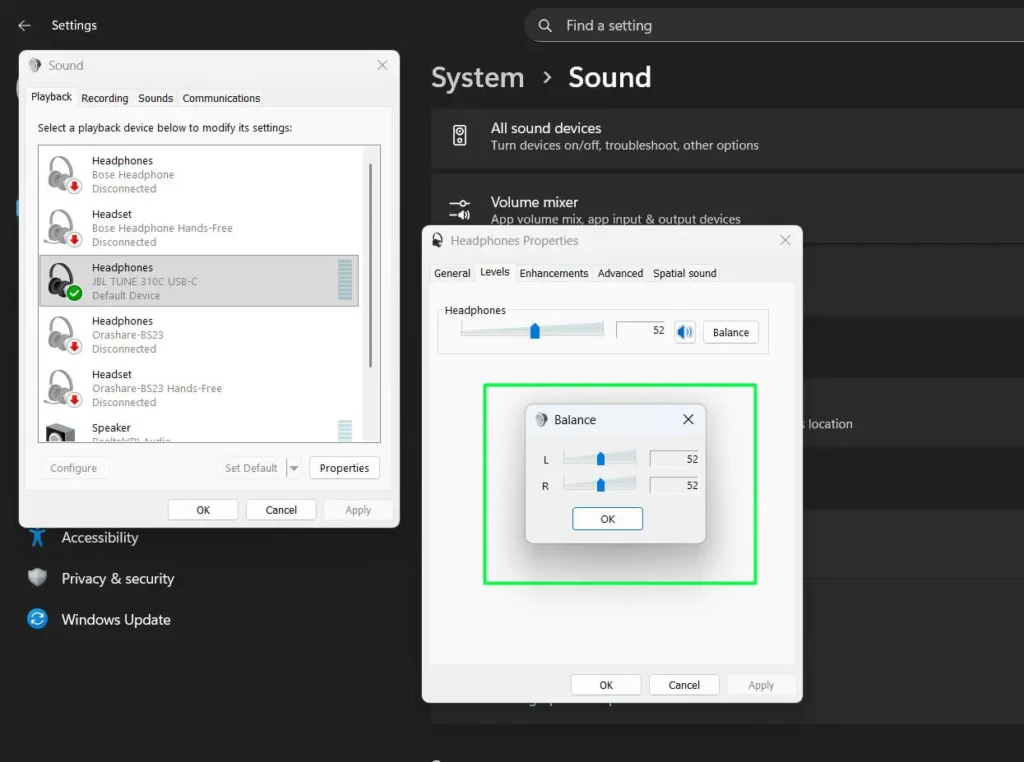
- Step 7: Click OK to save the change, then close the remaining Sound windows.
If the Balance button is missing or unavailable, that does not necessarily mean something is wrong. Some audio devices and drivers expose channel balance through Windows Settings instead of the classic Control Panel.
How to Adjust Volume Balance on Windows 10
Windows 10 also provides separate left and right channel controls. The layout is different from Windows 11, but the basic function is the same.
Note: Microsoft ended standard support for Windows 10 on October 14, 2025, and the consumer Extended Security Updates program ran until October 13, 2026. These instructions remain useful for PCs that are still running Windows 10.
Method 1: Use Windows 10 Settings
- Step 1: Press Windows + I. Select System, then Sound.
- Step 2: Under Output, select the audio device you want to adjust and click Device properties.
- Step 3: Adjust the Left and Right sliders. Set both to the same value if you want equal stereo volume.
- Step 4: Close Settings when finished. Your changes apply immediately.
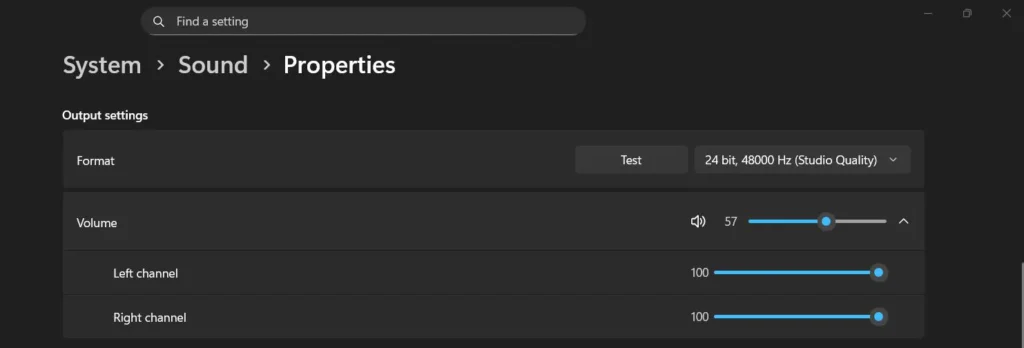
Method 2: Use the Windows 10 Control Panel
- Step 1: Press Windows + R, type mmsys.cpl, and press Enter.
- Step 2: Open the Playback tab and double-click your speakers, headphones, or other output device.
- Step 3: Select the Levels tab and click Balance.
- Step 4: Adjust the Left (L) and Right (R) sliders, then click OK.
- Step 5: Click OK again to close the device Properties window.
Left and Right Sliders Move Together or Won’t Change (Bluetooth Fix)
This is the most common problem when adjusting volume balance settings with Bluetooth headphones or earbuds. You drag the Left slider, and the Right slider jumps to the same value. Or the balance sliders appear but are greyed out.
Why Bluetooth Balance Sliders Are Linked
Windows uses a feature called Bluetooth Absolute Volume. It syncs the Windows volume with the headphones’ own volume, so pressing the volume buttons on your earbuds also moves the slider in Windows. The downside is that Windows sends one shared volume level to the headset, which locks the left and right channels together on many devices.
Turning off Absolute Volume lets Windows control each channel separately again, which unlocks the balance sliders on most Bluetooth headsets.
Before you start: This fix changes the Windows registry. Follow the steps exactly and back up the key first, as shown below. You need an administrator account.
Disable Absolute Volume With Registry Editor
- Step 1: Press Windows + R, type
regedit, and press Enter. Click Yes if User Account Control asks for permission. - Step 2: Paste this path into the Registry Editor address bar and press Enter:
HKEY_LOCAL_MACHINE\SYSTEM\ControlSet001\Control\Bluetooth\Audio\AVRCP\CT - Step 3: Back up the key. Right-click the CT folder, select Export, and save the .reg file somewhere you can find it.
- Step 4: If a value named DisableAbsoluteVolume already exists in the right pane, skip to Step 5. If not, right-click an empty area in the right pane, select New > DWORD (32-bit) Value, and name it DisableAbsoluteVolume.
- Step 5: Double-click DisableAbsoluteVolume, set Value data to 1, and click OK.
- Step 6: Restart your PC. Reconnect your Bluetooth headphones, then return to Settings > System > Sound > your device > Volume and adjust the Left and Right sliders.
Faster Option: Use a Command
Right-click the Start button, select Terminal (Admin) or Command Prompt (Admin), paste the following command, press Enter, then restart your PC:
reg add "HKLM\SYSTEM\ControlSet001\Control\Bluetooth\Audio\AVRCP\CT" /v DisableAbsoluteVolume /t REG_DWORD /d 1 /fWhat Changes, and How to Undo It
After disabling Absolute Volume, the volume buttons on your headphones and the Windows volume slider work separately. You may need to raise both to reach your usual loudness.
This fix does not work on every headset. Some users find that the balance option disappears or that volume behaves oddly after the change. If that happens, undo it by setting DisableAbsoluteVolume back to 0, deleting the value, or double-clicking the .reg backup you exported. You can also run this command as administrator, then restart:
reg delete "HKLM\SYSTEM\ControlSet001\Control\Bluetooth\Audio\AVRCP\CT" /v DisableAbsoluteVolume /fIf the sliders are still linked after the change, check the headphone manufacturer’s app. Many earbuds include their own left/right balance or hearing-adjustment setting that works regardless of Windows.
Balance Option Missing, Greyed Out, or Keeps Resetting
Not every Windows audio device exposes the same controls. Depending on the driver, connection type, and hardware, the Balance button may be missing from the classic Sound Control Panel even though channel controls are available elsewhere.
Left and Right Sliders Are Not Visible in Windows 11
First open Settings > System > Sound and select your active output device. Look for the Volume row and expand it if an arrow appears beside it. The Left and Right controls can be hidden while this section is collapsed.
Control Panel Balance Button Is Missing
If you do not see a Balance button under Playback > Properties > Levels, check the Windows Settings method instead. Some USB, Bluetooth, HDMI, DAC, headset, and manufacturer-specific drivers handle channel controls differently and may not expose the classic Balance dialog.
HDMI and DisplayPort audio to a TV or monitor often has no balance control in Windows at all. In that case, use the balance setting in the TV, monitor, or receiver menu.
Check Your Manufacturer Audio Software
Many PCs and headsets ship with their own audio app, such as Realtek Audio Console, Dolby Access, ASUS Sonic Studio, Logitech G HUB, SteelSeries GG, or Razer Synapse. These apps can hide the Windows balance control, provide their own balance slider, or overwrite your Windows settings. Open the app for your device and look for a balance, channel, or speaker configuration option.
Balance Setting Keeps Resetting
If your left and right values repeatedly change after restarting Windows, reconnecting a device, installing an update, or opening manufacturer audio software, check for an updated audio driver and review any companion audio app installed by your PC, motherboard, headset, or sound-device manufacturer.
Also test the balance immediately after reconnecting the device. Windows stores audio settings separately for each playback device, so switching from speakers to Bluetooth headphones or another output loads a different set of balance values. Set the balance for each device you use.
One Headphone Still Louder After Adjusting the Balance?
If both channels are set equally but one side still sounds noticeably quieter, the problem may not be the Windows balance setting. Work through these checks before changing the balance further.
1. Test the Headphones on Another Device
Connect the headphones or earbuds to another computer, phone, tablet, or audio source. Use a spoken voice or another centered sound for the test, not a song with instruments intentionally panned to one side.
- If the same side remains quieter, the issue is likely with the headphones, earbuds, cable, connector, or device hardware.
- If both sides sound equal on another device, continue troubleshooting Windows.
2. Check the Physical Connection
For wired headphones, make sure the plug is inserted completely. A partially connected 3.5 mm plug can cause one channel to become weak, distorted, or silent. If possible, test another audio port or cable. Also check earbud tips and mesh for earwax or debris, which is a very common cause of one quiet side.
3. Turn Off Audio Enhancements Temporarily
Audio enhancements supplied by Windows or your audio driver can sometimes affect playback. To test them in Windows 11, go to Settings > System > Sound, select your output device, find Audio enhancements, and set the option to Off.
Play the same audio again. If the channels now sound equal, one of the enhancement effects or the device’s audio software may have been contributing to the imbalance.
4. Turn Off Spatial Audio
Spatial sound formats such as Windows Sonic for Headphones and Dolby Atmos for Headphones reposition sounds around you, which can make audio feel off-center. In Windows 11, go to Settings > System > Sound, select your output device, and set Spatial audio to Off. Then test again.
5. Check the App’s Audio Settings
If the imbalance occurs in only one program, check that app before changing Windows globally. Media players, music production software, games, communication apps, and audio utilities can have their own pan, channel, or output controls.
If everything sounds normal in other programs, the problem is more likely inside the affected app than in the Windows volume balance.
6. Update or Reinstall the Audio Driver
If the imbalance affects multiple apps and multiple audio devices, check the audio driver.
- Open Device Manager.
- Expand Sound, video and game controllers.
- Right-click your audio device and select Update driver.
- If the problem started immediately after a driver or Windows update, checking the manufacturer’s latest driver or rolling back a recently changed driver may also help.
7. One Bluetooth Earbud Is Quiet or Silent
If one Bluetooth earbud remains quiet or silent even though the balance is equal, try:
- Charge both earbuds or the headset fully.
- Remove the Bluetooth device from Windows and pair it again.
- Make sure both earbuds successfully connect during pairing.
- Make sure Windows is using the stereo Headphones output, not the Headset or Hands-Free output, which is lower quality and can sound uneven.
- Check the headphone manufacturer’s app or website for firmware updates.
- Update the PC’s Bluetooth and audio drivers.
If one earbud stays out of sync or drops out, see our guide to re-pairing Bluetooth earbuds for stereo sound on Windows.
Volume Balance for Hearing Loss in One Ear
If you hear better in one ear, two Windows settings work together: volume balance and Mono audio. They solve different problems.
- Volume balance changes how loud the left channel is compared with the right channel.
- Mono audio combines the left and right stereo content so you hear everything through both sides. Without it, you can miss sounds that are panned to the side you hear less well.
Turn On Mono Audio
On Windows 11, open Settings > Accessibility > Audio and turn on Mono audio. On Windows 10, open Settings > Ease of Access > Audio and turn on Turn on mono audio.
Then Adjust the Balance
With Mono audio on, use the Left and Right sliders to make the side you hear better slightly quieter until both ears feel even. Because Windows sliders cannot go above 100, you make one side relatively louder by lowering the other side, then raising the main volume if needed.
Need More Than 100 on One Side?
If lowering one side makes everything too quiet, a free, open-source tool called Equalizer APO can apply separate gain to each channel, so you can boost one side instead of only cutting the other. Many people pair it with the free Peace interface to make changes without editing configuration files. Raise the boosted channel in small steps to avoid distortion.
Some earbuds and hearing-focused headphones also offer a hearing test or per-ear adjustment in their companion app, which is often the most accurate option. If you notice a new or sudden change in hearing, see a doctor or audiologist rather than compensating only through software.
Can You Set Volume Balance for Individual Apps?
Not with built-in Windows tools. The Windows Volume mixer lets you change each app’s volume, but the Left and Right balance applies to the whole output device, so every app played through those headphones or speakers uses the same balance.
If you need a different balance for one program, check that program’s own audio settings for a pan or channel control. For more advanced setups, a virtual audio mixer such as Voicemeeter lets you route an app to its own channel strip and pan it separately.
To change the loudness of specific programs, see our guide to adjusting volume for individual apps on Windows.
Gaming Headsets, Speakers, and External Audio Gear
Windows balance is only one layer. Before compensating for an imbalance entirely in Windows, check the hardware in your audio chain.
- Gaming headsets: Many have a Game/Chat mix dial or a companion app that controls each audio stream separately. A mix set heavily to one stream can make audio sound uneven.
- Audio interfaces, DACs, and amplifiers: Check for physical balance or channel-level knobs and for settings in the device’s control software.
- Desktop and room speakers: Unequal distance from your listening position can make one side seem louder. Place both speakers the same distance from you before making a large Windows balance adjustment.
What Should Left and Right Volume Balance Be?
For most headphones, earbuds, and stereo speakers, the best setting is an equal Left and Right value. Windows uses 100 for both channels by default.
- 100 / 100: Equal left and right volume (default).
- 80 / 80: Still centered. Only the difference between the channels affects balance.
- 100 / 70: The right channel is quieter than the left.
- 70 / 100: The left channel is quieter than the right.
When you do need an uneven setting, follow these best practices:
- Start from equal values. Reset both channels to the same number and test first, so you know whether the imbalance comes from Windows, the audio source, or the hardware.
- Make small adjustments. Change one side a few steps at a time and listen after each change, rather than cutting one channel dramatically.
- Fix hardware problems at the source. If one side is quieter on every device, clean or repair the headphones instead of compensating permanently in Windows.
Related Windows Audio Guides
- Troubleshooting Headphone Detection — Fix headphones that Windows does not recognize correctly.
- Re-pair Bluetooth Earbuds for Stereo Sound on Windows — Fix Bluetooth earbuds that are not playing correctly in stereo.
- Toggle Bluetooth Settings Easily on Windows — Quickly access and manage Bluetooth connections in Windows.
- Adjust Volume for Individual Apps on Windows — Change the volume of specific programs without changing your main system volume.
Frequently Asked Questions
How do I adjust left and right volume in Windows 11?
Open Settings > System > Sound, select your output device, then expand the Volume section. Adjust the Left channel and Right channel sliders. For centered stereo sound, set both to the same level.
What should left and right balance be set to?
For normal centered stereo playback, the Left and Right channels should be set to the same value. The Windows default is 100/100, and 80/80 is equally centered. Use different values only when you intentionally need one channel quieter than the other.
Why do the left and right balance sliders move together?
This usually happens with Bluetooth headphones because of Bluetooth Absolute Volume, which syncs one shared volume level between Windows and the headset. Disabling Absolute Volume with the DisableAbsoluteVolume registry value and restarting your PC unlocks the sliders on most devices.
Is it safe to disable Bluetooth Absolute Volume?
Yes, if you follow the steps exactly and export a backup of the registry key first. The main side effect is that your headphone volume buttons and the Windows volume slider work separately. You can undo the change at any time by setting DisableAbsoluteVolume to 0 or deleting it, then restarting.
Why is one headphone louder than the other?
Uneven headphone volume can be caused by unequal Windows balance settings, an app-specific setting, audio enhancements, spatial audio, a loose connection, earwax or debris, Bluetooth pairing problems, driver issues, or a problem with the headphones themselves. Start by setting the Left and Right Windows channels to the same level, then test the headphones on another device.
Why is the Balance option missing in Windows?
The available balance controls depend on the audio device and driver. If the classic Control Panel does not show a Balance button, open Settings > System > Sound, select the output device, and check the Volume section for separate Left and Right channel controls. Also check your device manufacturer’s audio app, which may handle balance instead of Windows.
Can I make one side louder than 100?
Windows balance sliders stop at 100, so you make one side relatively louder by lowering the other side and raising the main volume. To boost one channel beyond that, use a free tool such as Equalizer APO, which can apply separate gain to the left and right channels.
Can I set a different balance for each app?
Not with built-in Windows tools. Balance applies to the whole output device, while the Volume mixer only changes each app’s volume. Use the app’s own pan or channel setting, or a virtual audio mixer such as Voicemeeter, for per-app balance.
Does Mono audio fix uneven left and right volume?
Mono audio does not work like a balance control. It combines the left and right stereo content so both sides play the same sound. If you need to make one side louder or quieter while keeping stereo separation, use the Left and Right balance controls instead. For hearing loss in one ear, using Mono audio and balance together often works best.