
Learning how to adjust noise cancelling and transparency on Bose QuietComfort Ultra Headphones takes only a minute, and it changes how the headphones fit into a day. One moment the goal is total silence on a train, and the next it is hearing a station announcement. The headphones handle both through listening modes.
Quick Summary
- Noise cancelling is called Quiet mode, and transparency is called Aware mode.
- Press and hold the Multi-function button on the right earcup to cycle through modes.
- Only modes marked as favorites in the Bose app appear when cycling on the headphones.
- Custom modes let you set your own noise control level, and up to seven can be saved.
- These controls work the same way on the QuietComfort Ultra Headphones (2nd Gen).
Method 1: Switch Modes Using the Multi-Function Button
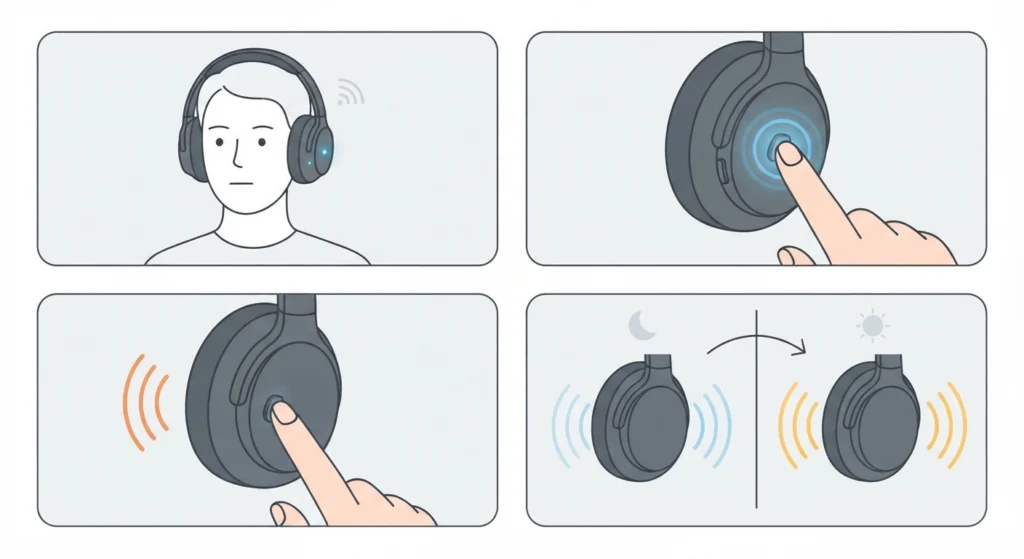
This is the fastest route because no phone is needed. Think of the Multi-function button as a dial that clicks through each listening mode in turn.
- Step 1: Power on the headphones and make sure they are worn and connected.
- Step 2: Press and hold the Multi-function button on the right earcup.
- Step 3: Listen for the voice prompt announcing the mode name, such as Quiet or Aware.
- Step 4: Keep holding to move to the next mode, and release the button when the preferred mode name is announced.
Pro-Tip: The headphones only cycle through modes that are set as favorites in the Bose app. By default, Quiet, Aware, and Immersion are favorites, so a missing mode almost always means it has not been favorited yet.
Method 2: Change Modes in the Bose App
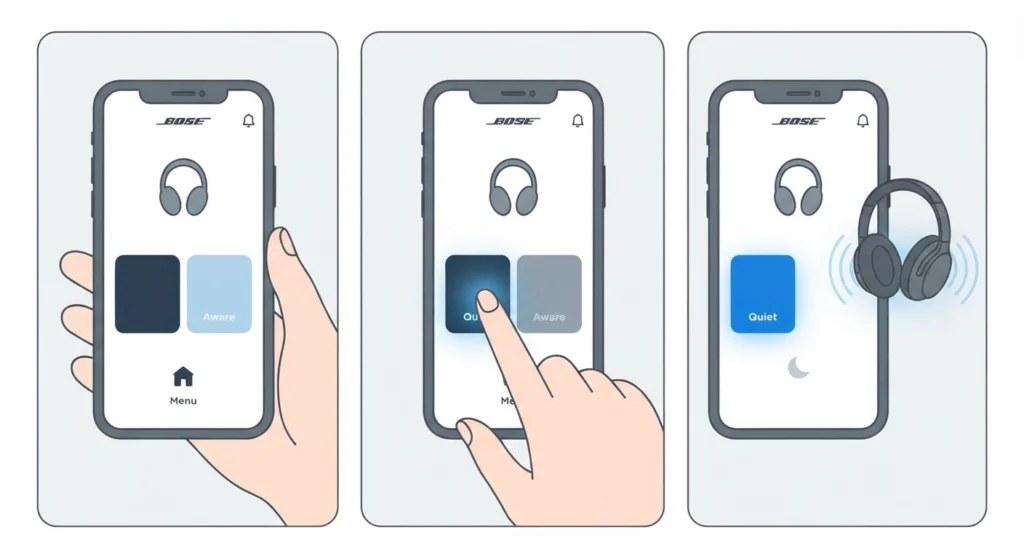
The app shows every mode on one screen, which makes it easier than listening for voice prompts. Most people find this handy when sitting at a desk with the phone nearby.
- Step 1: Open the Bose app and make sure the headphones are powered on and connected.
- Step 2: On the main screen, tap Modes.
- Step 3: Tap the mode you want, such as Quiet for full noise cancelling or Aware for transparency.
Method 3: Choose Which Modes Appear on the Headphones
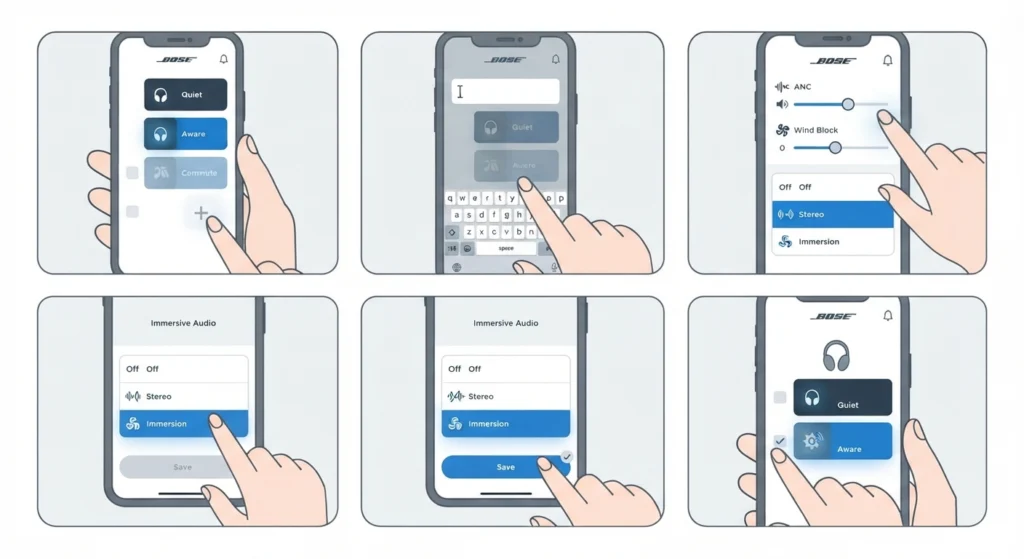
If the Multi-function button skips a mode, this is the fix. It also works well for trimming the list down to only the two or three modes used most often.
- Step 1: Open the Bose app and tap Modes on the main screen.
- Step 2: Mark the modes you want as favorites, and remove the ones you do not need.
- Step 3: Press and hold the Multi-function button on the right earcup to confirm only your favorites appear.
Method 4: Create a Custom Mode for Your Own Noise Cancelling Level
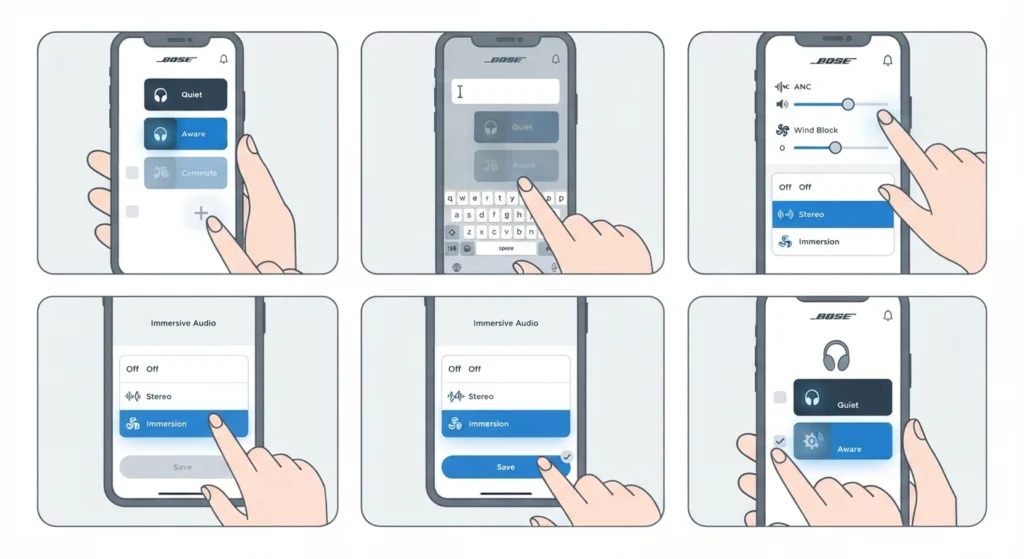
Preset modes cover most situations, but a custom mode is useful when full silence feels too isolating and full transparency lets in too much. A busy office or a walk along a road are good examples.
- Step 1: Open the Bose app and go to Modes.
- Step 2: Tap the plus button below the mode list.
- Step 3: Name the mode so it is easy to recognize later.
- Step 4: Set the noise control option, either noise cancellation or wind block, and adjust the level to suit the environment.
- Step 5: Choose your immersive audio setting, then save the mode.
- Step 6: Mark the new mode as a favorite so it shows up when cycling on the headphones.
Up to seven custom modes can be created, so there is room for separate setups such as commuting, working, and exercising.
Method 5: Adjust ActiveSense in Aware Mode
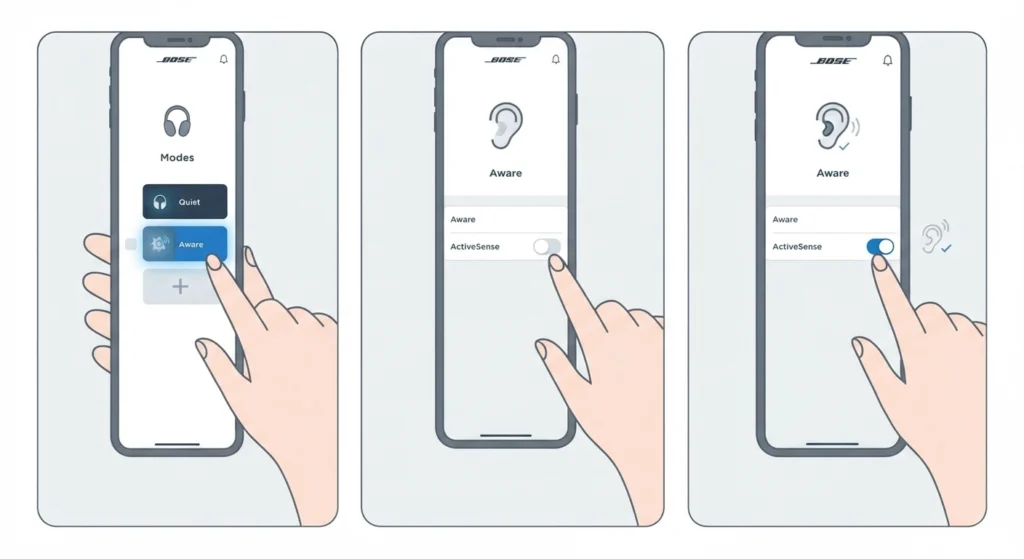
ActiveSense is a feature of Aware mode, the transparency setting. It can be switched on or off in the app, depending on how much automatic adjustment is wanted while surroundings stay audible.
- Step 1: Open the Bose app and tap Modes on the main screen.
- Step 2: Select Aware, then open its settings icon.
- Step 3: Switch the ActiveSense toggle on or off.
Tips for Getting the Most From Each Mode
- Quiet works best for flights, trains, and focused work, since it delivers full noise cancellation.
- Aware is the better pick for walking near traffic or listening for announcements.
- Immersion combines full noise cancellation with immersive audio, which suits music and films.
- By default, the headphones power on in Quiet mode. The Bose app lets you set them to power on with the last mode used instead.
- Voice prompts play in Quiet mode, even when the mode being selected is Immersion. This is normal behavior.
- When the headphones are connected to a Windows 11 PC, the audio output settings guide helps confirm the headphones are the active playback device.
- For calls on a PC, the audio input devices guide explains how to pick the right microphone.
Common Problems When Changing Modes
Fix 1: A Mode Does Not Appear When Cycling
Open the Bose app, tap Modes, and make sure that mode is marked as a favorite. Only favorite modes can be reached from the Multi-function button.
Fix 2: Headphones Always Start in Quiet Mode
This is the default behavior. To change it, use the Bose app to set the headphones to power on with the last mode used.
Fix 3: Mode Changes Are Not Responding
Check that the headphones are connected to the Bose app and powered on. If sound behaves oddly on a Windows 11 PC after switching modes, the resetting audio settings guide can help restore the default output setup.
Frequently Asked Questions
How do I switch between noise cancelling and transparency on Bose QuietComfort Ultra Headphones?
Press and hold the Multi-function button on the right earcup until the voice prompt announces the mode needed, then release. Quiet is full noise cancelling and Aware is transparency.
What listening modes come with the headphones?
Three preset modes are included: Quiet, Aware, and Immersion. Custom modes can be added through the Bose app.
How many custom modes can be created?
Up to seven custom modes can be created using the Bose app.
What does Immersion mode do?
Immersion mode combines full noise cancellation with immersive audio for a more spatial listening experience.
Can modes be changed without the Bose app?
Yes. The Multi-function button cycles through modes directly on the headphones. The app is still needed to set which modes are favorites and to create custom modes.
Which mode do the headphones use when powered on?
Quiet mode is the default at power on. The Bose app can change this so the headphones start with the last mode used.
What is ActiveSense?
ActiveSense is a feature within Aware mode that can be turned on or off through the Bose app under Modes and then Aware.
Why do voice prompts not play in immersive audio?
Voice prompts are played in Quiet mode, which uses full noise cancellation with Bose-optimized stereo audio, even when cycling to Immersion mode.
How can noise cancellation be adjusted during a call?
Change the mode. Switching modes with the Multi-function button or the Bose app adjusts the level of noise cancellation during a call.
Do these steps apply to the QuietComfort Ultra Headphones (2nd Gen)?
Yes. The 2nd Gen model uses the same Multi-function button to cycle through favorited modes, and modes can also be changed from the Modes screen in the Bose app.