
Wyze headphones not turning on is one of the most common issues users face, and the good news is that most cases can be fixed in just a few minutes without any tools. Whether the headphones are completely unresponsive or just failing to boot up properly, this guide walks through every proven fix to get them working again.
Quick Summary: Key Takeaways
- A dead or improperly charged battery is the most common cause of Wyze headphones not powering on
- Charging for at least 30 minutes before attempting to turn on the headphones often resolves the issue
- A hard reset can fix software glitches that prevent the headphones from booting
- Faulty charging cables or dirty charging ports can block the headphones from receiving power
- If none of the fixes work, contacting Wyze support for a warranty claim is the next step
How to Fix Wyze Headphones Not Turning On
Fix 1: Charge the Headphones Fully Before Anything Else
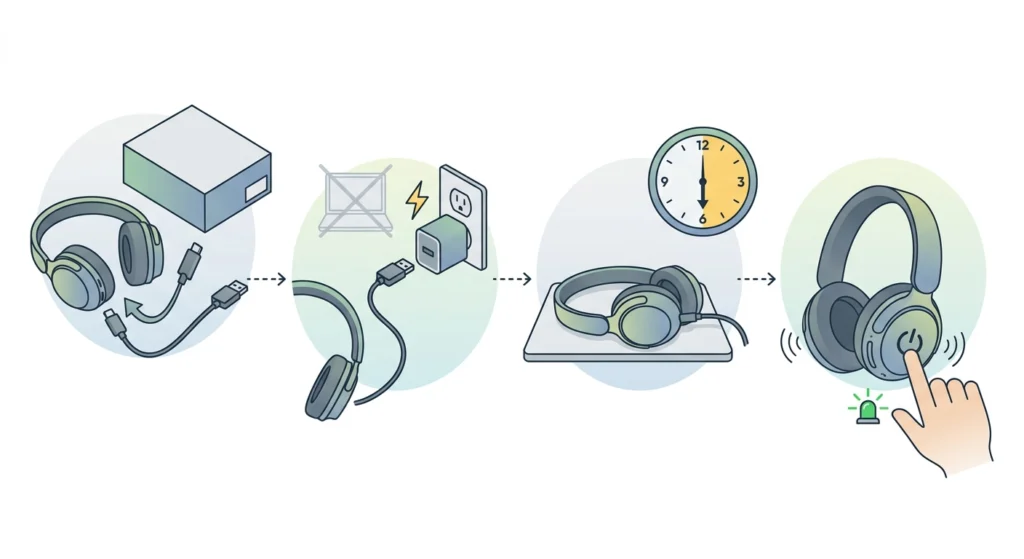
The most overlooked fix is also the most effective one. Wyze headphones with a completely drained battery will not respond to the power button at all – they simply will not have enough power to show any sign of life. This can easily be mistaken for a broken device.
- Step 1: Connect the headphones to a charger using the original USB-C cable that came in the box
- Step 2: Plug the other end into a wall adapter, not a laptop USB port, since wall adapters deliver more stable power
- Step 3: Leave the headphones to charge for at least 30 to 60 minutes without attempting to turn them on
- Step 4: After charging, press and hold the power button for 3 to 5 seconds and wait for the LED indicator or audio cue
Most people find that a flat battery is the culprit, especially if the headphones have not been used for a few weeks.
Fix 2: Check and Clean the Charging Port
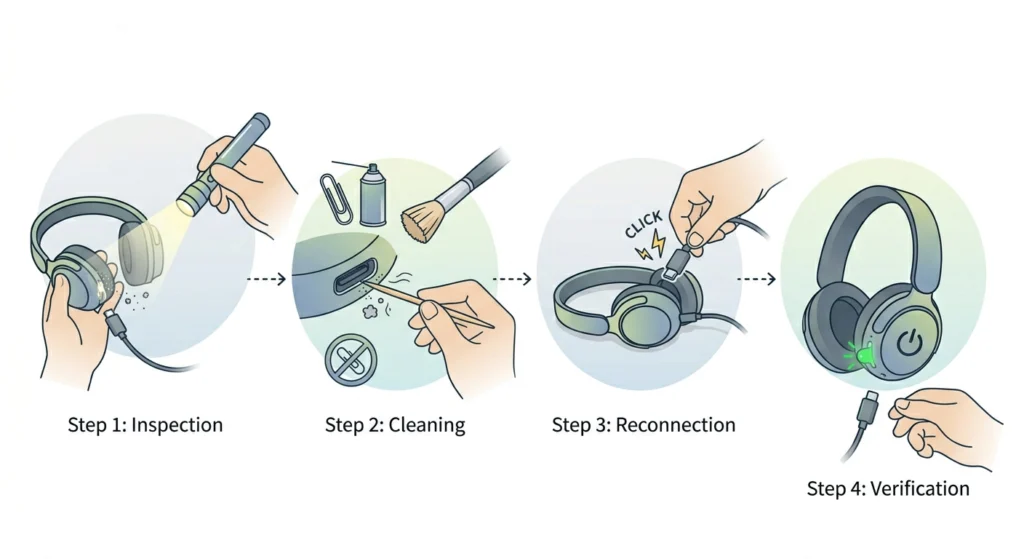
A dirty or obstructed charging port can prevent the headphones from charging at all, which means they will never have enough power to turn on. Dust, lint, and debris can easily build up inside the USB-C port over time.
- Step 1: Inspect the charging port on the headphones using a flashlight or bright light source
- Step 2: If any debris is visible, use a dry toothpick or a soft-bristle brush to gently remove it – avoid using metal objects or compressed air directly into the port
- Step 3: Reconnect the charging cable and make sure it clicks or sits firmly in the port
- Step 4: Check whether the charging LED lights up – if it does, the headphones are now receiving power
This works best when the port inspection is done in good lighting. A loose cable connection that looks connected but is not fully seated is another common version of this problem.
Fix 3: Try a Different Charging Cable and Adapter
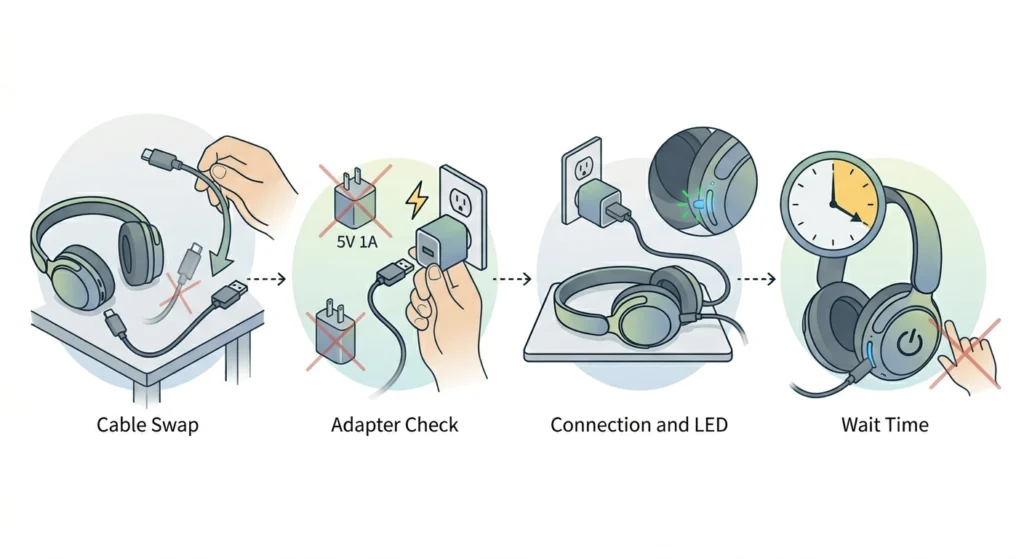
Cables degrade over time, especially at the connector ends. A cable that works with other devices might still fail to deliver adequate power to the Wyze headphones due to internal wire damage or compatibility issues.
- Step 1: Swap out the current USB-C cable for a different one – preferably a high-quality cable rated for data and charging
- Step 2: Use a wall adapter that outputs at least 5V/1A – avoid using low-power USB hubs or older adapters
- Step 3: Connect the headphones and wait for the charging indicator LED to light up
- Step 4: Allow at least 20 minutes of charging before attempting to power on the headphones
The key is to rule out the cable as the problem before assuming the headphones themselves are defective.
Fix 4: Perform a Hard Reset on the Wyze Headphones
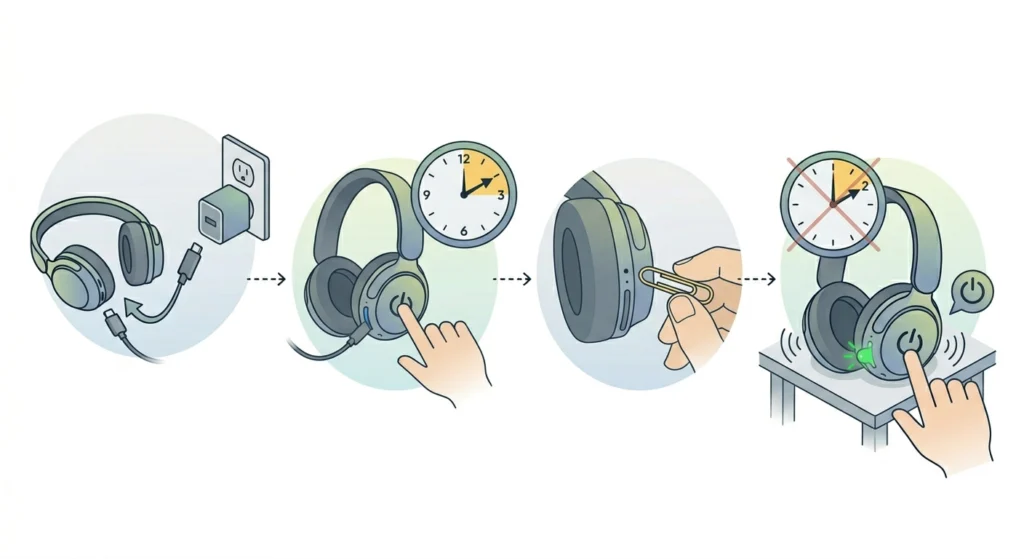
A hard reset clears any temporary firmware glitch or software hang that may be preventing the headphones from booting. This is different from a factory reset – it does not erase pairing information but it does force the headphones to restart from scratch.
- Step 1: Make sure the headphones are connected to the charger during this process
- Step 2: Press and hold the power button for 10 to 15 seconds without releasing it
- Step 3: If the headphones have a dedicated reset pinhole (check the user manual), use a straightened paperclip to press it for 5 seconds
- Step 4: Release and wait 10 seconds, then press the power button normally to see if the headphones turn on
Pro Tip: If the headphones still show no response after a hard reset, try holding the power button while the headphones are plugged in and charging. Some Wyze headphone models require the charger to be connected to initiate the reset sequence properly.
Fix 5: Update or Reinstall the Wyze App and Firmware
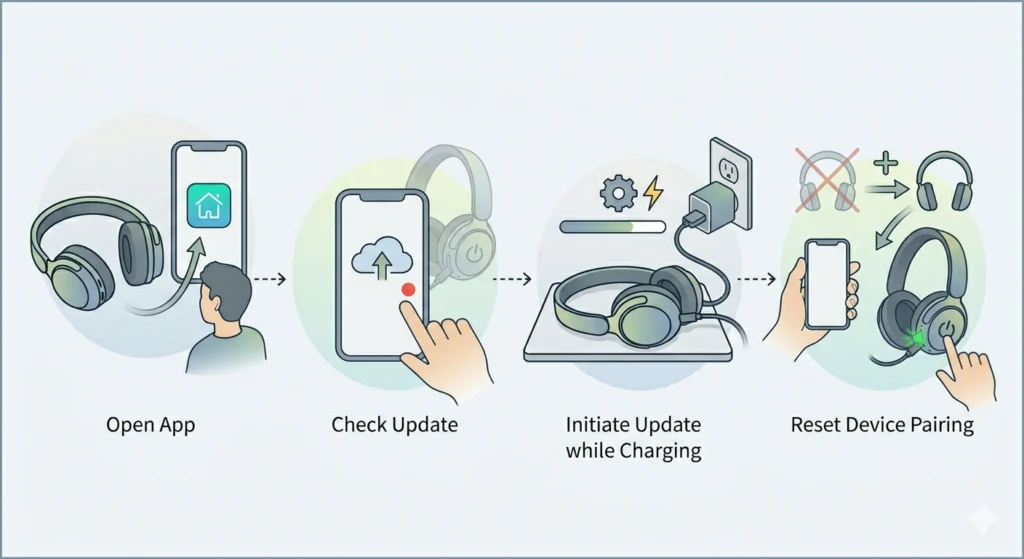
In rare cases, a failed or incomplete firmware update can cause the headphones to become unresponsive at startup. The Wyze app is needed to check and manage firmware on supported headphone models.
- Step 1: Open the Wyze app on the smartphone and navigate to the headphones device page
- Step 2: If the headphones appear in the app but are unresponsive, check for any pending firmware updates under Settings
- Step 3: If an update is available, initiate it while keeping the headphones on the charger throughout the process
- Step 4: If the headphones are not appearing in the app at all, try removing and re-adding the device, then attempt to power on again
This fix applies mainly when the headphones were previously working and then stopped turning on after an update attempt. Interrupted updates can leave the firmware in a bad state.
Fix 6: Check for Physical Damage or Battery Swelling
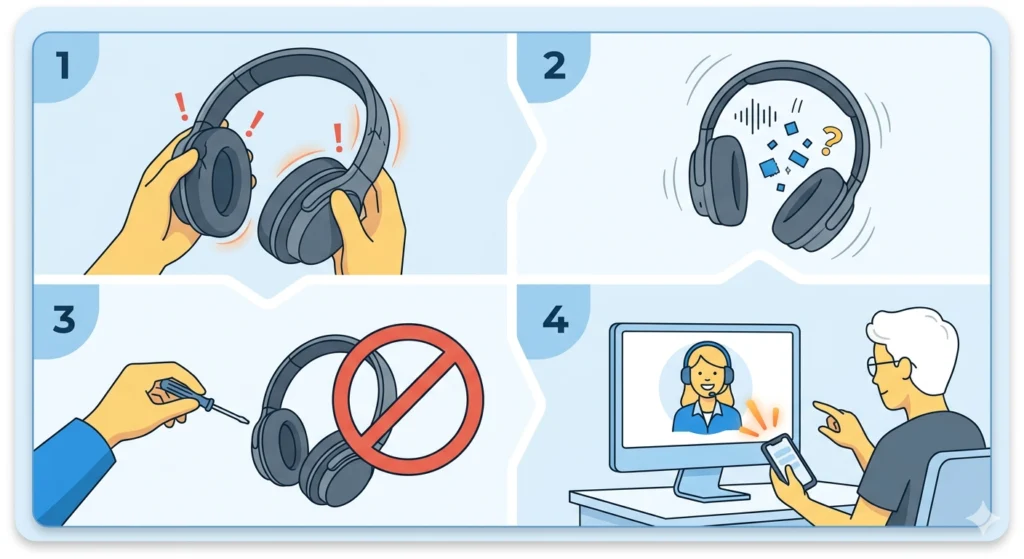
If the headphones have been dropped, exposed to water, or stored in extreme heat, the internal battery may have become damaged or swollen. A swollen battery physically prevents the headphones from functioning and can also be a safety concern.
- Step 1: Visually inspect the ear cups and headband for any signs of warping, cracks, or unusual bulging
- Step 2: If the headphones feel unusually light or there is a rattling sound when shaken, there may be an internal component issue
- Step 3: Do not attempt to open the headphones or access the battery at home – this can void the warranty and cause further damage
- Step 4: Contact Wyze support directly if physical damage or battery issues are suspected
Most physical damage issues fall under warranty if the headphones are relatively new and the damage was not caused by misuse.
Tips for Keeping Wyze Headphones Powered On Reliably
- Store headphones in a cool, dry place – extreme temperatures degrade lithium-ion batteries faster
- Charge the headphones before the battery drops completely to zero, as deep discharge cycles over time weaken battery health
- Use only Wyze-approved or MFi-certified USB-C cables to avoid charging incompatibilities
- Keep the charging port clean by storing the headphones in a case when not in use
- Avoid leaving the headphones on charge for days at a time as overcharging over long periods can affect battery longevity
Pro Tip: Keeping the Wyze app updated on the smartphone ensures the headphones always receive the latest firmware patches, which often include bug fixes for power and connectivity issues. Staying current with firmware is one of the easiest ways to prevent startup problems before they happen. If Bluetooth connection issues ever arise after a fix, learning how to re-pair Bluetooth headphones for stereo sound on Windows can also save time.
Common Problems and Troubleshooting
Headphones Show No LED Light When Plugged In
If no indicator light appears when the charging cable is connected, the issue is almost always the cable, adapter, or port. Try a different cable first, then a different adapter, and finally inspect the port for debris. If the LED still does not light up, the charging circuit inside the headphones may be damaged and Wyze support should be contacted.
Headphones Turn On But Then Immediately Turn Off
This typically points to a critically low battery that cannot hold enough charge to keep the headphones running. Leave the headphones on charge for at least an hour before powering on. If the problem continues, the battery may need replacement.
Headphones Vibrate or Beep But Do Not Fully Boot
A startup vibration or beep without full power-on usually signals a firmware issue. Performing a hard reset as described in Fix 4 resolves this in most cases. If the issue persists after a reset, a firmware reinstall through the Wyze app is the next step.
Headphones Are Warm to the Touch and Not Powering On
Warmth during charging is normal, but if the headphones are hot and unresponsive, disconnect them from the charger immediately. Allow them to cool to room temperature before attempting to charge or use them again. Overheating can trigger built-in safety shutdowns in the battery management system. If microphone detection issues are also present on the connected device, checking how to resolve microphone detection problems on Windows 11 can help rule out software-side conflicts.
Frequently Asked Questions
Why are the Wyze headphones not turning on even after charging?
If the headphones were deeply discharged, a short charge may not be enough. Leave them connected for at least 60 minutes before trying again. If charging is confirmed but the headphones still do not respond, a hard reset is the next step.
How long does it take for Wyze headphones to charge from zero?
Wyze headphones typically take around 2 hours to fully charge from completely empty. Charging from a wall adapter is faster and more reliable than charging from a computer USB port.
Can a software glitch cause Wyze headphones to not turn on?
Yes. A corrupted or interrupted firmware update can leave the headphones in a boot loop or completely unresponsive state. A hard reset usually resolves software-related startup failures.
Is there a reset button on Wyze headphones?
Some Wyze headphone models include a pinhole reset button, while others rely on a long press of the power button. Checking the specific model’s user manual will confirm which reset method applies.
Will resetting the Wyze headphones erase Bluetooth pairings?
A hard reset typically clears Bluetooth pairing history along with any stored device connections. After a reset, the headphones will need to be paired again with all devices.
What should be done if the charging port on Wyze headphones is damaged?
A physically damaged charging port is a hardware issue that cannot be fixed at home without risking further damage. Contacting Wyze support to discuss a repair or warranty replacement is the right course of action.
Can extreme cold or heat cause Wyze headphones to not turn on?
Yes. Lithium-ion batteries perform poorly in very cold temperatures and can temporarily fail to provide enough power to turn on the headphones. Bringing the headphones to room temperature and then charging them usually restores normal function.
How do you know if the Wyze headphone battery is dead and needs replacement?
Signs of a dead battery include the headphones turning off immediately after powering on, a very short battery life even after a full charge, or no response at all despite trying multiple cables and chargers. At this point, reaching out to Wyze support for battery replacement options is recommended.
Do Wyze headphones have a warranty that covers power issues?
Wyze offers a limited warranty on its products. Power issues that are not caused by physical damage or misuse are typically covered. Keeping the original purchase receipt and registering the product through the Wyze app makes the warranty claim process smoother.
Can using a fast charger damage Wyze headphones?
Wyze headphones are designed to charge at a standard rate. Using a high-wattage fast charger is generally safe as long as it is USB-C compatible, since the headphones regulate their own charging speed. However, using the original or a certified cable is always the safest option.