
Keeping the Sony WH-1000XM5 firmware current is one of those small maintenance tasks that pays off in ways most people never notice until something goes wrong. A firmware update can patch security gaps, smooth out connection drops, and unlock small but meaningful improvements to how the headphones behave day to day. This guide walks through the exact process of updating the Sony WH-1000XM5 firmware using the official Sony Sound Connect app, based on Sony’s current update procedure.
Quick Summary Table
- App needed: Sony Sound Connect (version 12.4.0 or later)
- Devices supported: Android 10.0+ or iPhone with iOS 16.0+
- Latest firmware version: 2.5.1
- Update time: roughly 40 minutes on Android, around 60 minutes on iPhone
- Requirement: stable internet connection and a charged headset
- Note: firmware cannot be reverted once installed
Method 1: Update Firmware Using the Sony Sound Connect App
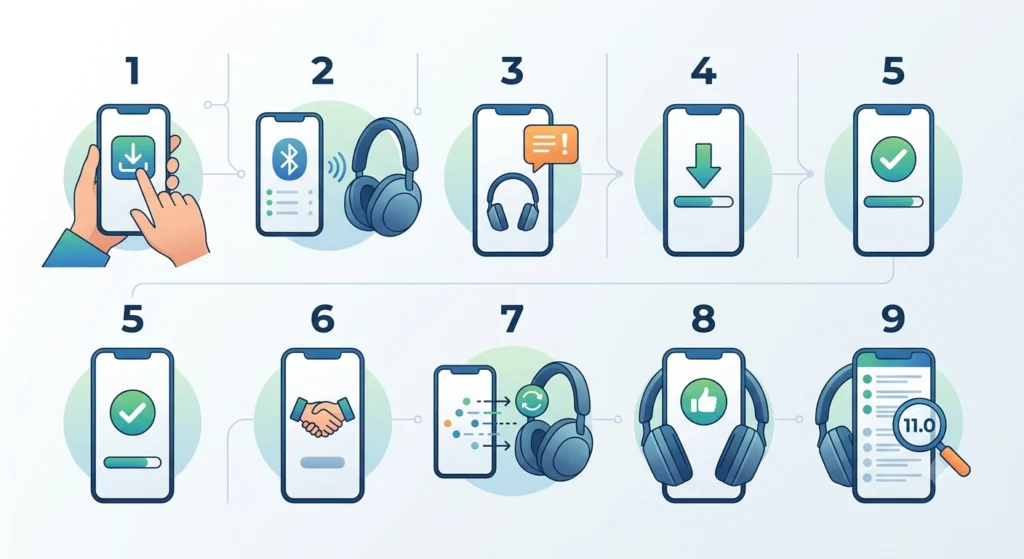
This is the standard and recommended way to update the WH-1000XM5, and it works the same way whether the headphones are connected to an Android phone or an iPhone. Before starting, make sure both the headset and the phone are charged, since an interrupted update due to a dead battery can cause more headaches than it’s worth.
- Step 1: Open the Sony Sound Connect app on the smartphone. If the app is outdated, update it from the App Store or Google Play first, since version 12.4.0 or later is required for the update to even appear.
- Step 2: Connect the WH-1000XM5 headphones to the app. For first-time setup, follow the on-screen pairing instructions. If the headphones have been connected before, simply select them from the device list.
- Step 3: Wait for the app to detect the connection. A message reading ‘The latest audio device software is available’ will appear if an update is ready, along with a More Info option near the bottom of the screen.
- Step 4: Tap on the update notification, confirm the version number shown (such as 2.5.1), then press Start to begin the download.
- Step 5: Allow the download to finish. The app screen will refresh automatically once the file has been retrieved from the server.
- Step 6: If a ‘Bluetooth Pairing Request’ message appears (this typically happens on iPhone), tap Pair to keep the update moving forward.
- Step 7: The data transfer to the headset begins next. This part usually takes about a minute. Avoid charging the headphones or powering them off during this stage, since doing so can corrupt the transfer.
- Step 8: Once the transfer and installation are complete, a ‘Software update complete’ screen will show up. Tap OK to finish.
- Step 9: Confirm the update worked by checking the firmware version again. Open Device Settings in the app, scroll to System, and verify the version number matches the latest release.
That last step matters more than people expect. A quick version check takes seconds and removes any doubt about whether the update actually took hold.
Pro-Tip: Disconnect any other Bluetooth devices, like a smartwatch or wireless keyboard, from the phone before starting the update. Background Bluetooth traffic can interrupt the transfer between the phone and the headset, especially on iPhone, where the update already takes longer to complete.
What to Check Before Starting the Update
A handful of conditions need to be in place before the update process even begins. Skipping these is the most common reason updates stall halfway through.
- Both the headphones and the phone should be fully charged, not just at a comfortable percentage.
- The Wi-Fi or cellular connection should be stable. Updating on a train, near a microwave, or in a crowded space with heavy 2.4 GHz interference often leads to dropped transfers.
- The Automatic Power Off setting in the app should be changed to ‘Do not turn off’ if the headphones get removed during the update, otherwise they may shut down mid-transfer after about 15 minutes.
- Any other connected Bluetooth accessories should be turned off or disconnected from the phone.
Most people find that once these basics are covered, the actual update runs smoothly without interruption from start to finish.
Tips for a Smooth Firmware Update
- Run the update at home or somewhere with consistent Wi-Fi rather than in public spaces with congested networks.
- Keep the Sony Sound Connect app itself updated regularly, since older app versions sometimes fail to detect new firmware releases.
- Avoid switching apps or locking the phone screen while the transfer is in progress, since this can sometimes pause the connection.
- If audio settings feel off after updating, it helps to review how the device handles adjusting audio output settings on Windows 11 to make sure playback is configured correctly post-update.
- For anyone who also pairs the WH-1000XM5 with a laptop, double-checking the Bluetooth pairing setup after a firmware update is worth doing, particularly by following the steps to re-pair Bluetooth earbuds for stereo sound on Windows if audio sounds mono or unbalanced afterward.
Common Problems During the Update
Fix 1: Update Error Message Appears
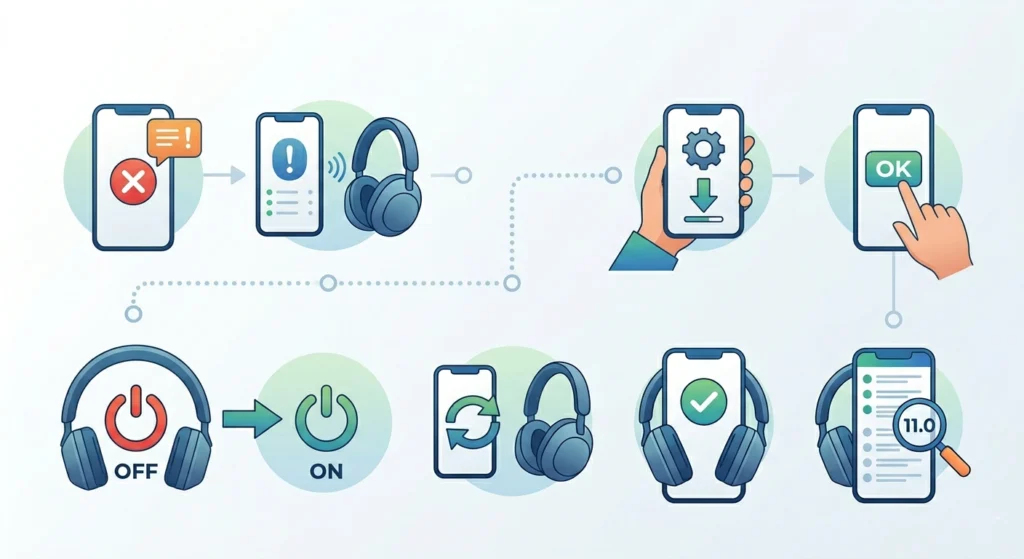
If an error message pops up mid-update, press OK, then turn the headset off and back on. Restart the Sony Sound Connect app afterward and attempt the update again. In many cases, the firmware actually installed correctly despite the error, so checking the version number first saves time before retrying.
Fix 2: Update Seems Stuck or Frozen
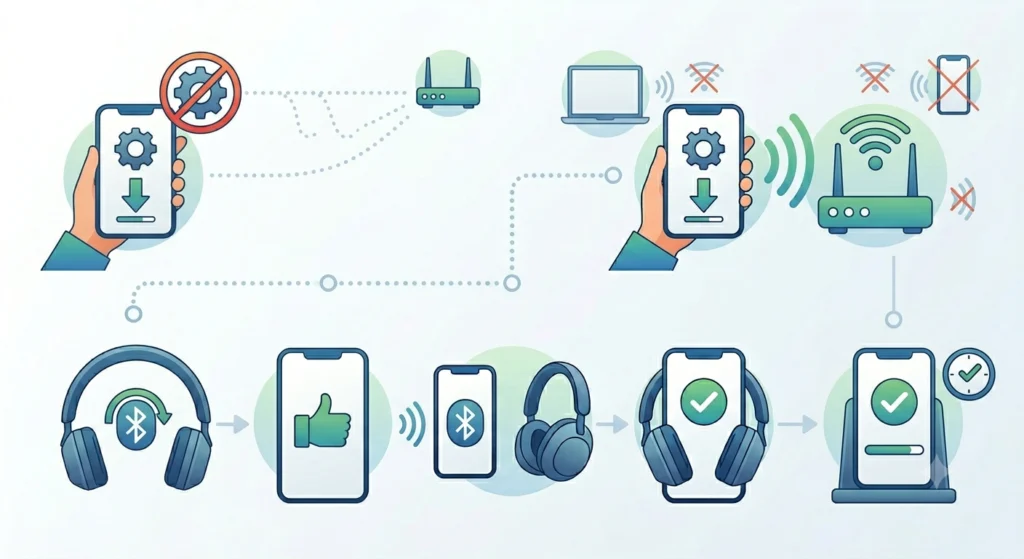
This usually points to a weak or congested wireless signal. Moving closer to the router, switching off other nearby Bluetooth devices, or simply waiting a few minutes often resolves it. If the headset disconnects, it should automatically reconnect once Bluetooth stabilizes, and the transfer will pick back up from where it left off.
Fix 3: App Doesn’t Show an Available Update
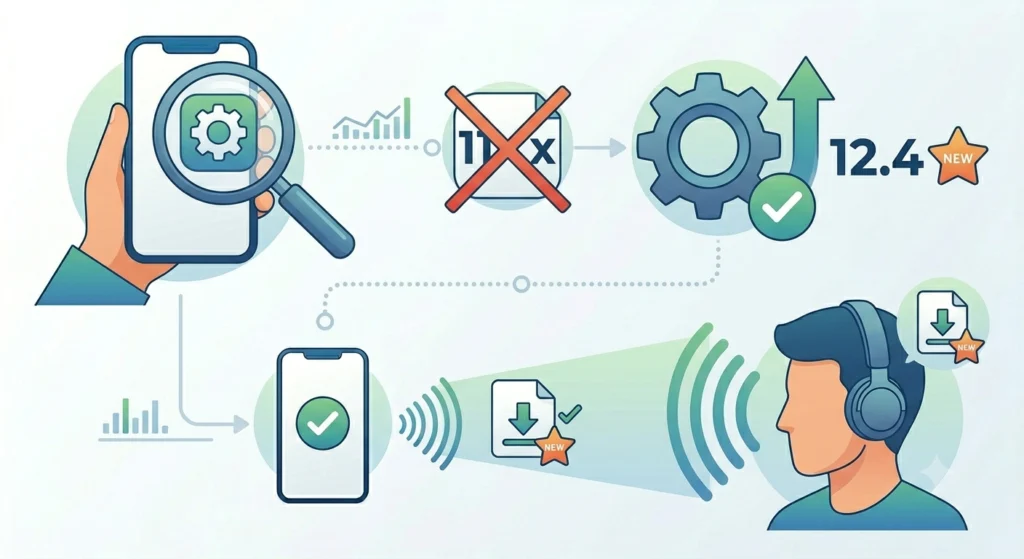
Double-check that the Sony Sound Connect app itself is updated to version 12.4.0 or later. An outdated app sometimes fails to recognize that new firmware exists for the connected headset.
Frequently Asked Questions
How long does the Sony WH-1000XM5 firmware update take?
On Android, the process generally takes about 40 minutes. On iPhone, it usually takes closer to 60 minutes. Wireless conditions can extend that time in either case.
Can the firmware update be reverted after installing it?
No. Once the WH-1000XM5 firmware has been updated, it cannot be rolled back to an earlier version.
Does the headphone battery need to be fully charged before updating?
Yes, both the headset and the connected smartphone should be fully charged. A low battery mid-update increases the risk of an incomplete or failed installation.
What app is required to update the WH-1000XM5 firmware?
The Sony Sound Connect app handles the entire update process. It needs to be on version 12.4.0 or later for the update option to appear.
Can the firmware be updated using a computer instead of a phone?
The update process for the WH-1000XM5 runs through the Sony Sound Connect mobile app on Android or iPhone, not through a desktop application.
What happens if the headphones turn off during the update?
If the headset powers off mid-transfer, the update will resume automatically once it’s turned back on and Bluetooth reconnects. Setting Automatic Power Off to ‘Do not turn off’ beforehand helps avoid this altogether.
Why does the app not show a firmware update even though one is available?
This is often caused by an outdated version of the Sony Sound Connect app. Updating the app itself usually resolves the detection issue.
Is an internet connection required for the firmware update?
Yes, an active and stable internet connection on the smartphone is required to download the update files from Sony’s servers before they transfer to the headset.
Can other Bluetooth devices stay connected during the update?
It’s best to disconnect other Bluetooth accessories, such as smartwatches, before starting. Extra Bluetooth traffic can interfere with the data transfer to the headphones.
How can the current firmware version be checked before updating?
Open the Sony Sound Connect app, connect the headset, go to Device Settings, then select System. The current firmware version will be displayed there.