
Keeping the Sennheiser Momentum 4 firmware current is one of the simplest ways to unlock better battery life, smoother Bluetooth pairing, and refined ANC performance. Updating Sennheiser Momentum 4 firmware via the Smart Control app takes only a few minutes, and this guide walks through the entire process from start to finish.
Quick Summary Table
- Tool needed: Smart Control Plus app (iOS and Android)
- Time required: Around 5 to 10 minutes
- Connection type: Bluetooth, headphones must stay powered on and nearby
- Battery requirement: At least 30 percent charge recommended
- Update delivery: Over-the-air (OTA), no cables required
- Best practice: Keep the phone screen active and avoid switching apps mid-update
Method 1: Update Firmware Using the Smart Control Plus App
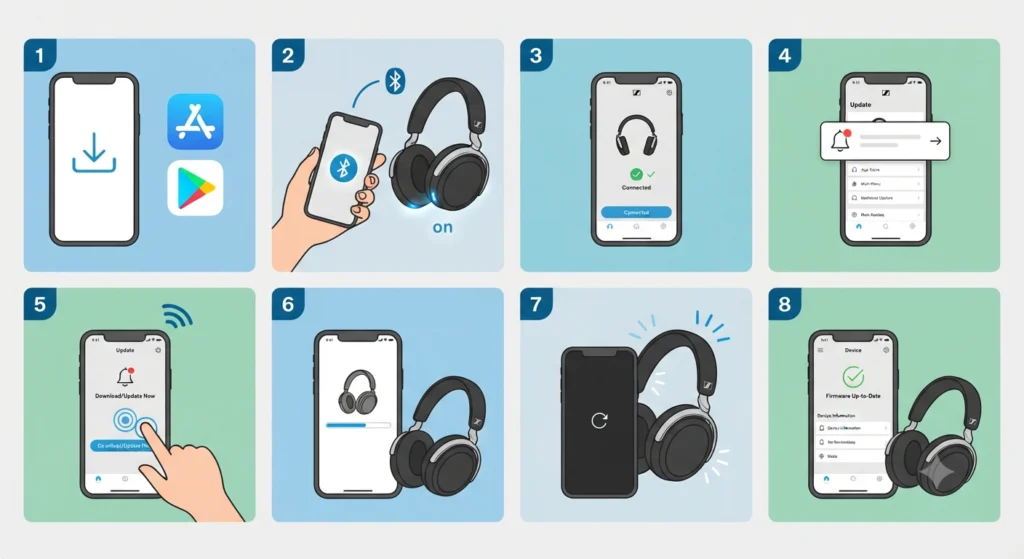
Sennheiser moved its Momentum 4 support to the Smart Control Plus app, replacing the original Smart Control app for this model. The process below reflects the current version of the app.
- Step 1: Download and install Smart Control Plus from the App Store on iOS or the Google Play Store on Android. If Smart Control (without ‘Plus’) is already installed, replace it with Smart Control Plus, since that is the version supporting Momentum 4 updates going forward.
- Step 2: Turn on the Momentum 4 headphones and place them close to the phone, ideally within a meter, to keep the Bluetooth connection stable throughout the process.
- Step 3: Open Smart Control Plus and connect the headphones through the app if they are not already paired. The app should recognize the Momentum 4 automatically once Bluetooth pairing is active.
- Step 4: Once connected, the app checks the headphones against the latest available firmware version. If a newer version exists, a firmware update notification appears on the home screen or settings menu.
- Step 5: Tap the update prompt and confirm to begin the download. The app pulls the firmware package over an internet connection, so a stable Wi-Fi or mobile data connection speeds things up.
- Step 6: Keep the headphones powered on and within range while the update installs. This step usually takes a few minutes, and the app displays a progress indicator during the transfer.
- Step 7: Once the update finishes, the headphones may restart on their own. Wait for the LED indicator to settle before disconnecting or turning them off.
- Step 8: Reopen Smart Control Plus and check the device information section to confirm the new firmware version is showing correctly.
The key is to keep both devices close and avoid switching to another Bluetooth accessory mid-update, since that can interrupt the data transfer and force a restart of the whole process.
Pro-Tip
Most people find that closing background apps on the phone before starting the update prevents Bluetooth interruptions. Momentum 4 firmware updates rely on a continuous OTA data stream, and a dropped connection partway through can leave the headphones in an inconsistent state. Charging the headphones to at least 30 percent beforehand also avoids the update stalling due to low battery.
Tips for a Smooth Firmware Update
- Update the Smart Control Plus app itself to its latest version before starting the firmware update, since older app builds sometimes fail to detect new releases.
- Disconnect the Momentum 4 from any other paired device, such as a laptop or tablet, so the phone maintains a dedicated Bluetooth link during the update.
- Avoid using the headphones for calls or playback while the update is running, even though the app usually blocks audio streaming automatically during this window.
- After the update, headphones sometimes need to be re-paired with a Windows PC. This guide on re-pairing Bluetooth earbuds for stereo sound on Windows covers that process in detail.
Common Problems and Troubleshooting
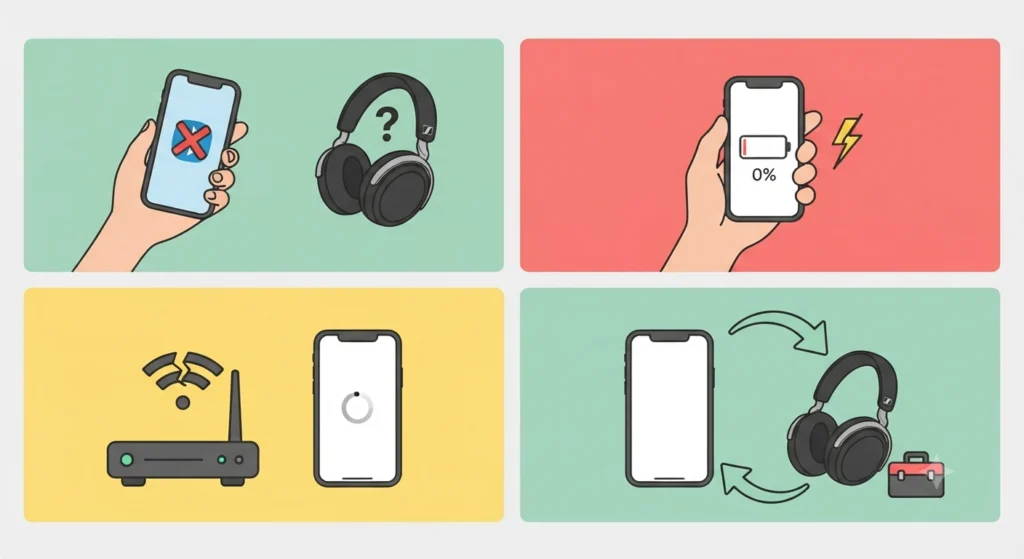
Firmware updates on Bluetooth headphones occasionally run into small hiccups. Most of these have straightforward fixes.
Update Notification Not Appearing
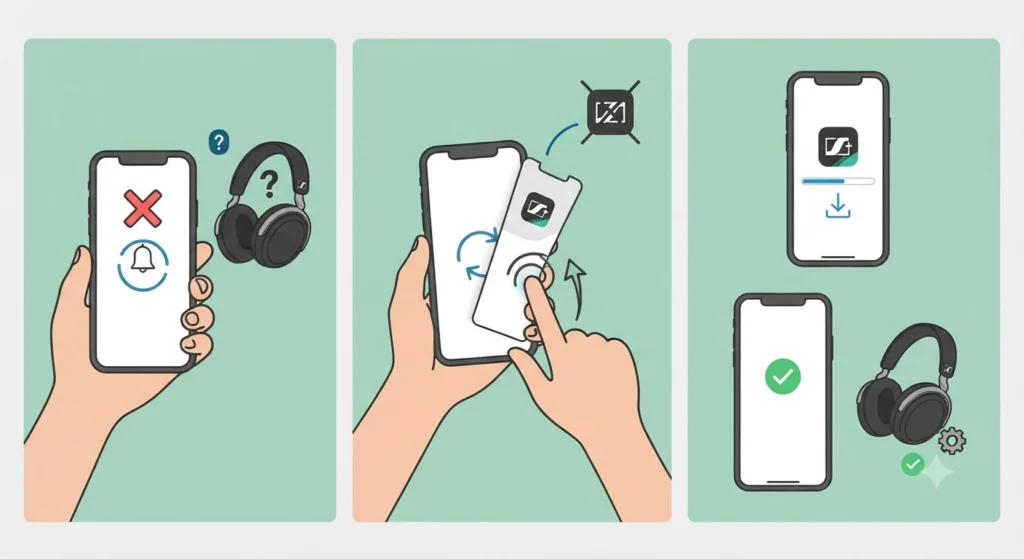
This usually happens when the app has a cached device list that has not refreshed. Force-close Smart Control Plus, reopen it, and reconnect the headphones. If the notification still does not show, uninstall and reinstall the app, since a fresh install often resolves detection issues.
Update Stuck or Frozen Mid-Process
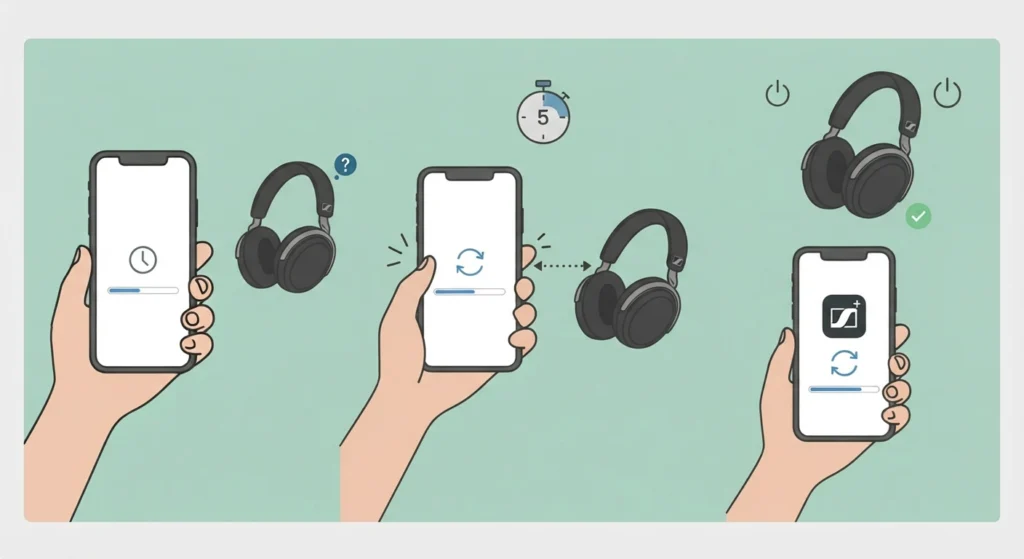
If the progress bar stops moving for several minutes, place both the headphones and the phone closer together and wait. If nothing changes after five more minutes, restart the headphones by powering them off and on again, then relaunch the app and retry the update.
Headphones Not Reconnecting After Update
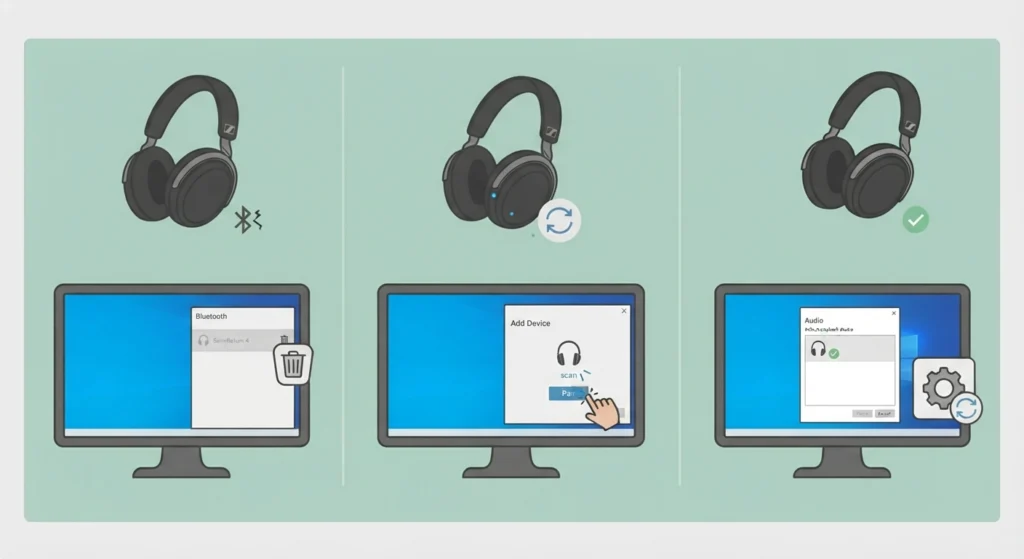
Some users notice their Momentum 4 does not reconnect properly to a Windows PC after a firmware update. In that case, deleting the old Bluetooth pairing on the PC and creating a fresh connection usually solves it. This guide on resetting audio settings on Windows 11 is useful if the audio device list looks out of sync after the reconnect.
No Sound or Wrong Audio Profile After Update
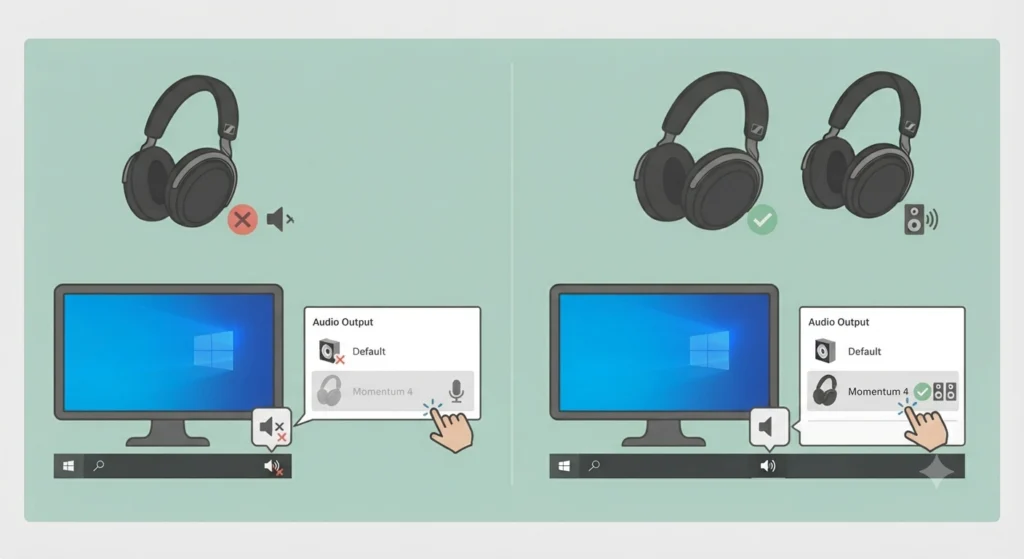
Occasionally, the Windows Bluetooth audio profile does not switch back to the correct stereo mode after an update. Checking the output device list and selecting the Momentum 4 manually usually fixes this within seconds.
Frequently Asked Questions
How long does a Momentum 4 firmware update take?
Most updates complete within 5 to 10 minutes, depending on file size and Bluetooth connection stability.
Can the firmware update be done without the Smart Control app?
No. The Momentum 4 receives firmware exclusively through the Smart Control Plus app, since there is no separate desktop tool or cable-based method for this model.
Is Smart Control Plus different from the original Smart Control app?
Yes. Smart Control Plus is the newer app built to support Momentum 4 and other recent Sennheiser models, offering more stable OTA updates and additional personalization features compared to the original app.
Does the Momentum 4 need to be fully charged before updating?
A full charge is not required, but at least 30 percent battery is recommended so the update does not get interrupted by the headphones powering off.
What happens if the update is interrupted?
An interrupted update typically just requires restarting the process. Power cycle the headphones, reopen the app, and start the update again from the beginning.
Will updating the firmware delete saved EQ presets?
No. Firmware updates do not erase saved EQ presets or sound personalization profiles stored in the Smart Control Plus app.
How can the current firmware version be checked?
Open Smart Control Plus, connect the headphones, and check the device information section, which displays the installed firmware version.
Why does the app say no update is available?
This means the headphones are already running the latest firmware, or the app has not refreshed its connection with Sennheiser’s servers yet. Reconnecting the headphones usually triggers a fresh check.
Can the update be done on both iOS and Android?
Yes. Smart Control Plus supports firmware updates on both iOS and Android devices with no difference in the update steps.
Is an internet connection required during the update?
Yes. The phone needs an active internet connection to download the firmware package before it transfers to the headphones over Bluetooth.