
Keeping Beats headphones on the latest firmware version matters more than most people realize. Updating Beats headphone firmware via the Beats app fixes connection drops, improves battery reporting, and unlocks small feature improvements that Beats rolls out over time. This guide walks through the exact process, without any extra detours.
Key Takeaways
- Firmware updates for Beats headphones on Android devices are delivered through the Beats app.
- iPhone, iPad, and Mac users receive firmware updates automatically over Bluetooth, so the Beats app is not required on those devices.
- A full battery charge and a stable Wi-Fi connection are required before starting the update.
- The update process typically takes several minutes, and the headphones should stay near the Android device the entire time.
- The Beats app must be allowed to update firmware in the background for the process to complete without interruption.
Step-by-Step Guide to Update Beats Headphone Firmware via the Beats App
This method applies to Android phones and tablets. Most current Beats headphones and earbuds, including Beats Fit Pro, Beats Studio Buds, Powerbeats Pro, and Beats Solo models, support this update path through the app.
Method 1: Prepare the Headphones and Device
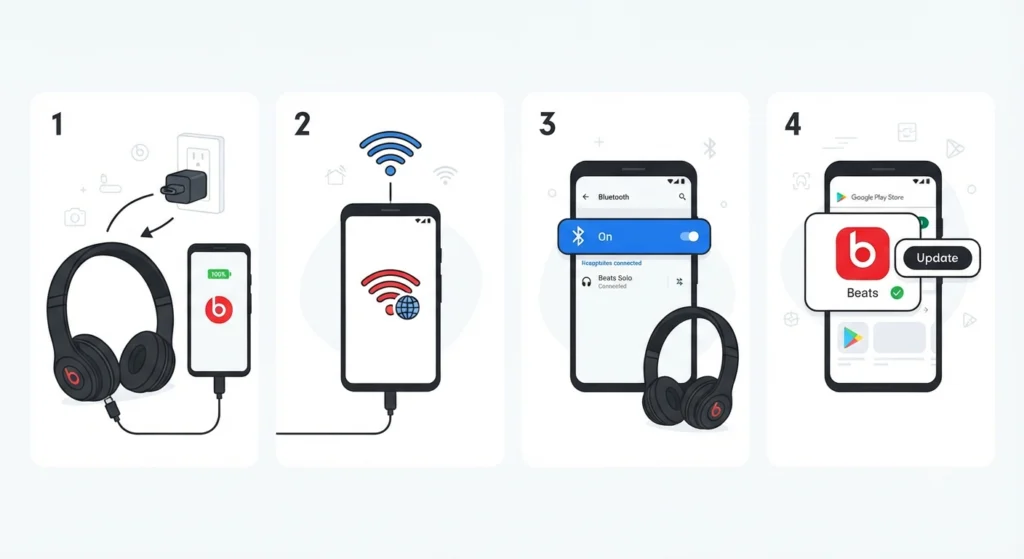
A few quick checks before starting will prevent the update from stalling halfway through.
- Step 1: Charge the Beats headphones to full, or keep them connected to a power source during the update.
- Step 2: Connect the Android device to a stable Wi-Fi network, since the firmware file downloads over the internet.
- Step 3: Turn on Bluetooth on the Android device and confirm the Beats headphones are powered on and paired.
- Step 4: Install the latest version of the Beats app from the Google Play Store if it is not already installed.
Method 2: Update the Firmware Through the Beats App
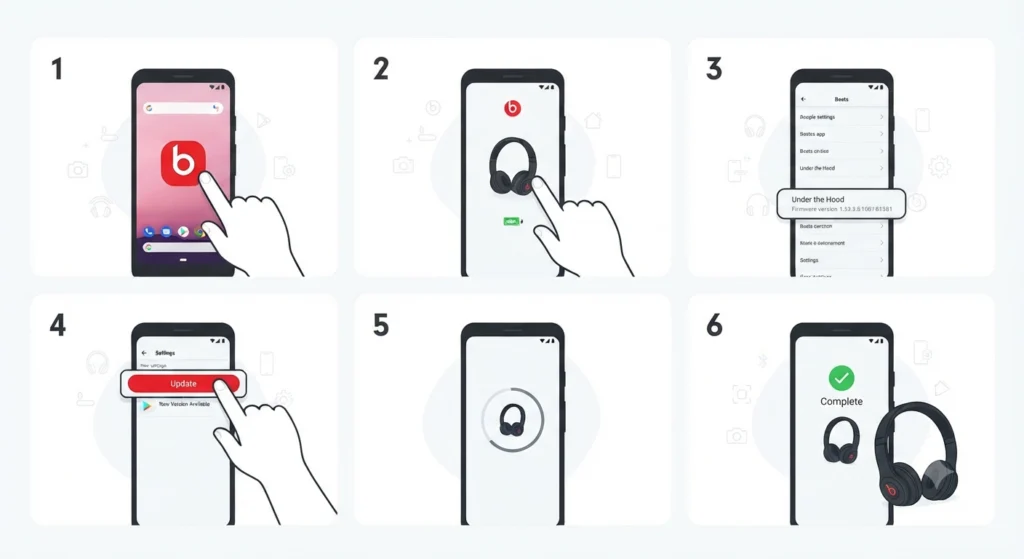
Once the headphones and phone are ready, the actual update takes just a few taps.
- Step 1: Open the Beats app on the Android device.
- Step 2: Tap the connected Beats headphones from the device screen inside the app.
- Step 3: Scroll down to the section labeled Under the Hood to view the current firmware version.
- Step 4: If a newer firmware version is available, an Update button appears near the top of the screen.
- Step 5: Tap Update, then follow the on-screen instructions shown in the app.
- Step 6: Keep the headphones within Bluetooth range of the phone until the app confirms the update finished.
The pro tip below covers a setting that trips up a lot of users during this exact stage.
Pro-Tip: Allow Background Updates
Inside the Beats app device screen, there is an Optimize Your Beats Product section with an Allowed toggle. Turning this on lets the firmware update continue even if the app is minimized or the screen locks. Skipping this step is one of the most common reasons an update appears to freeze partway through, since the app pauses the download the moment it loses focus.
Checking the Firmware Version After the Update
Confirming the update actually applied only takes a moment. Open the Beats app, tap the connected headphones, and check the Under the Hood section again. The version number listed there should match the latest release shown before the update started. If the version number looks unchanged, waiting a few minutes and reopening the app usually resolves it, since the headphones sometimes need a moment to register the new version internally.
Tips for a Smooth Firmware Update
- Update one Beats device at a time rather than switching between multiple paired devices mid-update.
- Avoid playing audio through the headphones while the firmware is downloading, since this can interrupt the transfer.
- Keep the Android device’s Bluetooth and Wi-Fi turned on for the full duration of the update, not just at the start.
- Restart the headphones once after the update completes, since this helps the new firmware settings apply cleanly.
- Check firmware updates periodically instead of waiting until a connection issue shows up, since staying current avoids most of those issues in the first place.
Common Problems and Troubleshooting
Most update issues trace back to one of a few causes, and they are usually easy to fix.
Fix 1: No Update Button Appears
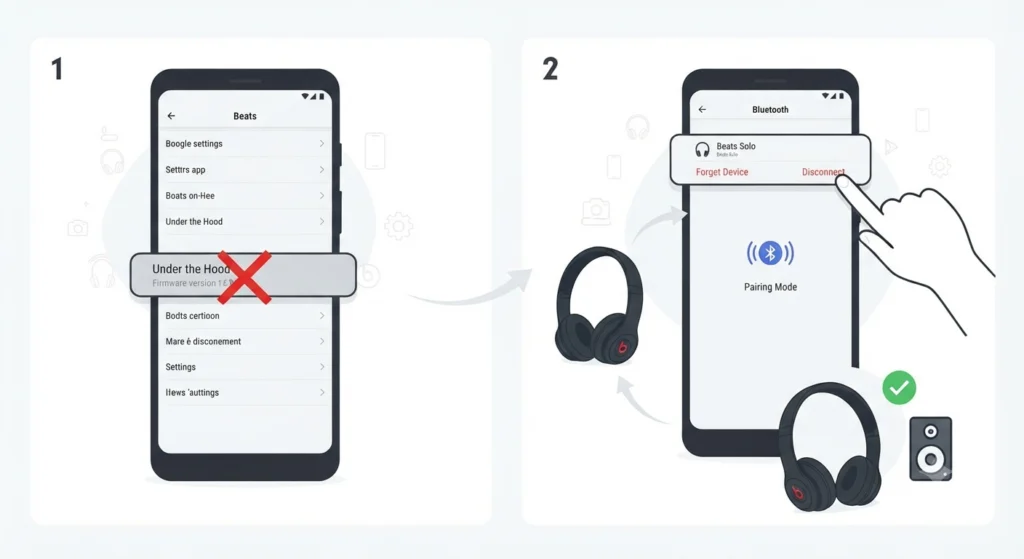
This usually means the headphones are already on the latest firmware, or the Beats app has not yet synced with the headphones. Disconnecting and reconnecting the Bluetooth pairing often refreshes the connection enough for the app to detect a pending update. Anyone dealing with a shaky Bluetooth connection in general may find it useful to re-pair the earbuds for stable stereo sound before retrying the firmware check.
Fix 2: Update Stuck or Frozen
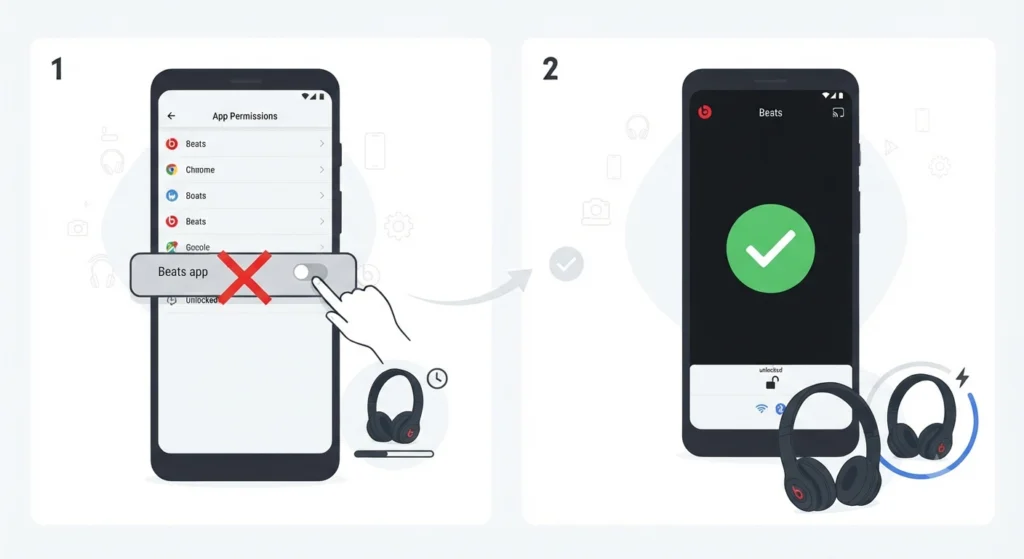
An update that stalls for an extended period is almost always tied to the app losing background access. Revisiting the Allowed toggle mentioned earlier, then keeping the phone unlocked and the app open, typically clears this up.
Fix 3: Headphones Disconnect During the Update
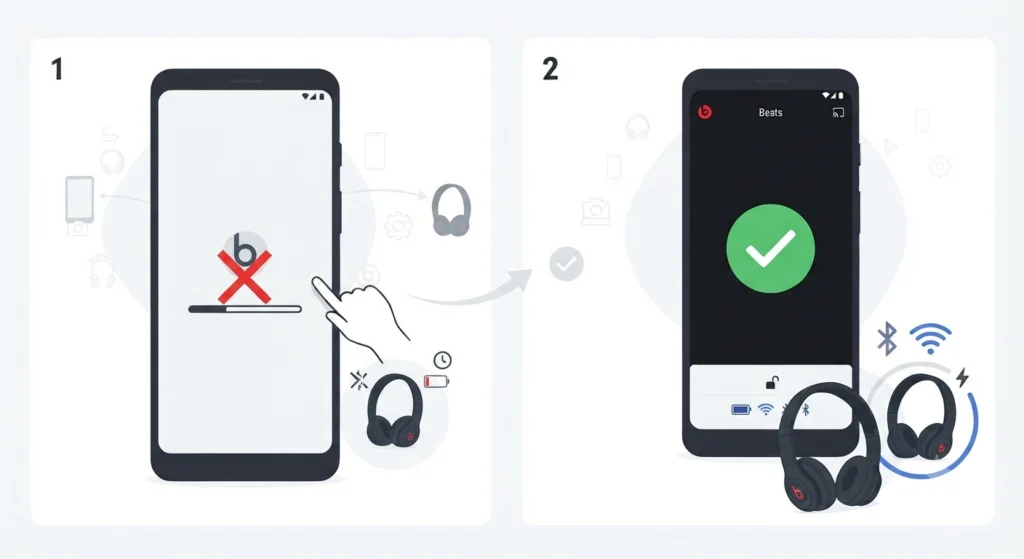
Distance from the phone, low battery, or Wi-Fi drops are the usual culprits. Keeping the headphones within a few feet of the device and on a reliable network resolves the vast majority of these interruptions.
Frequently Asked Questions
Does the Beats app work for updating firmware on iPhone?
No. iPhone, iPad, and Mac devices receive Beats firmware updates automatically over Bluetooth. The Beats app is only required for firmware updates on Android devices.
How long does a Beats firmware update take?
Most updates finish within several minutes, though the exact time depends on the headphone model and the speed of the Wi-Fi connection.
Is it safe to keep using the headphones while the firmware updates?
No. Playing audio or disconnecting the headphones during the update can interrupt the process and should be avoided until the app confirms completion.
What happens if the battery dies mid-update?
An interrupted update can leave the firmware in an incomplete state, so keeping the headphones charged or connected to power beforehand is important.
Why does the Beats app not show an update option?
This usually means the firmware is already current, or the app has not synced with the headphones yet. Reopening the app or reconnecting Bluetooth typically resolves it.
Can firmware updates be done without Wi-Fi?
No. The firmware file downloads from Beats servers, so an active internet connection is required.
Does updating firmware delete paired device history?
No. A standard firmware update through the Beats app does not remove existing Bluetooth pairings or saved settings.
How can the current firmware version be checked before updating?
Open the Beats app, select the connected headphones, and scroll to the Under the Hood section to view the current version number.
What should be done if the microphone stops working properly after an update?
This is uncommon but can happen after any firmware or driver related change. On Windows 11, checking the device list is a good first step, and this guide on resolving microphone detection problems walks through the process in detail.
How often does Beats release new firmware?
Release timing varies by headphone model and depends on Beats own development schedule, so there is no fixed interval to expect.