
Keeping the Soundcore Liberty 4 NC firmware update to the latest version is one of the easiest ways to unlock better noise cancellation, smoother Bluetooth connections, and fewer audio glitches. This guide walks through the exact process, using only the official soundcore app, so the earbuds run on the newest software without any guesswork.
Key Takeaways
- The soundcore app must be updated to version 3.2.9 or above before checking for new firmware.
- Firmware updates are detected automatically once the earbuds connect to the app.
- The charging case needs to stay open throughout the entire update process.
- Earbuds should remain charging and unused while the update installs.
- A stable internet connection speeds up the download and prevents failed installs.
Step-by-Step Guide to Update Soundcore Liberty 4 NC Firmware
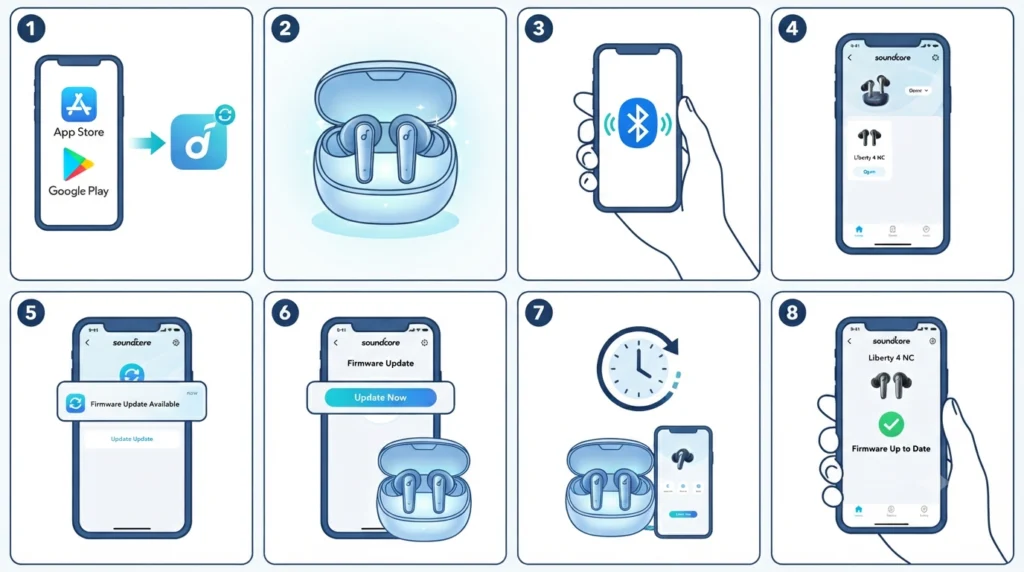
This is the direct method soundcore recommends, and it works the same way on both Android and iOS devices. Most people find that the whole update takes just a few minutes once the app detects the earbuds.
- Step 1: Open the App Store or Google Play Store and confirm the soundcore app is updated to version 3.2.9 or later. An outdated app version is the most common reason firmware updates fail to show up.
- Step 2: Place both earbuds into the charging case, then keep the case lid open. The connection needs to stay active for the app to detect the firmware version correctly.
- Step 3: Turn on Bluetooth on the phone and connect the Liberty 4 NC earbuds if they are not already paired.
- Step 4: Launch the soundcore app and select the Liberty 4 NC device from the home screen. If the earbuds are not listed yet, choose ‘Add Device’ and let the app search for nearby earbuds.
- Step 5: Once connected, the app automatically checks for a newer firmware version. A notification or banner appears on the device screen if an update is available.
- Step 6: Tap on the firmware update prompt and select ‘Update Now’. The earbuds should remain inside the open charging case for the full duration of the download and installation.
- Step 7: Avoid using the earbuds or closing the case until the app confirms the update is complete. This usually takes a few minutes, depending on the connection speed.
- Step 8: Once finished, reconnect the earbuds through Bluetooth settings to confirm the new firmware version is active inside the app.
Pro-Tip: Firmware updates run more reliably on a strong home Wi-Fi connection rather than mobile data. A dropped connection midway through the download is one of the main reasons an update gets stuck at a certain percentage.
Tips for a Smooth Firmware Update
A few small habits make firmware updates far less frustrating, especially for earbuds that rely on a stable Bluetooth link during the process.
- Charge the case fully before starting, since a low battery can interrupt the update partway through.
- Close other Bluetooth-connected apps running in the background to avoid interference.
- Keep the phone within a short distance of the charging case throughout the update.
- Restart the soundcore app if the firmware banner does not appear within a minute of connecting.
Common Problems When Updating Firmware
Occasionally the update process runs into a snag. These are the most common issues people run into, along with the direct fix for each one.
Firmware Update Stuck or Not Starting
This usually points to an outdated soundcore app or a weak Bluetooth signal. Reinstalling the latest app version and moving the phone closer to the charging case typically resolves it.
Update Fails Midway
Switching to a different Bluetooth-compatible device, such as another phone, in a stronger network environment often allows the update to complete successfully.
Earbuds Not Detected in the App
If the app cannot detect the earbuds at all, the Bluetooth pairing may need to be refreshed. Anyone dealing with this issue can follow the process to re-pair Bluetooth earbuds for stable stereo sound before attempting the firmware update again.
Sound Quality Feels Off After the Update
New firmware occasionally resets certain audio preferences. Checking and adjusting audio output settings on Windows 11 after the update helps restore the expected sound balance when using the earbuds with a laptop or desktop.
Frequently Asked Questions
How long does a Soundcore Liberty 4 NC firmware update take?
Most updates finish within a few minutes, though the exact time depends on internet speed and Bluetooth connection strength.
Can the firmware be updated without the soundcore app?
No. The soundcore app is the only supported method for updating Liberty 4 NC firmware, since it detects the earbud model and sends the correct update file.
Why does the app not show a firmware update option?
This typically happens when the soundcore app itself is outdated. Updating the app to version 3.2.9 or above usually makes the firmware prompt appear.
Is it safe to use the earbuds while the firmware updates?
It is best to avoid using the earbuds during the update. Removing them from the case or using them mid-update can interrupt the installation.
What happens if the case closes during an update?
Closing the case cuts the connection needed for the update to finish, which can cause it to fail or leave the earbuds on a partial firmware version.
Does updating the firmware delete saved settings?
No. Firmware updates do not erase custom equalizer settings, touch controls, or paired device history.
Can firmware updates fix Bluetooth connection issues?
Yes, many connectivity improvements are delivered specifically through firmware updates, which is why keeping the earbuds current is worth doing regularly.
Why does the update fail repeatedly on the same phone?
This often relates to Bluetooth interference or a weak network signal. Trying the update on a different Bluetooth device in a stronger network environment usually solves it.
Do both earbuds update at the same time?
Yes, the soundcore app updates both the left and right earbud together during the same session as long as both remain in the charging case.
How can it be confirmed that the firmware update was successful?
After reconnecting the earbuds, the soundcore app displays the current firmware version under the device settings, confirming the update went through.
Does the firmware update work the same way on Android and iPhone?
Yes, the update process is identical on both platforms since it runs entirely through the soundcore app rather than the phone’s operating system.
What should be done if the earbuds show an old firmware version after updating?
Disconnecting and reconnecting the earbuds inside the app usually refreshes the displayed firmware version. If it still looks outdated, repeating the update process resolves it.