
The Soundcore Liberty 4 NC charging case LED not working is a frustrating issue that leaves users unsure whether the case is actually charging. That tiny LED indicator does a lot – it tells you the battery level, charging status, and whether the earbuds are seated properly. When it goes dark or stops responding, the whole charging experience feels unreliable. The good news is that most LED issues on this case are fixable without sending anything in for repair.
Quick Summary Table
| Issue | Most Likely Cause | Fix |
|---|---|---|
| LED not lighting up at all | Depleted battery or dirty contacts | Charge via USB-C, clean contacts |
| LED flashes then stops | Firmware glitch or pairing mode issue | Reset the case |
| LED works sometimes | Loose USB-C connection or dirty port | Clean port, try different cable |
| LED on but earbuds not charging | Earbuds not seated properly | Reseat earbuds, clean inner contacts |
Step-by-Step Guide to Fix the Soundcore Liberty 4 NC Charging Case LED
Fix 1: Charge the Case Fully First
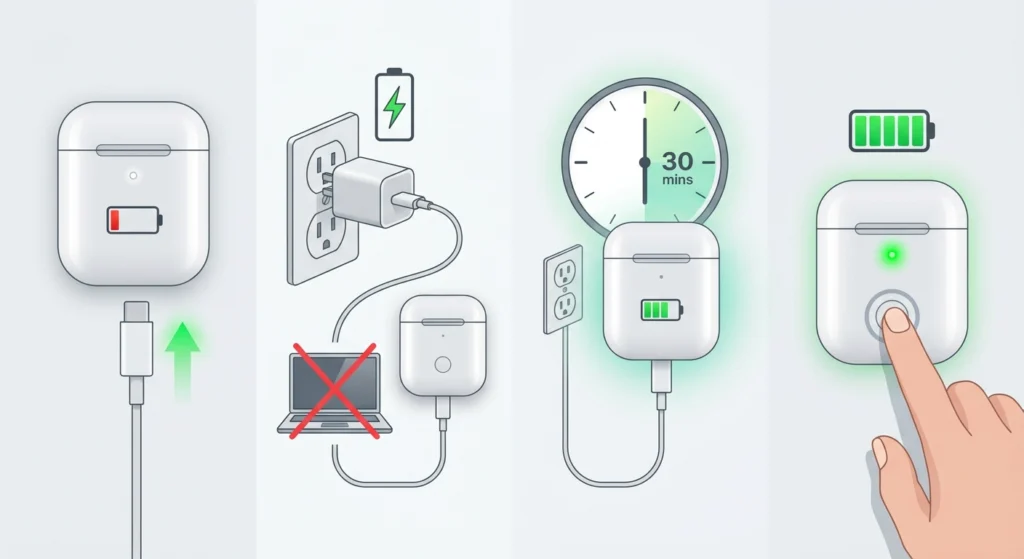
Before anything else, the case battery might simply be too low to power the LED. This happens more often than people expect, especially if the case has been sitting unused for a few weeks.
- Step 1: Connect the charging case to a power source using the original USB-C cable or a known-working one.
- Step 2: Use a wall adapter rather than a laptop USB port – wall adapters deliver more stable current.
- Step 3: Leave it plugged in for at least 30 minutes before checking the LED.
- Step 4: Press the button on the case once – the LED should light up to show the current charge level.
This works best when the case has not been charged in a while. A fully depleted lithium battery sometimes needs a few minutes on the charger before the LED circuit has enough power to activate.
Fix 2: Clean the Charging Contacts and USB-C Port
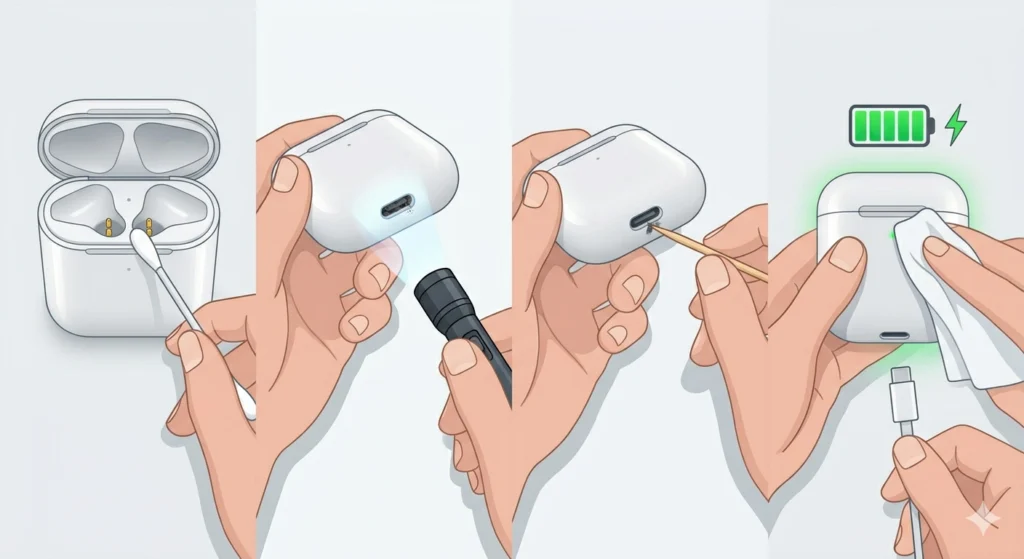
Dust, earwax, and pocket lint are silent killers for charging cases. Dirty contacts on the inside of the case or inside the USB-C port can interrupt the circuit entirely, making the LED appear dead even when everything else is fine.
- Step 1: Use a dry cotton swab to gently wipe the metal charging pins inside the case where the earbuds sit.
- Step 2: Inspect the USB-C port using a flashlight – look for any debris packed inside.
- Step 3: Use a toothpick or a SIM card ejector tool to carefully remove any lint from the USB-C port. Avoid metal objects that can damage the pins.
- Step 4: Wipe everything down with a dry microfiber cloth and reconnect the cable.
Most people find that a quick contact cleaning brings the LED back immediately. The key is using a dry tool – moisture near charging contacts can make things worse.
Pro-Tip: Compressed air in a can works great for blowing debris out of the USB-C port without risking damage to the internal pins. A one-second burst from a safe distance is usually all it takes.
Fix 3: Try a Different USB-C Cable and Power Adapter
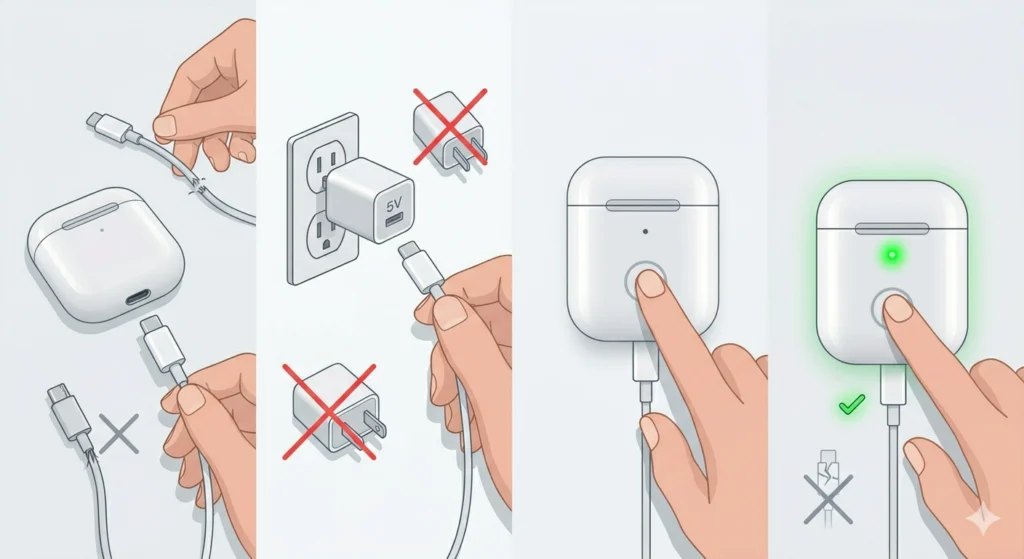
A faulty cable or underpowered adapter can prevent the case from charging properly, which in turn keeps the LED dark. Not all USB-C cables support charging – some are data-only.
- Step 1: Swap out the current USB-C cable for a different one that is confirmed to support charging.
- Step 2: Plug into a wall adapter rated at 5V/1A or higher – avoid cheap no-brand adapters.
- Step 3: Once connected, press the case button to check if the LED lights up.
- Step 4: If the LED activates with the new cable, the original cable was the problem.
Fix 4: Reset the Soundcore Liberty 4 NC Charging Case
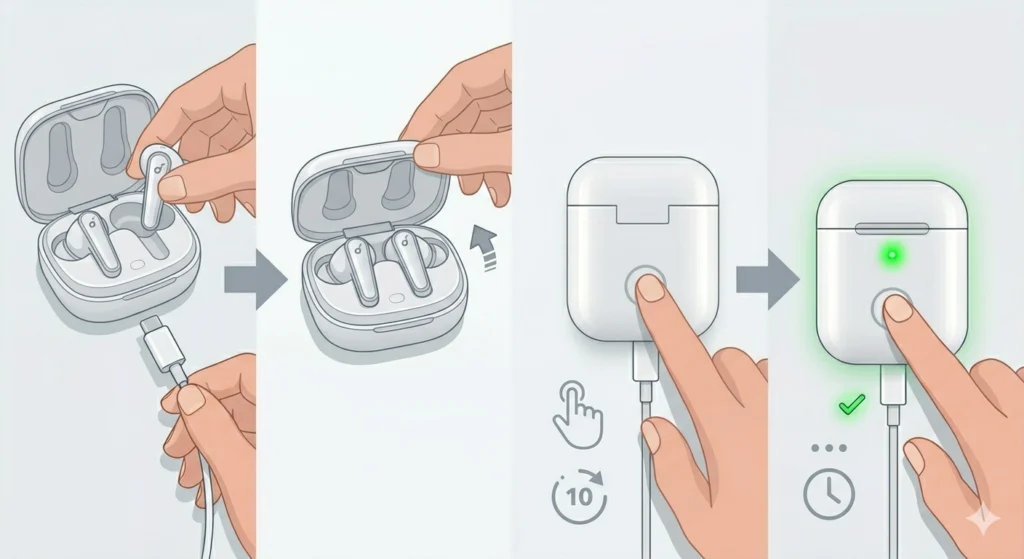
A firmware glitch inside the case can cause the LED to stop responding even when the battery is fine. Resetting the case clears these kinds of software-level issues and restores normal behavior.
- Step 1: Place both earbuds inside the charging case and close the lid.
- Step 2: Open the lid and locate the button on the back of the case.
- Step 3: Press and hold the button for about 10 seconds until the LED flashes or you see a color change indicating a reset.
- Step 4: Wait a few seconds, then press the button briefly to check if the LED indicator responds normally.
After a reset, the earbuds will need to be re-paired to any previously connected devices. If the earbuds were already paired with a Windows device and there are connection issues afterward, this guide on how to re-pair Bluetooth earbuds for stereo sound on Windows can walk through that process quickly.
Fix 5: Reseat the Earbuds Inside the Case
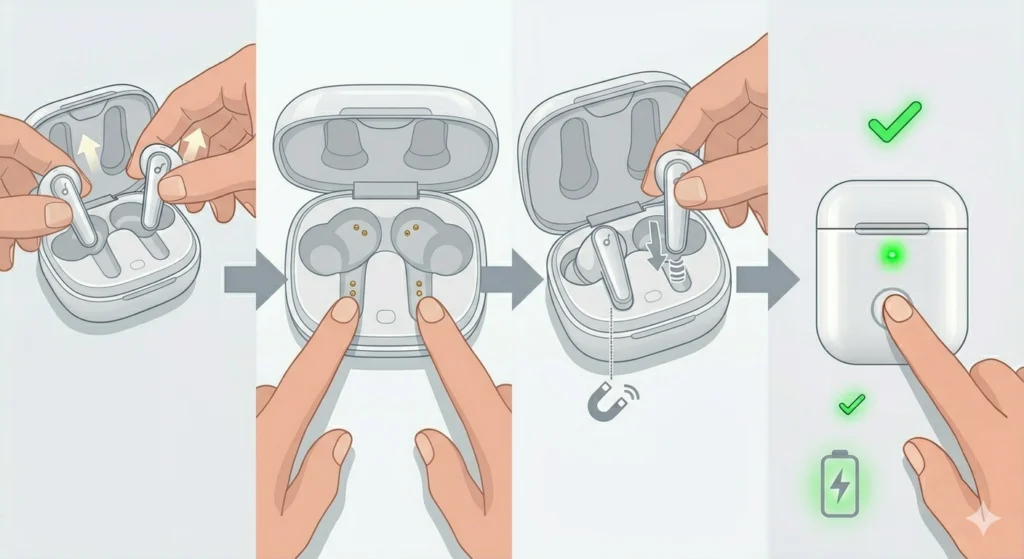
If the earbuds are not making full contact with the charging pins inside the case, the LED may either not light up or show incorrect charge status. This is especially common after the earbuds have been used with different ear tip sizes that slightly alter how they sit in the case.
- Step 1: Remove both earbuds from the case completely.
- Step 2: Check the charging pins inside each earbud slot – make sure they are clean and not bent.
- Step 3: Firmly press each earbud back into its slot until a small click or magnetic snap is felt.
- Step 4: Close the lid and press the case button – the LED should light up showing the charging status.
Pro-Tip: If ear tips were recently changed to a larger size, try reinstalling the original tips temporarily. Oversized ear tips can prevent the earbud from seating deep enough to make contact with the charging pins inside the case.
Fix 6: Update the Soundcore App and Firmware
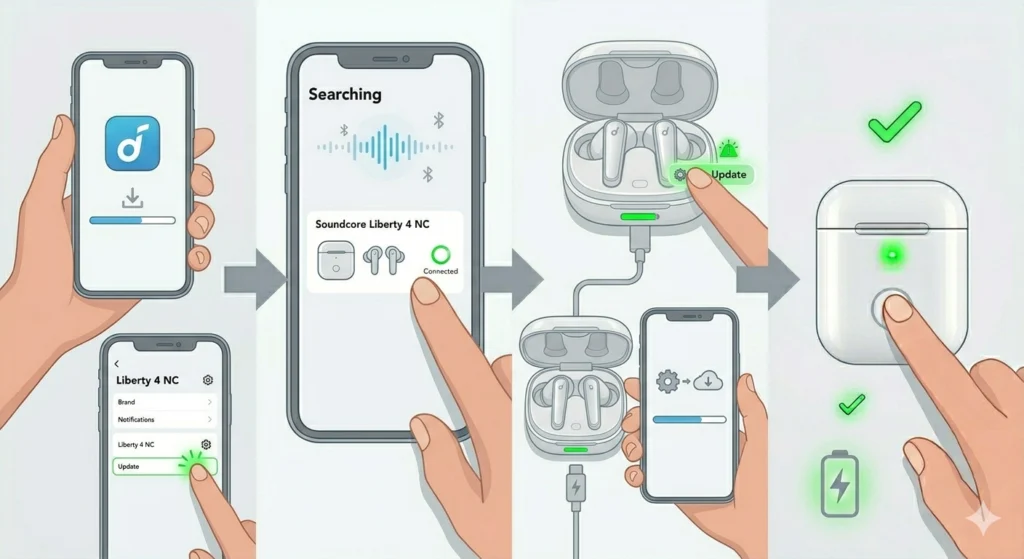
Outdated firmware is a lesser-known cause of LED malfunctions. Soundcore regularly pushes updates that fix bugs related to battery reporting and LED behavior.
- Step 1: Download or update the Soundcore app on a smartphone.
- Step 2: Open the app and connect the Soundcore Liberty 4 NC earbuds.
- Step 3: Navigate to the device settings within the app and look for a firmware update option.
- Step 4: If an update is available, follow the on-screen instructions to install it. Keep the earbuds in the case and the case charged during this process.
- Step 5: Once the update completes, check whether the LED is responding correctly.
Tips for Keeping the Charging Case LED Working Properly
- Do not let the case battery drop to zero regularly – partial discharge cycles are healthier for lithium batteries and keep the LED circuit stable.
- Store the case in a clean pouch or pocket compartment to prevent lint buildup in the USB-C port.
- Clean the charging contacts with a dry swab once a month, especially if the earbuds are used daily during workouts.
- Always use certified USB-C cables – cheap cables deliver inconsistent voltage that can cause charging and LED glitches over time.
- Avoid exposing the case to extreme temperatures. High heat or cold can affect battery behavior and cause the LED to behave erratically.
Common Problems Related to the Charging Case LED
LED Flashes Red Continuously
A continuous red flash usually means the case battery is critically low. Connect it to a charger immediately and leave it for at least 45 minutes before pressing the button again.
LED Shows Full Charge But Earbuds Are Not Charging
This points to dirty or misaligned earbud contacts rather than a case battery issue. Clean the pins inside the earbud slots and reseat the earbuds as described in Fix 5 above.
LED Blinks White Repeatedly After Reset
This is normal – a repeated white blink after a reset means the case has entered pairing mode. Simply close the lid, wait a few seconds, and reopen to check the standard battery LED display.
LED Does Not Respond to Button Presses
If pressing the case button produces no LED response at all, the case likely needs a charge first. If charging does not resolve it, a firmware issue may be responsible. Try the reset process in Fix 4 and then update the firmware through the Soundcore app. If a Windows device is involved and the earbuds are causing microphone issues after re-pairing, checking the guide on resolving microphone detection problems on Windows 11 can help sort that out separately.
Case Charges Fine But LED Color Is Wrong
LED color inconsistencies (such as showing blue instead of white for a full charge) are typically a firmware display bug. Updating through the Soundcore app as described in Fix 6 usually resolves this.
Frequently Asked Questions
Why is the LED on my Soundcore Liberty 4 NC case not lighting up?
The most common reasons are a fully depleted battery, dirty charging contacts, or a faulty USB-C cable. Start by charging the case for 30 minutes with a known-good cable, then press the button to see if the LED responds.
How do I check the battery level of the Soundcore Liberty 4 NC case?
Press the button on the back of the charging case once. The LED will light up in a color that corresponds to the current battery level – typically white for high charge, orange or amber for medium, and red for low.
What does a flashing LED on the Soundcore Liberty 4 NC case mean?
A flashing LED usually indicates the case is in pairing mode, the battery is critically low, or a reset has just been performed. The specific pattern and color of the flash give more detail – red flashes almost always mean low battery.
Can a bad USB-C cable cause the LED to stop working?
Yes, absolutely. Data-only USB-C cables or cheap cables with inconsistent voltage output can prevent the case from charging properly, which stops the LED from activating. Always use a cable that is rated for charging.
How do I reset the Soundcore Liberty 4 NC charging case?
Place both earbuds in the case, open the lid, and press and hold the case button for around 10 seconds. The LED will flash to confirm the reset. After this, re-pair the earbuds to connected devices.
Will resetting the case delete my equalizer settings?
A case reset primarily affects the Bluetooth pairing data. Equalizer and sound settings saved in the Soundcore app are stored in the app itself and on the earbuds, so they generally remain intact after a case-level reset.
Why does the LED come on briefly and then turn off immediately?
This usually means the case pressed the button once (which shows the current charge briefly), the battery is nearly empty, or there is a contact issue with the earbuds. Make sure the earbuds are properly seated and charge the case if the battery is low.
Is the LED issue covered under Soundcore warranty?
If the LED malfunction is not resolved by any of the standard fixes and the case is within the warranty period (typically 18 months for Soundcore products), it qualifies for a warranty claim. Contact Soundcore support with proof of purchase to initiate a replacement or repair.
Can I use the earbuds normally even if the case LED is not working?
Yes – the earbuds themselves function independently of the case LED. The LED is only an indicator for the case battery and charging status. The earbuds will still charge inside the case as long as the contacts are clean and the case has power, even if the LED is faulty.
How often should I clean the charging contacts on the case?
For daily users, a light cleaning once every two to four weeks is recommended. For gym or outdoor users who sweat regularly near the earbuds, a weekly wipe-down of the earbud pins and the case contacts helps prevent buildup that can interfere with both charging and the LED indicator.