
Setting up the Sennheiser Momentum True Wireless 3 earbuds only takes a few minutes once the process is broken down into clear steps. These earbuds pack adaptive noise cancellation, six microphones, and Qi wireless charging into a compact design, but getting them connected properly is what unlocks all of that. This guide walks through every part of the setup, from unboxing to app installation, without any unnecessary detours.
Key Takeaways
- The earbuds power on automatically when removed from the charging case.
- Pairing mode activates by holding the touch panel on both earbuds for about 3 seconds.
- Bluetooth 5.2 allows a stable connection with phones, laptops, and tablets.
- The Sennheiser Smart Control app unlocks equalizer settings, firmware updates, and touch control customization.
- Choosing the correct ear tip and ear fin size matters just as much as the Bluetooth connection itself.
Step-by-Step Guide to Setting Up the Sennheiser Momentum True Wireless 3
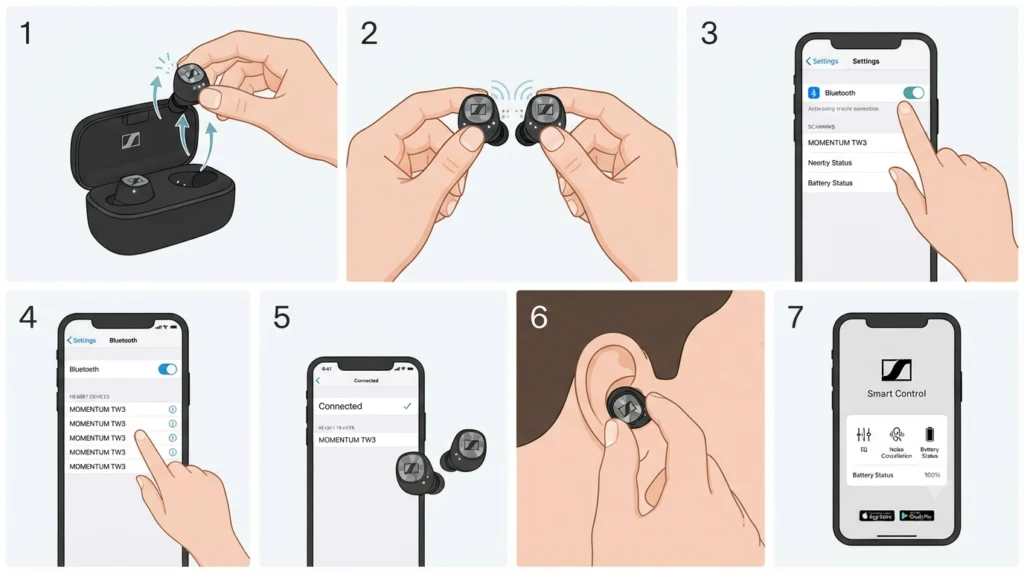
This is the core process most new owners need. Follow these steps in order the very first time the earbuds are used.
- Step 1: Open the lid of the charging case and take both earbuds out. They power on automatically as soon as they leave the case, so there is no separate power button to press.
- Step 2: Touch and hold the sensor panel on both earbuds at the same time for around 3 seconds. A voice prompt saying ‘Pairing’ confirms that the earbuds are ready to connect, and the LED indicators will flash.
- Step 3: On the smartphone, laptop, or tablet, open the Bluetooth settings menu and enable Bluetooth if it is not already on.
- Step 4: Search for nearby devices and select ‘MOMENTUM TW3’ or ‘Sennheiser MOMENTUM True Wireless 3’ from the list that appears.
- Step 5: Wait for the voice prompt to say ‘Connected’. The LED lights on both earbuds will turn solid, confirming that the pairing was successful.
- Step 6: Insert the earbuds into the ears at a slight angle, twisting gently so they sit snugly in the ear canal. Comfort and sound quality both depend on this fit.
- Step 7: Download the Sennheiser Smart Control app from the App Store or Google Play to finish setup and access the full range of features.
Pro-Tip: The first pairing attempt works best when Bluetooth on every other nearby device is temporarily turned off. Two phones searching for the earbuds at once often causes a failed connection, which is one of the most common setup mistakes people run into.
Choosing the Right Ear Tips and Ear Fins
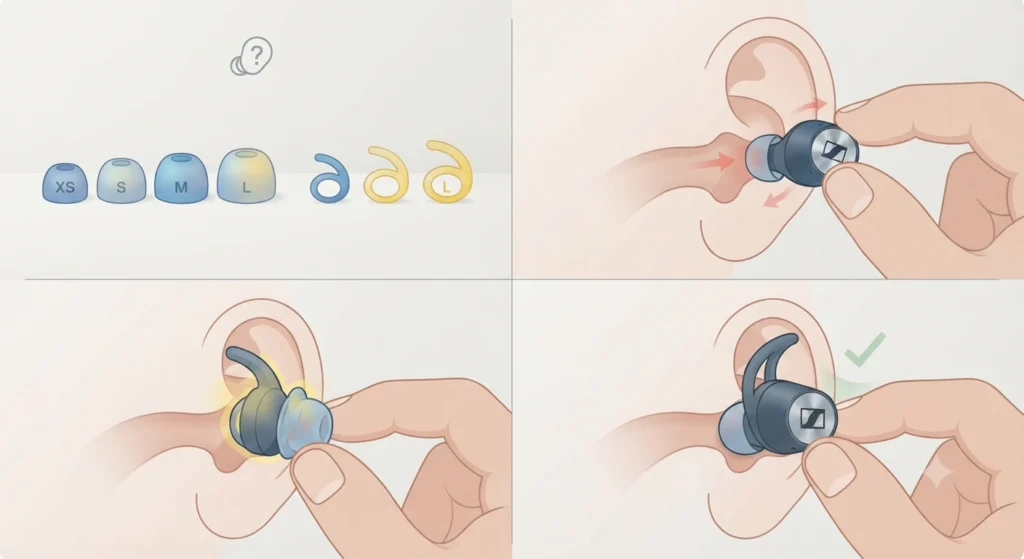
The Momentum True Wireless 3 ships with four sizes of silicone ear tips (XS, S, M, L) and three sizes of ear fins (S, M, L). A loose fit does not just risk the earbuds falling out during a workout, it also weakens noise isolation and bass response. The best approach is to try each size and gently tug the earbud after inserting it. If it stays in place without any wiggle, that size is the correct one for that ear specifically, since left and right ears are rarely identical in shape.
Installing and Using the Sennheiser Smart Control App
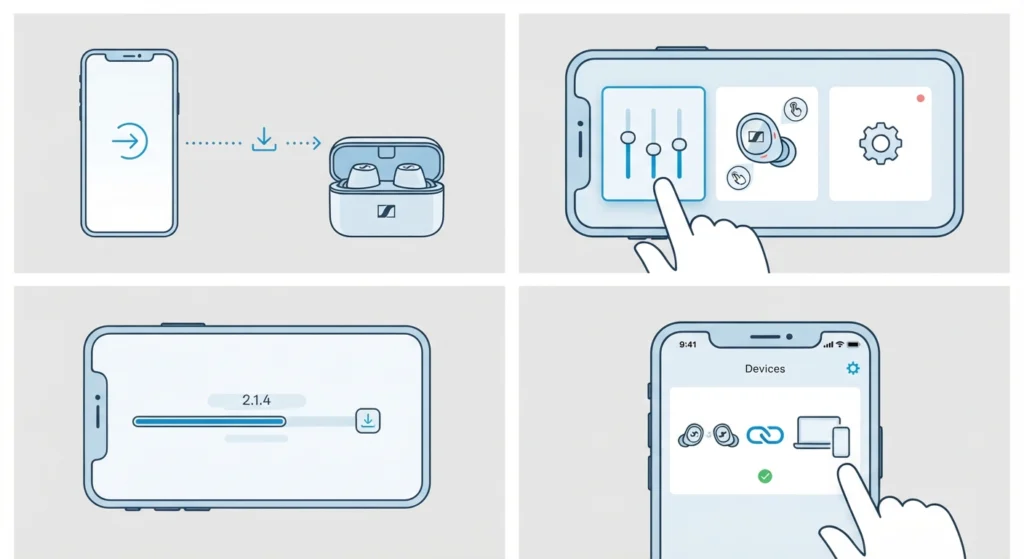
Once the earbuds are connected over Bluetooth, the Smart Control app becomes the control center for everything else. After installation, opening the app links it automatically to the paired earbuds. From there, the equalizer can be adjusted, touch controls can be reassigned, and firmware updates become available. Keeping firmware current is worth doing early, since newer versions have added features such as multipoint connectivity, allowing the earbuds to stay linked to two devices at the same time.
Connecting the Earbuds to a Windows Laptop or PC
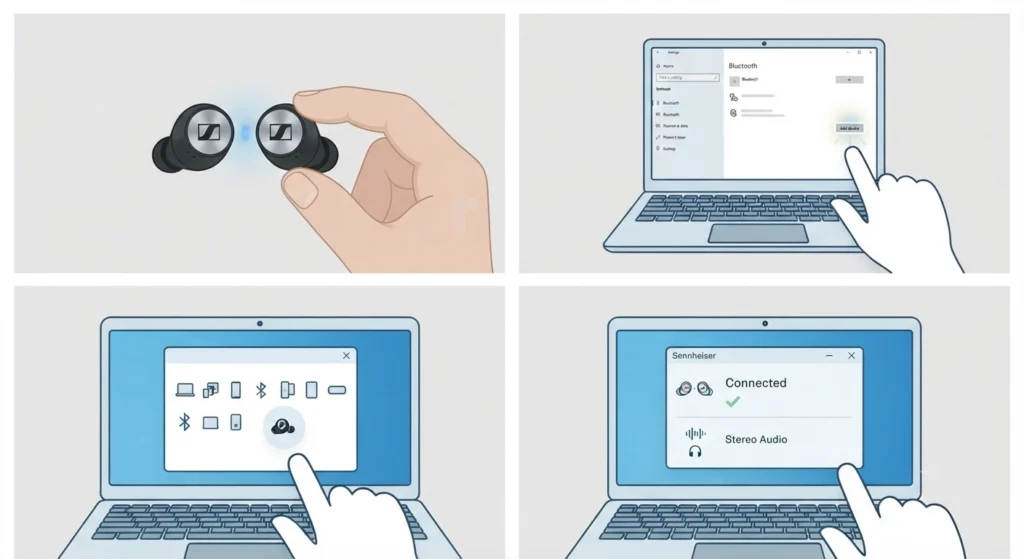
The setup process on a Windows machine mirrors the phone process closely, though Windows sometimes needs an extra nudge to detect true wireless earbuds correctly. After the earbuds are in pairing mode, open the Bluetooth panel from Windows Settings and add them as a new device. If the connection drops or the earbuds fail to show up as a stereo audio device, this guide on how to re-pair Bluetooth earbuds for stereo sound on Windows walks through the fix in detail.
Tips for a Better Listening Experience
- Keep the earbuds and charging case updated through the Smart Control app for the most stable connection.
- Store the earbuds in the case whenever they are not in use, since this preserves battery health over time.
- Clean the charging contacts on the earbuds and inside the case with a cotton swab every few weeks to maintain a reliable charge.
- Adjust the equalizer inside the app rather than relying on default settings, since most people find a slight bass boost improves the seal-dependent sound signature of these earbuds.
- On Windows, sound sometimes defaults to the laptop speakers even after pairing. Checking and adjusting the audio output settings ensures the earbuds are actually selected as the playback device.
Common Setup Problems and Troubleshooting
Fix 1: Earbuds Do Not Appear in the Bluetooth List
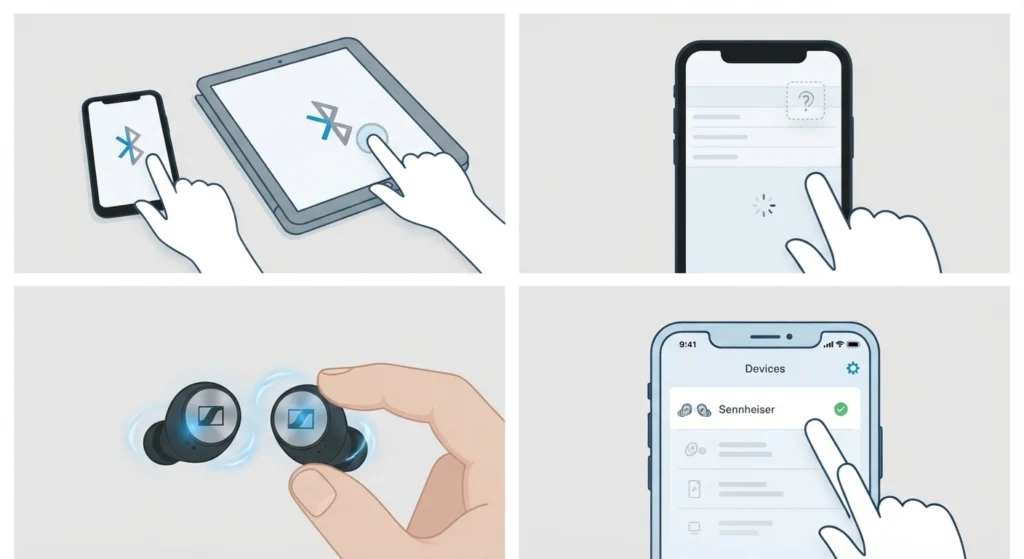
This usually happens when the earbuds are still paired to another device in the background. Turning off Bluetooth on any other nearby device and repeating the pairing sequence from Step 2 almost always resolves it.
Fix 2: One Earbud Connects but the Other Does Not
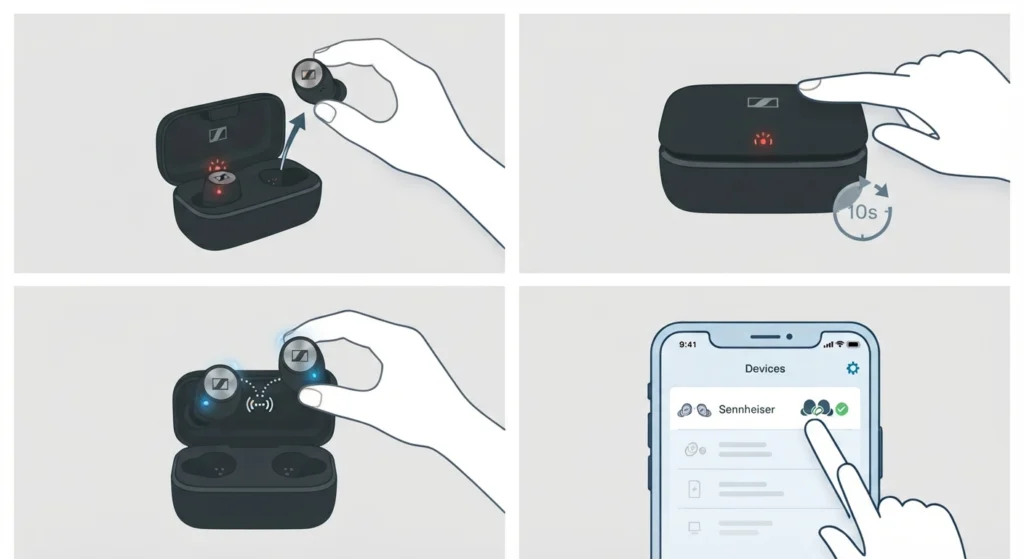
Placing both earbuds back into the charging case, closing the lid for about 10 seconds, then taking them out again typically re-syncs the pair before reconnecting to the device.
Fix 3: Connected but No Sound Comes Through
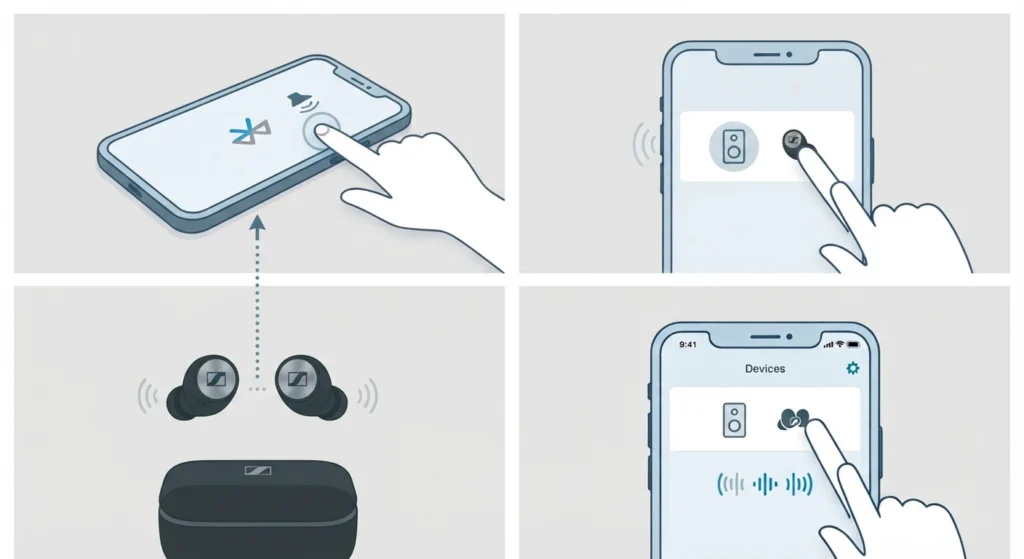
The output device on the phone or computer may still be set to the built-in speakers. Reselecting the earbuds from the audio output menu usually fixes this instantly.
Fix 4: Pairing Keeps Failing Repeatedly
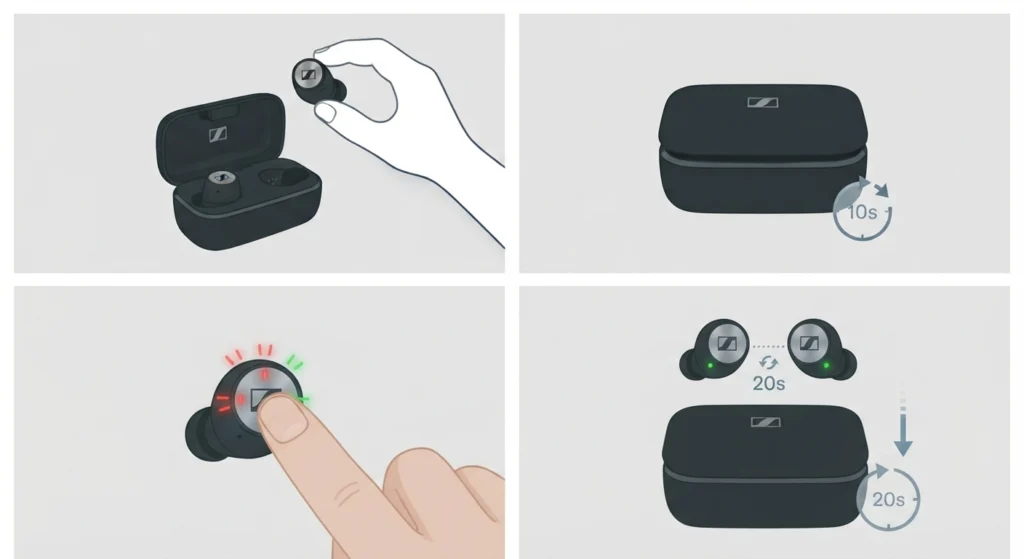
A factory reset clears out corrupted pairing data. Remove one earbud from the case while leaving the other inside, close the lid, then hold the touch panel of the removed earbud for about 10 seconds until the LED flashes red and green alternately. After roughly 20 seconds, both earbuds reset and re-sync automatically.
Frequently Asked Questions
How long does it take to pair the Sennheiser Momentum True Wireless 3 for the first time?
The entire process, from opening the case to hearing the ‘Connected’ voice prompt, usually takes under a minute.
Do the earbuds need to be charged before the first setup?
Yes. Charging the earbuds and case fully before first use is recommended, since a very low battery can interrupt the pairing process.
Can the Momentum True Wireless 3 connect to two devices at once?
Yes, multipoint connectivity is supported, though it requires the latest firmware installed through the Smart Control app.
Why does only one earbud produce sound after pairing?
This typically points to a sync issue between the two earbuds rather than a Bluetooth problem. Placing both back in the case together for about 10 seconds usually restores the connection between them.
Is the Sennheiser Smart Control app required to use the earbuds?
No, basic playback and calls work without it. The app is needed for equalizer adjustments, firmware updates, and customizing touch controls.
What Bluetooth version do these earbuds use?
They use Bluetooth 5.2, which supports the A2DP, AAC, AVRCP, HFP, and SBC profiles for broad device compatibility.
Are the Sennheiser Momentum True Wireless 3 earbuds waterproof?
No, they carry an IPX4 rating, which protects against sweat and light splashes but not full submersion.
How do I know the ear tip size is correct?
A properly sized tip creates a tight seal in the ear canal and does not move when gently tugged. If outside noise still comes through clearly, a larger size usually helps.
What should be done if the earbuds will not connect to a Windows laptop?
Removing the existing pairing entry in Windows Bluetooth settings and repeating the pairing steps from the beginning resolves most connection failures on Windows.
How do I put the earbuds into pairing mode for a second device?
While already connected to one device, holding the touch panel on either earbud for about 3 seconds puts them into pairing mode for an additional device.