
Key Takeaways
- Google Pixel Buds Pro connect to Android through Fast Pair, which pops up automatically once the case is opened near the phone.
- The Pixel Buds app from the Google Play Store unlocks fit testing, noise control settings, and firmware updates.
- A full charge before the first pairing prevents interruptions during setup.
- Signing into a Google account lets the earbuds sync settings across devices automatically.
- Manual pairing through Bluetooth settings works as a backup if Fast Pair does not trigger.
Setting up Google Pixel Buds Pro on Android takes just a few minutes when the right sequence is followed. These earbuds are built to work almost instantly with Android phones thanks to Google’s Fast Pair technology, but a few small steps make the difference between a smooth setup and a frustrating one. This guide walks through the entire process from unboxing to customizing controls.
Step-by-Step Guide to Setting Up Google Pixel Buds Pro on Android
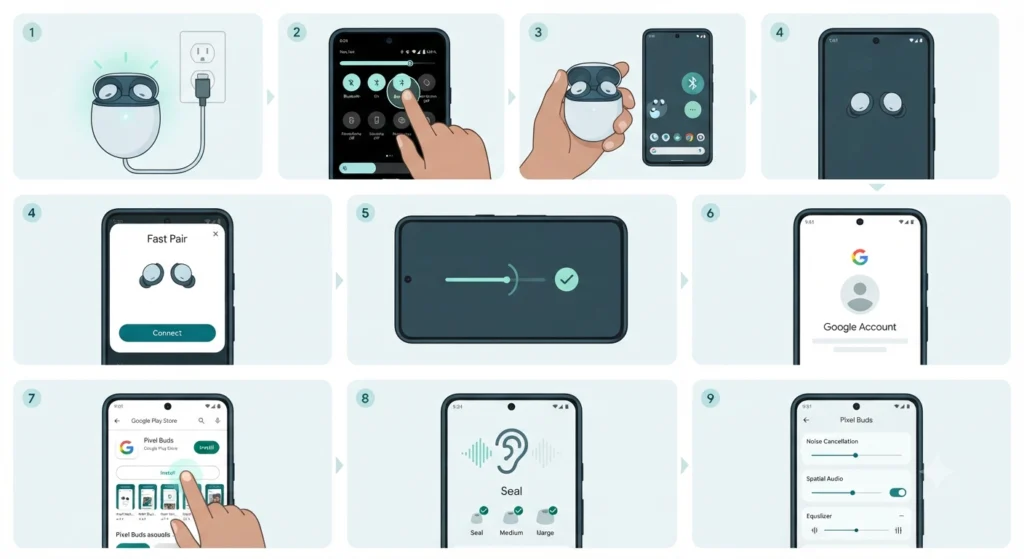
Follow these steps in order for the fastest and most reliable pairing experience.
- Step 1: Charge the earbuds and the case for at least 15 minutes before attempting to pair. A low battery can prevent the Fast Pair prompt from appearing.
- Step 2: Turn on Bluetooth on the Android phone by swiping down from the top of the screen and tapping the Bluetooth icon, or by going into Settings and selecting Connected devices.
- Step 3: Open the Pixel Buds Pro case near the phone while the earbuds are still inside. Keep the lid open and hold the case within a foot of the device.
- Step 4: Wait for the Fast Pair notification to appear on the phone screen. This usually shows up within a few seconds and displays an image of the earbuds along with a Connect button.
- Step 5: Tap Connect, then follow the on-screen prompts to finish linking the earbuds to the phone.
- Step 6: Sign in with a Google account when prompted. This step allows settings, such as noise control preferences and touch controls, to sync across other Android devices signed into the same account.
- Step 7: Download the Google Pixel Buds app from the Play Store if it does not install automatically. This app is where the real customization happens.
- Step 8: Open the app and complete the ear tip fit test. This short audio test checks the seal of each ear tip and recommends a size change if needed for better noise isolation and sound quality.
- Step 9: Customize touch controls, noise cancellation levels, and spatial audio settings from the app’s main dashboard based on personal listening preference.
Pro-Tip: If the Fast Pair notification does not appear after opening the case, place the earbuds back in the case, close the lid for five seconds, then reopen it. This resets the Bluetooth advertising signal and usually triggers the prompt on the second attempt.
Manual Pairing Method (If Fast Pair Does Not Trigger)
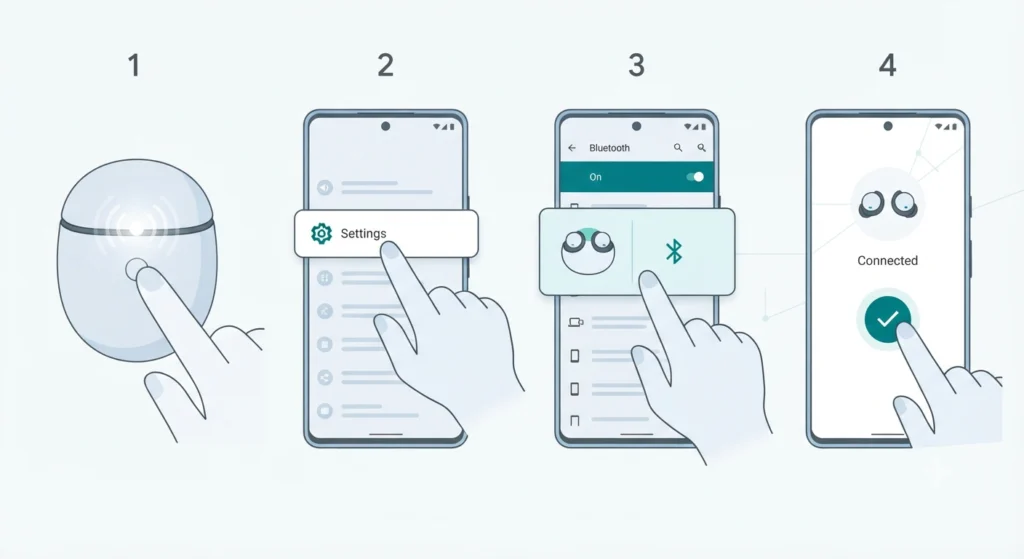
Some Android phones, especially those from brands other than Google, do not support Fast Pair notifications. In that case, manual pairing works just as well.
- Step 1: Press and hold the button on the back of the Pixel Buds Pro case for about five seconds until the status light starts flashing white.
- Step 2: Go to Settings, then Connected devices, then Pair new device on the Android phone.
- Step 3: Select Pixel Buds Pro from the list of available devices that appears.
- Step 4: Confirm the connection and allow the phone a moment to finish linking both earbuds.
Tips for a Better Pixel Buds Pro Experience
- Keep the Pixel Buds app updated so firmware improvements and bug fixes install automatically in the background.
- Run the ear tip fit test again after switching ear tip sizes, since even a slightly loose seal affects both noise cancellation and bass response.
- Use the battery widget in the Pixel Buds app to check earbud and case charge levels without opening the case.
- Adjust the in-ear detection setting if music keeps pausing unexpectedly during workouts or while wearing a hat or hood.
- For anyone who also switches these earbuds between a phone and a Windows laptop, checking how to re-pair Bluetooth earbuds for stereo sound helps avoid mono audio issues when moving between devices.
Common Setup Problems and Fixes
Fix 1: Earbuds Not Appearing in Bluetooth List
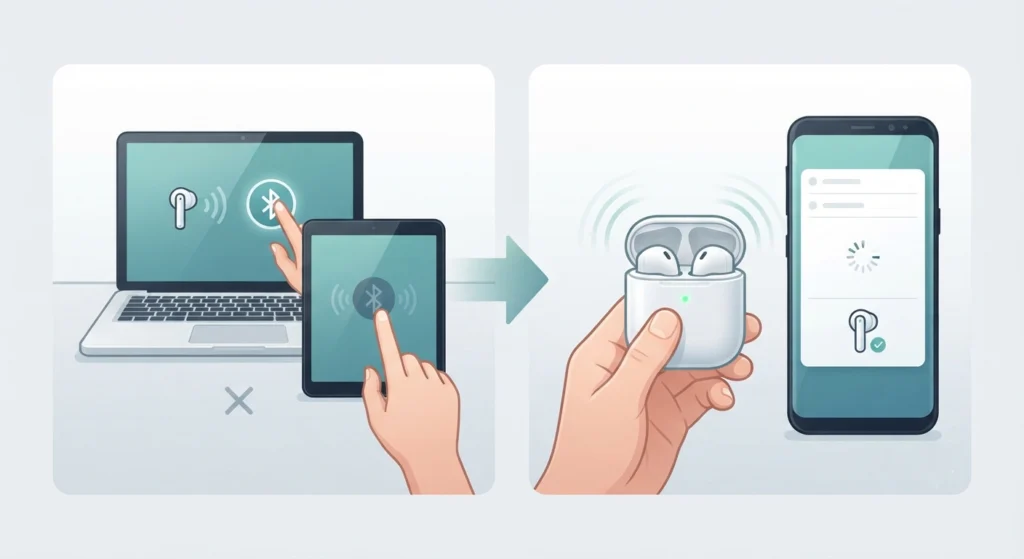
This usually happens when the earbuds are still paired to another device, such as a laptop or tablet. Turn off Bluetooth on the other device first, then reopen the case near the Android phone.
Fix 2: Only One Earbud Connects
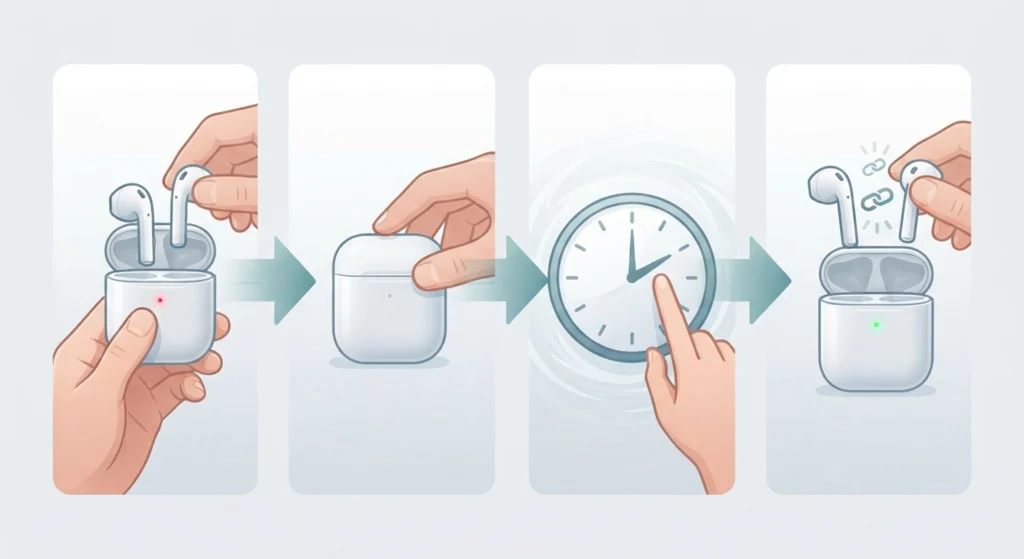
Place both earbuds back in the case, close the lid, and wait ten seconds before taking them out again. This forces the earbuds to resync with each other before reconnecting to the phone.
Fix 3: Case Will Not Charge
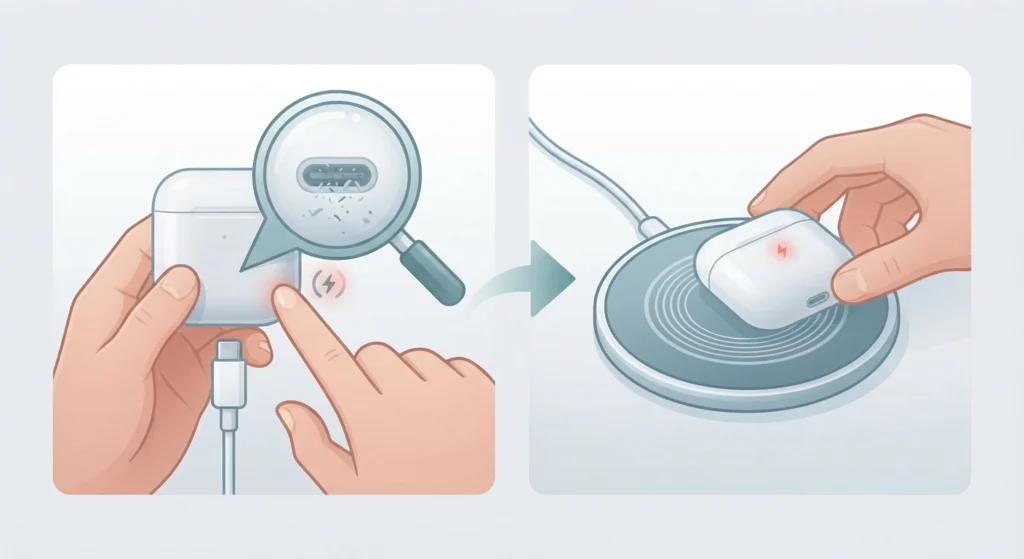
Check the charging cable and port for lint or debris, since a poor connection is the most common cause. Wireless charging pads should also be checked for correct placement, as the case needs to sit centered on the pad.
Fix 4: Microphone Not Working During Calls
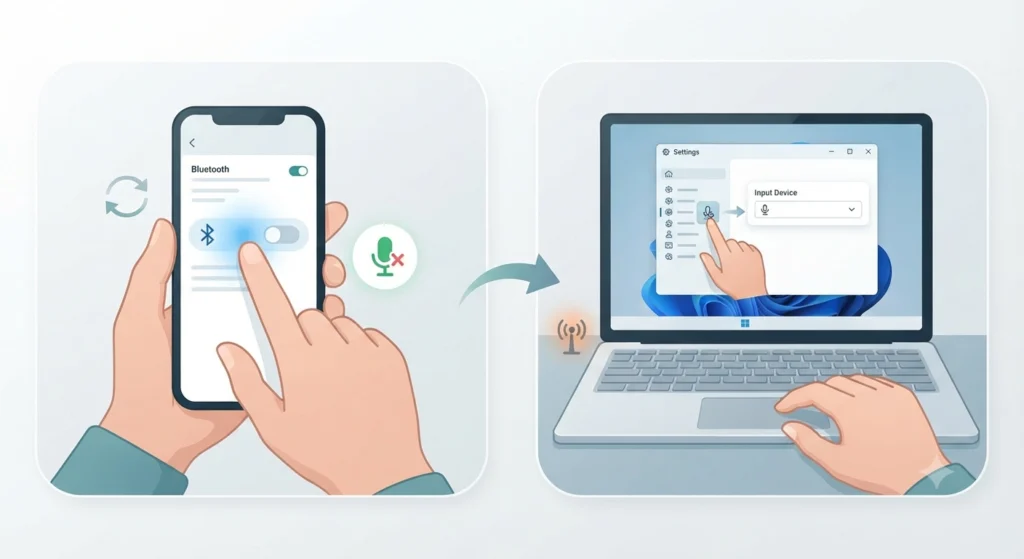
On a phone, restarting Bluetooth usually resolves this. Those who primarily use Pixel Buds Pro for calls on a Windows 11 laptop can review this guide on resolving microphone detection problems for a more detailed fix specific to that operating system.
Pro-Tip: Most connectivity issues trace back to the earbuds being paired to two devices at once. Android only allows one active Bluetooth connection per device at a time, so disconnecting from unused devices first solves the majority of pairing complaints.
Frequently Asked Questions
Do Google Pixel Buds Pro work with all Android phones?
Yes, they work with any Android phone running Android 6.0 or later. Fast Pair, the automatic pairing feature, works best on Android 8.0 and above.
Is a Google account required to use Pixel Buds Pro?
A Google account is not strictly required for basic pairing, but signing in unlocks settings sync, Find My Device support, and cloud backup of custom preferences.
How long does the first pairing take?
The entire process, from opening the case to finishing the ear tip fit test, typically takes under five minutes.
Can Pixel Buds Pro connect to two devices at the same time?
Yes, multipoint connection allows pairing with two devices simultaneously, such as a phone and a tablet, and audio switches automatically based on which device is playing sound.
What should be done if the Pixel Buds app does not detect the earbuds?
Confirm Bluetooth is already connected in phone settings first, then reopen the Pixel Buds app. The app relies on an existing Bluetooth connection to display earbud settings.
Do Pixel Buds Pro need a firmware update after the first setup?
Firmware updates install automatically through the Pixel Buds app whenever a new version is available, so no manual download is needed.
Why does the case light stay flashing after pairing?
A flashing white light indicates pairing mode is still active. It turns solid or switches off once the connection to the phone is confirmed.
Can Pixel Buds Pro be renamed on Android?
Yes, the device name can be changed from the Bluetooth settings menu on the phone or directly within the Pixel Buds app under device settings.
What happens if two Android phones try to pair with the same earbuds?
The earbuds will connect to whichever device initiates pairing most recently, disconnecting from the previous device. Both phones can still be saved in the earbuds’ paired device list for quick switching later.
Is it necessary to run the ear tip fit test every time the earbuds are worn?
No, the test only needs to run once per ear tip size. It should be repeated only after switching to a different tip size for a better fit.