
Setting up the Anker Soundcore Liberty 4 NC earbuds takes only a few minutes once the correct order of steps is known. Most people find that the setup goes smoothly as long as the earbuds are charged, the case is opened correctly, and the soundcore app is installed before pairing begins. This guide covers the exact steps needed to get these earbuds paired, fitted, and ready to use with a phone, laptop, or Windows 11 PC.
Key Takeaways
- Charge the earbuds fully before the first pairing attempt
- Download the soundcore app for fit testing and control customization
- Opening the charging case automatically triggers Bluetooth pairing mode
- Select ‘soundcore Liberty 4 NC’ from the Bluetooth list to complete pairing
- A fit test in the app confirms the best possible noise cancellation seal
Step-by-Step Guide to Setting Up the Liberty 4 NC
The setup process follows a specific order, and skipping a step – like inserting the ear tips before checking the fit – often leads to weaker noise cancellation later. The steps below follow the sequence that works best for most users.
Step 1: Prepare the Earbuds and Charging Case
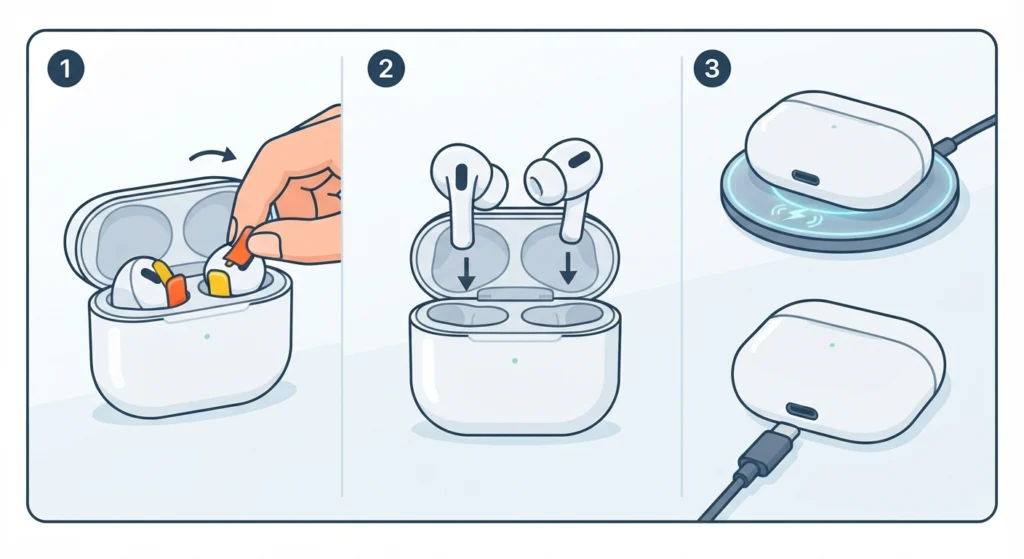
- Step 1: Remove the insulation sticker from both earbuds if this is the first time they are being used.
- Step 2: Place both earbuds into the charging case and close the lid to let them charge before use.
- Step 3: Connect the case to a USB-C charger, or set it on a wireless charging pad if one is available.
Step 2: Choose the Right Ear Tips and Insert the Earbuds
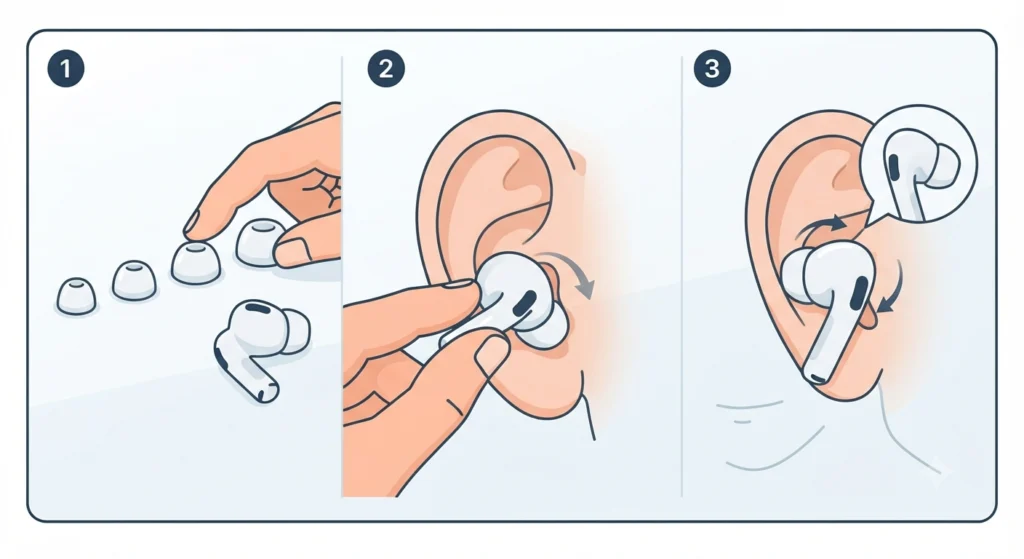
A proper seal makes a noticeable difference in how the active noise cancellation performs. The earbuds come with ear tips in four sizes, so trying a couple of sizes before settling on one is common practice.
- Step 1: Pick from the XS, S, M, or L ear tip sizes included in the box.
- Step 2: Insert each earbud gently into the ear canal.
- Step 3: Rotate slightly until the fit feels secure and the microphone sits close to the mouth.
Step 3: Download and Open the Soundcore App
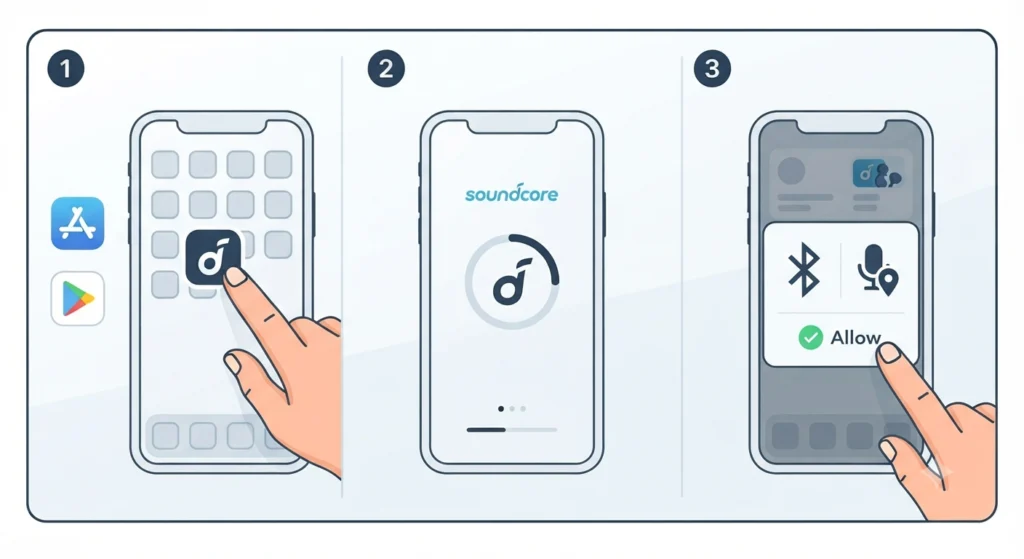
The soundcore app unlocks the fit test, equalizer, and control customization, so installing it before pairing saves a return trip later.
- Step 1: Search for ‘soundcore’ on the Apple App Store or Google Play Store.
- Step 2: Install the app and open it once the download finishes.
- Step 3: Allow the requested permissions, including Bluetooth access, so the app can detect the earbuds.
Step 4: Pair the Earbuds with a Phone or Tablet
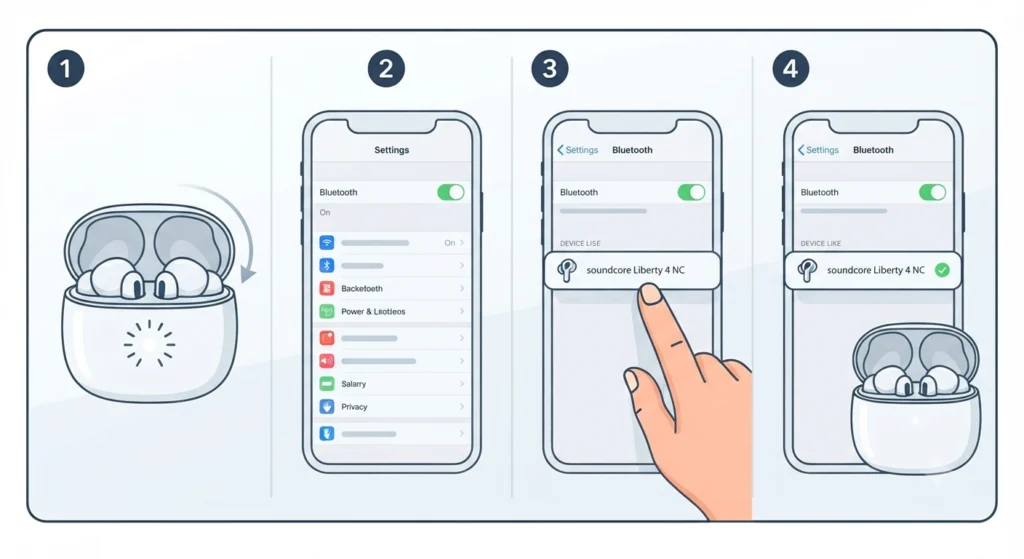
- Step 1: Open the charging case lid. The earbuds power on automatically and enter Bluetooth pairing mode, shown by a white flashing light.
- Step 2: On the phone or tablet, open Bluetooth settings and turn Bluetooth on.
- Step 3: Select ‘soundcore Liberty 4 NC’ from the list of available devices.
- Step 4: Wait for the light to stay solid for a second before flashing again, which confirms the connection succeeded.
Method 1: Pairing with a Windows 11 Computer
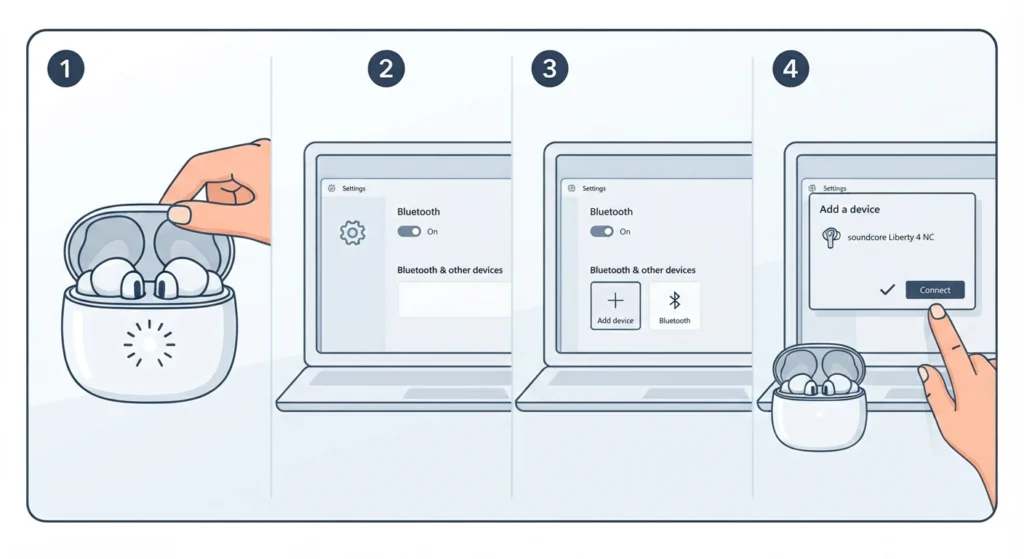
Pairing with a laptop or desktop follows a slightly different path than pairing with a phone. Anyone who has struggled with a PC not detecting the earbuds correctly can find a full walkthrough on how to re-pair Bluetooth earbuds for stereo sound on Windows.
- Step 1: Open the charging case near the computer to trigger pairing mode.
- Step 2: On the PC, go to Settings, then Bluetooth and other devices.
- Step 3: Click Add device, then select Bluetooth.
- Step 4: Choose ‘soundcore Liberty 4 NC’ once it appears in the list.
Pro-Tip: If the earbuds show up as a hands-free device instead of a stereo audio device on Windows, adjusting the audio output settings usually resolves it right away.
Step 5: Run the Fit Test in the App
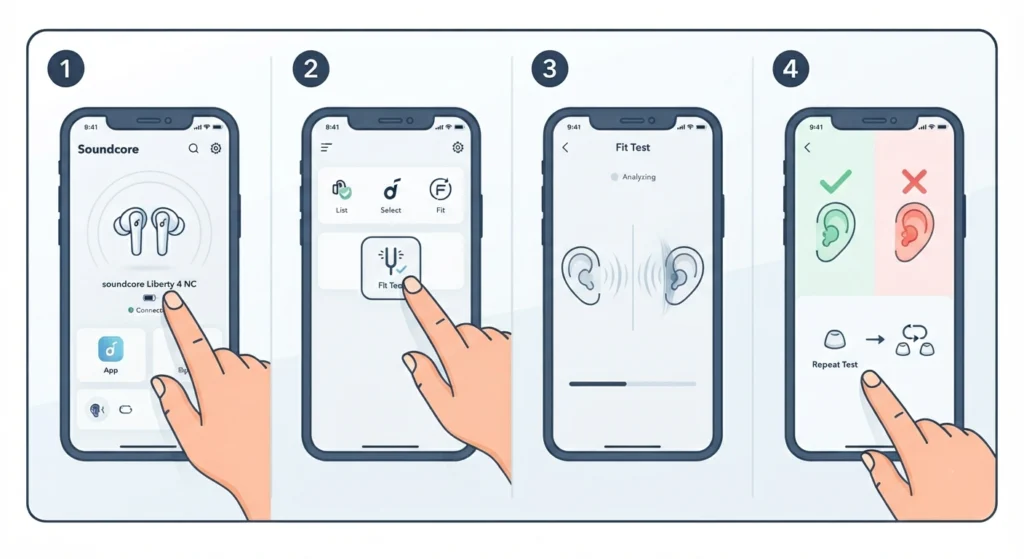
- Step 1: Open the soundcore app with the earbuds connected.
- Step 2: Navigate to the fit test option on the home screen.
- Step 3: Follow the on-screen prompt, which plays a short sound to measure seal quality in each ear.
- Step 4: Switch ear tip sizes if the test reports a poor seal, then repeat the test.
Step 6: Set Up Noise Cancellation and Controls
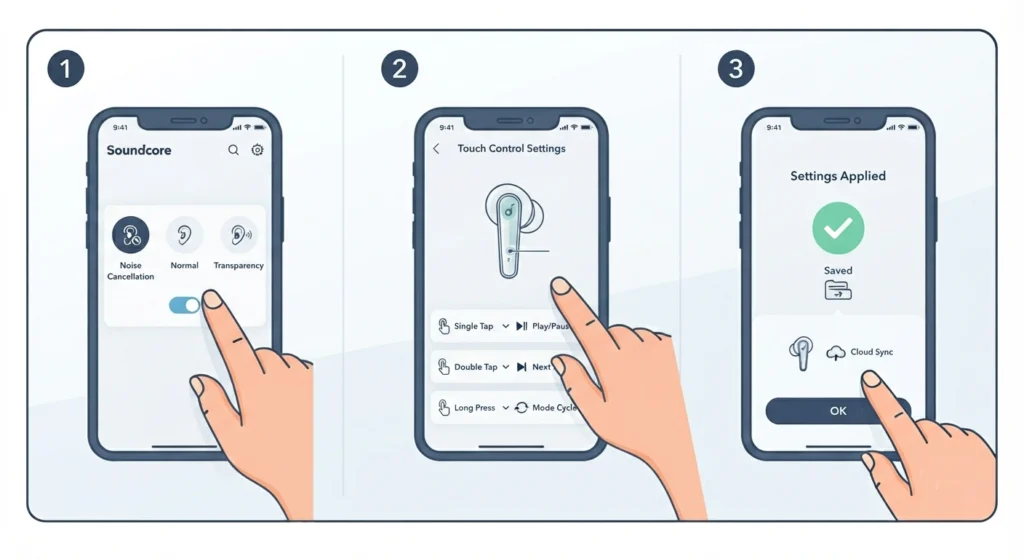
- Step 1: In the app, choose between Noise Cancellation, Normal, and Transparency modes.
- Step 2: Adjust the touch control settings if the default gestures do not match personal preference.
- Step 3: Save the settings so they apply automatically the next time the earbuds connect.
Tips for a Smoother Setup
- Dry the charging port and earbuds fully before charging if they have been exposed to sweat or moisture
- Keep the case lid open until pairing is fully confirmed, since closing it early cancels the pairing signal
- Update the firmware through the app soon after setup, since newer firmware often improves connection stability
- Test the microphone with a quick voice memo or call right after setup rather than waiting until an important call
Pro-Tip: Firmware updates are detected automatically once the earbuds connect to the app for the first time, so checking for one during the initial setup session is worth the extra two minutes.
Common Setup Problems and How to Fix Them
Fix 1: Earbuds Do Not Appear in the Bluetooth List
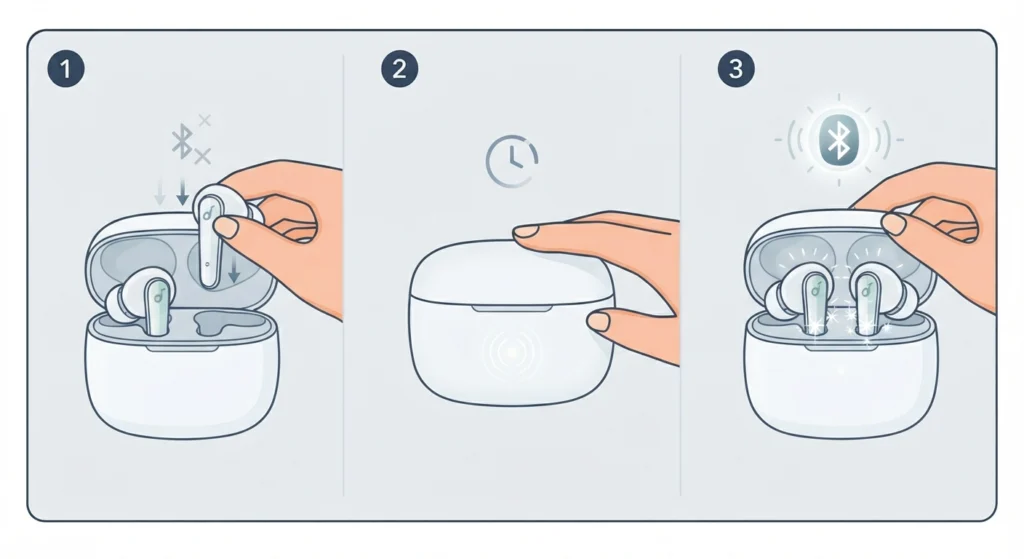
This usually means the earbuds are not in pairing mode. Placing them back in the case, closing the lid for a few seconds, then reopening it typically restarts the pairing signal.
Fix 2: Windows 11 Detects the Earbuds but Audio Sounds Wrong
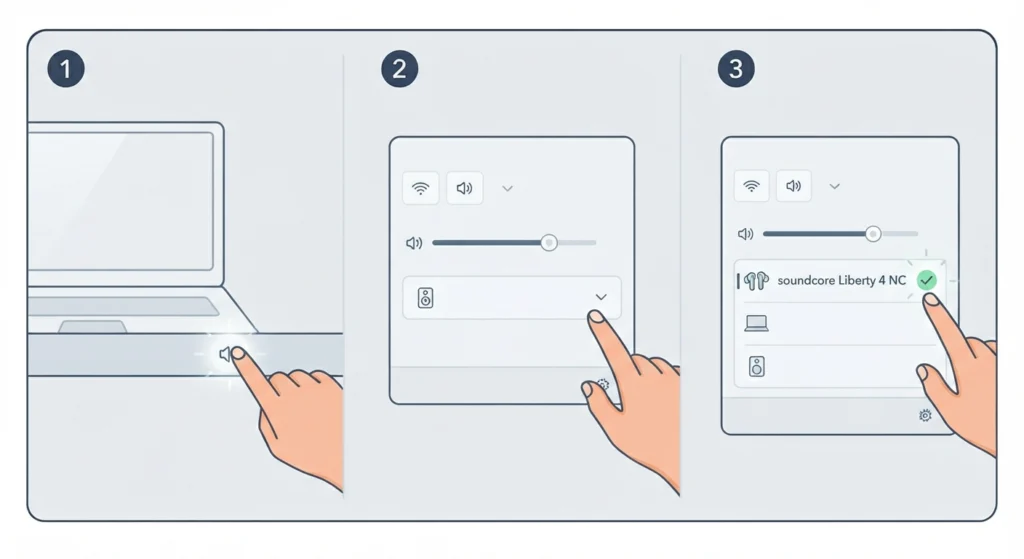
This points to an output device mismatch rather than a pairing failure. Reviewing the steps for adjusting audio output settings on Windows 11 usually clears this up within a couple of clicks.
Fix 3: Microphone Is Not Detected During Calls
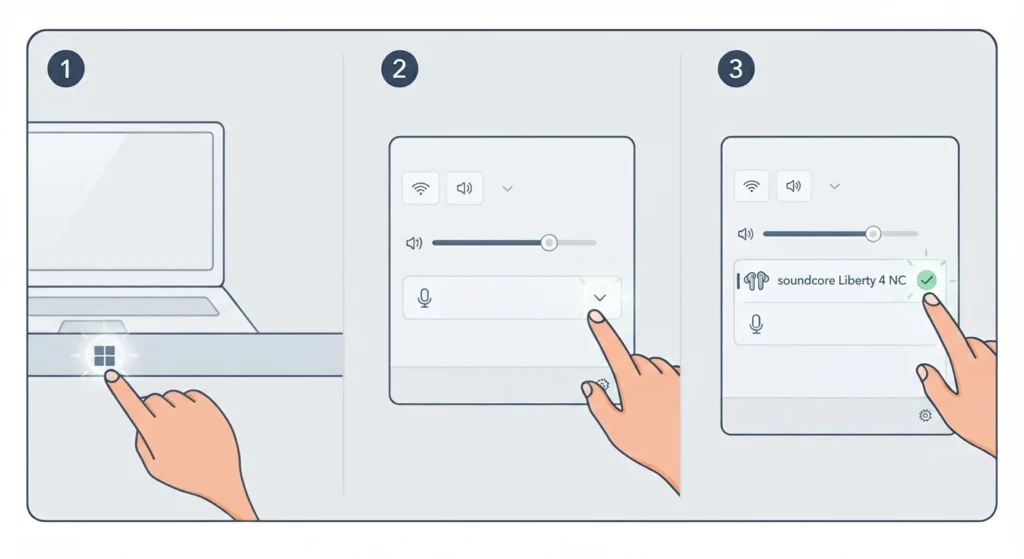
Windows sometimes defaults to the laptop’s built-in microphone even after the earbuds connect. Checking the microphone input device settings resolves most of these cases.
Fix 4: App Cannot Find the Earbuds
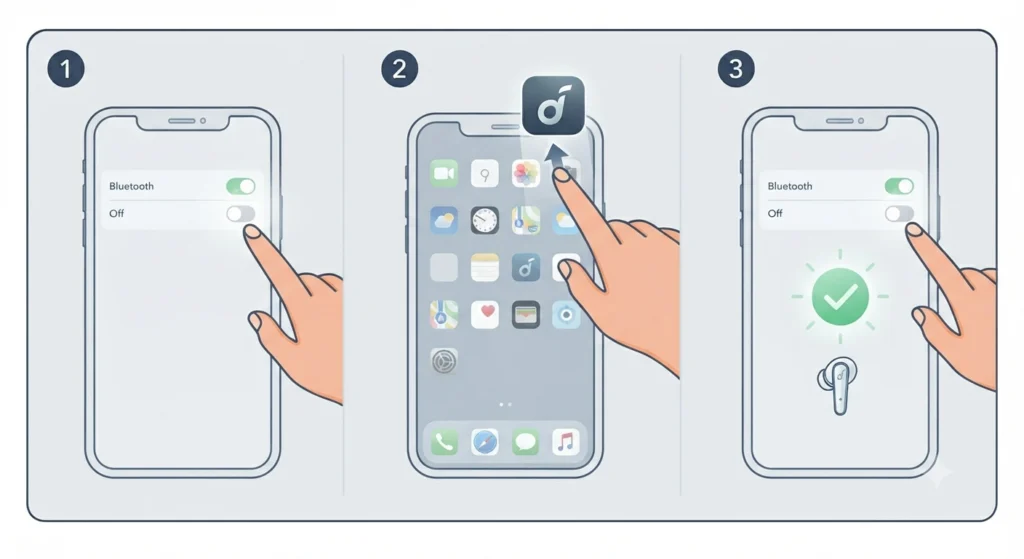
Restarting Bluetooth on the phone, then closing and reopening the soundcore app, solves this in the majority of cases. Reinstalling the app is the next step if the issue continues.
Frequently Asked Questions
How long does the initial setup take?
The entire process, from charging to a completed fit test, usually takes under ten minutes for most users.
Is the soundcore app required to use the earbuds?
Basic pairing and playback work without the app, but the fit test, equalizer, and control customization are only available through it.
What password is needed during pairing?
Most devices connect without a password. If one is requested, entering 0000 or 1234 typically completes the connection.
Can the Liberty 4 NC connect to two devices at once?
Yes. Dual Connections can be enabled through the soundcore app, allowing a switch between a phone and a laptop without repairing each time.
Why won’t the earbuds enter pairing mode automatically?
This can happen if the earbuds have low battery or were not placed back in the case correctly. Charging them for a few minutes before retrying usually fixes it.
Do the ear tip sizes actually affect noise cancellation performance?
Yes, significantly. A loose seal lets outside noise leak in, which reduces how effective the active noise cancellation feels, even with settings turned up.
How does resetting the earbuds affect the setup process?
A reset clears existing pairing information, so the device will need to be paired again from the beginning, starting with opening the case lid.
Can these earbuds be used with a Windows 11 desktop that lacks built-in Bluetooth?
Only if a Bluetooth adapter is connected to the desktop. Once that adapter is installed, standard pairing steps apply.
What should be done if audio settings reset unexpectedly on Windows 11?
Reviewing how to reset audio settings on Windows 11 helps restore the correct input and output configuration without needing to repair the earbuds.
Is a firmware update necessary right after setup?
It is not required immediately, but checking for one early often improves connection reliability and unlocks minor feature updates.